
How to turn off every AI assistant at once
Use the master switch to cut off every connected assistant in one click, without disconnecting any of them. Turn it back on whenever you are ready.
Before you start
- At least one assistant connected
- Access to the AI Assistant (MCP) page in DMpro
Pick the right control
DMpro gives you three ways to limit an assistant:
- The master switch cuts every assistant off at once and leaves them connected.
- What assistants can touch lowers access area by area.
- Disconnect removes one assistant for good.
This guide covers the master switch, the fastest option when you want everything to stop now. Good reasons to use it include a suspicious assistant on your list, a team member who should not have access yet, or simply wanting a pause while you review your permissions.
Nothing about an assistant’s own sign-in changes when you flip the switch, so you can bring everything back with one click.
Open the AI Assistant (MCP) page
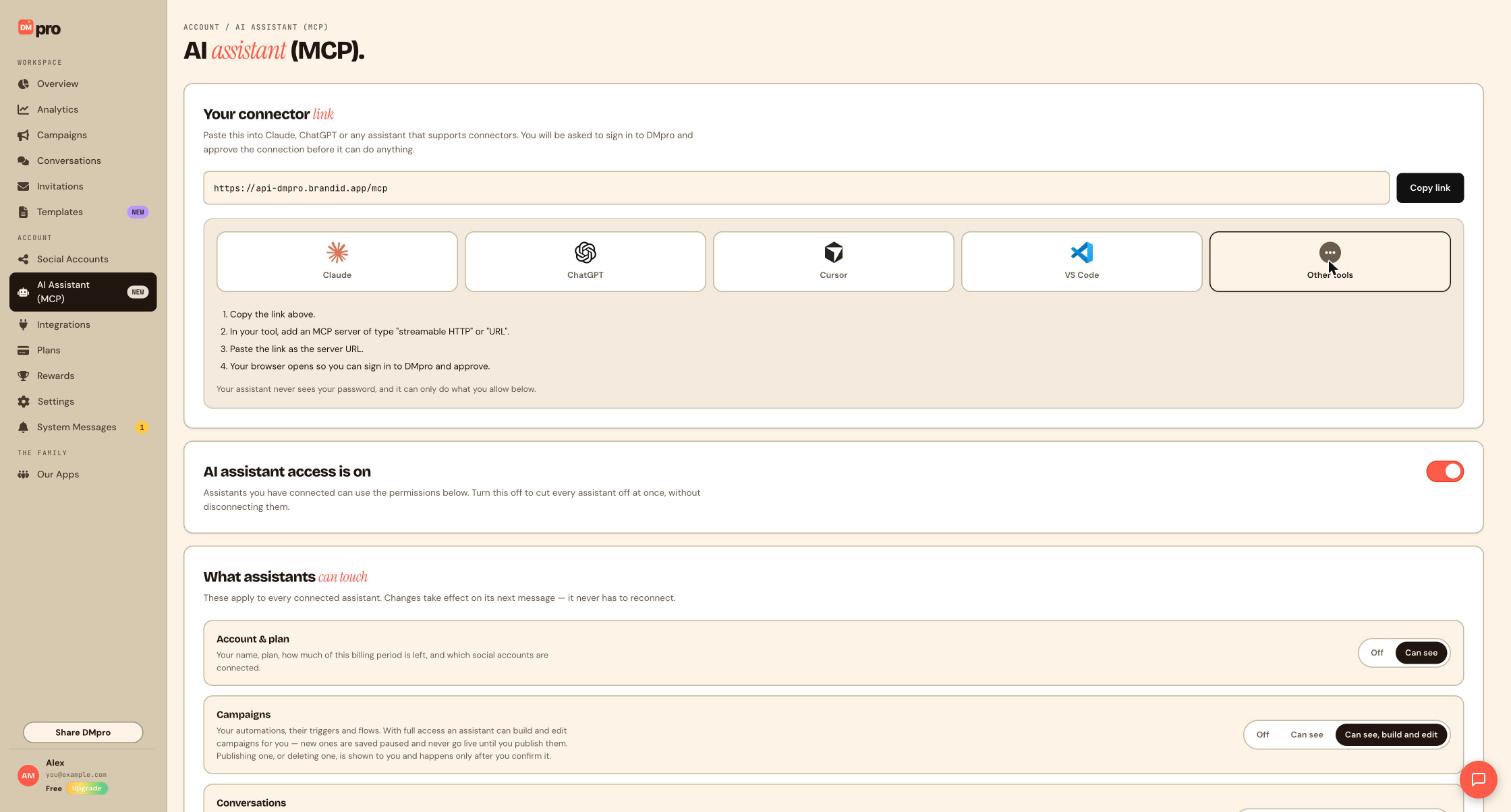
In the DMpro sidebar, under Account, click AI Assistant (MCP). Scroll past the connector tabs to the card headed AI assistant access is on.
Turn the switch off
Click the switch on the right of that card. It says: assistants you have connected can use the permissions below, and turning it off cuts every assistant off at once without disconnecting them.
The change applies to every connected assistant, whether it is Claude, ChatGPT or an editor.
Confirm that assistants are cut off
Reload the page and check the switch is off. Your connected assistants stay listed under Connected assistants, because turning access off does not disconnect them.
If you want proof, ask an assistant a simple question:
What plan am I on in DMpro?It should no longer be able to answer from your account.
Turn access back on when you are ready
Open the same page and switch it back on. Assistants then follow the levels you set under What assistants can touch again, and they never needed to reconnect.
Before you turn it on, review those levels so nothing is switched on that you do not want.
Tips
- Use the master switch if you lose a laptop, share a screen or want a quiet period while you check your campaigns.
- Campaigns that are already live keep running in DMpro. The switch controls assistants, not your automations.
- To stop one assistant for good, use Disconnect instead.
If something goes wrong
I turned it off but an assistant still answered.
Reload the AI Assistant (MCP) page and confirm the switch is off. Assistants pick up the change on their next message, so ask again.
Do I have to reconnect my assistants afterwards?
No. Turning access off does not disconnect them, so they are still listed under Connected assistants.
Related how-to guides
Still stuck? We’re happy to help.
Create your DMpro account, see pricing, or reach out to support directly.




