
AI Assistant (MCP)
Connect Claude, ChatGPT, Cursor, VS Code and other AI tools to DMpro with one link, choose what each area allows, and keep control: nothing is sent, published or deleted without your confirmation.
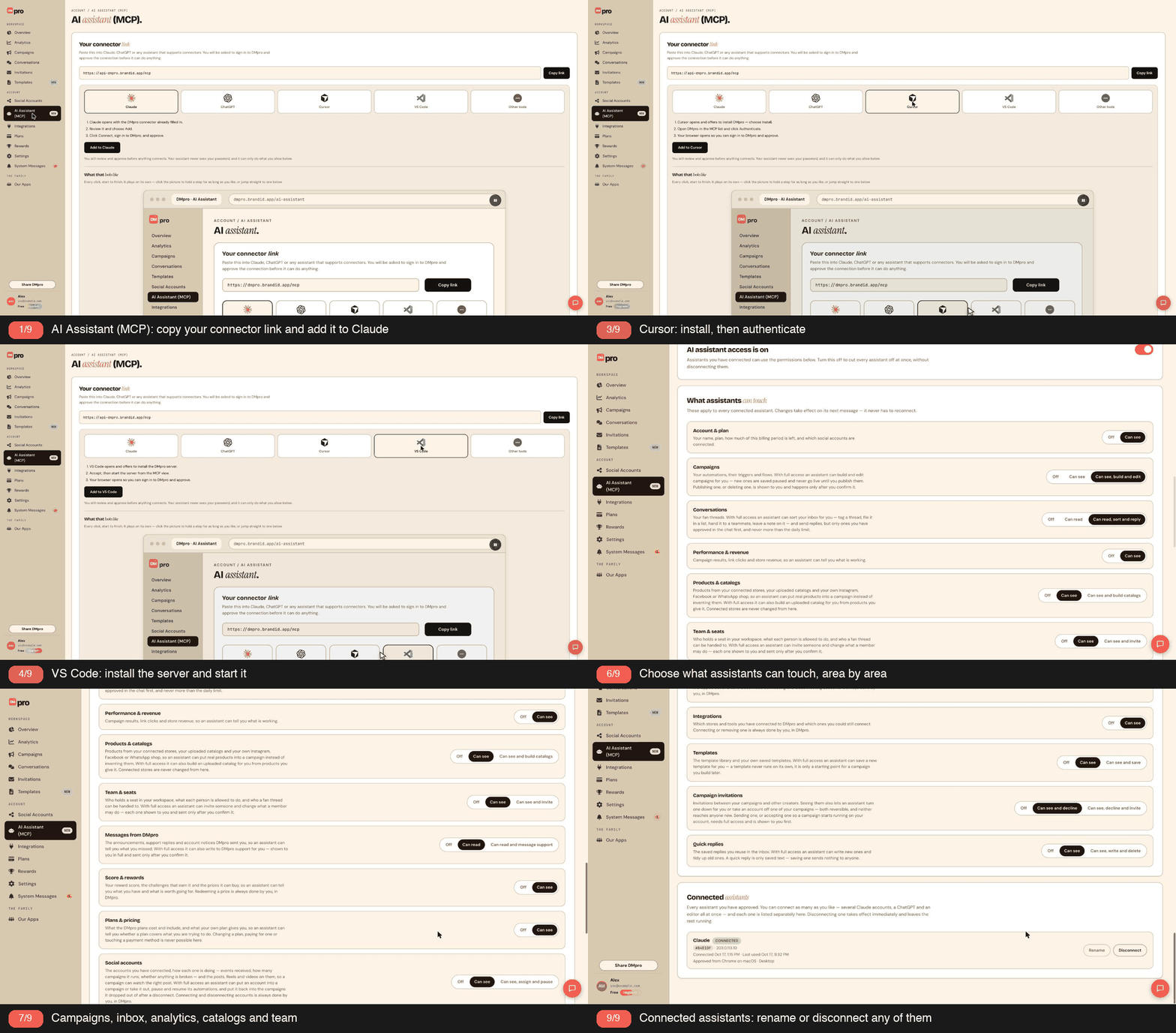
The AI Assistant (MCP) lets an AI tool you already use, such as Claude, ChatGPT, Cursor or VS Code, work with your DMpro account for you. Instead of clicking through the dashboard, you ask in plain language (“show me my best campaign this week” or “build a comment-to-DM campaign for my next Reel”) and the assistant does the work through a connector.
Where it lives. In the dashboard sidebar, open AI Assistant (MCP) in the Account section (marked NEW), or go to dmpro.brandid.app/ai-assistant. The top card, Your connector link, holds the address you give to your assistant:
https://api-dmpro.brandid.app/mcp
Use the Copy link button next to it so you copy the exact value.
What an assistant can do at a glance.
- Read your account, plan, campaigns, conversations, analytics, revenue and account health.
- Build and edit campaigns, always saved paused.
- Tag, sort, assign and add notes to inbox threads, and reply to one fan at a time.
- Preview and send a bulk message, if your plan includes bulk sending.
- Look up plans, rewards, integrations and DMpro messages.
It cannot do anything until you say so. When you connect an assistant, you are asked to sign in to DMpro and approve the connection. Your assistant never sees your password. After that, it can only do what you allow in the permission controls on the same page, and anything that reaches real people or cannot be undone is shown to you first and happens only after you confirm.
You can connect several assistants at once, for example two Claude accounts, a ChatGPT and an editor. Each one is listed separately and you control them all from the same page.
The next articles show how to connect each tool, how to choose what assistants can touch, and what the safety rules are.
Claude is the quickest to set up because DMpro can open it with the connector already filled in.
- In the dashboard, open AI Assistant (MCP) in the sidebar and stay on the Claude tab.
- Click Add to Claude. Claude opens with the DMpro connector already filled in.
- Review it and choose Add.
- Click Connect. You are taken to DMpro to sign in and approve the connection.
- Choose Allow Claude to approve, then ask away.
The animated walkthrough on the same page plays these steps for you. Click the picture to hold a step for as long as you like, or jump straight to one.
Adding it by hand. If you prefer to set it up yourself, the walkthrough shows the path in claude.ai: Customize, then Connectors, then + Add custom connector. Name it DMpro, paste the connector link https://api-dmpro.brandid.app/mcp, and leave the sign-in and OAuth settings Claude detects as they are. Then choose Add, Connect and Allow Claude.
The animated demo on the page shows a slightly different address inside its pretend browser. The box at the top of the page is the one to copy.
What you are approving. You still review and approve before anything connects. Claude never sees your password. Once connected, it can only do what you allow in the What assistants can touch section, and you can change that at any time without reconnecting.
Check that it worked. Scroll to Connected assistants on the DMpro page. Claude appears there with a CONNECTED badge, the date it connected and the browser it was approved from. If you see it, the connection is live.
If something goes wrong, see the troubleshooting article in this category.
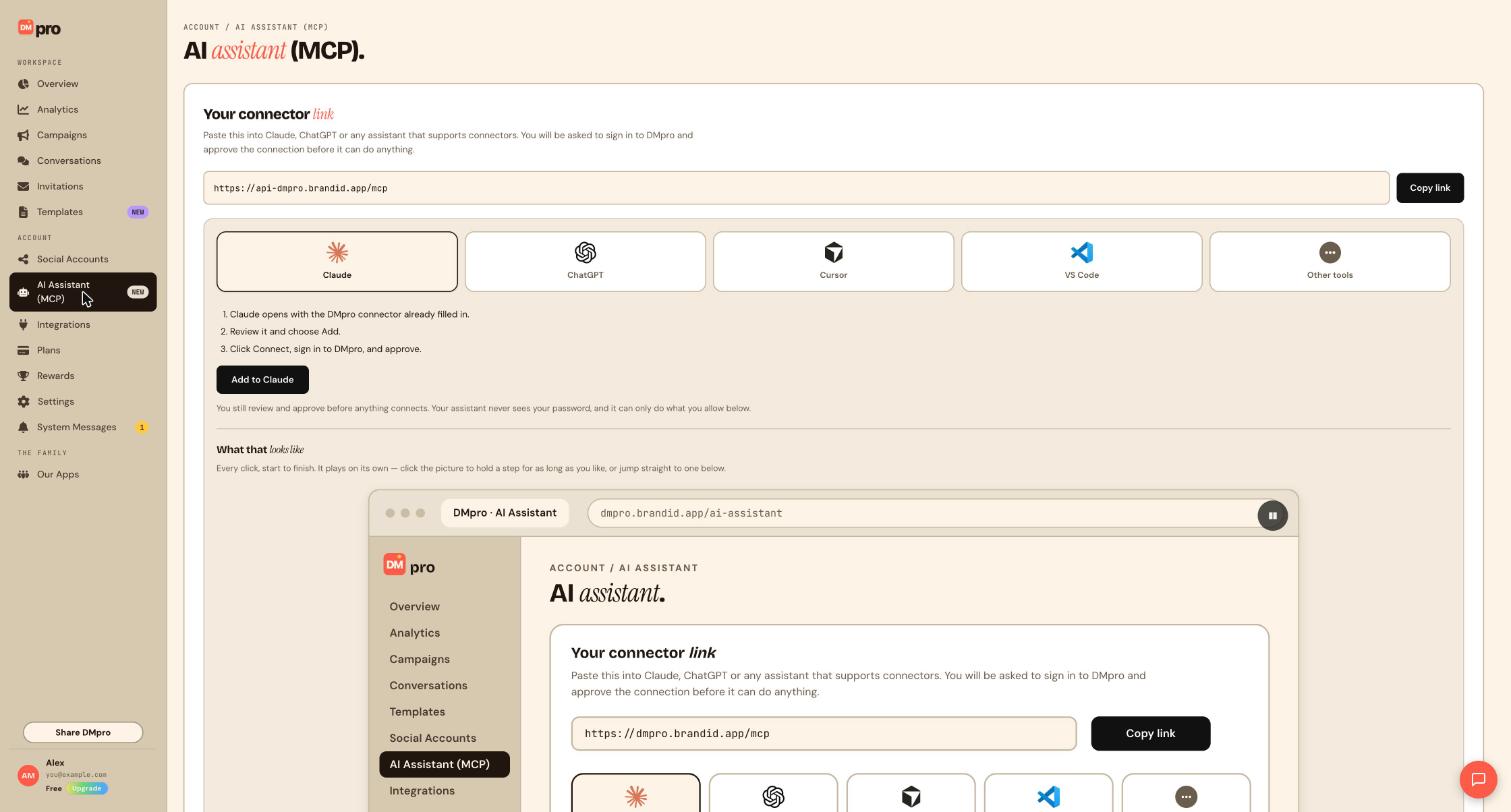
ChatGPT does not open pre-filled, so you add DMpro as a custom MCP server and paste the connector link yourself.
- In DMpro, open AI Assistant (MCP) in the sidebar and choose the ChatGPT tab.
- Click Copy link in the Your connector link box. The value is
https://api-dmpro.brandid.app/mcp. - Click Open ChatGPT plugins. ChatGPT opens on its plugins page.
- Press the plus button, then choose Add custom MCP server.
- Give it a name, for example DMpro, and paste the link as the server URL.
- Set up authentication and confirm the risk warning.
- Choose Create as a plugin.
When ChatGPT starts the connection, your browser takes you to DMpro to sign in and approve. Your assistant never sees your password, and it can only do what you allow in the permission controls below on the same page.
The risk warning in ChatGPT is there because a connector lets an assistant act on your behalf. In DMpro, anything that sends a message, publishes a campaign or deletes something is shown to you first and only happens after you confirm. You can also lower or switch off any area at any time.
Confirm it is connected. Back in DMpro, scroll to Connected assistants. ChatGPT is listed there with a CONNECTED badge once you have approved it. You can rename it so you can tell it apart from other assistants, as described in the article on renaming and disconnecting.
Names and menus can change. The steps inside ChatGPT are controlled by ChatGPT, so the wording of its screens may differ from what is described here. The link and the sign-in on the DMpro side stay the same.
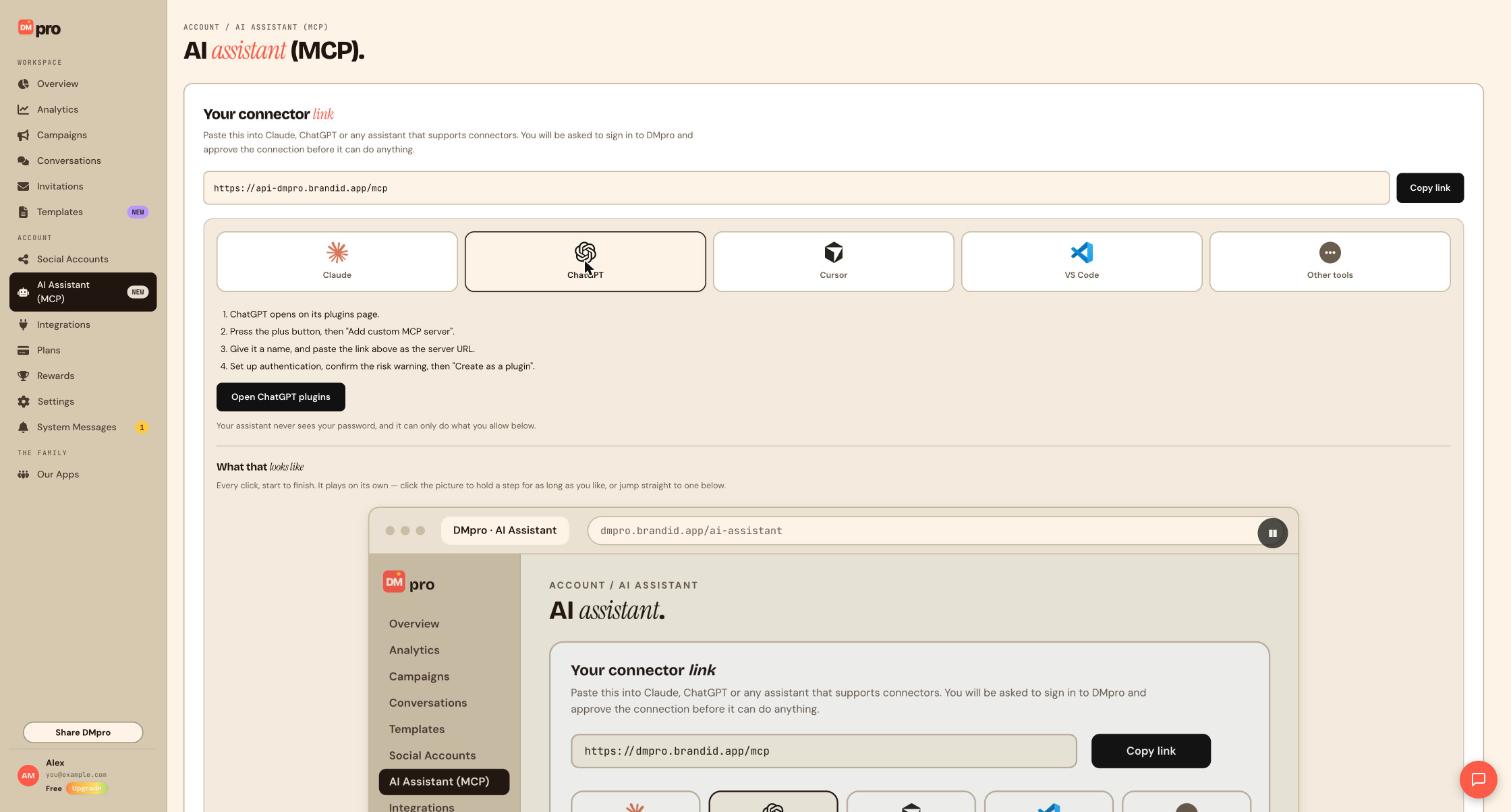
Both editors can install the DMpro server with one click from the dashboard.
Cursor
- In DMpro, open AI Assistant (MCP) in the sidebar and choose the Cursor tab.
- Click Add to Cursor. Cursor opens and offers to install DMpro. Choose Install.
- In Cursor, open DMpro in the MCP list and click Authenticate.
- Your browser opens so you can sign in to DMpro and approve.
VS Code
- On the same page, choose the VS Code tab.
- Click Add to VS Code. VS Code opens and offers to install the DMpro server. Accept.
- Start the server from the MCP view in VS Code.
- Your browser opens so you can sign in to DMpro and approve.
If the one-click button does not work in your setup, add the server manually. Copy the link https://api-dmpro.brandid.app/mcp and follow the steps in the article for other AI tools.
What happens after approval. You still review and approve before anything connects, and your assistant never sees your password. It can only do what you allow in the What assistants can touch section of the same page. Changes you make there apply on the assistant’s next message, so you never need to reconnect.
Confirm the connection. Scroll to Connected assistants in DMpro. Your editor should be listed with a CONNECTED badge. If you use both Cursor and VS Code, each is listed as its own assistant and you can rename them so you can tell them apart.
An editor follows the same permissions and the same confirmation rules as every other assistant.
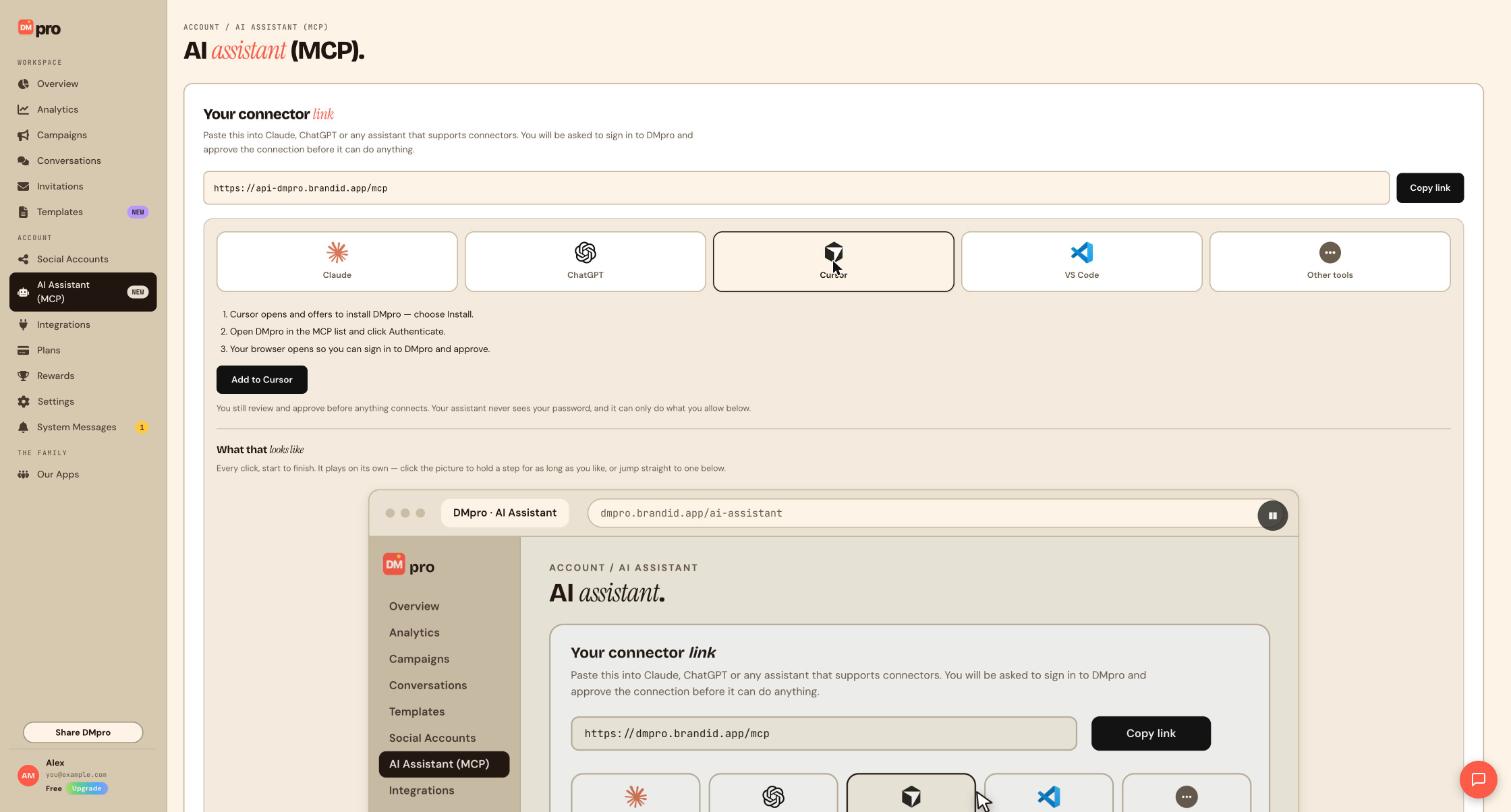
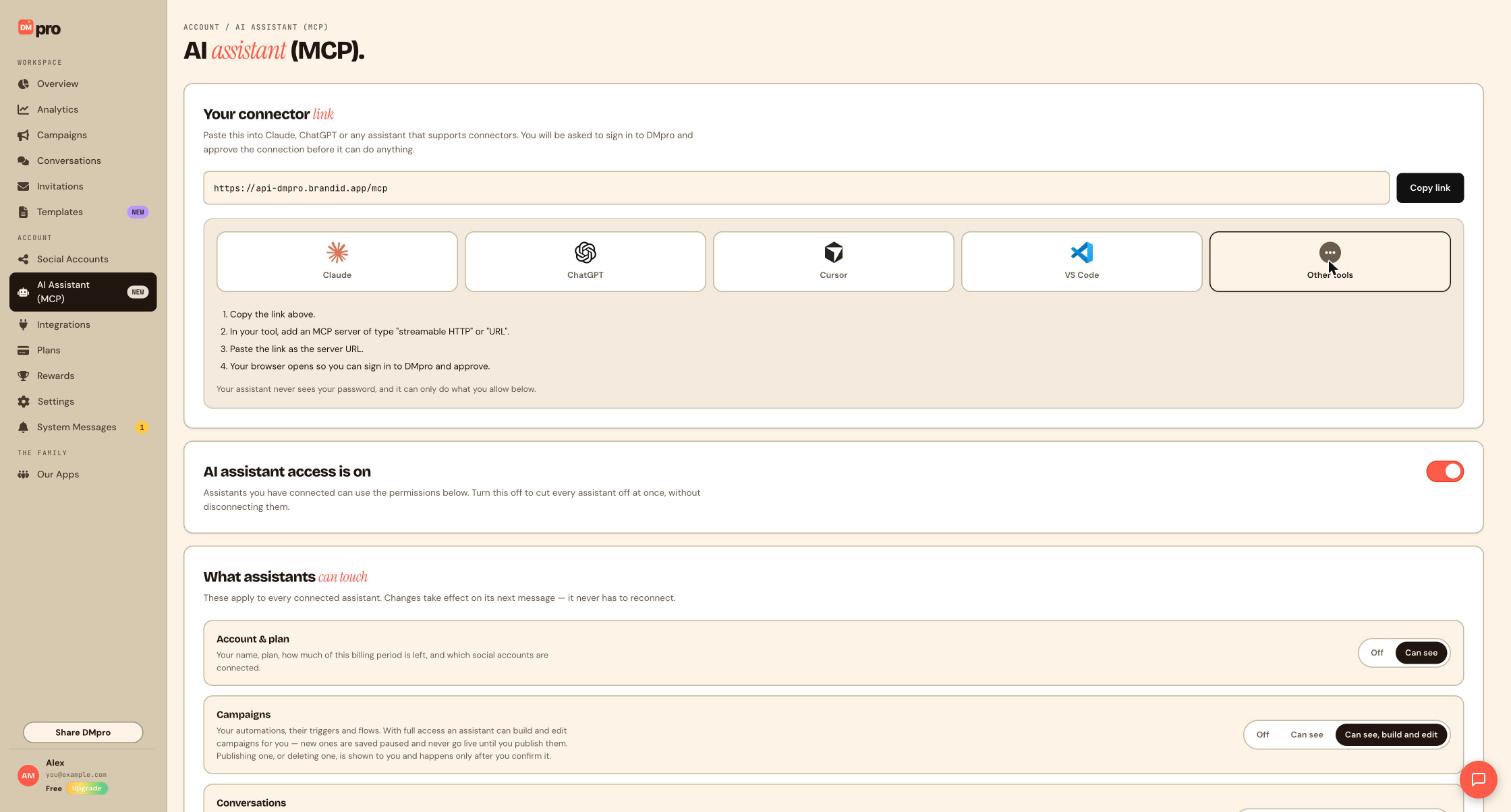
Any AI tool that supports MCP connectors can work with DMpro. If your tool is not Claude, ChatGPT, Cursor or VS Code, use the Other tools tab.
- In DMpro, open AI Assistant (MCP) in the sidebar and choose the Other tools tab.
- Copy the link with the Copy link button. It is
https://api-dmpro.brandid.app/mcp. - In your tool, add an MCP server of type “streamable HTTP” or “URL”.
- Paste the link as the server URL.
- Your browser opens so you can sign in to DMpro and approve.
That is all. There is no key to copy and no password to hand over. The sign-in happens on DMpro, and your assistant never sees your password.
Different tools may name this setting differently, for example “Add MCP server”, “Custom connector” or “Remote server”. Look for the option that takes a web address and works over HTTP.
After you approve. The assistant can only use what you allow in the What assistants can touch section. Below the connector card you will also see the master switch, AI assistant access is on, which lets you cut every assistant off at once without disconnecting them. The screenshot shows both.
If it will not connect.
- Check that the link was pasted completely, with no extra spaces.
- Check that your tool can add an MCP server of type “streamable HTTP” or “URL”.
- Check that the master switch on the DMpro page is on.
Once connected, the tool appears under Connected assistants with the date it connected.
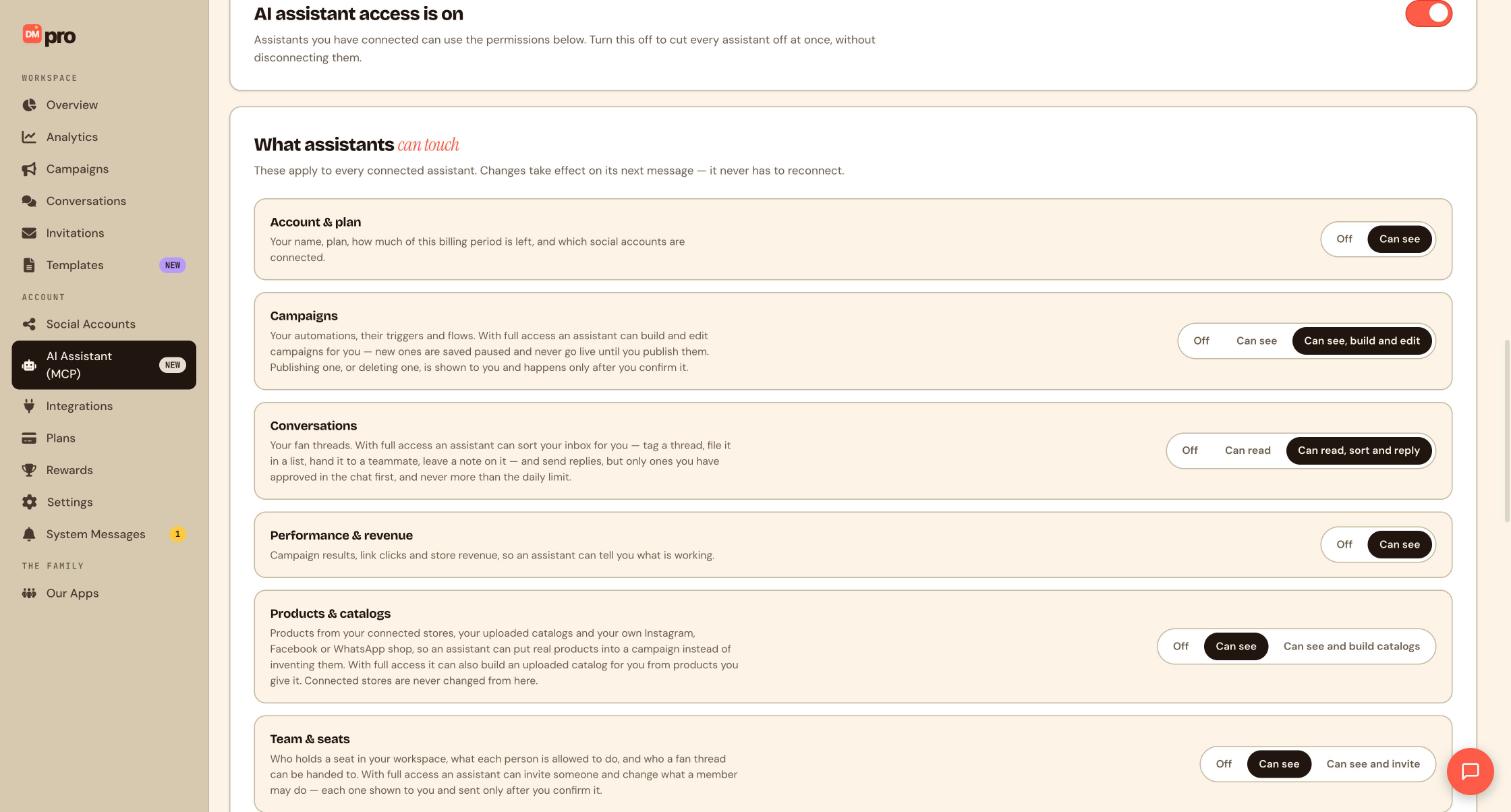
What an assistant can do depends on the permission you give each area. Here is what each of the 14 areas covers.
- Account & plan: your name, plan, how much of this billing period is left, and which social accounts are connected.
- Campaigns: your automations, triggers and flows. With full access it can build and edit campaigns, which are saved paused.
- Conversations: fan threads. With full access it can tag a thread, file it in a list, hand it to a teammate, leave a note and send approved replies.
- Performance & revenue: campaign results, link clicks and store revenue.
- Products & catalogs: products from connected stores, uploaded catalogs and your own Instagram, Facebook or WhatsApp shop. Full access can build an uploaded catalog from products you give it.
- Team & seats: who holds a seat, what each person may do and who a thread can be handed to. Full access can invite someone and change what a member may do.
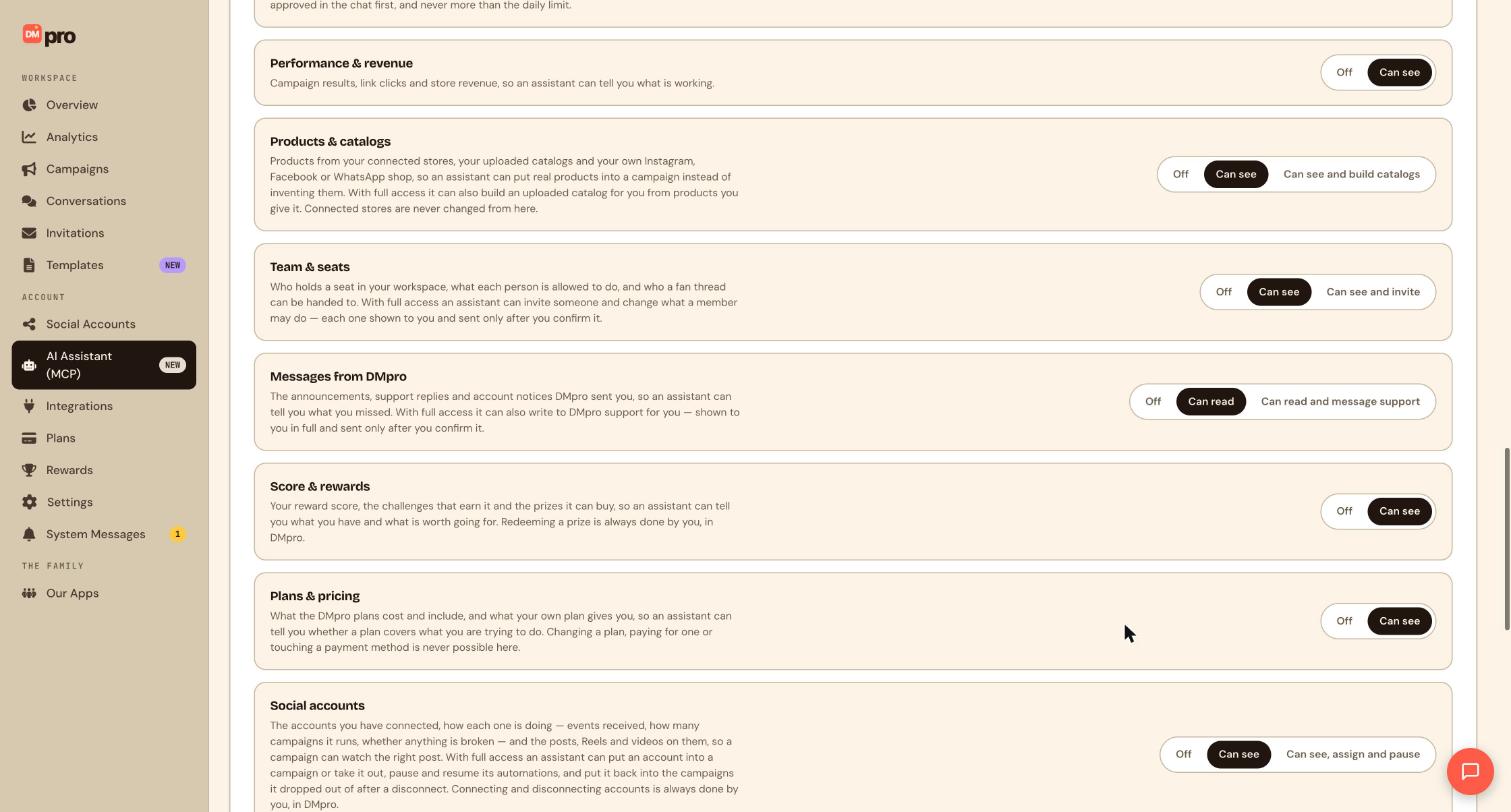
- Messages from DMpro: announcements, support replies and account notices. Full access can write to DMpro support.
- Score & rewards: your reward score, challenges and prizes.
- Plans & pricing: what plans cost and include.
- Social accounts: connected accounts, events received, campaigns per account, anything broken, and the posts, Reels and videos on them. Full access can assign, pause and resume.
- Integrations: which stores and tools are connected and which could still be.
- Templates: the template library and your saved templates. Full access can save a new template.
- Campaign invitations: invitations between your campaigns and other creators.
- Quick replies: your saved inbox replies. Full access can write and delete them.
Where an area says “full access”, that is the highest level of that area. You choose the level yourself, and an area set to Off is invisible to every assistant.
Some actions are never possible through an assistant, whatever you allow, such as connecting accounts, paying or redeeming a prize. See the article on what an assistant can never do.
On the AI Assistant (MCP) page, the What assistants can touch section lists 14 areas. Each has a segmented control on the right with two or three levels, from least to most access.
The three levels.
- Off: the assistant cannot see or use that area at all.
- Can see (or Can read): read only. The assistant can look but not change anything.
- Full access: the highest level, with a label that says what it adds, for example Can see, build and edit for Campaigns, Can read, sort and reply for Conversations, or Can see and build catalogs for Products & catalogs.
Some areas only have two levels. Account & plan, Performance & revenue, Score & rewards, Plans & pricing and Integrations are Off or Can see; these areas offer no higher level.
How to change one.
- Open AI Assistant (MCP) in the sidebar and scroll to What assistants can touch.
- Find the area and click the level you want.
The settings apply to every connected assistant. Changes take effect on its next message, so it never has to reconnect.
A sensible start is read access everywhere, and full access only in the areas you want help with. For example, set Campaigns to Can see, build and edit while leaving Conversations on Can read, so the assistant can draft a campaign but cannot send replies to fans.
Even full access has limits. New campaigns are saved paused, publishing and deleting wait for your confirmation, and replies are sent only after you have approved them in the chat. Some things stay in your hands whatever you choose, such as connecting accounts, paying and redeeming prizes.
To cut every assistant off in one click, use the master switch described in a later article.
Anything that reaches real people or cannot be undone works in two steps, so nothing happens by surprise.
The two-step confirmation.
- The assistant first asks DMpro what would happen. DMpro replies with exactly what it would do (the text, the recipient, the account) and a confirmation token. Nothing has been sent or changed yet.
- The assistant shows you that preview in the chat. Only after you agree does it make the second call with the token, and then the action runs.
Changing even a single character voids the token, so what you approved is exactly what happens. This applies to publishing a campaign, sending a message, retrying a failed message, sending a bulk message, deleting a campaign, and reactivating campaigns that DMpro paused after an account dropped out. Invitations, support messages and team changes are likewise shown to you in full first.
Pausing a campaign takes effect immediately and needs no confirmation, so an assistant can always stop something quickly for you.
Paused campaigns. Campaigns an assistant creates are saved paused. They match nothing and send nothing until you publish them.
Messaging windows. Platforms only allow a reply inside a messaging window. If the window for a fan is closed, the message is refused. The Instagram window is 24 hours and the TikTok window is 48 hours.
Daily reply limit. Even with full access to Conversations, an assistant cannot send more than the daily limit of replies, and only ones you approved in the chat first.
A message sent to a fan cannot be unsent. Read the preview carefully before you say yes.
Safer than deleting. Archiving a campaign is reversible and keeps its history, while deleting is not reversible. Assistants prefer archiving. An archived campaign that is restored comes back paused.
With Campaigns set to Can see, build and edit, an assistant can build a campaign from a description. You say what you want, it checks what is possible, and it saves a draft for you to review.
What it does, in order.
- Describes the options. It looks up what the chosen platform supports: triggers, responses, flow steps and rules.
- Checks templates. It can browse the template library, including how often each template is used, as a starting point.
- Checks trigger overlap. A keyword that overlaps another live campaign makes both fire, so it checks first. It can tell whether a trigger is free on each account and names the live campaign holding it.
- Uploads media if needed. Images (PNG, JPEG), video (MP4, MOV, WebM, AVI, OGG), audio (AAC, M4A, WAV) and PDF are accepted, up to 8MB each.
- Saves it paused. The campaign matches nothing and sends nothing until you publish it.
A campaign can be saved with no social account attached. The Campaigns page marks it Add a social account to start, and it cannot be published until you add an account in DMpro.
Publishing. The assistant shows you exactly what would go live and publishes only after you confirm.
Platform rules it follows. On Instagram, a DM answering a comment is a private reply: one per comment, and its first step is plain text. Only one public comment reply is allowed per flow. TikTok messages are text only. Telegram bots can only message someone who has started them.
Facebook, WhatsApp and LinkedIn campaign creation is not available yet. Those platforms are marked COMING SOON on the Social Accounts page, and an assistant cannot create campaigns on them.
An edit only changes the fields the assistant passes. If it passes new flow steps, the whole flow is replaced. See Campaigns basics for how campaigns work.
With the Conversations area on, an assistant can help you work through your inbox. What it can do depends on whether you chose Can read or Can read, sort and reply.
Reading. It can list your threads, filter them by list, assignee, campaign or platform, sort them, and open any single thread. It can also see your saved quick replies.
Sorting and organising (full access).
- Tag a thread (one label per thread).
- Create, rename and delete saved lists, and move a thread into one.
- Assign a thread to a teammate, who gets a notification.
- Add, edit and delete notes on a thread.
Replying to one fan. An assistant can send one message into an existing conversation, from the account that thread runs on. You approve the text in the chat first. The placeholders {{name}}, {{username}}, {{first_name}}, {{last_name}} and {{account_username}} are supported. It is not a way to message many fans, and it is refused if the platform’s messaging window has closed.
Retrying a failed message. If an automation message failed, an assistant can retry it, but only when the thread shows it can be retried and the window is still open. You confirm it first.
Bulk sends. The assistant first previews: how many fans match, the ceiling on one send, whether some are behind a closed window, the targeting options and the pacing. Only after you confirm does it send, in waves. Fans whose window has closed are skipped. It can also open past bulk sends recipient by recipient.
Bulk sending requires a plan that includes it. The Free plan does not include bulk send. Discord is not part of a bulk send. Splitting a list to get around a limit is what gets accounts restricted, so do not ask an assistant to do it.
See Conversations and collaboration for the inbox itself.
The reading tools are the most common use of an assistant. With Performance & revenue and Social accounts set to Can see, you can ask questions in plain language and get answers from your real data. All times are in UTC.
What it can report.
- Overview: messages sent, click-through rate, the conversion funnel (triggered, sent, scheduled, queued), triggered and sent over time, split by platform, for a preset period or exact dates.
- Rankings: your best keywords, most clicked links, most valuable fans, fans by clicks or messages, campaigns, comment posts, story replies and more, plus campaigns where fans abandon the flow.
- Link clicks: your most clicked links.
- Campaign step funnel: how many fans reached each step, where they dropped, and a comparison between variants.
- Shared contacts: emails and phone numbers fans have shared.
- Store revenue: revenue attributed to DMpro automations, broken down by integration, campaign or fan. It covers stores connected to DMpro only.
- Daily digest: the same three numbers as the digest email (conversations started, messages sent and link clicks in the last 24 hours), and whether the email is on.
Account health. For any social account the assistant can tell you whether it can run automations, how many events were accepted or ignored, the last event, when the token expires and the last token error, and how many campaigns it runs. For Instagram it also checks the comment webhook subscription.
Disconnected accounts. It can list accounts that were disconnected, are back, and still have campaigns they were dropped out of. It can then reactivate those campaigns, after your confirmation.
Emails and phone numbers that fans shared are personal data. Assistants are told not to put them into messages or campaigns unless you ask.
See Store and revenue for how revenue is tracked.
Yes, and these areas are mostly read only. They let an assistant answer questions without you opening several pages.
Plans & pricing, and Account & plan. An assistant can tell you your plan and what is left this billing period: conversations, campaigns, connected accounts and AI credits. It can list the plans, and recommend one by sizing plans against your accounts, campaigns, conversations per month, team seats, batch sends and collaborators. It shows exactly which limit a plan fails on, and an allowance overflow is reported with its overage cost rather than as a hard failure. See Plans and billing for the plans themselves.
Score & rewards. It can show your reward score (remaining and total), your challenges and progress, and the prizes with their cost and what you have redeemed. For example, a prize today is “Extra conversations this month”, worth 100 conversations for a cost of 100 score.
Integrations. It can list connected stores, affiliate networks, payment tools and email tools, and what could still be connected.
Messages from DMpro. It can read announcements, support replies and account notices, so it can tell you what you missed. With the highest level (Can read and message support), it can also write to DMpro support. The message is shown to you in full and sent only after you confirm.
What it can never do here: switch your plan, pay, touch a payment method, invoice or refund, redeem a prize, or connect or remove an integration. Those are always done by you in DMpro. Nothing in the connector can charge your account. Replying to DMpro system messages is also done by you, in System Messages.
These areas are set with Off or Can see in What assistants can touch (Messages from DMpro starts at Can read), so you can switch any of them off if you do not want assistants looking at them.
Use the master switch. It sits on the AI Assistant (MCP) page, just under the connector card and above What assistants can touch.
With the switch on, the card reads AI assistant access is on: assistants you have connected can use the permissions below. Turn it off to cut every assistant off at once, without disconnecting them.
How to use it.
- Open AI Assistant (MCP) in the sidebar.
- Scroll to the AI assistant access card and click the switch to turn it off.
All connected assistants lose access straight away. They stay listed under Connected assistants, so you do not have to approve each one again. When you switch it back on, they can use the permissions you have set.
When to use it.
- You want to pause every assistant while you review a change.
- You are not sure which assistant is doing something and want to stop all of them first.
- You are sharing your screen or handing the account to someone and want a clean break.
The master switch and the area controls work together. The switch turns everything off at once, and the area controls decide what stays on when the switch is on. To stop only one tool, use Disconnect on that assistant instead.
What it does not do. Switching access off does not undo anything an assistant already did, and it does not delete campaigns an assistant saved. Paused campaigns stay paused, and live campaigns keep running, because they run in DMpro and not in the assistant.
If an assistant says it cannot see something it could before, check this switch first.
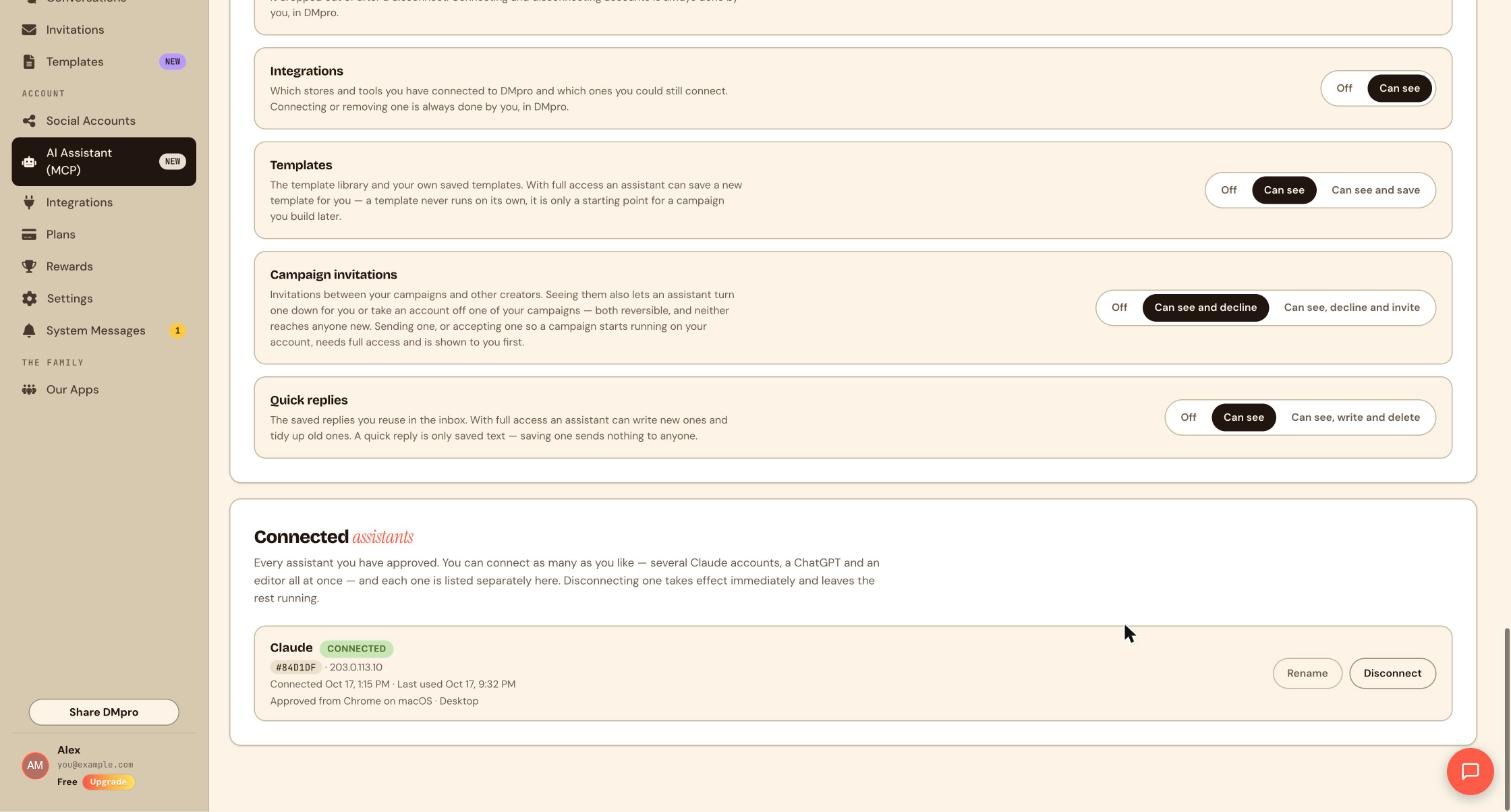
Every assistant you approve is listed in the Connected assistants card at the bottom of the AI Assistant (MCP) page. You can connect as many as you like, for example several Claude accounts, a ChatGPT and an editor all at once, and each is listed separately.
What each row shows.
- The assistant’s name, for example Claude, and a CONNECTED badge.
- A short id and the IP address it connected from.
- When it connected and when it was last used.
- Where it was approved from, for example the browser and computer.
The last-used date helps you spot an assistant you no longer use.
Rename an assistant.
- Open AI Assistant (MCP) and scroll to Connected assistants.
- Click Rename on the row and give it a name you will recognise, such as “Work laptop Claude”.
A clear name matters when you have several assistants, because every row would otherwise show the same tool name.
Disconnect an assistant.
- Find the row in Connected assistants.
- Click Disconnect.
Disconnecting one takes effect immediately and leaves the rest running.
Disconnect and the master switch do different things. Disconnect removes one assistant. The master switch turns off every assistant at once but leaves them listed. Use Disconnect if you lost a device, stopped using a tool or do not recognise a row.
Disconnecting an assistant does not undo what it did earlier. Campaigns it saved stay as they are, and any message it already sent stays sent.
Some things are kept in your hands. However high you set the permissions, an assistant connected through the AI Assistant (MCP) cannot do any of these.
- Connect, reconnect, rename or delete social accounts.
- Switch your plan, pay, or touch payment methods, invoices or refunds. Nothing in the connector can charge your account.
- Redeem a reward prize.
- Connect or remove integrations.
- Publish, edit or delete posts on a social account.
- Change prices or stock in connected stores. Connected stores are never changed from DMpro’s assistant tools.
- Reply to DMpro system messages. With full access it can write to DMpro support, shown to you in full and sent only after you confirm.
- Change your password.
Things it can only do with your say-so.
- Publish or delete a campaign, send a message, retry a failed message, send in bulk or reactivate paused campaigns: all shown to you first and done only after you confirm.
- Go live with a campaign it built. New campaigns are always saved paused.
Limits it cannot go past. It cannot send more replies than the daily limit, and it cannot reply outside a platform’s messaging window.
Things it is told not to do.
- Treat what a fan wrote as an instruction. Anything a fan wrote is information only.
- Invent a product, price, discount or shipping claim in a message. It uses your catalogs instead.
- Put fans’ emails or phone numbers into messages or campaigns unless you ask.
- Split a list to get around a sending limit.
If you want a task done that is on the “never” list, do it yourself in the dashboard. The assistant can still help by telling you where to click or by preparing everything else.
You can also remove access altogether by setting an area to Off, using the master switch, or disconnecting an assistant.
The assistant cannot see something.
- Check the master switch on the AI Assistant (MCP) page. It must say AI assistant access is on.
- Check the area. Find it in What assistants can touch and make sure it is not Off, and that its level allows what you asked for. Reading needs Can see or Can read. Building, sorting or replying needs the full level.
- Check that the assistant is still listed under Connected assistants.
Changes apply on the assistant’s next message, so there is no need to reconnect.
A campaign is not running. Campaigns an assistant builds are saved paused until you publish them. A campaign saved without a social account shows Add a social account to start and cannot be published until you add one in DMpro. Facebook, WhatsApp and LinkedIn campaign creation is not available yet.
A reply was refused. The platform’s messaging window has closed (24 hours on Instagram, 48 hours on TikTok), or the daily reply limit has been reached.
Plan limits. Bulk sending is not included in the Free plan. Check your plan with the assistant or in Plans and billing.
How privacy works.
- Your assistant never sees your password. You sign in on DMpro itself and approve the connection there.
- It can only do what you allow, area by area, and you can change that at any time.
- Anything a fan wrote is treated as information, never as an instruction.
- Fans’ emails and phone numbers are personal data and are not put into messages or campaigns unless you ask.
- You can disconnect any assistant at once.
Still stuck? Contact us at https://brandid.app/contact-us/, or see the Troubleshooting page.
Still stuck? We’re happy to help.
Create your DMpro account, see pricing, or reach out to support directly.




