
What’s New: The September 2026 Redesign
A tour of the September 2026 extension redesign for returning users, covering the new interface, AI writing tools, and safety features.
Latest updates
October 16, 2026AI Assist, passwords, AI auto-recharge, contactID 3.8.8
- Setting or changing your password now signs you out on every other browser and device, the contactID extension there included; the browser you used stays signed in. Resetting a forgotten password signs you out everywhere. (7.7, 10.2, 10.4, 10.5)
- AI auto-recharge: one charge at a time; an optional daily cap (at least one recharge) pauses it until tomorrow (midnight UTC); you can pause it until a date you choose; it turns off after 3 declined charges in a row. (8.10)
- AI Assist: more requests wait for your approval: many websites added to a run that is sending, a new reply-to email while sending, taking websites off your do-not-contact list, and deleting the copy of your Send lists. “Asks you first” is the app asking you in the chat: contactID cannot see your chat, so what it enforces itself are your limits and approvals. (18.1, 18.5, 18.6)
- While an AI app may see your Send lists, a copy of them is kept in your account; it stays after the app is gone until you delete it (Settings, Sync & AI access). A run you say yes to uses your AI balance for AI personalization like your own sends, so an automatic top-up can charge your card as usual. What contactID keeps about AI apps, and for how long. (14.1, 18.1, 18.5, 18.10, 18.14)
- An app that returns to a program on your computer is marked Known app (Known app on this computer on the AI Assist page). (18.5)
- contactID 3.8.8: AI apps’ requests reach your computer without opening the side panel (about every 30 seconds while an app is connected; opening the side panel or starting Chrome checks at once). An agent an AI app changed shows in the Agent tab within about a minute, without reopening contactID; with unsaved edits, a note offers the new version. (2.5, 3.8, 18.9, 18.13)
- AI models: OpenAI retires GPT-4o, GPT-4o Mini, GPT-4 Turbo and GPT-3.5 Turbo, and Google retired Gemini 2.0 Flash, 2.0 Flash-Lite and 2.5 Pro. The models offered now are GPT-6 Luna (the new default) and GPT-6.1 Sol from OpenAI, the Claude models, and Gemini 3.6 Flash and 3.1 Flash-Lite from Google. An agent still set to a retired model is written with its replacement, at the replacement’s price: GPT-4o Mini and GPT-3.5 Turbo with GPT-6 Luna, GPT-4o and GPT-4 Turbo with GPT-6.1 Sol, Gemini 2.0 Flash and Flash-Lite with Gemini 3.1 Flash-Lite, Gemini 2.5 Pro with Gemini 3.6 Flash. A typical AI message on the default model now costs about $0.0003. Claude Opus 4.7 is now billed at its listed price ($5 / $25 per million tokens). (5.1, 5.5, 5.7, 5.9)
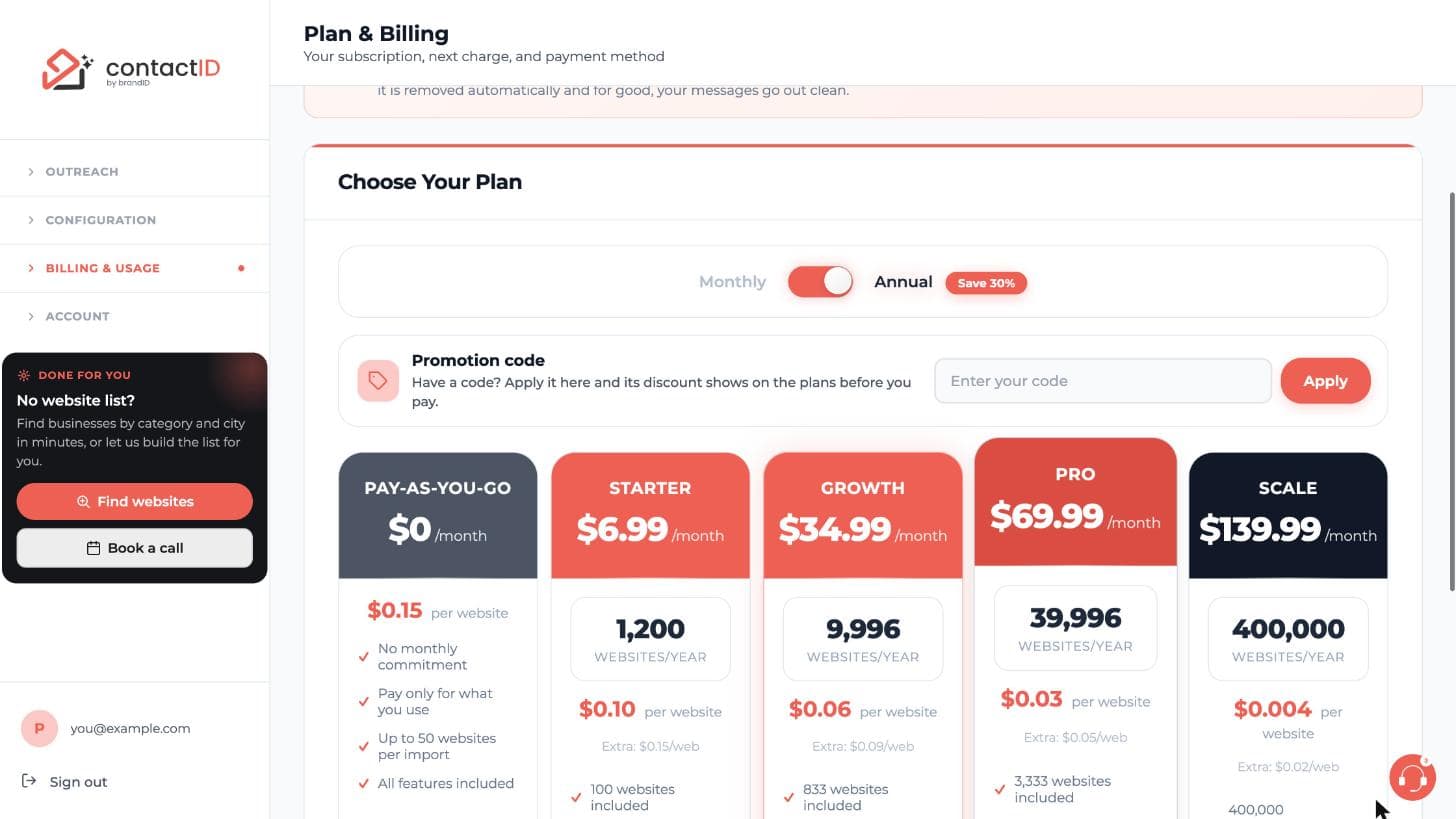
- Promotion codes: the Promotion code box is always open in the dashboard’s plans, under the Monthly / Annual switch (the “Have a code?” link is gone). One code can give different offers (for example 25% off a first month on monthly plans and 50% off a first year on annual plans); each plan card shows its price with the code. Stripe’s payment page has no box for codes: while a promotion runs, it says above the Pay button how to go back and enter one, and the page you come back to takes the code. (8.11, 9.1)
- A monthly plan can move to annual billing on the dashboard: with Annual on, your plan’s card shows Switch to annual. The first year is charged at once to the card on your subscription, less the unused time of your month (credited at what you paid for it); if the card is declined, nothing changes. A code for moving to yearly billing can go with it. (8.2, 8.4, 8.11, 9.1)
- Sending with the side panel closed (a run an AI app starts): contactID keeps working in the background until the run ends, and a slow site’s answer is read as soon as its page’s text is there, up to 5 minutes after the submit. A send that stayed “processing” with the site’s confirmation on screen is now recorded, and a send recorded Sent, not confirmed while the site was still answering becomes Sent when the site’s answer shows its confirmation. If contactID or Chrome stops in the middle of a send, or you press Stop or close its tab, a website already sent is never sent again (Sent, not confirmed). (7.2, 18.9)
- Dashboard sidebar: a group you opened by pointing closes as soon as you rest on another group, above or below it. A group you open with a click stays open until you click its name again or click anywhere else, and is no longer kept for your next visit. Groups open and close more smoothly. (1.7)
October 15, 2026Settings on the dashboard
Settings is now a page of the dashboard. The articles below already say where things are now; this list says what changed.
- Settings in the extension’s account menu opens the Settings page on the dashboard (Configuration, Settings in the sidebar). The page shows and changes the settings of contactID in the browser it is open in: each computer keeps its own, so open it in the Chrome where contactID is installed and signed in to the same account. Nothing changes until you press Save; then contactID uses the new settings at once. With an older version of the extension, Settings still opens inside the extension until Chrome updates it. (2.1, 6.3)
- The page’s sections: Sending pace, Targeting (called Which websites to contact before; Do not contact is in it too), Required questions, Form display, Captcha & proxy, Sync & AI access (the copy of your Send lists in your account, and “Let AI apps use contactID on this computer”) and Advanced (Websites checked at once, Forms filled at once, called Form Filling Concurrency before, Tab close delay, and Export or Import settings). (2.1, 4.4, 6.3, 13.10, 18.9)
- A captcha key of your own is never shown again once it is saved: the page says a key is saved, with its last 4 characters, and you can replace or remove it. (6.5, 6.9, 13.3)
- The dashboard sidebar is grouped under Outreach, Configuration, Billing & Usage and Account. A group opens when you point at its name; click the name to keep it open. (1.7)
- The extension’s Setup tab shows an AI Assist (MCP) card under Go to Send until an AI app is connected or you hide the card. (18.1)
October 13, 2026AI Assist
AI Assist is new: connect Claude, ChatGPT, Claude Code, Codex, Cursor, VS Code, Windsurf, Gemini CLI or another AI app to your contactID account and ask it, in your own words, to find businesses, prepare your lists, Agents and messages, and send. Changes to your own things happen right away (Undo for 30 days), anything that reaches people or spends credits asks you first, and high-impact requests wait for your approval on the AI Assist page. (18.1 to 18.14, new category)
- The extension’s Settings has a new section, AI apps on this computer, with the switch “Let AI apps use contactID on this computer” (on by default). (2.1, 18.9)
- New emails: “New AI app connected to contactID”, the code to confirm it is you when you connect an app, and approval requests. (12.1)
- What contactID keeps about AI apps and their requests. (14.1, 18.14)
- Setting, changing or resetting your password ends every AI app connection. (10.2, 18.11)
- In the dashboard sidebar the page is called AI Assist (MCP). MCP (Model Context Protocol) is the open standard AI apps use to connect to contactID. (18.1)
October 9, 2026contactID 3.7.0 to 3.8.5
How forms are filled, and when a website counts as sent, changed in 3.7.0 to 3.8.5. The articles below already say what the product does now; this list says where.
- contactID never makes up a value. A field gets your agent’s detail, your message, or a usual honest answer (“Online search” for “How did you hear about us?”, a general inquiry or Other in a topic list, “No” to a newsletter). The old sample values (555 numbers, “contactID”, “Test Value”, a list’s first option) are gone. (3.1, 7.2, 13.2, 13.14, 16.5)
- A form that requires an answer your agent does not have (a budget, a service, an order number) skips that website before anything is sent: no credit is used and the reason names the question. Settings > Required questions can answer such questions neutrally instead. (13.19, new article; 2.1, 3.1, 7.2, 13.2, 13.10, 13.12, 13.14, 16.5)
- Answer such a question once: the Send tab lists it under “Fields we could not fill”, with the choices the websites offer. contactID uses your answer on every website that asks the same question, and “Send again” sends the websites that were skipped for it. Answers are kept for each agent in your browser and listed on the Agent tab under “Answers to form questions”. A number of one website’s own records (an order, invoice or booking number) and a list you type in are never answered once. (7.2, 13.14, 13.19, 14.1)
- A message that still holds a tag ({{city}}, {Opener}, {company} in single braces) is not sent and costs nothing; the reason says what to fix. (4.2, 4.10, 5.3, 7.2, 13.7)
- A message longer than the form allows is shortened at the end of a sentence, keeping your last link and the signature when they fit. (7.3)
- Blog comment forms, search boxes, login forms and newsletter signups are never filled. (7.2, 13.10)
- A form is submitted once: contactID never clicks a second time or forces a second submit. Two exceptions each allow one more submit, never a third: when the site refuses a field and says why, and contactID can correct it truthfully (your phone number written the way the site asks, your message shortened at a sentence to the length it names, a box the site requires that the form did not mark), it corrects the field and submits again; when the site rejects the captcha’s answer, contactID solves the captcha once more and submits again. Otherwise the reason names the field in the site’s own words. (6.9, 7.2, 13.15)
- A credit is used only for a send the site confirmed (a thank-you message or page after the submit, or the form plugin’s own answer). A form that was submitted with no error but no confirmation either shows as “Sent, not confirmed” and costs nothing; a confirmation that appears a few seconds later still counts. (1.1, 4.5, 4.7, 6.2, 6.4, 6.5, 7.1, 7.2, 8.8, 13.15)
- A page address counts as a confirmation only after contactID submitted the form, and only when the confirmation words are new; addresses in your list that already carry them (for example ?contact_posted=true) are cleaned on import. (13.15)
- Captchas are always solved automatically, with your own 2Captcha or Anti-Captcha key or through the contactID server. The Manual captcha mode is gone: every website is filled in a background tab, so nothing waits for you. (6.5, 6.9, 7.3, 13.3)
- A form’s spam question is answered: a sum (“What is 3 + 4?”, the math captchas of WPForms, Divi and Captcha by BestWebSoft) on the page, any other question (“What color is the sky?”) by contactID’s AI from the question’s text alone, or with the answer you gave once. A question only the website can answer (“What is the name of our dog?”) skips the website before anything is sent, with the question in the reason; no credit is used. Another required one the AI cannot answer for you, you can answer once under Fields we could not fill on the Send tab; an optional one is left empty and the form is sent. (6.9, 13.2, 13.15)
- Picture captchas (“type the letters you see”: Really Simple CAPTCHA in Contact Form 7 and Gravity Forms, Securimage, SI CAPTCHA) are read by the captcha service, with your own key or through the contactID server, and the letters are typed, on any page of a Gravity Forms form. A picture that cannot be read, or a sum drawn as several pictures, skips the website before anything is sent. (2.4, 6.9, 13.3)
- Each captcha on a page is solved once: a Turnstile, hCaptcha or reCAPTCHA that a page shows twice (in a second form, say) used to be solved twice. A captcha whose answer the site rejects is solved once more, and the form submitted again. (6.9)
- When a Contact Form 7 form checks visitors with reCAPTCHA v3 and answers that the message is spam, the reason says so. (13.3, 13.15)
- contactID leaves alone what is not its to fill: a box whose label says to leave it blank, a disabled box, a read-only box the site already filled, and a value the site put in a field your agent has nothing for. (13.2)
- A form plugin’s own error box (Gravity Forms, WPForms, Elementor and others, in any language), a firewall that blocks the post (Cloudflare, Sucuri, Wordfence, ModSecurity) and an HTTP 4xx answer to the post (such as 403, 406 or 429, or a 404 or 405 from a form that is not connected to anything) mark the website Failed with the reason, and no credit is used. A server error answer is Sent, not confirmed. (6.5, 13.15)
- Country lists are read in the page’s language (“Deutschland”, “Vereinigtes Königreich”) and by country codes. A list without your country is named in the reason (“has no choice for your country”); another country is never picked. On the Send tab you can pick once the choice that says your country (England for the United Kingdom); it is used for that country only. (13.14, 13.19)
- State and province lists take your agent’s state by its code or its name (“CA” and “California”, “NSW” and “New South Wales”, “Genf” and “Genève”), read in your agent’s country; a choice that only holds the same letters is never taken (3.8.4 could send “American Samoa” for CA). A list of another country’s states gets its “Outside the US” or “Other” choice when the form requires an answer, and a two-letter state box gets the code (“NY”). An agent in Puerto Rico or Guam is read in the US list; “New York, NY” and “Tex.” are read too. A choice that is also a country (“Georgia”) is your agent’s state only by its whole name; in a list that is mostly countries, only next to another of that country’s states or when the list holds 20 or more of them, and when it is offered twice, the one among the states is taken. When the form requires an answer, a list of states that names a few countries too gives your agent’s country when it has no choice for the state (never a state with the country’s name); a long list that is mostly countries (30 choices or more) is filled like any country list. (13.14)
- Importing skips a page whose only form is a blog comment form, a search box, a login form or a newsletter signup, and goes on to look for the contact page. (13.10)
- Spintax: write {Hi|Hello|Good day} in the message or the subject and each website gets one choice; the preview on Targets shows the message it gets. (3.4)
- Settings > Do not contact: websites contactID never sends to. (4.4, 13.10)
- Targets shows “Same website twice” when two queued pages belong to one website (www.acme.com and shop.acme.com are one website), so you can keep one message per business. (4.4)
- On the Targets report, Retry and Add URL check a website again and queue it when it passes; they never start a run (a run already going sends it). Retry on a website’s card on the Send tab still sends it. (4.1, 13.10, 13.16)
- {{target_industry}} in the message is sent as “your industry” (“Teams in your industry tell us…”): contactID does not look up a website’s industry at the moment, and the tag used to come out empty. In an AI prompt, {target_industry} asks the AI to infer the industry from the website’s name and address. (5.1, 5.3, 5.4, 13.7, 14.2, 16.3, 16.9)
- A spam question goes to contactID’s AI up to 20 times a minute and 300 times a day for each account; past that, a required one waits for your answer under Fields we could not fill. (6.9)
- Forms in steps (your name and email first, then Next, then the message) are filled step by step: contactID presses Next, fills each step and sends from the last one. This covers the step forms of Gravity Forms, WPForms, Elementor, Fluent Forms and Contact Form 7 Multi-Step, among others, and step forms a site built itself. A step that does not open (one that takes only a work email, say) skips the website before anything is sent, with the site’s words, and no credit is used. (7.2, 13.2)
- Dropdowns drawn by Select2, Chosen, Nice Select and Choices.js get their answer, and their box shows it (a required country in a Select2 list used to stay empty). (13.2, 13.14)
- Phone boxes: a box with a country flag gets your number with its code, so it switches to your country; a box that takes one shape of number, such as (###) ###-####, gets your number in that shape when it fits and is left empty when it does not. A wrong number is never sent; a form that requires such a box is skipped with the reason. (3.3, 13.2)
- A date of birth goes in the date box’s own format (14/05/1990, 14.05.1990). (13.2)
- Send buttons are read in more than 30 languages (Verzenden, Envoyer, Wyślij, 送信); Reset, Cancel, Back, Close and Search are never pressed as the send button. (13.2)
- A gender list takes your agent’s gender by what it means (“Female” is “Woman”, “M” is “Male”, “Sexo” is a gender question), never the other one. A gender or title question about another person (a child’s gender, a partner’s title) never gets yours, and a box named for something else (“Agency name”, “Vendor name”) never gets your name. (13.2, 13.14)
- contactID finds the contact form in more places: in a frame of the page (it waits for a HubSpot, JotForm, Ninja Forms, Marketo or Typeform form that is still loading, prefers the page’s contact form to a bigger booking widget, and never fills a chat, captcha, payment or ad frame), in a closed pop-up that a “Contact us” button opens (never a chat, newsletter, review, job, booking or appointment pop-up, and never a link to another page), inside web components, and with a message box that is a text editor instead of a plain box. (13.2)
- Importing accepts a page whose contact form is in a frame of its own website, in a pop-up a button names, or inside a web component. It skips a page whose only boxes have no form to send them (a link styled as a button), and one whose only form is a booking or appointment pop-up or a pop-up no button names. (13.2)
- A note shown above the form before anything was typed (“All fields are required.”) no longer makes a confirmed send fail. (13.15)
- contactID’s web address is now https://contactid.brandid.app: the dashboard, sign-in, payment pages, terms and referral links. (14.6, 15.1) Links to the old address (contactus-extension.watchthemlive.com) no longer open: share the referral link your Referrals page shows now. (6.8)
- The unsubscribe link at the bottom of contactID’s onboarding, tips and other journey emails opens a page with an Unsubscribe button; one press stops them (opening the link alone changes nothing). (12.2)
- Settings > Sending pace: a daily limit (the most websites sent in one day of your computer’s calendar) and a send window (the hours and the days a run may send in). A run that reaches the limit, or is outside the window, waits: the Send tab says why and when it sends again, and the run goes on by itself then, as long as Chrome is open. Both are off until you set them. (2.1, 2.5, 4.5, 4.8, 6.2, 6.3, 6.4, 6.7, 7.3, 13.1, 13.12, 14.5)
- Settings > Which websites to contact: keep only, or leave out, the websites of some countries (read from the address ending, .de or .co.uk, or from the business’s address for Find websites results) or whose pages are in some languages, and skip a website whose contact form is on another website. A website left out is not sent and uses no credit; Targets lists it under “By your settings”, with the do-not-contact list’s websites. All off until you set them. (2.1, 4.1, 4.4, 4.5, 4.6, 6.2, 6.6, 7.2, 13.10, 13.16, 17.11)
The extension was rebuilt in September 2026 around four tabs and a single, consistent look. Nothing you could do before was removed; most of it got shorter.
1. Setup
A checklist that ticks itself: set up who’s writing, add websites, start sending. The button under it (Start setup, then Continue setup, and Go to Send once all three are done) takes you to the next unfinished step. Four short videos explain the flow.
2. Agent
The Sending as list (Edit, Duplicate, Delete, New sender), the coverage card that tells you which forms your sender can fill, and the editor with seven sections opened one at a time. Above the message: AI write my message, Start from a template, and the deliverability check underneath.
3. Targets
Paste or drop, the category dialog, the import progress panel with a live feed, then the pre-flight report: ready, no contact form (with reasons and Add URL), contacted before, and how many your credits can send now.
4. Send
The run panel (Start, Pause, Resume, Stop, success rate, sent, failed, left), filters Queued, Processing, Sent, Failed, No form and Trash, bulk actions per filter, A/B results when a split is on, and cards with Retry, Reprocess and Trash.
5. Header And Menu
The credits meter (it opens Plan & Billing; its lead credits row opens the Credits tab of Find websites), the fullscreen button, and your avatar (your Google photo when you sign in with Google), which opens the menu on hover or click.
Related questions:
Describe what you want to say and get three ready-to-send drafts, each with its own subject line.
1. How
On the Agent tab, above the message editor, click AI write my message. Write a short brief (what you offer, what you want from them), pick a tone (friendly, direct, formal, playful), a length (short, medium, detailed), a goal (book a call, get a reply, send info, ask a question) and a language.
2. What You Get
Three drafts written with your real tags ({{fullName}}, {{company}}, {{website_name}}) and your spreadsheet columns when you imported any, each with a subject line and a preview filled with your details. Page through them, Try again for three more, or Use this message.
3. Replacing Your Message
If you already wrote a message, contactID asks before replacing it. The draft’s subject line is applied too when “Also use this subject line” is ticked: it starts ticked when your subject is empty or still “Quick question about {{website_name}}”, and unticked when you wrote your own subject (tick it to replace yours).
4. Cost
Drafts are paid from your AI credits and usually cost well under a cent. You need to be signed in and have AI credits; the sheet tells you if either is missing.
Related questions:
Twelve proven contact-form messages, ready to adapt.
1. Where
Agent tab, above the editor: Start from a template. Filter by niche: agencies and freelancers, SaaS, local services, e-commerce and wholesale, recruiting, PR and content, consulting, events and sponsorship, general.
2. What Each Template Has
A subject line and a short message that already uses the right tags ({{website_name}}, {{fullName}}, {{company}}, {{target_industry}}, which is sent as “your industry” for now), previewed with your details. Parts you must personalize are in [brackets]; the deliverability check reminds you if any bracket is still there.
3. Using One
Use this template replaces your message (it asks first if you wrote one) and, if you leave the box ticked, the subject line.
Related questions:
A one-second check of your message before it goes out, shown under the editor on the Agent tab and repeated on the Send tab before a run.
1. What It Looks At
Links (more than two is a spam signal), words in ALL CAPS, spam-trigger phrases (100% free, guaranteed, act now, click here and others), more than two exclamation marks, a message with no personalization tag, tags that do not exist, an AI placeholder while AI is off, leftover [hints] or lorem ipsum, a message that is very short or very long, a long or shouty subject, and no clear ask (no question and no next step such as a call or a reply).
2. The Score
Good, Fair or Needs work, with each finding explained and a suggestion. It never blocks sending; it tells you what tends to get outreach ignored or filtered.
Related questions:
A form that requires a field your sender left empty is skipped: nothing is sent, no credit is used, and the reason names the field. contactID never sends made-up details instead. The coverage card tells you which fields forms ask for before you start.
1. Where
At the top of the editor on the Agent tab, once a sender is selected. It updates as you type.
2. What It Shows
A score (fields weighted by how often forms ask for them), one of three labels (Ready for most forms, Some forms will fail, Many forms will fail), a plain sentence such as “About 35% of forms ask for phone. Websites that require it are skipped: nothing is sent and no credit is used”, and a ranked list of empty fields with where they are typically required. Each row has an Add button that opens the right section and puts the cursor in the field.
3. Essential Fields
First name, last name, email and message are required by almost every form; while any of them is empty the card cannot be hidden.
4. On The Send Tab
A one-line reminder appears before a run when an important field is missing.
Related questions:
Before a run, contactID tells you which websites this account already submitted to, from any browser.
1. Where
In the pre-flight report on the Targets tab after a check.
2. What You See
Each website with the number of messages already sent and the last date, and whether the earlier contact happened on another device. Websites are matched by their main domain, so a form on contact.example.com counts for example.com.
3. Your Choice
Skip one, Skip all (moved to the trash, restorable from the Send tab), or Keep them to contact again. Nothing is skipped automatically.
Related questions:
When two or more senders share a run, you see how each one is doing while it runs.
1. Setting Up A Split
Targets tab, A/B Split Testing: tick the senders and set their share with the sliders (they always add up to 100%).
2. Reading The Results
On the Send tab, above the filters, the A/B results strip shows each sender’s success rate (sent versus failed), how many were sent, and which one is winning. The same rate also appears under each sender’s name on the A/B card.
3. A Fair Comparison
Success means the form was submitted; import failures (no form) are not counted against a sender. Give each sender 50 or more sends before trusting the difference, then move the split toward the winner.
Related questions:
While websites are being checked you see everything that is happening.
1. What It Shows
The percentage, the stage (opening websites, looking for contact pages, checking contact forms), how many websites were checked of how many, batch progress when there is more than one batch, an outcome bar (ready, no form, to go), a live feed of the websites being checked right now and the newest results with a short reason, elapsed time, the rate per minute and the time left.
2. Hide And Cancel
Hide collapses the panel into a small bar at the top so you can keep working in the extension; click it to expand again. Cancel Import stops the check; websites already checked stay in your list.
3. When It Finishes
The panel switches to a summary (websites checked, ready to contact) with Continue to sending.
Related questions:
See exactly what one website will receive before you send anything.
1. Preview
After a check, the Preview on a site card on the Targets tab lets you pick one of your queued websites (the first 60 in the queue). Your message is shown with its tags filled for that site; {{target_industry}} reads “your industry”, as it is sent (contactID does not look up a website’s industry at the moment). A website that gets its own message from your file shows that message instead, marked From your file.
2. AI Sample
With AI on for the sender, the AI sample button runs the real AI for that one website and shows the message it would send, with the model and the cost. It costs the same as a normal AI message (a fraction of a cent) and sends nothing.
Related questions:
Two smaller changes you will notice.
1. Google Photo
Sign in with Google and your Google profile photo becomes your avatar in the extension header, the account menu, and the dashboard sidebar and profile page. It refreshes on every Google sign-in; without a photo you see your initials.
2. What Was Filled, Exactly
The Analytics detail view for each submission now lists the form fields with the exact values contactID typed or selected: your email, the message text, the phone number, the box that was ticked. Submissions made before this change show what filled the field but not the value.
Related questions:
Plans and packages are now shown inside the extension, and upgrades cannot leave your account in a half-changed state.
1. The Plan Picker
The picker opens when you press Remove Branded Signature From Message on the Agent tab (on a free account it also opens if you delete the signature line from the message), when you press Upgrade on the Send tab’s low-credits card, when you press Start with fewer website credits than queued websites (it then also offers to send as many as your credits cover), when your credits run out during a run, and when you import with none left. The credits meter, Pricing & Plans in the menu and the Send tab’s Remove the signature card go straight to the dashboard’s Plan & Billing page instead. In the picker you see your current plan, a Monthly / Annual switch (annual saves 30%), the five plans with websites, per-website price, extra price, per-import limit and support level, and the pay-as-you-go packages with their bonuses.
2. Checkout
Subscribe, a package (shown when you press Select packages) or Open pricing & checkout at the bottom opens the dashboard’s Plan & Billing page for the Stripe checkout.
3. Declined Card
If the card is declined during an upgrade, your plan, billing date and credits stay exactly as they were, nothing is owed, and you are told to update the card and try again.
Related questions:
Find websites (dashboard, category 17): find businesses with a contact form by category and city, unlock them with lead credits from your plan or packs, enrich your own files, and send lists to the extension with the contact page already known. Every list you build in the finder skips businesses you already hold (a copy made with Duplicate does not; use Find new places to go back to a search).
Extension 3.6.0: “My lead lists” on the Targets tab, “Find websites near you” in Setup, the Lead credits row in the credits meter and menu, lead merge fields, one sign-in shared with the dashboard, consent dialogs dismissed inside frames, required choice groups and job-function dropdowns filled, stricter recognition of a sent form, and retry from a website’s card.
Dashboard: the Overview banner and the sidebar card now lead with Find websites; plan cards show the lead credits per month.
Since 3.6.0 (3.6.1, September 2026)
- The account menu has a Find websites entry under Dashboard that opens the Find websites page signed in.
- The Find websites page headline reads “Businesses with a website, by category and city”: the contact-form filter is optional.
- Each city card shows how many businesses are already yours and how many are new beside the count (when you already hold some there), the totals bar adds them up as Already yours and New to take, and the MAX button takes only businesses that are new to you.
- With no lead credits, the Unlock buttons become Get lead credits, which opens the Credits tab.
- Sample businesses come from our store; only accounts holding lead credits can trigger a fresh sample from the provider.
- Results the extension could not report during a network problem are kept in the browser (up to 200) and sent again every 5 minutes, at the next start and after the next successful report, so a short network problem no longer costs your Analytics a send.
- The Google photo in the extension no longer turns into a letter after you open the dashboard.
- Find websites: counts per category on every city card and a proportional split of your quantity across categories; “What” and “Where” marked required; “Filters” collapsed by default; a moving unlocking card with the stage, the current city and an estimate.
- Referrals: approval pays what a hold withheld, a refund or dispute within 30 days of a friend’s subscription revokes the referral and takes back its rewards, a paused program is shown.
- Gift links: eligibility rules, no gift over a paid plan, redeeming while signed in.
- Emails: one-click unsubscribe; referral and gift milestones can trigger emails.
Since 3.6.1 (up to 3.6.9, October 2026)
- One shared sign-in: signing in on the extension signs the dashboard in to the same account, and the reverse. Signing out on either side signs the other side out, and the session is ended on the server. A run in progress stops when you sign out or switch accounts; press Start to send from the new account.
- The “Sent via contactID extension” line: any successful payment (a credit pack, a plan, an AI top-up or a lead pack) removes it for good, and a live plan or a referral reward removes it while it lasts. The extension applies this when it sends, so a paying account never sends the line.
- Lead credits auto-recharge now charges a card you save for top-ups (Add a card on the Credits tab of Find websites). See How Do Lead Credits Work?
- Personal messages from a file: only a column named like a message (Message, Body, Pitch, Custom message and similar) is used without asking; another column that may hold messages is offered with a sample first. Use my Agent message for them on the Targets tab switches those websites back to your Agent message.
- Signed out, the avatar menu ends with a green Sign in.
- Find websites: Search by AI turns a sentence into the category, the city and the filters, for free. See Search By AI: Describe The Businesses In A Sentence.
Related questions:
Still stuck? We’re happy to help.
Install the extension, sign up, or reach out to support directly.




