
AI Assist (MCP)
Connect Claude, ChatGPT, Claude Code, Codex, Cursor and other AI apps to your contactID account, and ask them in your own words to find businesses, prepare your lists and send.
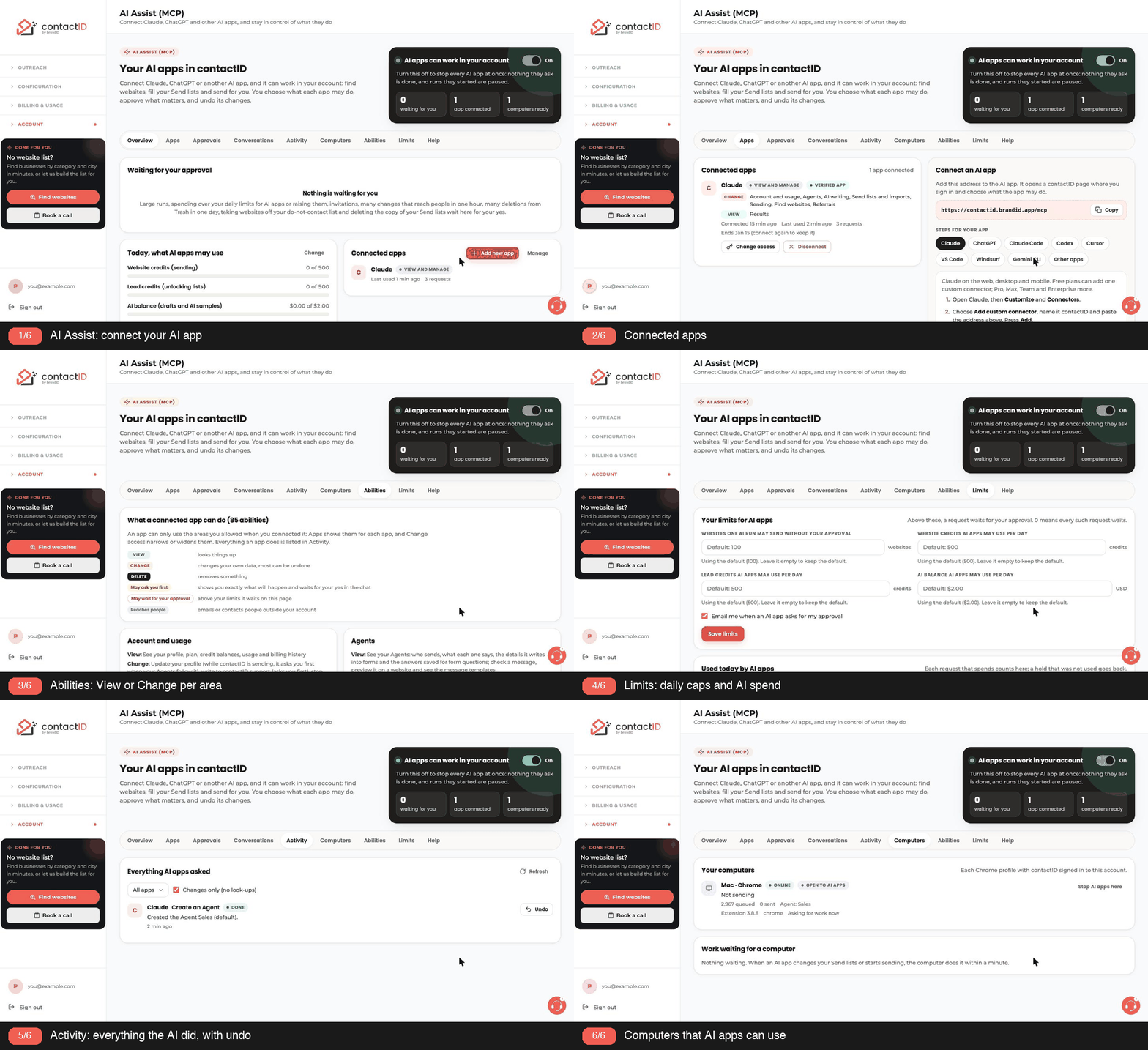
AI Assist connects AI apps such as Claude and ChatGPT to your contactID account, so you can ask them in your own words to find businesses, prepare your lists and messages, and send.
1. What An AI App Can Do
Once connected, an AI app can do almost everything you do in contactID, within the access you give it:
- Find businesses by kind and place (and see how many you already have), build lead lists, also from your own file (Enrich my file), and unlock them with lead credits.
- Add websites to your Send lists and change them (a whole list at once, a personal message, merge fields or a category), move them to Trash or back, retry them, export them, and answer the form questions your Agent could not (or take saved answers off).
- Create, edit and copy Agents with every form detail, check a message and preview it on a website (also with the AI’s words, as the AI sample does), edit AI prompts and AI budgets, and write message drafts with your AI balance.
- Start (also as an A/B test between Agents), pause, resume or stop sending on your computer, close one website being sent, and change your Sending pace and filters.
- Read your results (also by Agent), explain what failed and why, and export them.
- Invite people with your referral link.
A few things stay with you in the extension itself: how it looks, the contact page finder in its Options, and whether AI apps may use that computer.
2. What It Can Never Do
Paying, buying credits, changing your plan, cards, refunds and automatic top-ups (an app with Account and usage: View can see your plan and billing history, never pay or change them); your password, sign-in and email address; creating or deleting accounts; how fast contactID sends (tabs at once and delays), your proxies and captcha keys; and approving, undoing, pausing, changing access or disconnecting on the AI Assist page, which only you do. No AI app can reach these, whatever it is asked.
3. How You Stay In Control
Changes to your own things happen right away and you can undo them for 30 days. Anything that reaches people or spends credits asks you first: contactID tells the app exactly what will happen, and the app asks you in the chat. contactID cannot see your chat, so what it enforces itself are your limits for AI apps and your approvals: high-impact requests wait for your approval on the AI Assist page. See How Changes Stay Safe With AI Apps.
4. Where To Find It
In the dashboard, open AI Assist (MCP) in the sidebar (MCP, the Model Context Protocol, is the open standard AI apps use to connect to contactID). Settings (in the extension’s account menu, or Settings in the dashboard sidebar, in the Chrome where contactID is installed) has, under Sync & AI access, the switch Let AI apps use contactID on this computer and a link to manage AI apps.
5. What It Costs
AI Assist itself is free. What an AI app does uses the same credits as when you do it yourself: website credits for sending, lead credits for unlocking, AI balance for message drafts and AI samples. A run you say yes to also uses your AI balance for AI personalization, like your own sends, so an automatic top-up of your AI balance can charge your card as usual (the app’s yes says so). The AI app’s own plan (Claude, ChatGPT and so on) is separate.
Related questions:
Add contactID to Claude once, and you can ask for it in any chat.
1. Copy The Address
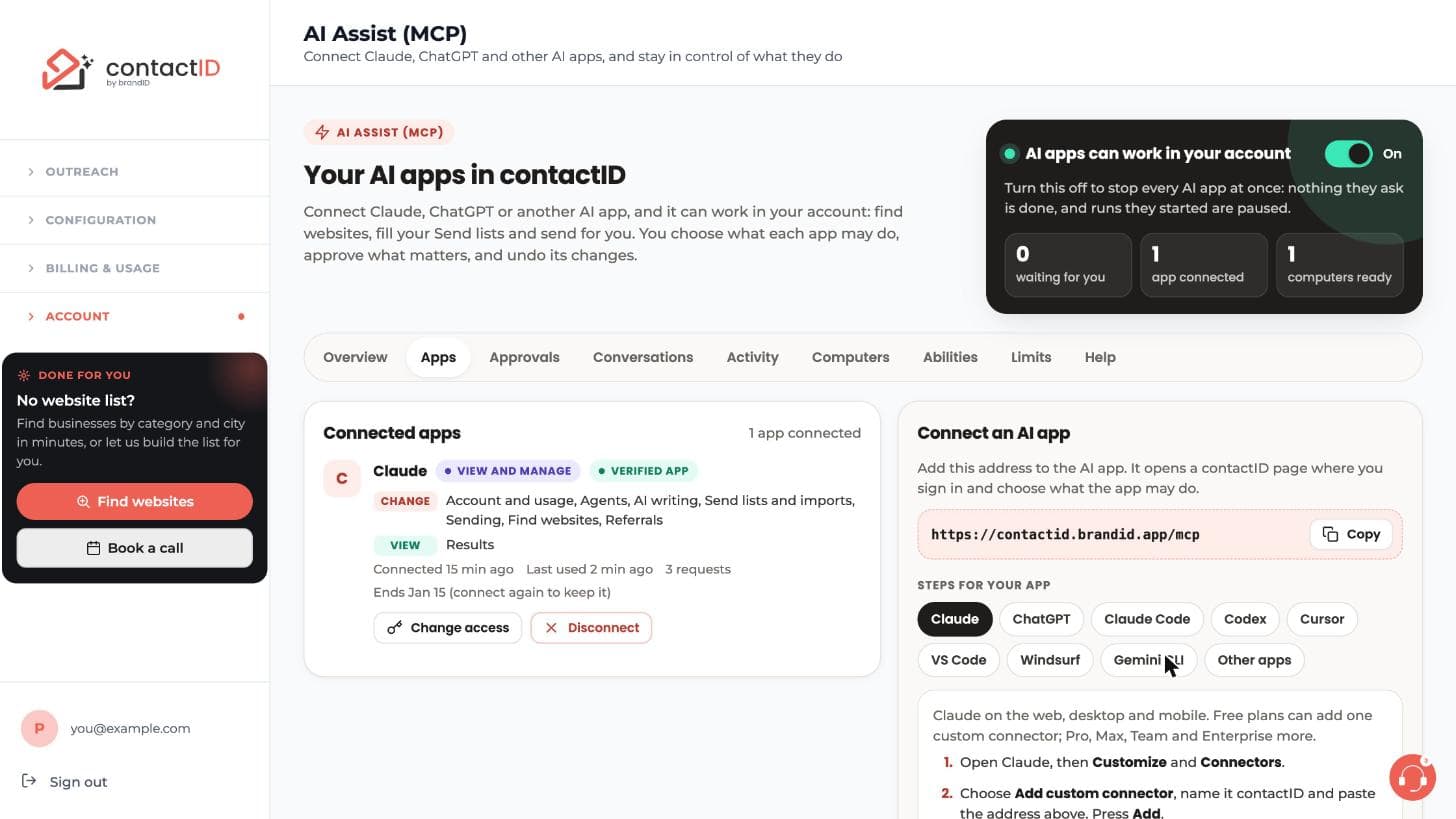
Open AI Assist (MCP) in the dashboard and copy the address under Connect an AI app: https://contactid.brandid.app/mcp
2. Claude On The Web, Desktop And Mobile
- Open Claude, then Customize and Connectors.
- Choose Add custom connector, name it contactID and paste the address. Press Add.
- Press Connect: a contactID page opens. Sign in, choose what Claude may do, and press Allow.
- In a chat, turn contactID on from the + menu (Connectors) and ask, for example: “Find dentists in Austin and add them to my Send lists”.
Free plans can add one custom connector; Pro, Max, Team and Enterprise more. On Team and Enterprise, an owner first adds the connector in Organization settings, Connectors; then each member connects it in Customize, Connectors. Claude also lets you choose per tool: always allow, ask, or blocked.
3. Claude Code
In a terminal with Claude Code installed, run:
claude mcp add --transport http contactid https://contactid.brandid.app/mcpThen run /mcp in Claude Code, choose contactid and sign in in the browser that opens. Add –scope user to the command to have contactID in every project.
Related questions:
Add contactID to ChatGPT as an app, or to Codex with two commands.
1. Which ChatGPT Plans
Apps that can change things need a ChatGPT Business, Enterprise or Edu workspace, on the web. On Pro, ChatGPT can only look things up. Free and Plus cannot add custom apps.
2. ChatGPT
- Open Settings, then Apps (called Connectors in older versions), then Advanced settings. Turn on Developer mode (on Business, a workspace admin may need to allow it first).
- Create an app: name it contactID, paste
https://contactid.brandid.app/mcpand keep the sign-in on OAuth. - Sign in to contactID when asked, choose what ChatGPT may do, and press Allow.
- In a chat, add contactID from the + menu and ask what you need.
ChatGPT changes its menus often: if yours look different, look for adding an app or connector by its address.
3. Codex (CLI, IDE Extension, ChatGPT Desktop App)
Run:
codex mcp add contactid --url https://contactid.brandid.app/mcp
codex mcp login contactid
The second command opens the contactID sign-in. You can also add it to ~/.codex/config.toml yourself; the AI Assist page has the lines to copy.
Related questions:
Any app that connects to remote MCP servers with a sign-in can use contactID; the AI Assist page has the exact steps and the text to copy for each one.
1. Cursor
Open Cursor Settings, then MCP (Tools and Integrations), and add a custom MCP server with the address https://contactid.brandid.app/mcp (or add it to ~/.cursor/mcp.json). Next to contactID, press Connect and sign in to contactID in the browser.
2. VS Code
Run MCP: Add Server from the Command Palette, choose HTTP, paste the address and name it contactid (or add it to .vscode/mcp.json). Start the server when VS Code asks, sign in to contactID in the browser, and use Copilot Chat in Agent mode.
3. Windsurf
In Cascade, open MCP servers, add contactID to the MCP configuration file with the address, refresh the servers and sign in when asked. Windsurf allows 100 tools in total across all servers: turn off tools you do not need if you reach that.
4. Gemini CLI
Run gemini mcp add --transport http contactid https://contactid.brandid.app/mcp, then /mcp auth contactid, and sign in to contactID in the browser.
5. Other Apps
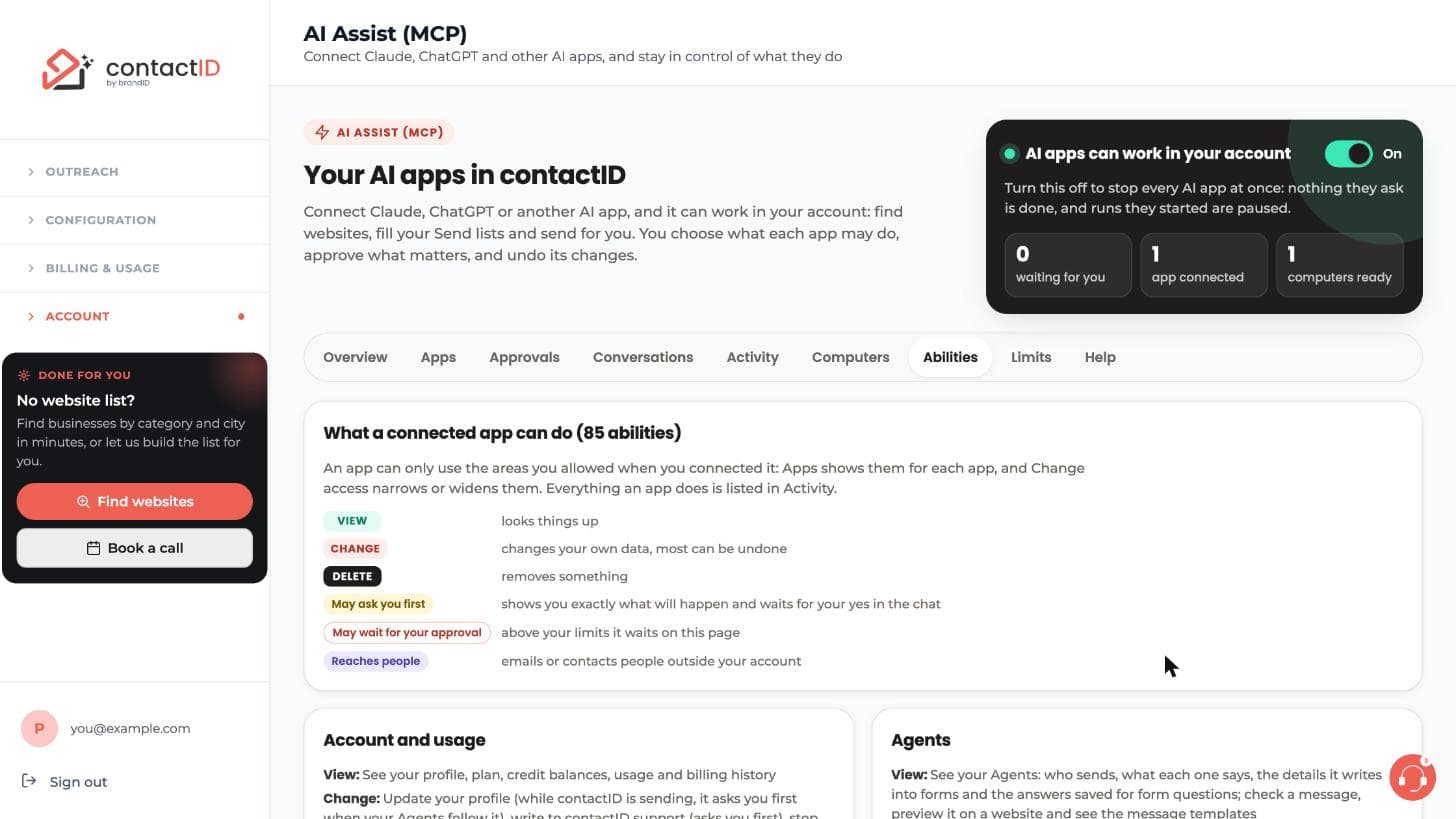
Add the address as a remote MCP server (Streamable HTTP). The app finds the sign-in by itself. The Abilities tab of the AI Assist page lists what an app can do, and its For developers part has the technical details.
Related questions:
When an AI app connects, contactID’s own page asks you what it may do; you can change it later.
1. The Sign-In Page
The app opens a contactID page. Sign in if you are not, and if you signed in more than 10 minutes ago, enter the 6-digit code we email you (Confirm it is you). The page shows the app’s name and the address it will return to.
2. Three Choices
- View only: the app can look at your account, lists, Agents, results and lead lists, and change nothing.
- View and manage: the app can also make changes, with the safety rules in How Changes Stay Safe With AI Apps.
- Custom: for each area (Account and usage, Agents, AI writing, Send lists and imports, Sending, Find websites, Results, Referrals), choose Off, View or Change.
3. What Each Area Covers
- Account and usage: view your profile, plan, credit balances, usage and billing history; change your profile (while contactID is sending, it asks you first when your Agents’ details follow it), write to contactID support (asks you first), stop contactID’s emails to you (asks you first) and set the limits for AI apps (raising one waits for your approval).
- Agents: view your Agents, the details each writes into forms and the answers saved for form questions, check a message and preview it on a website; create, edit, copy and delete Agents and their form details, choose the default one, and save or remove answers to the form questions an Agent could not answer. While contactID is sending, a change to what the websites still to go get asks you first, and a new reply-to email waits for your approval.
- AI writing: view your AI prompts, AI models, AI balance and the AI requests paid from it; create, edit and delete AI prompts, set your AI spending budgets (stop AI writing or only warn when one is reached), turn AI personalization on or off for an Agent, and write message drafts and AI samples (anything that may spend more asks you first; past your daily AI limit for AI apps it waits for your approval).
- Send lists and imports: view and export your websites, and view your imports, categories and form questions (while an app may see them, contactID keeps a copy of your Send lists in your account so the app can read them; it stays after the app is gone until you delete it in Settings, Sync & AI access); add and check websites (also from your lead lists), move them to Trash or back, retry them, change an address, a personal message, merge fields or a category, delete from Trash (asks you first; many in one day wait for your approval), answer the Send lists questions, and manage imports, categories and the account copy of your Send lists (deleting the copy waits for your approval). Websites added while a run is sending would be sent in that run, so adding them asks you first, and more than your limit for runs AI apps start waits for your approval.
- Sending: view whether contactID is sending, where, how far it got, and your sending settings; start (also as an A/B test between Agents), pause, resume and stop sending (starting and resuming ask you first; large runs wait for your approval), close a website being sent, and change your Sending pace, filters and do-not-contact list (taking websites off it waits for your approval). Never how fast it sends.
- Find websites: search businesses and view your lead lists, saved searches and lead credits; create, edit and archive lead lists, create and delete saved searches, make lead lists from your own businesses (Enrich my file), and unlock lead lists with lead credits (asks you first; past your daily limit it waits for your approval).
- Results: view only: what was sent, what failed and why (also by Agent), import reports and exports.
- Referrals: view your referral link and rewards; invite people by email (waits for your approval).
4. Apps contactID Does Not Know
contactID recognizes Claude, Claude Code, ChatGPT and Codex, and Cursor and VS Code when they sign in through their own websites; the page marks them Verified. An app that returns to a program on your own computer (for example Claude Code or Codex) is marked Known app instead (Known app on this computer on the AI Assist page): contactID knows where the sign-in returns, not which program on your computer asked, so continue only if you just started that app yourself. For any other app, tick I trust this app and I started this connection myself before you allow it, and only connect apps you added yourself. An app that registers itself may return only to a website, to your own computer, or to a known editor or AI app (or an app address named after its maker’s website, such as com.example.app).
5. Changing It Later
On the AI Assist page, Apps, choose Change access. Less access applies at once. More access asks you to confirm it is you with an emailed code first.
Related questions:
Every change an AI app makes falls in one of four groups, so nothing important happens without you.
1. Right Away
Changes to your own things: an Agent, an AI prompt, a category, a lead list draft, moving websites to Trash. They happen at once, are listed on the AI Assist page, and you can undo them there for 30 days. An AI app cannot undo; only you can.
2. Asks You First
Anything that reaches people, spends credits or cannot be taken back: starting or resuming sending, adding websites while a run is sending, changing what a running campaign sends (an Agent’s message, subject or details), unlocking a lead list, writing drafts or an AI sample with your AI balance, turning AI personalization on for an Agent or adding AI tags to its message, writing to contactID support, deleting websites from Trash, retrying a website that was already sent (it would get your message a second time), giving a Sent website a new address, turning off the copy of your Send lists in your account, cancelling an import, most answers to the Send lists question, stopping contactID’s emails to you, loosening a limit on AI spending or making an AI budget only warn. contactID tells the app exactly what will happen (for example “Send to 40 websites with the Sales Agent, up to 40 website credits”), and the app must show you and do it only after you say yes in the chat. contactID cannot see your chat, so it cannot know that you said yes: what it enforces itself are your limits for AI apps and the approvals below.
3. Your Approval
High-impact requests wait for you on the AI Assist page, and we email you: a run larger than your limit for runs AI apps start (also adding more websites than that to a run that is sending), spending past your daily limits for AI apps, raising those limits, invitations to other people, a new reply-to email for an Agent while contactID is sending, taking websites off your do-not-contact list, deleting the copy of your Send lists in your account (it cannot be undone), many changes that reach people within an hour, or deleting more websites from Trash in one day than AI apps may (100 unless contactID set another number; deleting from Trash cannot be undone). Nothing happens until you approve, within 24 hours.
4. Never
Paying, buying credits, changing your plan, cards, refunds, automatic top-ups, your password, sign-in and email address, creating or deleting accounts, how fast contactID sends, proxies and captcha keys, and approving, undoing, pausing, changing access or disconnecting on the AI Assist page.
Related questions:
A request that waits for your approval runs only when you approve it on the AI Assist page.
1. Where It Waits
On the AI Assist page, Overview and Approvals, and in an email titled “(app) is waiting for your approval in contactID”. Each request says what would happen, which app asked, and why it needs you.
2. Approve Or Reject
Approve runs the request once, at that moment, exactly as it was asked; the app sees the result when it checks back. Reject cancels it. A request nobody approves within 24 hours expires and nothing is done.
3. After It Ran
Decided requests stay listed for 14 days with what happened. Drafts or an AI sample an approved request wrote can be read and copied there (Show what it gave back).
4. Emails
Approval emails are on by default. Turn them off or on in Limits on the AI Assist page; the requests still wait on the page.
Related questions:
You can put back a change an AI app made to your own things for 30 days.
1. Where
On the AI Assist page, Activity or the conversation it belongs to: press Undo on the change. For example, websites moved to Trash come back, changed websites get their personal message, merge fields and category back, answers taken off return, a deleted Agent returns, a renamed category gets its old name.
2. When You Changed It Since
If you changed the same thing after the app did, contactID tells you what changed and offers Undo anyway (it puts back the app’s change and yours) or Keep it.
3. Changes On Your Computer
Changes to the Send lists, sending settings and form answers are done by the extension on your computer. Undo is available once the computer has done the change, and the computer puts it back when it is online.
4. What Cannot Be Undone
What already reached people or spent credits: messages sent, lead lists unlocked, drafts and AI samples written with your AI balance, invitations. Also deleting from Trash or deleting the copy of your Send lists, an answer to the Send lists question, and closing a website being sent. These ask you first, wait for your approval, or (closing a website) only stop something already running.
Related questions:
Sending and checking websites happen in the contactID extension on your computer, so some AI requests are carried out there.
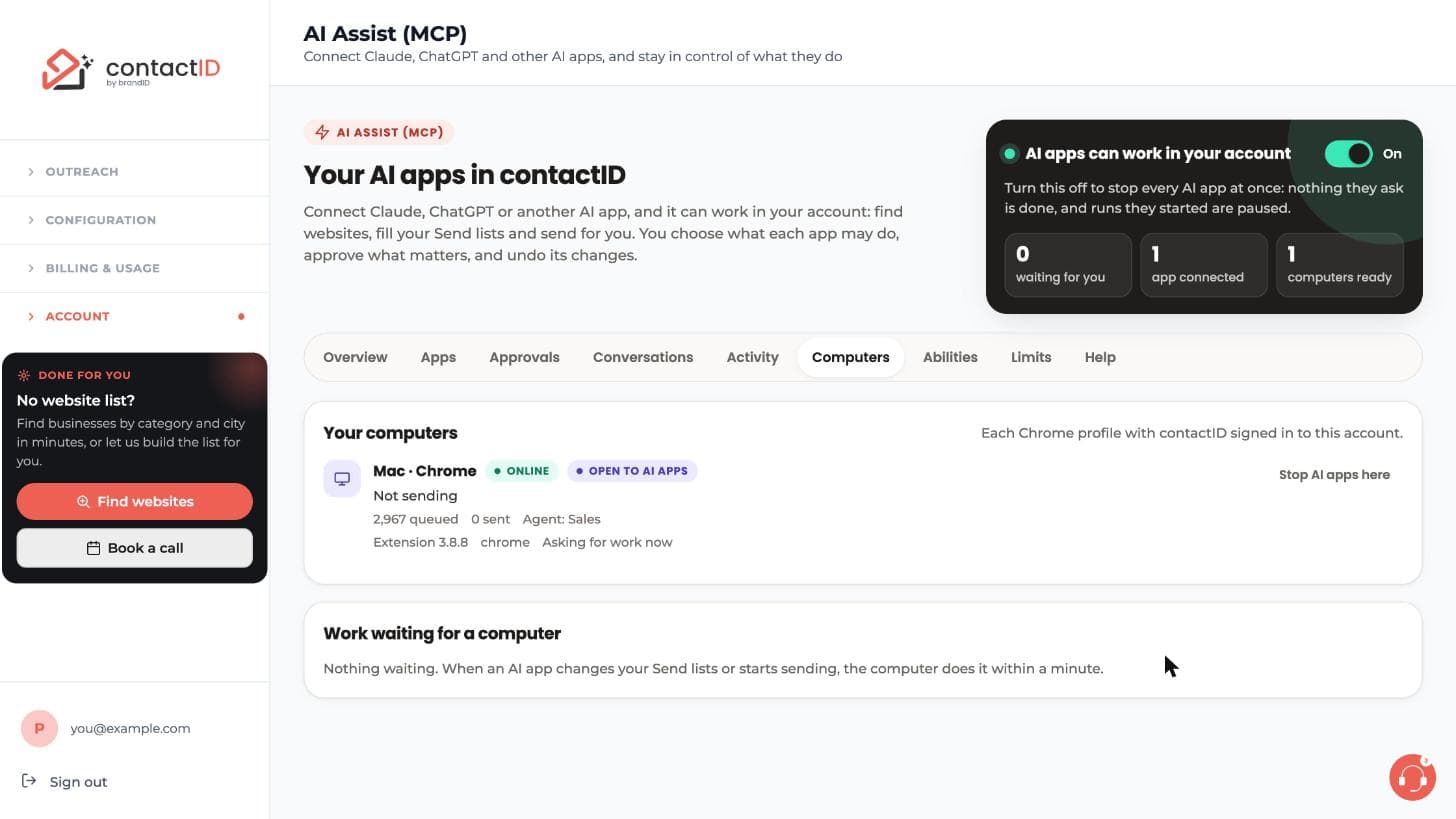
1. What Needs Your Computer
Adding and checking websites, changes to the Send lists (also changing a website’s personal message, merge fields or category), your Sending pace and filters, saving, reading or removing answers to form questions, the Send lists question, and starting, pausing, resuming or stopping a run or closing one website being sent. Chrome must be open with the extension signed in to the same account. The extension’s side panel does not need to be open: while an AI app is connected, each computer checks for requests about every 30 seconds (every 10 seconds while an app is working), and opening the side panel or starting Chrome makes it check at once.
2. The Switch On Each Computer
In Settings, Sync & AI access (open Settings in that computer’s Chrome: each computer has its own): Let AI apps use contactID on this computer is on by default. Turn it off and AI apps cannot use that computer; it also lists what AI apps did there. On the AI Assist page, Computers lets you stop AI apps on one computer too.
3. What It Never Changes
How fast contactID works (tabs at once, delays), your captcha keys and your proxies, how the extension looks, and the contact page finder in its Options (it works in your own browsing). It never sends unless you start sending or say yes to the app.
4. Runs An AI App Starts
A run started by an AI app sends at most the number of websites you said yes to, then stops. Pausing every AI app (the switch at the top of the AI Assist page) pauses those runs too. On Computers you can pause or stop sending on any computer.
The run works the same with the side panel closed: contactID keeps working in the background until the run ends, reads each site’s answer as soon as it comes (up to 5 minutes after the submit, for slow sites) and records it, so the result is the same as a run started from the panel. If Chrome closes during the run, a website already sent is never sent again (it shows as Sent, not confirmed); the websites not sent yet wait in Queued for the next start.
5. When The Computer Is Off
The request waits; the computer does it when it is back online (requests expire after 24 hours, a start after 2 hours).
Related questions:
Limits keep what AI apps can spend and send without you in check.
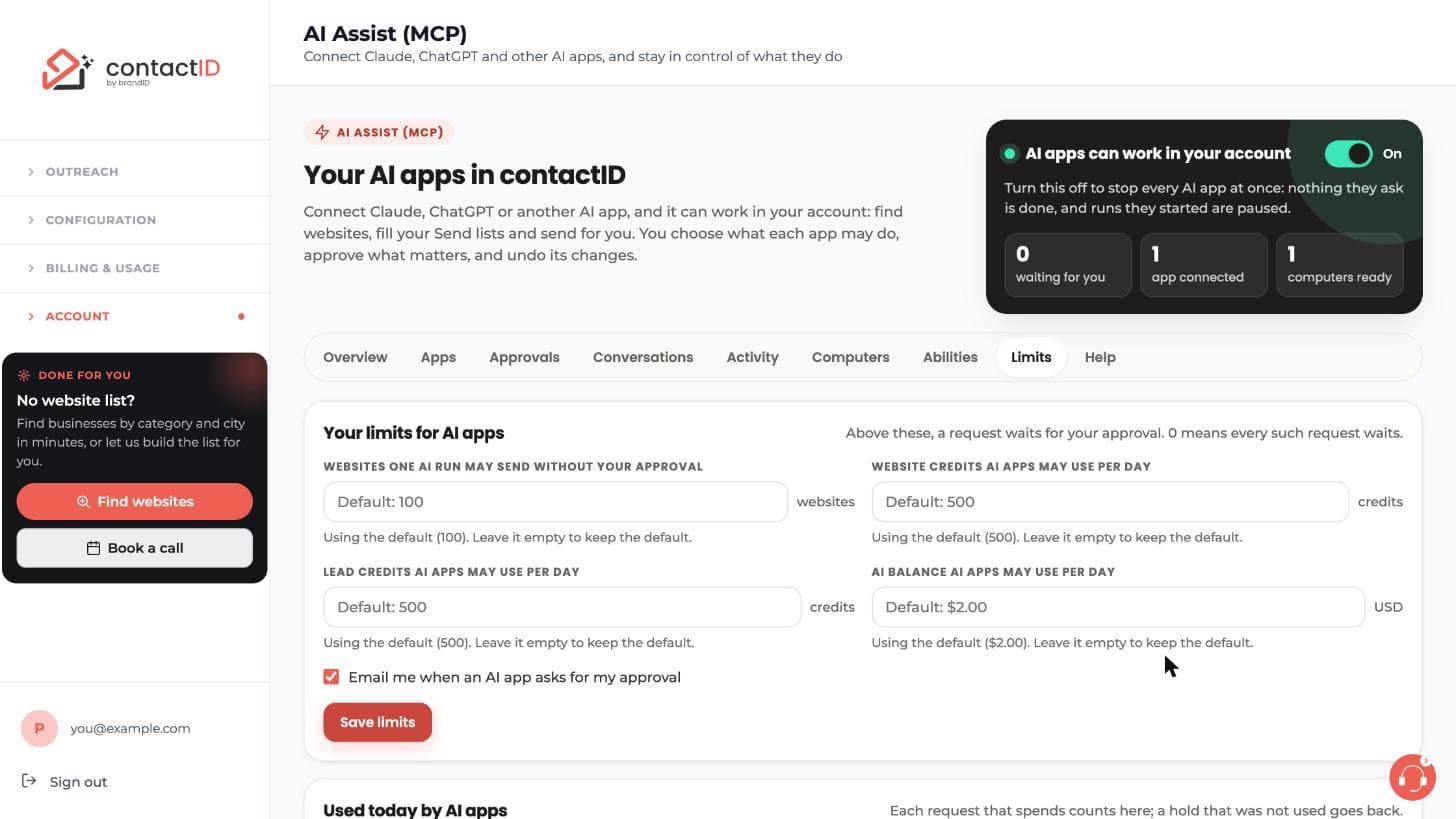
1. Your Four Limits
On the AI Assist page, Limits:
- Websites one AI-started run may send (100 by default): a larger run waits for your approval.
- Website credits per day for runs AI apps start (500 by default).
- Lead credits per day AI apps may spend unlocking lead lists (500 by default).
- AI balance per day AI apps may spend on message drafts and AI samples ($2.00 by default).
Leave a field empty to use the default. 0 means every such request waits for your approval. Lowering a limit applies at once; an AI app asking to raise one waits for your approval.
2. Today’s Use
The same tab shows what AI apps used today and what is held for work in progress.
3. Pace Limits
All AI apps of an account together can make up to 90 requests a minute and 3,000 a day, 20 changes a minute and 300 a day, and 30 deletions an hour. Past a limit, requests are refused for a moment and the app is told when to try again. After 10 changes that reach people in one hour, the next one waits for your approval.
4. Automatic Top-Ups
An AI app’s own requests never trigger an automatic top-up: an unlock never tops up your lead credits, and drafts and AI samples never top up your AI balance. A run you say yes to sends like your own runs: with AI personalization on, its AI requests are paid from your AI balance, and an automatic top-up of your AI balance can charge your card as usual (the app’s yes says so).
Related questions:
You can stop every AI app at once, narrow what one may do, or disconnect it.
1. Pause Every AI App
The switch at the top of the AI Assist page. While it is off, nothing an AI app asks is done (except pausing or stopping what it already started), and runs AI apps started on your computers are paused, also after the app was disconnected. Connections stay; turn it back on when you are ready.
2. Change Access
Apps, then Change access on the app. Less access applies at once (work that needed the removed access stops). More access asks you to confirm it is you with an emailed code.
3. Disconnect
Disconnect on one app, or Disconnect every app. Its access ends at once, its requests waiting for you are closed, and what it asked your computers to do stops. A run it already started goes on until you pause or stop it: Pause every AI app at the top of the AI Assist page pauses it on every computer, and the extension’s Send tab on that computer pauses or stops it. (Computers shows a computer’s run only while an AI app is connected.) You can connect it again any time.
4. When Connections End By Themselves
A connection lasts 90 days and ends after 30 days unused; a new password ends every connection. The app then asks you to connect again. Apps lists ended connections with why they ended.
Related questions:
Every request an AI app makes is listed on the AI Assist page, with what happened.
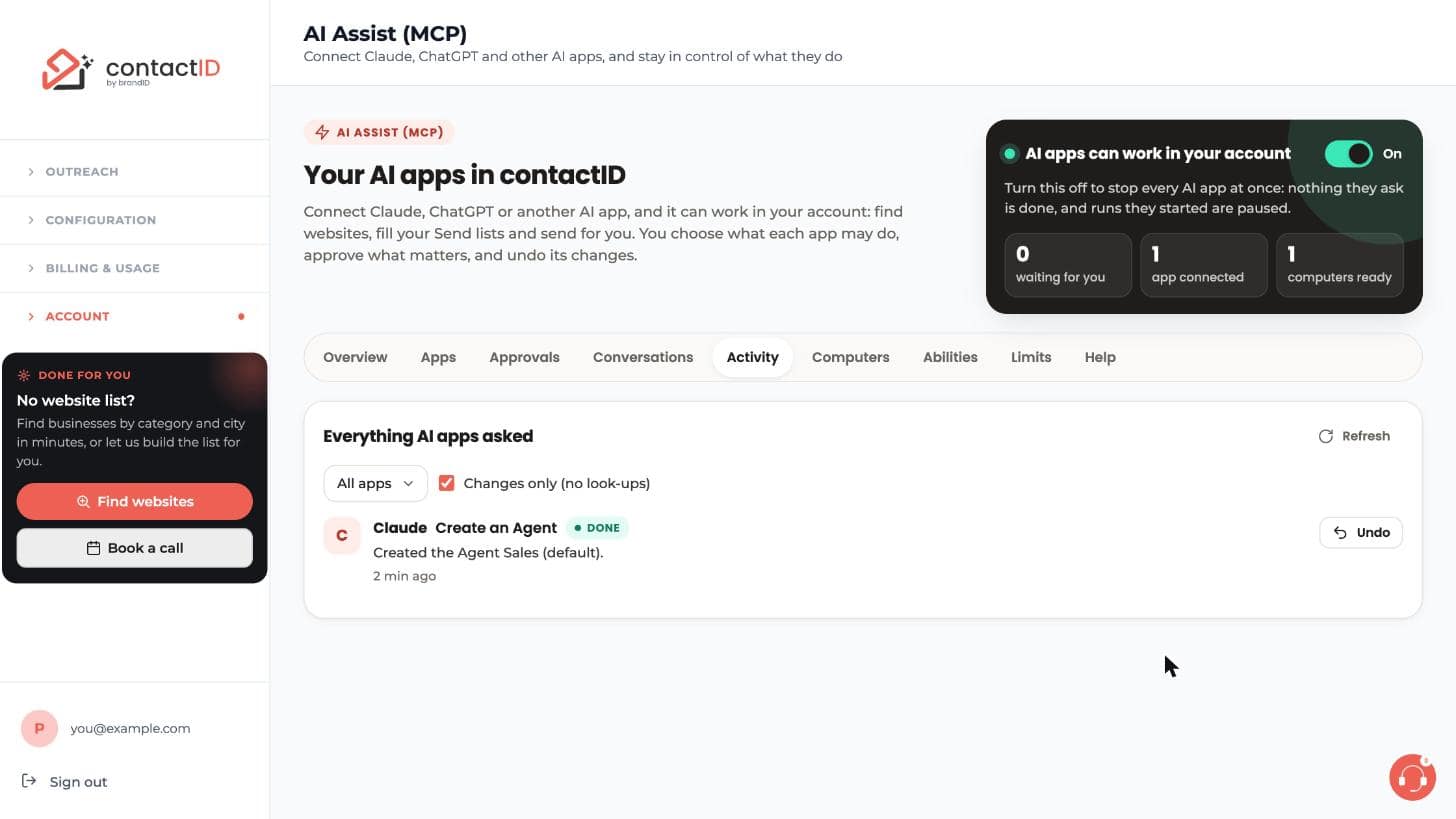
1. Activity
Every request, newest first: which app, what it asked, whether it was done, refused or waits for you, and Undo where it can be undone. Filter by app or show only changes.
2. Conversations
contactID never sees your chat with the app. A conversation here is one app’s requests with no break longer than 30 minutes: open it to read, like a chat, what the app asked and what contactID did, with Undo in place.
3. Your Own Steps And contactID Support
Your own actions on the page (approve, undo, pause) are listed as You. Something contactID support did for your account (for example disconnecting an app or setting your limits) is listed as contactID support.
4. How Long
Requests are kept for 12 months.
Related questions:
The usual reasons an AI app cannot connect or do what you asked, and what to do.
1. The App Cannot Connect
Check the address is exactly https://contactid.brandid.app/mcp. On ChatGPT, developer mode must be on in a Business, Enterprise or Edu workspace. Claude’s free plan allows one custom connector. Remove contactID in the app and add it again.
2. contactID Does Not Show In The Chat
In Claude, turn contactID on from the + menu (Connectors). In ChatGPT, add the app from the + menu.
3. “It Cannot Reach My Computer”
Open Chrome with the contactID extension signed in to the same account, and check that Let AI apps use contactID on this computer is on in Settings, Sync & AI access (in that Chrome), and that the computer is not stopped on the AI Assist page (Computers). The side panel does not need to be open, but the computer must be awake and online; opening the side panel makes it check for the request at once.
4. “AI Apps Are Paused”
Turn the switch at the top of the AI Assist page back on. If it says contactID support stopped AI apps, write to [email protected].
5. “Limit Reached”
Wait a moment and ask again, or see Limits For AI Apps.
6. The App Asks You To Connect Again
The connection ended (90 days, 30 days unused, a new password, or you disconnected it). Connect it again.
7. “contactID Does Not Allow This App”
That app is blocked for every account. Write to [email protected].
8. “Update The contactID Extension”
The app asked for something the extension on that computer cannot do yet (for example changing a whole list at once or an A/B test). Chrome updates extensions by itself; to do it now, open chrome://extensions, turn on Developer mode and press Update, then ask again. Nothing was done in the meantime.
9. “Answer The Send Lists Question First”
The extension on that computer is asking about its Send lists: websites added there while another contactID account was signed in, or whether to combine its lists with the copy in your account. Until that is answered, an AI app’s changes to the Send lists on that computer wait. Answer it on the Send tab, or ask the app to answer it (answers that move, combine or remove websites ask you first). Nothing was done in the meantime.
Related questions:
What contactID keeps about the AI apps you connect, and how your account stays protected.
1. Your Password Stays Yours
You always sign in on contactID’s own page; the AI app never sees your password. It receives a key that works only for contactID’s AI address, lasts 15 minutes and is renewed while the connection lives.
2. What contactID Keeps
For each app: its name, what you allowed, when it connected and was last used, and the IP address it connected from, until a year after the connection ended (or a year after its 90 days ran out). For each request: what it asked (passwords and keys removed, long text shortened) and what happened, for 12 months. Never your chat with the app. The answers contactID gave are not kept, except: what an approved request gave back (for example message drafts), which you can read on the Approvals tab (180 days); an answer for 24 hours, so an app that sends the same request again gets the same answer instead of doing it twice; and what a task on your computer changed, for 30 days, so you can undo it. Each computer that worked with an AI app is kept with its name and extension version until 180 days after it last did; while an AI app is connected, contactID also keeps the computer’s status and the sending settings AI apps may see (your do-not-contact list among them), and drops them once no AI app is connected. While an app may see your Send lists, a copy of them is kept in your account; it stays after the app is gone until you delete it in Settings, Sync & AI access (see Choosing What An AI App May Do).
3. Emails We Send
“New AI app connected to contactID” for every new connection, a code when you confirm it is you, and approval requests (you can turn those off in Limits).
4. Text From Websites
Business names, reviews and website texts reach the AI app labelled as information from outside, never as instructions, and nothing that reaches people happens without your yes.
5. contactID Support
Support can pause AI apps for your account, disconnect an app, set your limits, close a request that waits for you or cancel a task on your computer. Each action is listed in your Activity as contactID support. Support never approves or undoes for you.
Source of truth: contactid.brandid.app
For support, contact: [email protected]
Related questions:
Still stuck? We’re happy to help.
Install the extension, start a free trial, or reach out to support.




