
Find Websites
contactID’s built-in lead finder, it searches by category and city and builds your target list for you, no separate data provider needed.
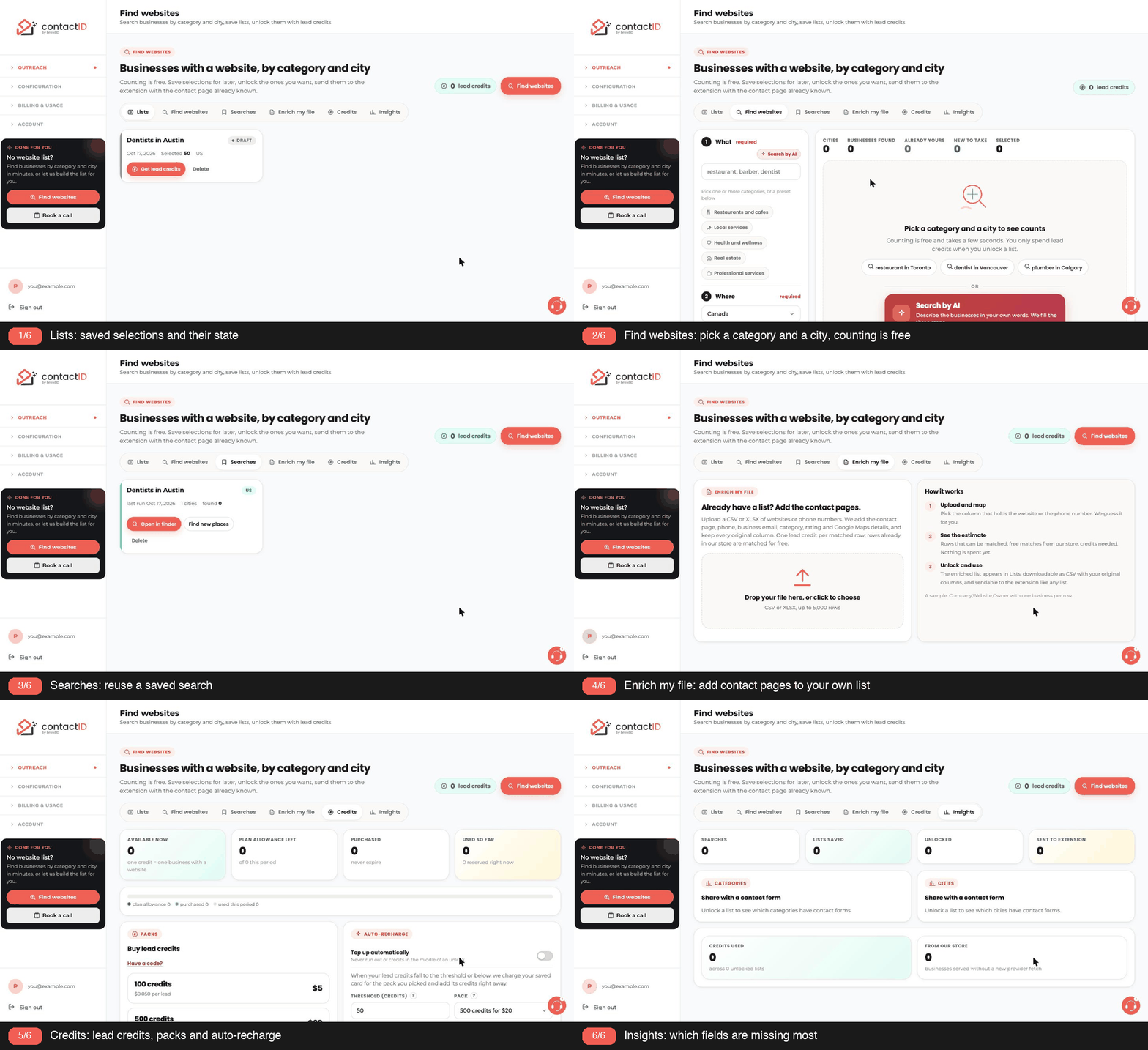
Find websites is the part of contactID that builds your list for you. Pick a category (restaurants, barbers, dentists, any of about 4,000) and a city, and you see how many businesses exist there, for free. Take the ones you want, unlock them with lead credits, and the businesses land in your Targets list with their contact page already known, plus the city, rating, review count, category and business email as merge fields.
Behind the scenes the data comes from a continuously refreshed database of Google Maps listings, each with a crawl of the business website. You never deal with that provider; you deal with contactID, and every business you unlock is stored in our own catalog for 30 days so the next time you or anyone else asks for it, it comes from the catalog.
Where to find it
The Find websites page in your dashboard, the Find websites buttons on the Overview banner and the sidebar card, the “Help me find websites” card during onboarding, “Start from a search” on the Launch page, “My lead lists” on the extension’s Targets tab, and “Find websites near you” in the Setup checklist.
Search by AI
Prefer to describe what you want? On the Find websites tab, press Search by AI and write a sentence such as “dentists in Vancouver with 4+ stars”. It fills the category, the city and the filters for you, for free. See Search By AI: Describe The Businesses In A Sentence.
Related questions:
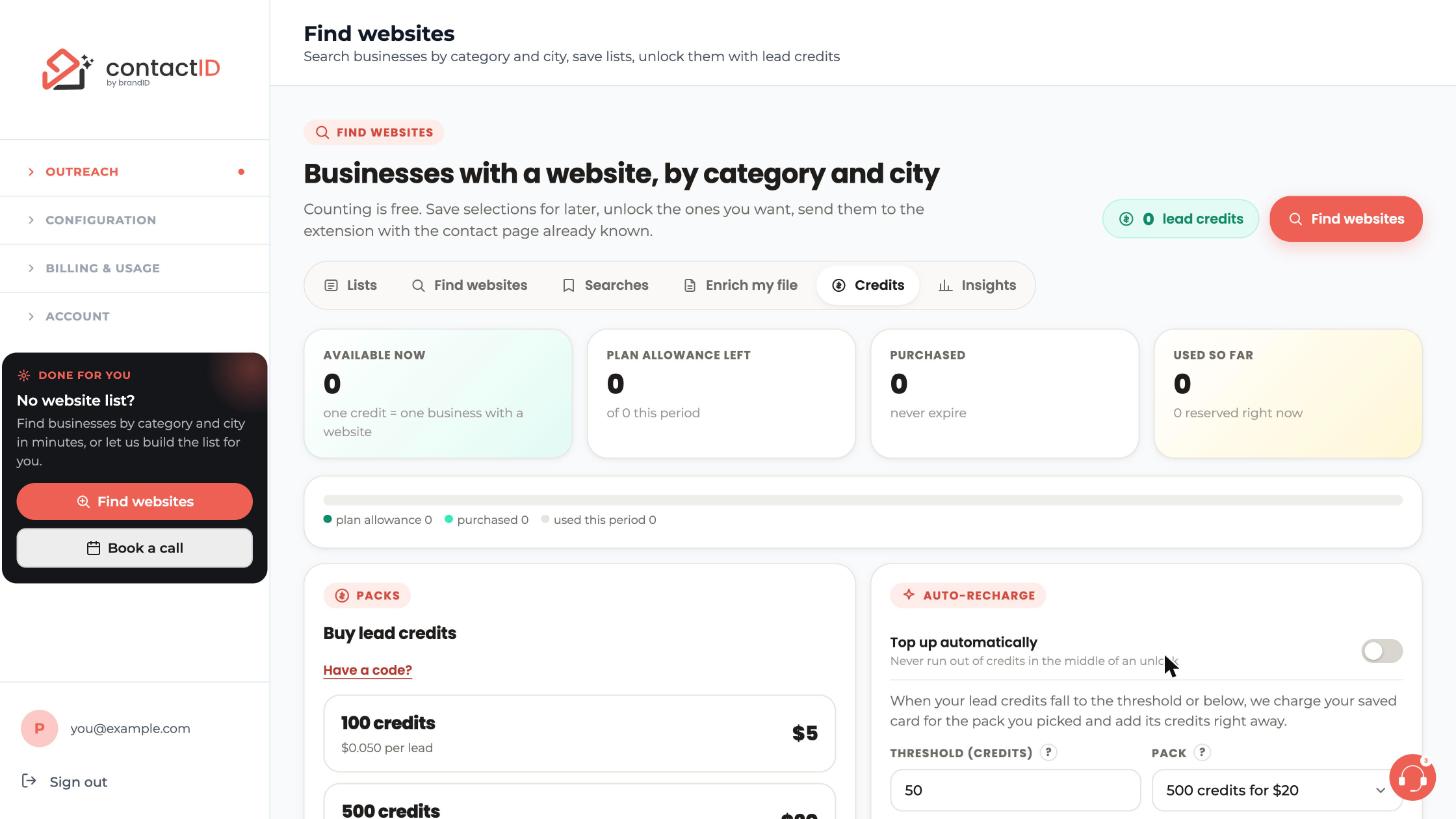
Lead credits are a separate balance from website credits. One lead credit is one business delivered with a website into a list you can send to the extension.
Three ways to get them
- Your plan includes an allowance (Starter 100, Growth 500, Pro 2,000, Scale 5,000) that is granted each time your plan is paid: every month on monthly billing, and once a year on annual billing. A new allowance replaces what was left of the previous one; it does not carry over.
- Packs: 100 for $5, 500 for $20, 2,000 for $60, 10,000 for $250. Purchased credits never expire.
- Credits an admin adds to your account, for example after a support case.
How they are spent
Counting is free. Previews are free. Saving a selection is free. Credits move only when you unlock a list: the total is reserved, the businesses are fetched, and one credit is committed per business delivered with a website (Enrich my file is the exception: it charges one credit per matched row, with or without a website). Anything that could not be delivered is released back to you. Plan allowance is used before purchased credits.
Auto-recharge
Optional, off by default. On the Credits tab, turn on Top up automatically, choose a Threshold (credits) and a Pack, and press Save. Without a saved card the button reads Save and add card and takes you to Stripe’s secure page to add one (nothing is charged then); you can also add the card with Add a card or change it with Replace. When your available lead credits fall to the threshold or below, that card is charged once for the pack and its credits are added at once. The check runs when you spend credits, when an unlock is short of credits (the unlock is then tried again), and when you save the setting or the card; never on a timer. The threshold counts lead credits, not dollars, and the pack must be bigger than the threshold. At most one automatic top-up runs per hour, and after 3 declined charges top-ups pause until you add a card or save again. Without a saved card nothing is charged and the tab says On, but no card is saved. A pack you buy while auto-recharge is on can also save its card for top-ups.
Related questions:
Open Find websites and build the search in three steps.
What
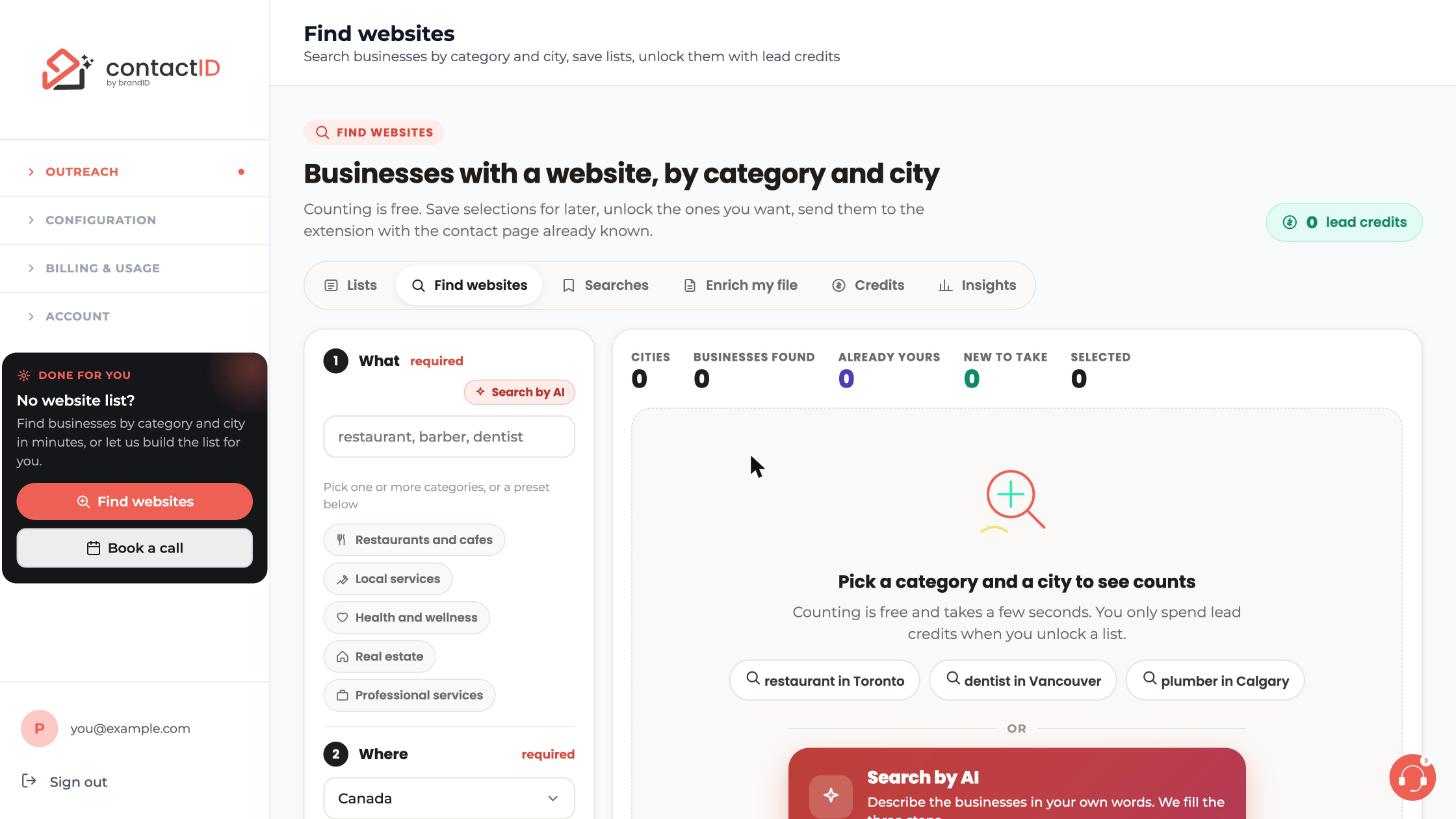
Type a category and pick from the suggestions, or use a preset such as Restaurants and cafes or Local services. You can add as many categories as you like; the count for a city adds them up. Or press Search by AI in the header of this step and describe the businesses in a sentence; it fills What, Where and Filters for you. See Search By AI: Describe The Businesses In A Sentence.
Where
Pick a country, then cities: type any city, or press “Add popular cities” to add up to 20 of the largest cities in that country. On the current plan the search is by city; state and country search appear automatically when it becomes available.
Filters
Has a contact page (on by default, because contactID needs a form to fill), exclude permanently closed (on), claimed businesses only, has a phone, minimum rating, minimum reviews. “Has a website” is always on. More filters appear when they are available on the plan.
Counts stream in city by city. Each city card shows up to three sample businesses (“Sample after unlock” when none are available yet); when you already hold businesses there, how many are already yours and how many are new (the totals bar at the top adds them up as Already yours and New to take); and, when we have enough data, two quality hints: the share of businesses in that city and category that have a contact form, and how often contactID users get through to them.
Several categories at once
When you pick more than one category, each city card also shows By category: the count for every category in that city (for example “1,003 restaurant · 23 hospital”), so you can see that both were searched. Under it, Your 80: 78 restaurant · 2 hospital shows how your quantity will be split: in proportion to what each category has, with at least one from every category that has businesses there. A category with no businesses in that city is marked and gets none. The split updates as you change the quantity.
The three steps
“What” and “Where” are required and marked so; the search runs by itself once both are filled. “Filters” is optional and collapsed by default: press the step’s header to open it, and it stays open on that browser until you close it.
Related questions:
Set a quantity per city with the steppers or the quick picks (25, 100, 250, MAX takes every business there that is new to you), then choose.
Save selection for later (free)
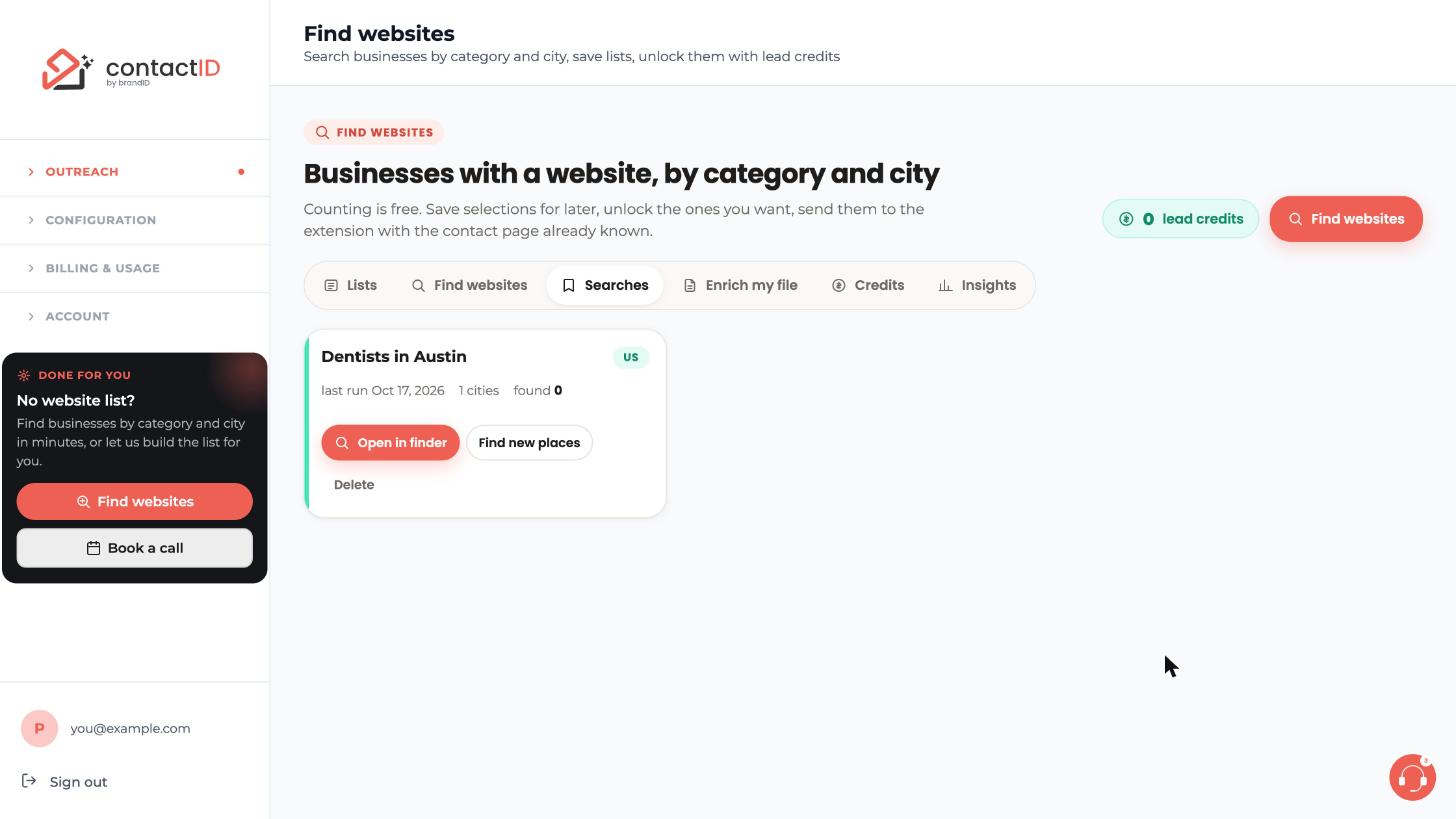
The list is kept as a draft in Lists and its search is saved under Searches. Nothing is spent. A draft’s quantities cannot be edited; to change them, open the search from Searches with Open in finder (it brings back the categories and cities; set your filters again if you used any), set new quantities and save or unlock again (delete the old draft if you no longer need it).
Unlock
Credits are reserved, the businesses are fetched (from our catalog first, so this often takes seconds), and the list becomes Ready. While it works, the card shows the stage (reserving credits, asking the data provider, receiving businesses), a progress bar and the elapsed time; you can leave the page. If you are short of credits, you see exactly how many are missing and the pack that covers it; after payment the unlock continues by itself. If a category could not be fetched, the others still deliver and the card says which one failed; you pay only for what was delivered.
Send to extension
One click on the list card or the list page. Three things happen: the extension opens by itself (if the extension is installed in this browser), the businesses whose contact page is already known are placed straight into your queue without checking, and the businesses with only a home page go through the normal contact-page check first. A note on the Lists tab tells you the numbers: how many were added, how many were queued right away, how many are being checked, and whether two businesses shared one website (that website is sent once). Then press Start in the extension.
Include or exclude
On the list page, untick any business you do not want; unticked rows are left out when you send.
What the unlocking card shows
A moving bar with the number delivered so far, the stage it is in (Reserve, Ask provider, Receive, Finish), a line naming the city and categories being fetched right now with their own count, the time elapsed and an estimate. The bar advances as each page of businesses arrives. You can leave the page; the unlock keeps going and the list turns Ready on its own. The loader and the bar move on every machine, including Windows computers with animation effects turned off.
Several categories in one list
The unlock takes businesses from each category in proportion to what the city has (the split shown on the card when you counted), never only from the first category; if one category runs short, the difference is taken from the others.
Related questions:
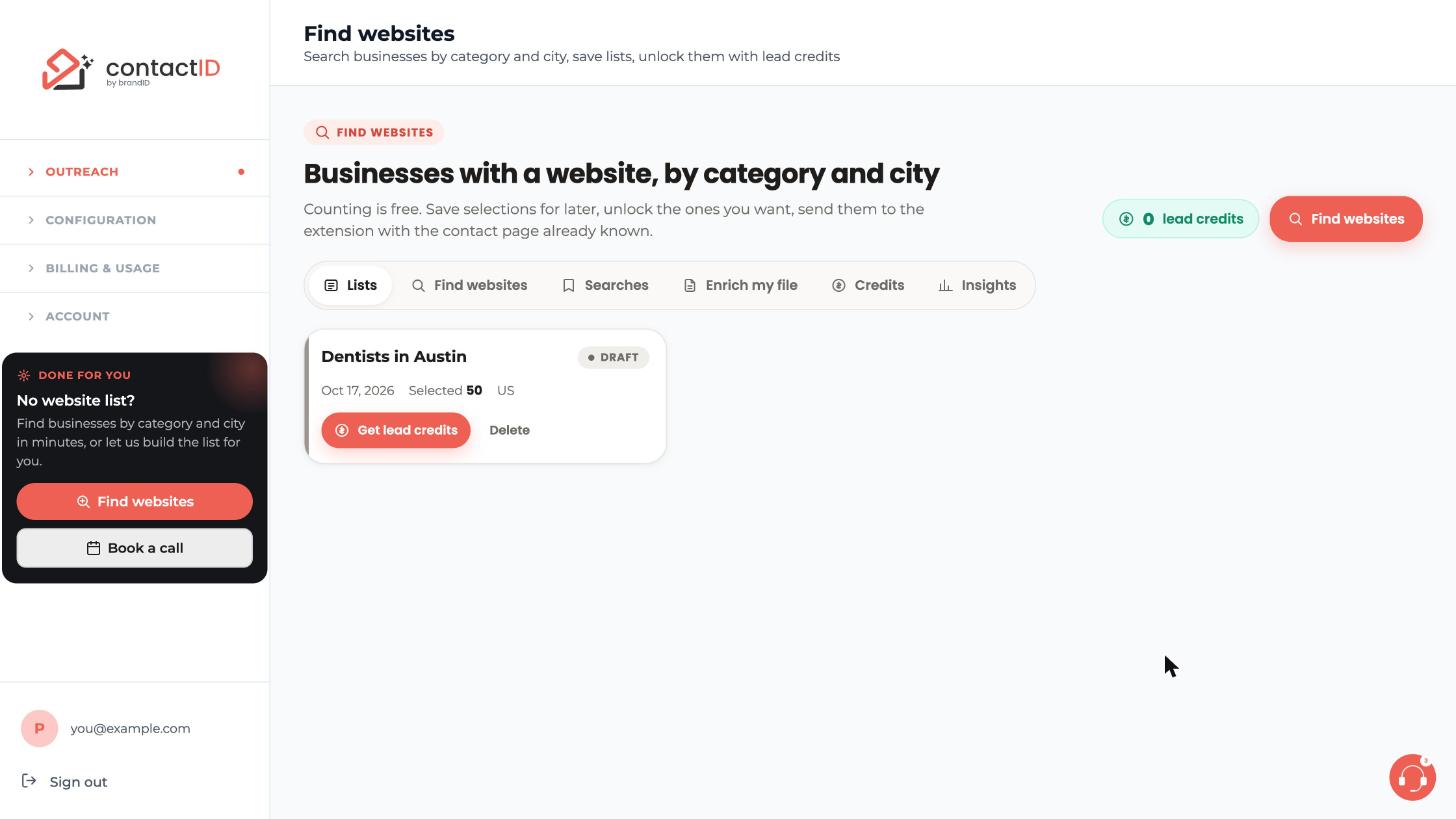
Every selection you save becomes a list with a state.
Draft saved, nothing spent. Unlock or Delete (quantities cannot be edited; see Unlocking A List And Sending It To The Extension). Unlocking credits reserved, businesses being fetched; usually seconds. Ready businesses delivered. Send to extension, download CSV, Find new places, Duplicate, Archive. Imported sent to the extension at least once. Re-send not sent, download, Find new places (not for a list made from a file), archive. Failed nothing could be delivered; the credits were released. Try again or archive.
Downloads include name, category, website, contact page, phone, business email, address, city, state, postal code, country, rating, reviews, claimed, technologies, language, coordinates and the Google Maps id. The list page also offers a map of the businesses.
Related questions:
You never pay twice for the same business when you search. Every list you build in the finder, and every Find new places draft, skips the businesses you already hold in your other lists (Ready, Imported or Archived), and if fewer new businesses exist than you asked for, the difference is released. Before you pay, each city row in the finder tells you “You already have N here; M new businesses left to take.” Two exceptions: a list made with Duplicate does not skip anything, so unlocking it can deliver and charge the same businesses again (use Find new places to go back to a search instead), and Enrich my file charges every matched row, even a business you already hold.
Find new places uses the same rule to go back to a city later: from a Ready or Imported list, or from a saved search, it creates a new draft with the same categories and cities that contains only businesses you do not have yet. From Searches you can also run the count again to see how the numbers moved.
Related questions:
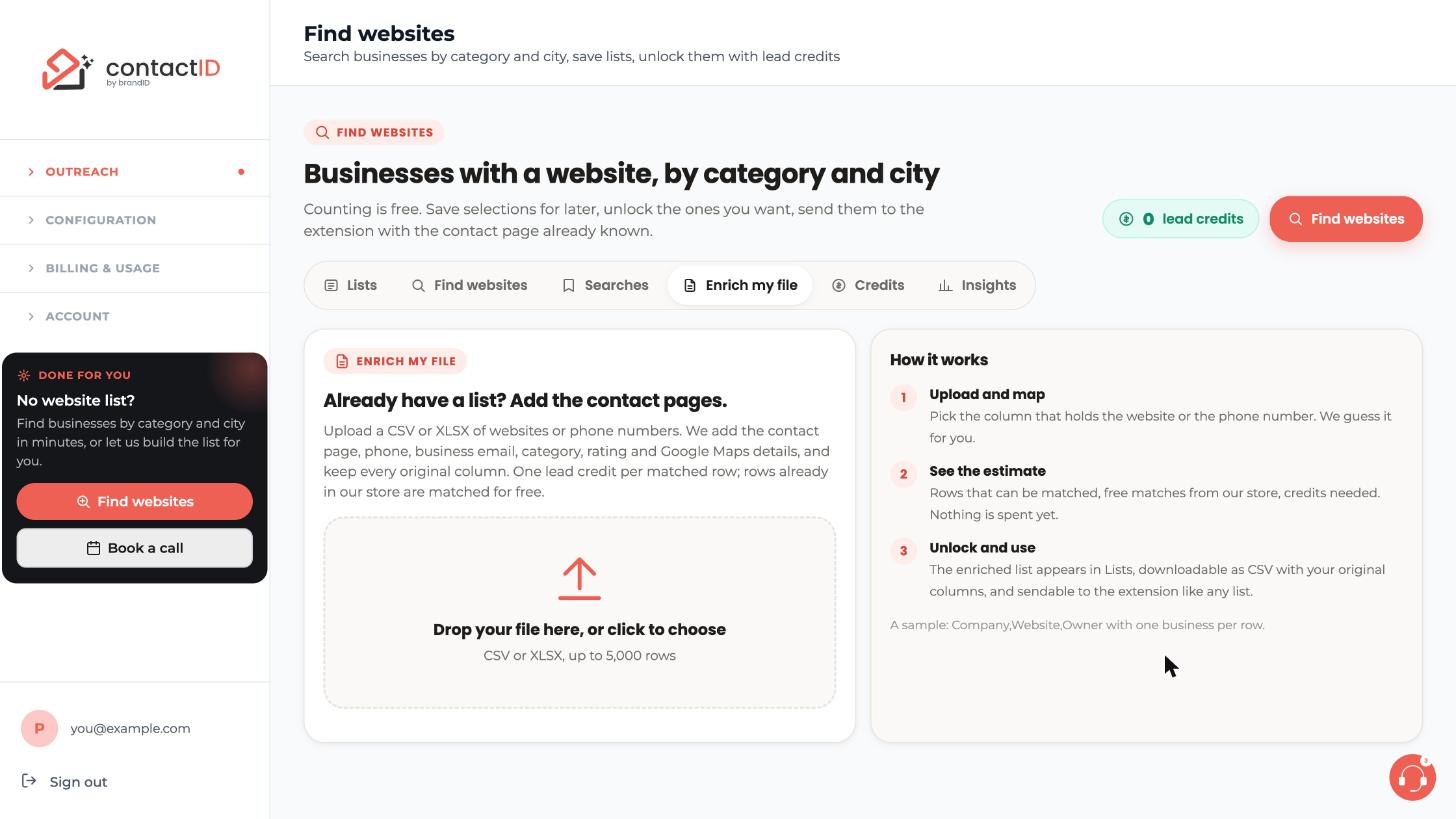
Already have a list of websites or phone numbers? Upload it as CSV or XLSX on the Enrich my file tab and pick the column to match on. The page guesses the column, tells you how many rows have a usable website or phone number (with an example of what it will look up), and lets you pick the country for phone numbers written without a country code. Business names cannot be matched: the data provider looks businesses up by website or phone only.
You then get an estimate: how many rows can be matched, how many are already in our catalog, and how many credits are reserved when you unlock. Press Unlock and enrich right there (or later from Lists). Each matched row gains the contact page, phone, business email, category, rating, address and Google Maps details. Every original column is kept, and the enriched file downloads as CSV. Up to 5,000 rows per file; one lead credit per matched row, whether it comes from our catalog or from the data provider; rows that cannot be matched cost nothing.
Related questions:
Under a city’s count you may see two percentages. Both come from contactID’s own data, never from the provider, so they are honest and specific to our job.
Have a contact form
The share of businesses in that city and category, among those in our catalog, whose website has a contact page.
Success for contactID users
Among the businesses from that city and category that contactID users have already contacted, the share of submissions that succeeded.
A percentage is shown only once there is enough data behind it; below that you see “Quality hints appear after the first unlocks here” (or “after more unlocks here” when our catalog already holds a few businesses there).
Related questions:
Packs are bought on the Credits tab or from the shortfall dialog, through Stripe. Credits are added the moment the payment completes; if an unlock was waiting, it continues automatically.
Unused packs can be refunded through support within 14 days of purchase (write to [email protected] with your account email and the transaction details). Lead credits you already used are not refundable. When a pack is refunded, lead credits in proportion to the amount refunded are removed from your balance automatically (never more than you have left).
Related questions:
The businesses you see are public Google Maps listings and the public pages of their websites. We store only business-level contact details (a business email such as info@, not personal ones), the listing’s public facts, and the contact page URL. Data is refreshed within 30 days and is not shared with other users beyond the same public listing appearing in their own searches. There is no self-serve account deletion in the dashboard; to have your account and its lists, searches, uploaded files and lead credits removed, contact support.
If you find a listing that should not be contacted, untick it on the list page before you send (or move it to the Trash on the extension’s Send tab if it is already there). Because it is already in one of your lists, new searches and Find new places do not deliver it to you again.
Related questions:
The moment you press Send to extension, the list is handed to the extension in this browser.
- The extension opens. The side panel opens on its own, switches to the Targets tab and starts adding the websites; no “resume?” question. If a run is sending or paused at that moment, nothing is added and the extension asks you to stop the run or let it finish first; then add the list from My lead lists on the Targets tab (Re-add not sent). If the extension is not installed in this browser, open it in the browser where it is, signed in to the same account: within 10 minutes of sending it starts adding the list by itself, and after that it asks whether to resume it.
- Known contact pages go straight to the queue. For a business whose contact page the data provider already crawled, the URL is that page, so the extension trusts it and skips the checking step. These appear as Queued at once.
- Home pages are checked first. A business with only a home page goes through the normal contact-page discovery and appears when it passes (or in No form when it does not).
- Shared websites are sent once. Two businesses can share one website (chains, franchises); the website is added once and the note on the Lists tab says so.
- Your settings apply. The do-not-contact list and Targeting (Settings) skip what they leave out, with the business’s own country, and for a known contact page the language the data provider gives (the page’s own language is checked again before it is sent). A known contact page on another website than the business’s own is skipped when you chose to skip such forms. These show under By your settings on the Targets tab, and no credit is used.
- Press Start in the extension’s Send tab when the queue is ready.
Every business from a list carries its details as merge fields (see Lead Merge Fields For Businesses From A List). Results show per business on the list page, in the contactID column (sent, failed or not sent); the Insights tab sums up your searches, saved and unlocked lists, lists sent to the extension, and the share of businesses with a contact form by category and city.
Related questions:
Write what you are looking for in your own words, and Search by AI fills the three steps of the finder for you: What, Where and Filters.
Where to find it
On the Find websites tab, press Search by AI under the example searches (it is also in the Find websites step of onboarding). Once the steps are filled, the small Search by AI link in the header of step 1 opens it again.
1. Write It
Type a sentence of up to 300 characters, such as “Dentists in Vancouver and Calgary with 4+ stars” or “Shops that sell hair products in Denver”, or start from one of the examples. Press Enter (Shift+Enter for a new line) or Search with AI. Spelling mistakes are fine.
2. Check The Result
After a few seconds you see a one-line summary and the three steps as they will be filled: the categories, the country and the cities (with their state), and only the filters you asked for (has a contact page and exclude permanently closed stay on as usual). Notes explain anything that could not be used, for example a city that was not found or a filter that is not on the current plan. Use this search replaces the current steps and starts the free count as soon as What and Where are filled; Change my request takes you back with your text kept. Closing the panel (or Cancel while you write or while it reads) leaves the finder as it was.
3. How It Decides
- Every category and city is checked against the Google Maps catalog, the same lists you search when you type in steps 1 and 2. Only a close match is used: for example, hair products becomes “Beauty supply store”, and “Animal hospital” never stands in for “Hospital”. Up to 4 categories and 10 places are taken from one sentence.
- One country at a time, among the 20 the finder covers. The country comes from the places you name (Austin means the United States), and the finder switches to it. If you name several countries, the first covered one is used and a note tells you to search the others separately. A country the finder does not cover adds no place. When no country can be told (no place at all, or a region such as “Europe”), the country selected on the page is used.
- A whole state or province is used when state search is available (the same rule as in step 2; it does not depend on your contactID plan); otherwise its largest cities are added and a note says so.
- Star ratings and review counts are rounded down to the finder’s options (3.0+ to 4.5+ stars; 5+, 20+, 50+ or 100+ reviews). Phone and claimed work on every plan; email, Facebook, Instagram and LinkedIn only where those filters are available.
- A sentence with filters only (for example “businesses with 4 stars or more”) sets the filters and keeps your categories and cities.
4. Cost And Limits
Search by AI is free: it never uses your AI credits or lead credits, and counting stays free. Lead credits are spent only when you unlock. Each account can run 10 searches a minute and 200 a day. After 10 in a minute, Try again counts down the seconds until you can search again; the daily allowance resets at midnight UTC, and the three steps still work by hand. If the AI is busy, try again in a moment or fill the steps yourself.
Related questions:
Still stuck? We’re happy to help.
Install the extension, start a free trial, or reach out to support.




