
How to connect ChatGPT to DMpro
Add DMpro to ChatGPT as a custom MCP server so ChatGPT can answer questions about your account. You approve the connection and choose what it may touch.
Before you start
- A DMpro account you can sign in to
- A ChatGPT account that lets you add custom MCP servers
- The connector link from your DMpro dashboard
Copy the connector link
In the DMpro sidebar, under Account, click AI Assistant (MCP). Click the ChatGPT tab, then click Copy link in the Your connector link card. The link is https://api-dmpro.brandid.app/mcp.
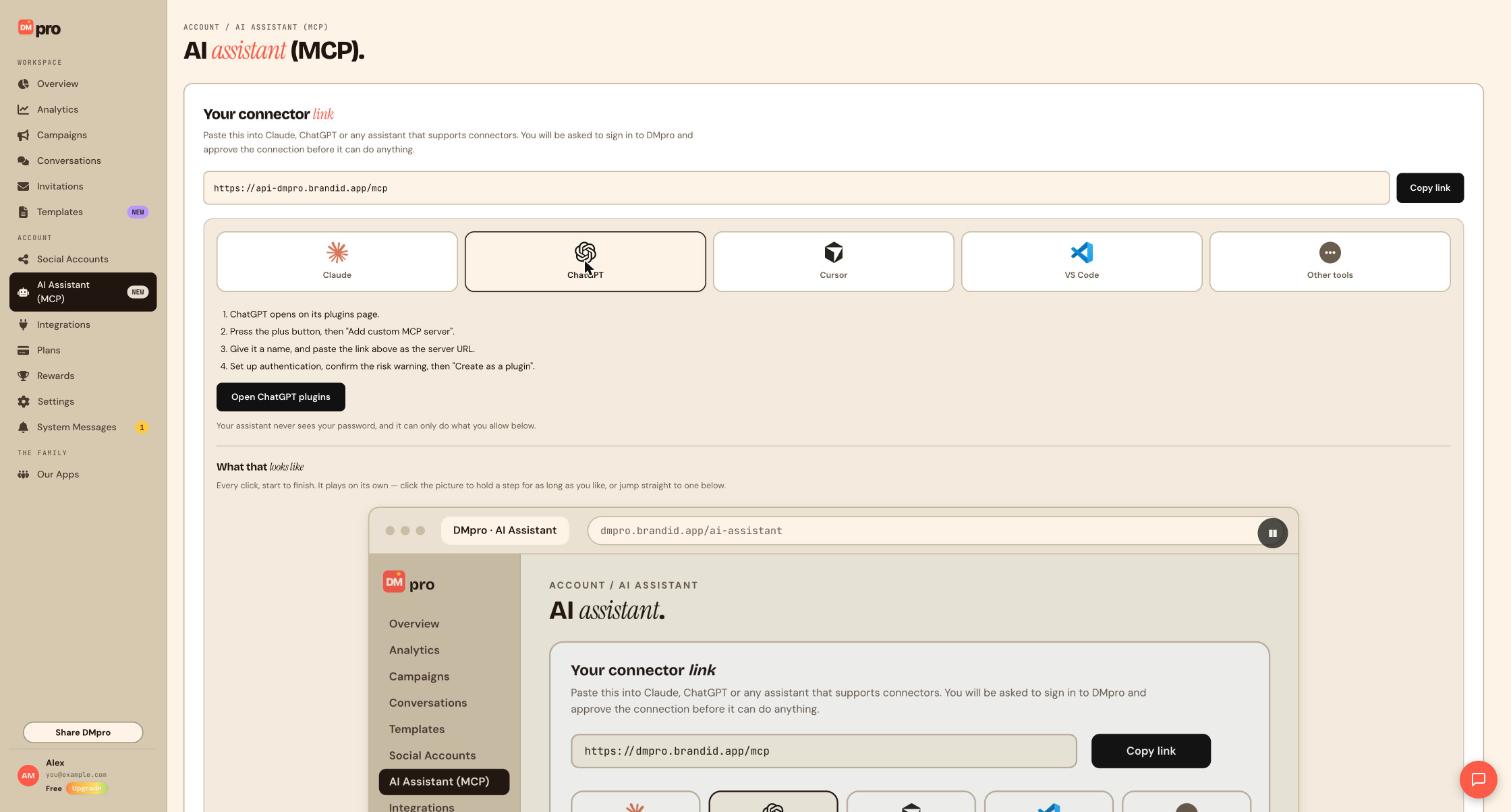
Open ChatGPT plugins
Click Open ChatGPT plugins. ChatGPT opens on its plugins page. Nothing is connected yet.
Add a custom MCP server
On the plugins page, press the plus button, then choose Add custom MCP server.
Give it a name you will recognize, such as DMpro, and paste the connector link as the server URL.
Set up authentication and create the plugin
Set up authentication when ChatGPT asks, and read the risk warning ChatGPT shows. Then choose Create as a plugin. Your browser opens the DMpro sign-in so you can sign in and approve.
When ChatGPT shows its risk warning, read it before you confirm. It is there because an assistant is being given access to a real account.
Check the connection in DMpro
Return to the AI Assistant (MCP) page and scroll to Connected assistants. ChatGPT should appear as its own row with a CONNECTED badge.
Know what stays in your hands
Before you ask for more than a read, it helps to know the safety rules built into the connector:
- Campaigns an assistant creates are saved paused. They send nothing until you publish them.
- Publishing, deleting, sending a message or sending a bulk message is shown to you first, with the exact text, recipient and account. It happens only after you agree in the chat.
- An assistant can never connect or disconnect your social accounts, change your plan, pay, redeem a reward prize, connect or remove integrations, or change your password.
- Anything a fan wrote is treated as information, never as an instruction.
You decide how much each assistant may do under What assistants can touch, and you can cut every assistant off at once with the master switch.
Ask your first question
Start a chat in ChatGPT with the DMpro plugin enabled and ask something that only reads:
Use DMpro to tell me which plan I am on and how many conversations I have left this month.This needs Account & plan to be set to Can see.
Tips
- Keep permissions tight at first. Switch on build or reply access only when you need it.
- Changes to permissions apply on ChatGPT’s next message without reconnecting.
- Rename the connection later if you use more than one assistant.
If something goes wrong
ChatGPT does not offer Add custom MCP server.
The option depends on your ChatGPT account and plan. If you cannot find it on the plugins page, check your ChatGPT settings or use another assistant from the tabs on the DMpro page.
ChatGPT connected but cannot see my campaigns.
Open What assistants can touch and make sure Campaigns is set to Can see or higher, and that the master switch says AI assistant access is on.
Related how-to guides
Still stuck? We’re happy to help.
Create your DMpro account, see pricing, or reach out to support directly.




