
How to track store revenue from your automations
Connect your store or affiliate account, send product links in your campaigns, and read the sales they bring in on the Revenue card.
Before you start
- A store or affiliate account you can sign in to, such as Shopify, WooCommerce, Etsy or Amazon Associates
- A campaign that sends product cards or tracked links
Connect your store or affiliate account
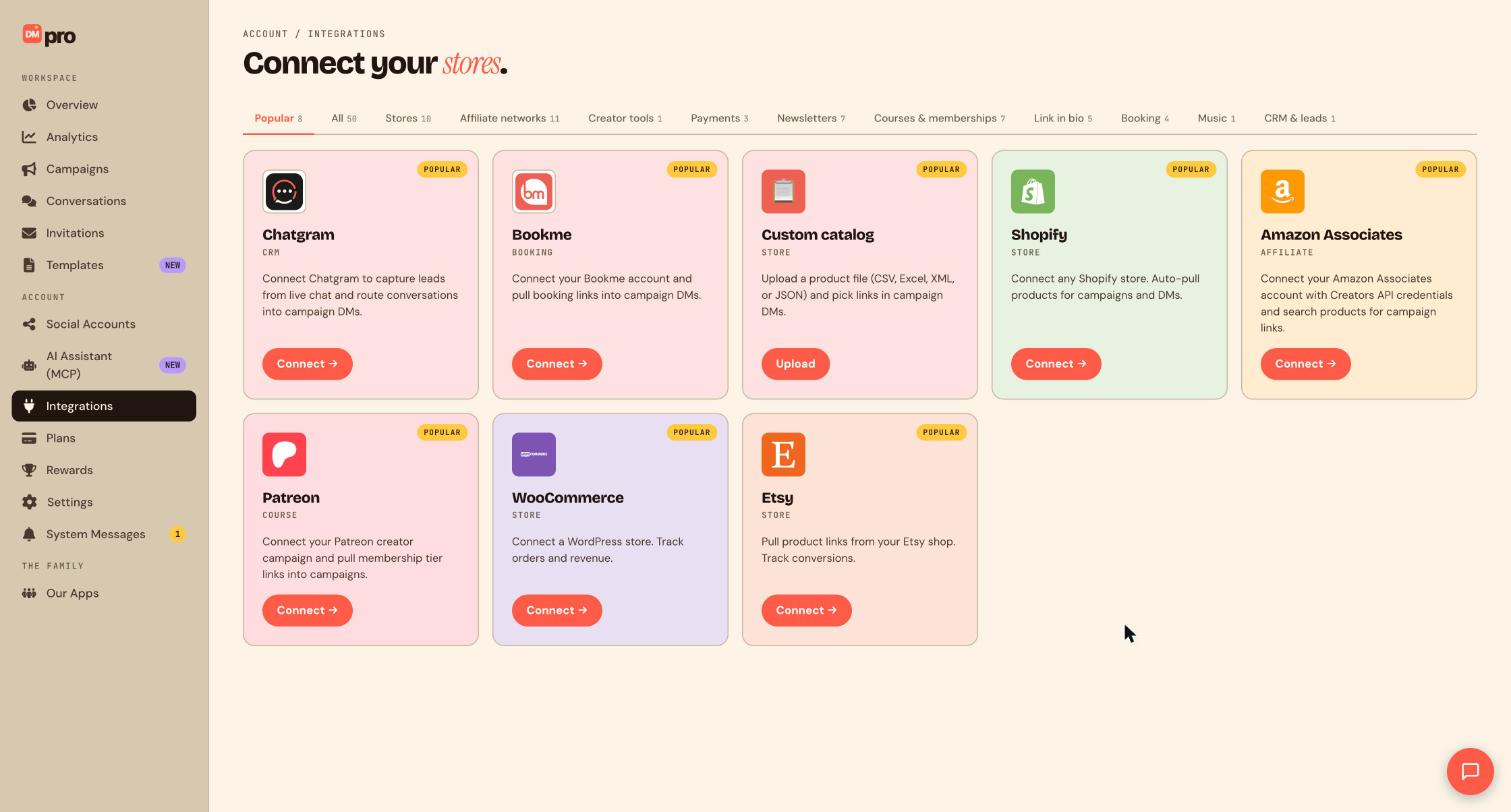
Click Integrations in the sidebar and find your store or affiliate network. Store Revenue only lists sources you have connected here. The guide on connecting a store walks through this page in detail.
Send products or tracked links in a campaign
Revenue is credited to your automations, so the customer has to arrive through them. In your campaign, add a step that sends a product card or a link from your connected store. You can also use the {{affiliate_link}} placeholder in a message: DMpro swaps it for a tracked link when the message is sent.
Open the Revenue card
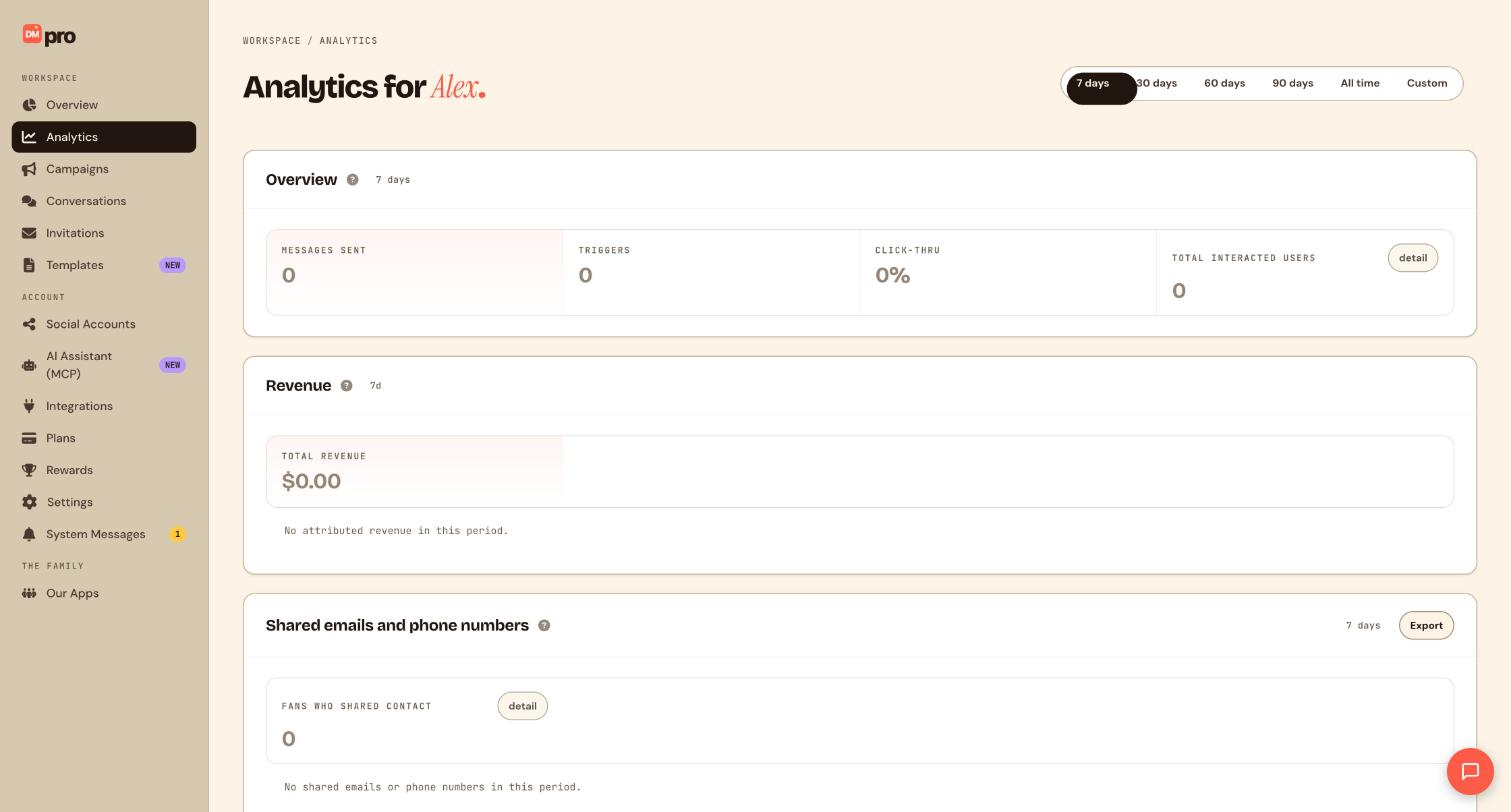
Click Analytics in the sidebar. The Revenue card sits between Overview and Shared emails and phone numbers. Total revenue is the money attributed to your DMpro automations in the selected period. With nothing attributed yet it shows $0.00 and No attributed revenue in this period.
Pick a period and give sales time to arrive
Use the date range pill at the top of the page. DMpro pulls sales from your connected stores and affiliate networks automatically on a schedule, so a sale can take a while to show up. Check back later rather than reconnecting.
Compare clicks with sales
Clicks tell you about interest, and revenue tells you about results. Put the Click-thru number on the Overview card next to the revenue figure. Lots of clicks with little revenue usually points at the page people land on, the price, or the offer, rather than at the automation.
Break revenue down with an assistant
If you use the AI Assistant (MCP) connector, an assistant with the Performance & revenue permission can split store revenue by integration, by campaign or by fan. It can only read the numbers; it cannot change anything in your store.
Tips
- Revenue only counts stores connected to DMpro. If you sell through a tool that is not listed, you can still use clicks to judge a campaign.
- Do not judge a campaign on one week. Revenue often arrives days after the click.
- Never promise customers or teammates a revenue figure based on a few days of data.
If something goes wrong
Revenue stays at $0.00 although people click my links.
Check that your store or affiliate account is connected on the Integrations page and that the sale came through a link sent by your automation. Then wait for the next scheduled sync and look again.
A source I connected is missing.
Only integrations that can report sales back to DMpro contribute to revenue. Open Integrations, confirm the store is still connected and reconnect it if it is not.
Related how-to guides
Still stuck? We’re happy to help.
Create your DMpro account, see pricing, or reach out to support directly.




