
How to connect a store or tool in Integrations
Connect a store, affiliate network or other tool so your campaigns can use real products and links and your revenue shows up in Analytics.
Before you start
- An account with the store or tool you want to connect
- Whatever that service asks for: usually a sign-in, and for some tools API credentials
Open Integrations
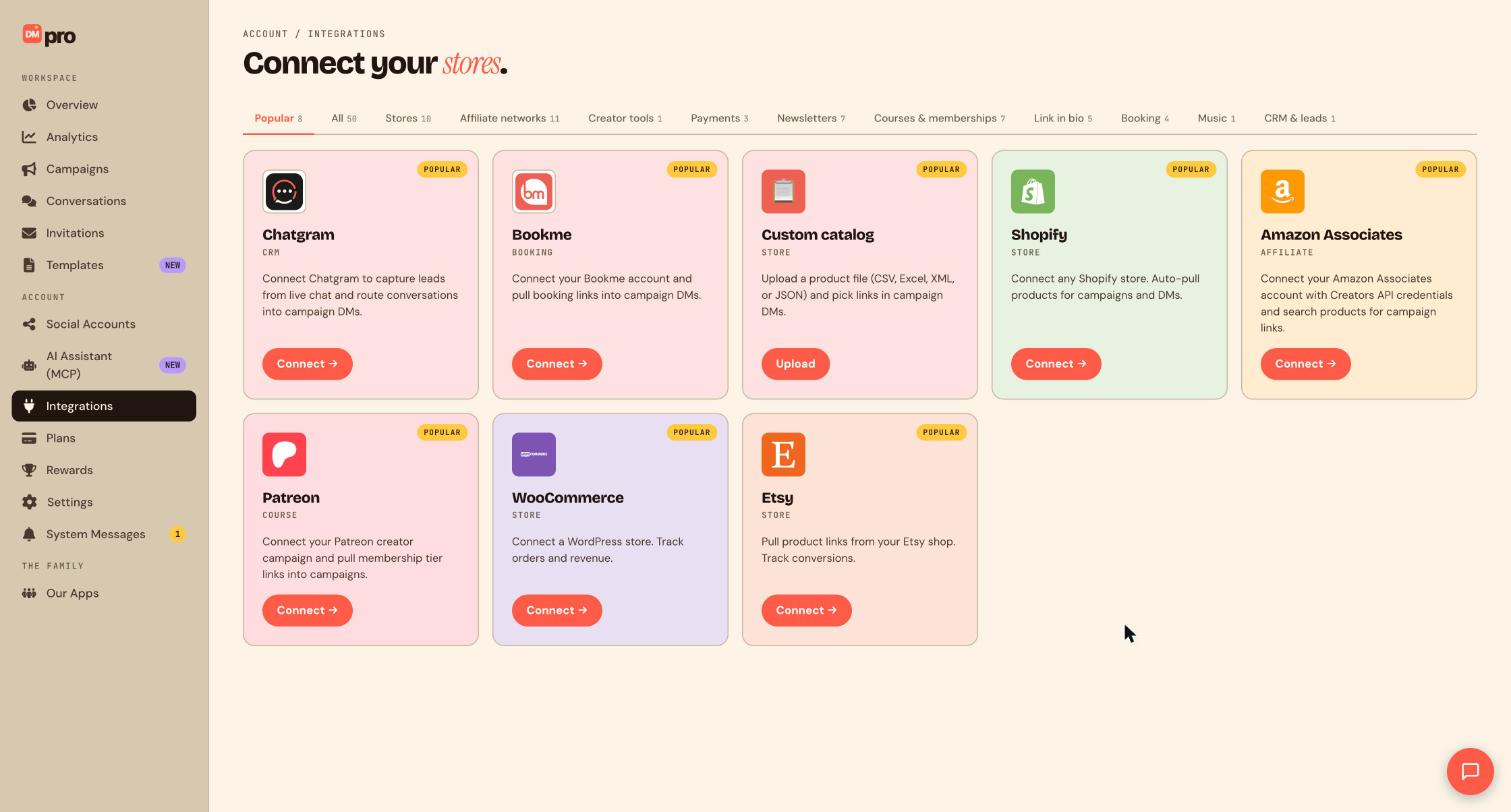
Click Integrations in the sidebar. The page is called Connect your stores and shows cards for each tool.
Find your tool
The tabs across the top sort tools into groups: Popular, All, Stores, Affiliate networks, Creator tools, Payments, Newsletters, Courses & memberships, Link in bio, Booking, Music and CRM & leads. Each card says what the tool does. For example, Shopify pulls products automatically for campaigns and DMs, WooCommerce tracks orders and revenue, and Etsy pulls product links and tracks conversions. If yours is not listed, you can upload a product file instead with the Custom catalog card.
Click Connect on the card
Click Connect on your tool. This starts a real authorization with that service, so you are sending DMpro to that store’s own sign-in or key screen. For Shopify you enter your store domain and approve access on Shopify. For WooCommerce, Etsy and others, follow the instructions in the connection window. Amazon Associates asks for your Creators API credentials.
Only approve access for the store you mean to connect, and only enter keys on the service’s own page or in the DMpro connection window.
Wait for the first sync
After you approve, DMpro returns you to Integrations and starts pulling in your products. Products then appear in the pickers when you add product or link steps to a campaign. Catalogs sync on a schedule, and the connection has a way to refresh them on demand if you have just changed your store.
Use it in a campaign
In the campaign builder, choose a product or link from your connected store when you add a card or a link step. For sales tracking, make sure customers reach your store through those links.
See the sales in Analytics
Stores and affiliate networks that can report sales back feed the Revenue card on the Analytics page. See the guide on tracking store revenue.
Tips
- If you disconnect a store later, existing campaigns keep the last synced products until you edit them. Review them before you republish.
- A connected AI assistant can see which tools are connected, but connecting or removing an integration is always done by you in DMpro.
- Instagram product cards use your Meta shop catalog, which is separate from the stores listed here.
If something goes wrong
I cannot find my store in the list.
Open the All tab and look in the category that fits. If the tool is not there, use the Custom catalog card to upload a product file.
A Send products step goes out with no products.
Send products pulls from your Meta shop catalog on Instagram. Link a Meta catalog, or send products from your connected store or uploaded catalog in a card step instead.
My products look out of date.
Catalogs sync on a schedule. Use the refresh option for the connection to pull the latest products, and check the products in your store are published.
Related how-to guides
Still stuck? We’re happy to help.
Create your DMpro account, see pricing, or reach out to support directly.




