
How to upload a custom product catalog
Upload your own product file so campaigns can send your real products and links, even if your store is not in the integrations list.
Before you start
- A product file in CSV, Excel, XML or JSON format
- For each product: a title, a link, and ideally an image link and a price
Prepare your file
The Custom catalog card accepts a product file in CSV, Excel, XML or JSON. Use one row per product. The usual columns are the product title, its URL, an image URL and, optionally, a price. Use your real products and prices only. Never make up a price or a discount.
A tiny example in CSV form, with a made-up product for illustration only:
title,url,image_url,price
Linen tote bag,https://example.com/tote,https://example.com/tote.jpg,24.00
Check that every link opens the right page and every image link loads in a browser before you upload. A broken link in the file becomes a broken link in a fan’s DM.
Open Integrations
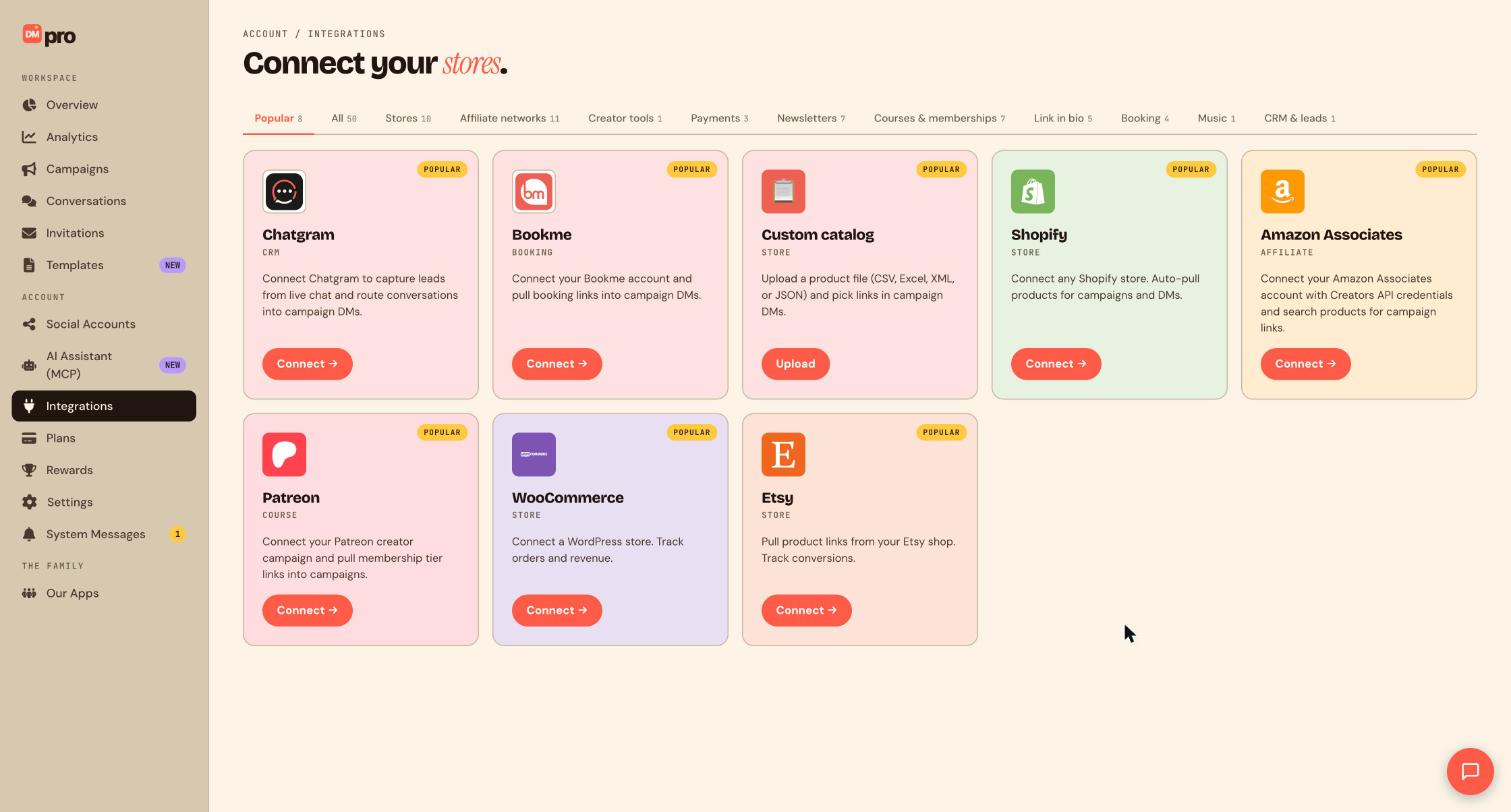
Click Integrations in the sidebar. The Custom catalog card is in the Popular tab and is tagged as a store.
Click Upload and choose the file
On the Custom catalog card click Upload, not Connect, because nothing is linked to an outside account. Choose the file from your computer. The upload adds those products to your DMpro catalog and does not touch your website or store.
The card describes the result like this: you upload a product file and then pick links in campaign DMs. So the upload is the only setup needed, and there is no account to sign in to.
Match the columns
DMpro walks you through matching each column in your file to the right product field, such as title, link, image and price. Check the matches before you confirm so a price does not end up in the title field.
Use the products in a campaign
In the campaign builder, add a card step and pick products from your uploaded catalog, or pick a catalog row as the source for a tracked link. The card step lets you attach your own image and link for each product. The Meta shop product step is different: it only sends products from a connected Meta shop catalog.
Tips
- Keep your original file. If a link or price changes, you will want to fix it at the source.
- Use short, clear titles. They appear on the product card your fans see.
- If you use the AI Assistant (MCP) connector, an assistant with Can see and build catalogs access can build an uploaded catalog from products you give it. It never changes a connected store.
If something goes wrong
My file will not upload.
Check the file type. The card accepts CSV, Excel, XML and JSON. Save the file again in one of those formats and try again.
A product is missing from the picker.
Check that the row has a title and a link, and that the columns were matched correctly during upload. Fix the file and upload it again.
My Send products step is empty.
That step reads your Meta shop catalog. For products from an uploaded catalog use a card step with the product’s own image and link.
Related how-to guides
Still stuck? We’re happy to help.
Create your DMpro account, see pricing, or reach out to support directly.




