
How to start a campaign from a template
Pick a ready-made template in DMpro, load it into the campaign builder, make it yours and publish it when you are ready.
Before you start
- A connected social account (see the guide on connecting a social account)
- The keyword you want fans to use and the link or message you want to send
Open the Templates library
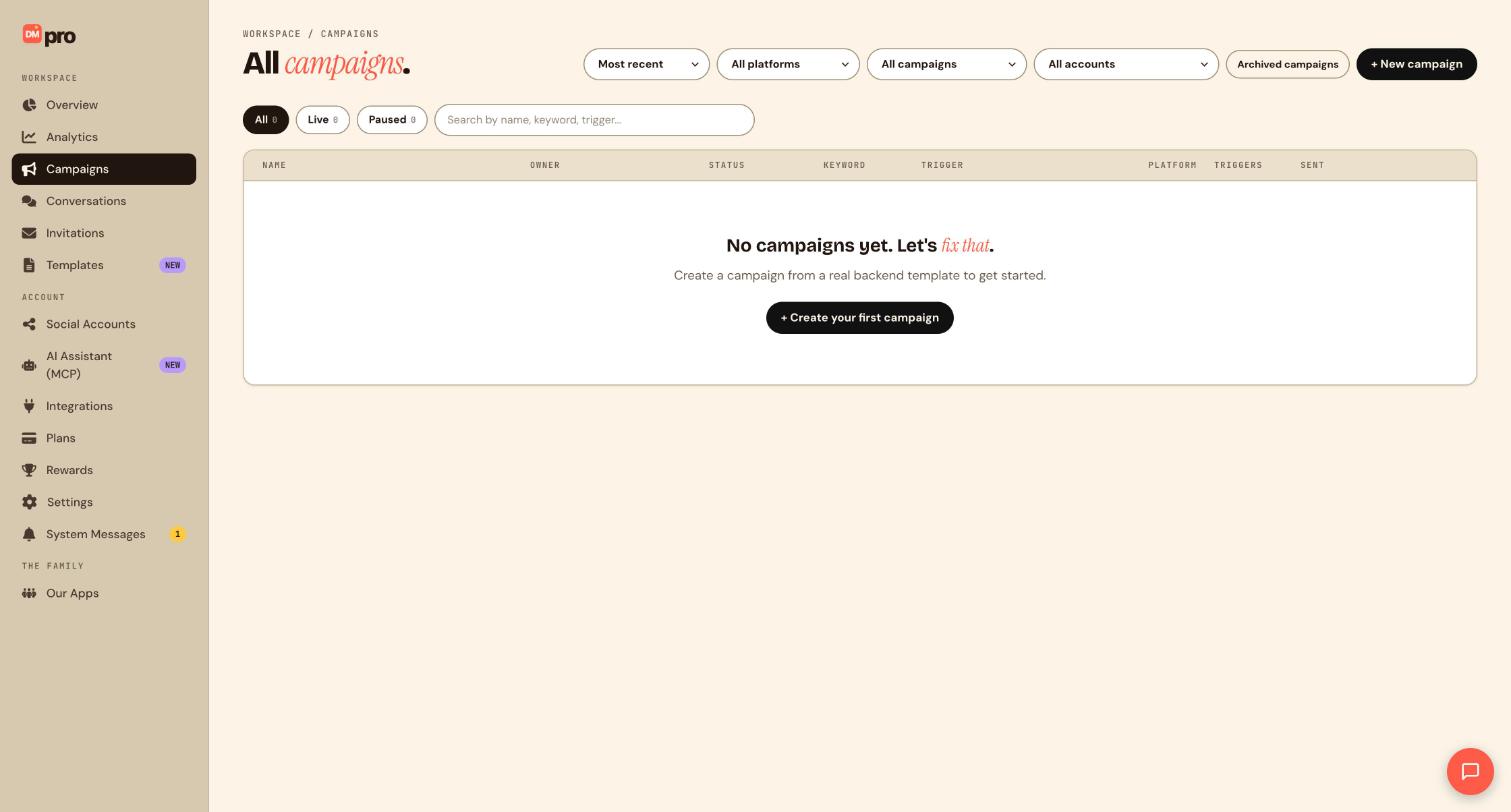
Click Templates in the WORKSPACE section of the sidebar. The page is titled Start via templates. You can also click + New campaign or + Create your first campaign on the Campaigns page; on an empty account that page invites you to create a campaign from a template.
Filter to the kind of campaign you want
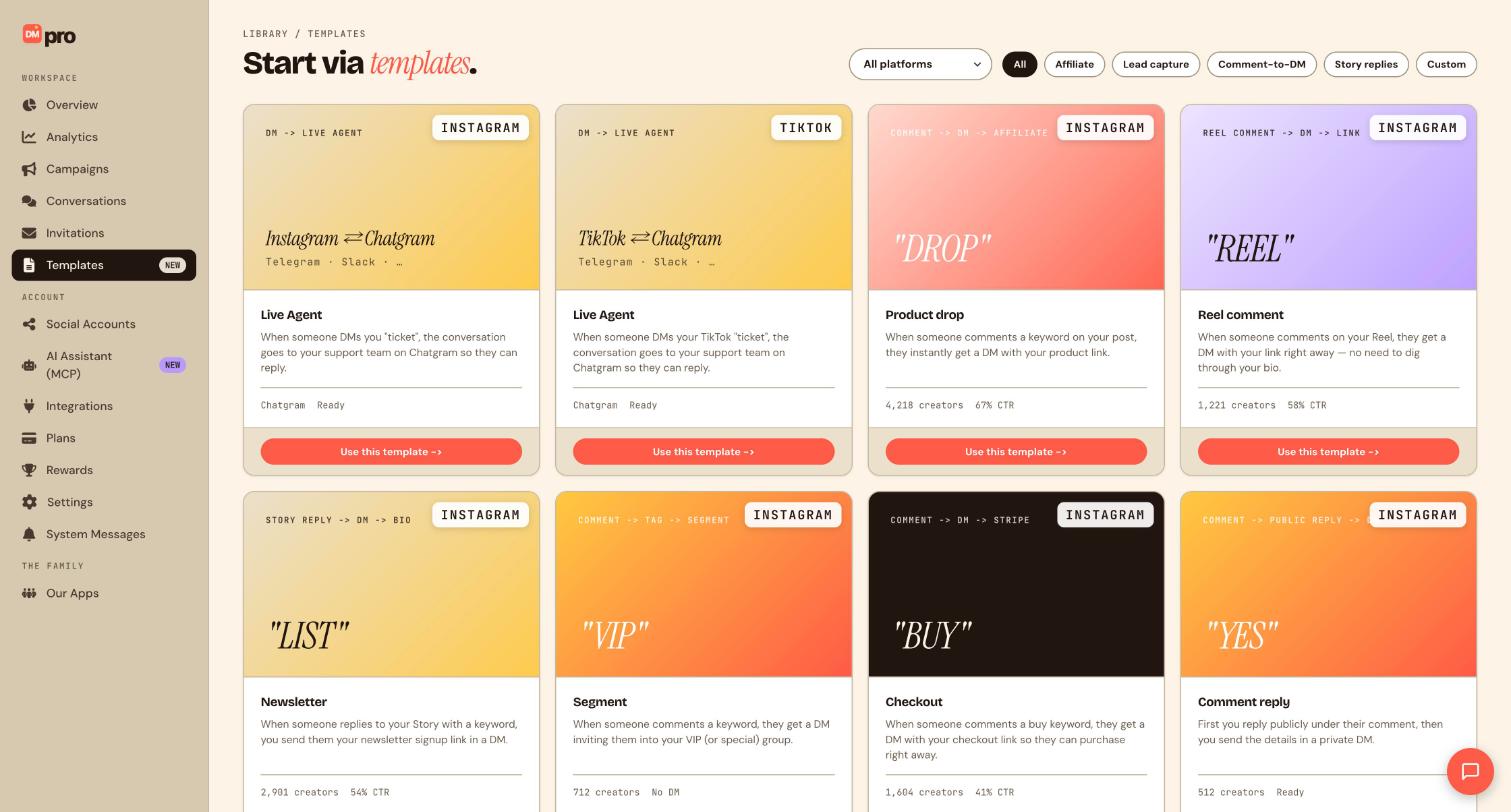
At the top right, use the platform menu (All platforms) and the filter buttons: All, Affiliate, Lead capture, Comment-to-DM, Story replies and Custom. Each card carries a platform label such as INSTAGRAM or TIKTOK.
Choose a template card
Read the description on each card to match it to your goal. For example:
- Reel comment: someone comments on your Reel and gets a DM with your link right away.
- Product drop: someone comments a keyword on your post and gets a DM with your product link.
- Newsletter: someone replies to your Story with a keyword and gets your signup link.
- Segment: a commenter gets a DM inviting them into your VIP group.
- Checkout: a buy keyword gets a DM with your checkout link.
- Comment reply: you reply publicly under the comment, then send the details in a private DM.
- Live Agent: a DM keyword passes the conversation to your support team in Chatgram, which needs Chatgram connected.
Load the template into the builder
Click Use this template on the card. This opens the campaign builder with the template’s trigger and steps already placed on the canvas. It does not send anything to your audience yet; you still have to publish.
Make it yours
Change everything the template guessed for you:
- the keyword fans will comment or message, for example
GUIDE; - the post it should watch, or all posts;
- the message text and the link you want to send;
- the connected account the campaign runs on (the Free plan allows one account per campaign).
Read every message out loud. It goes to your audience under your name, so replace placeholder wording with your own.
Fix anything the builder flags
A banner at the top of the builder lists problems. Red items block publishing, amber items are warnings. Typical red items are a missing trigger, an empty message, no connected account or a keyword already used by another live campaign on the same account. Fix them one by one.
Save a draft or publish
Click Draft to save your work without going live, or Publish campaign when you are ready. Publishing makes the campaign active, so DMpro starts replying to real fans straight away.
Tips
- Starter templates are fully editable, so treat them as a first draft.
- Built a flow you like? Use Save template in the builder header to keep it in your library for reuse. A template never runs on its own.
If something goes wrong
The Publish campaign button is greyed out.
Read the red items in the banner at the top of the builder. Add a trigger, give every action a message, pick a connected account, and resolve any pending collaborator invites.
I cannot add a second account to the campaign.
The Free plan allows one social account per campaign. Create a separate campaign for each account, or move to Pro for multi-account campaigns.
The Live Agent template does not work.
That template hands the conversation to your team in Chatgram, so Chatgram has to be connected first. You can find it under Integrations.
Related how-to guides
Still stuck? We’re happy to help.
Create your DMpro account, see pricing, or reach out to support directly.




