
How to turn on two-step authentication
Add a sign-in code sent by email so a stolen or guessed password is not enough to get into your DMpro account.
Before you start
- Access to the email address on your DMpro account, because that is where codes are sent
Open Settings
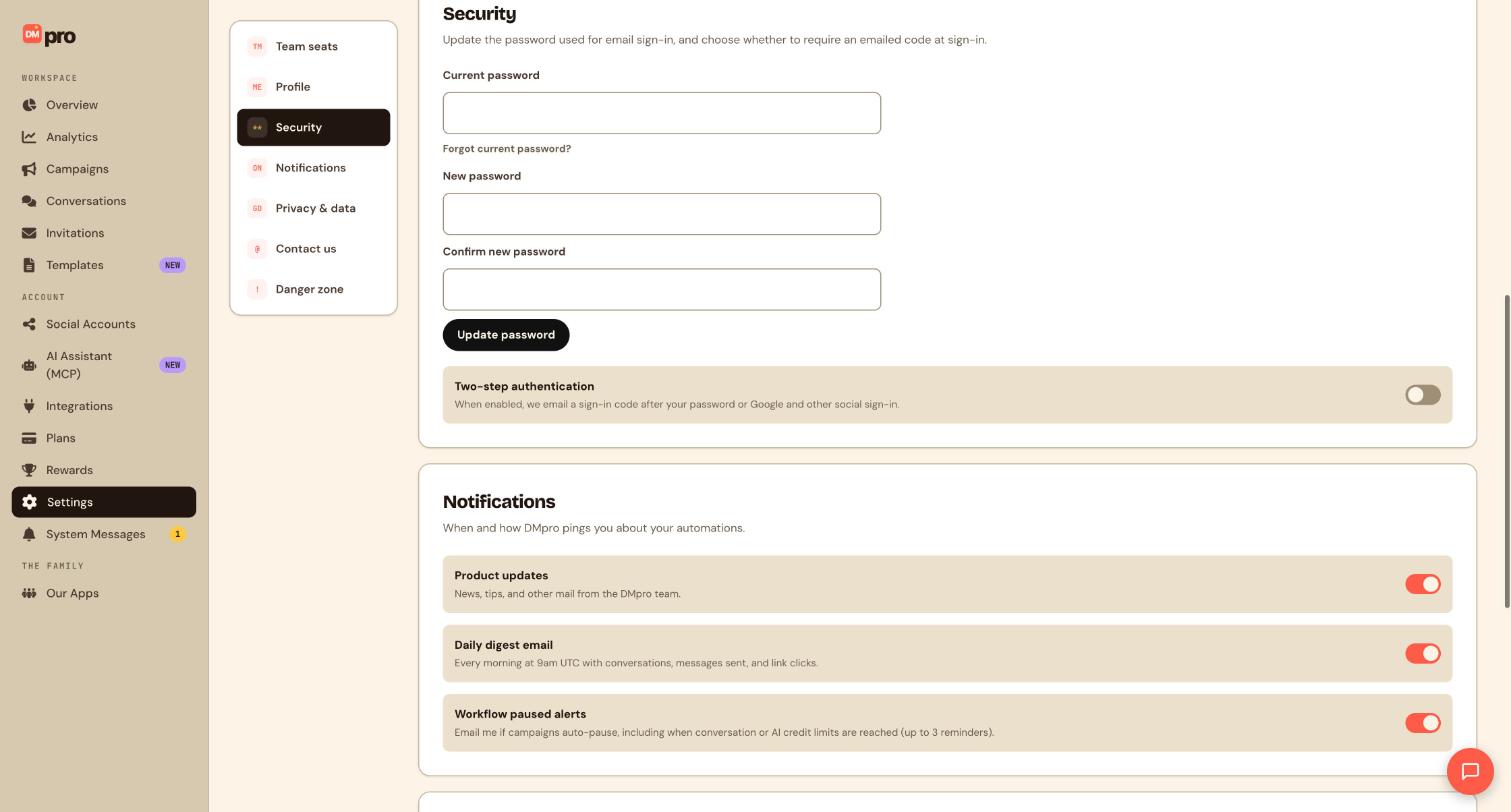
Click Settings in the sidebar. A list on the left jumps you between sections: Team seats, Profile, Security, Notifications, Privacy & data, Contact us and Danger zone.
Go to Security
Click Security in that list. At the top you can change your password with Current password, New password and Confirm new password, then Update password. Below it is the Two-step authentication switch.
Check the email on your account
Codes go to the email address on your account. Before you continue, open Profile in the same Settings list and make sure the address is current and one you can open right now. If you change your email, DMpro sends a confirmation link to the new address and the change only takes effect when you click it, so do that first.
Optional: update your password while you are here
The password fields above the switch are for email sign-in. To change your password, type your Current password, then your New password twice, and click Update password. Pick something long that you do not use anywhere else. If you sign in only with Google or another social login, you may not need this.
Switch Two-step authentication on
Turn on the Two-step authentication switch. It is off by default. When it is on, DMpro emails you a sign-in code after your password, or after Google and other social sign-in.
Test it
Keep your current session open, then sign in from a private window. Enter your password (or use Google), wait for the email, and enter the code. Once it works you know you will not lock yourself out.
From then on every sign-in has two parts: your password (or Google or another social sign-in), then the code from the email. The code arrives in your inbox within a minute or so.
If you lose access to your email, you also lose access to your codes. Keep your email secure and up to date, and do not turn this on if you cannot open that inbox.
Tips
- To turn it off, go back to the same switch. You can change this at any time.
- Use a strong, unique password in addition to the code. Two-step authentication is a second lock, not a replacement for the first.
- Be careful of lookalike emails. DMpro codes are only entered on the DMpro sign-in page.
If something goes wrong
The code email does not arrive.
Check your spam folder, wait a minute, then request a fresh code from the sign-in page rather than reusing an old one. Make sure the address on your account is correct.
I cannot get in because I cannot reach my email.
Contact support so the team can verify your identity and turn off two-step authentication on your account.
I forgot my password.
Use Forgot current password? in the Security section while signed in, or the forgot password link on the sign-in page if you are signed out.
Related how-to guides
Still stuck? We’re happy to help.
Create your DMpro account, see pricing, or reach out to support directly.




