
Your Own DM
Write your exact message with variables, fallbacks and spintax, preview it and send it at 1 credit per DM.
Your Own DM lets you write the exact message DMpro sends, filled in for each person, and this article explains how it works and how it differs from an AI prompt.
1. What It Is
Instead of having the AI write each DM, you write the message yourself once. For every person, DMpro:
- fills in variables such as
{{firstName}}from their profile, - picks one option from each spintax block such as
{Hey|Hi|Hello}, so DMs sent one after another read differently, - uses a fallback such as
{{firstName|there}}when the profile has no value.
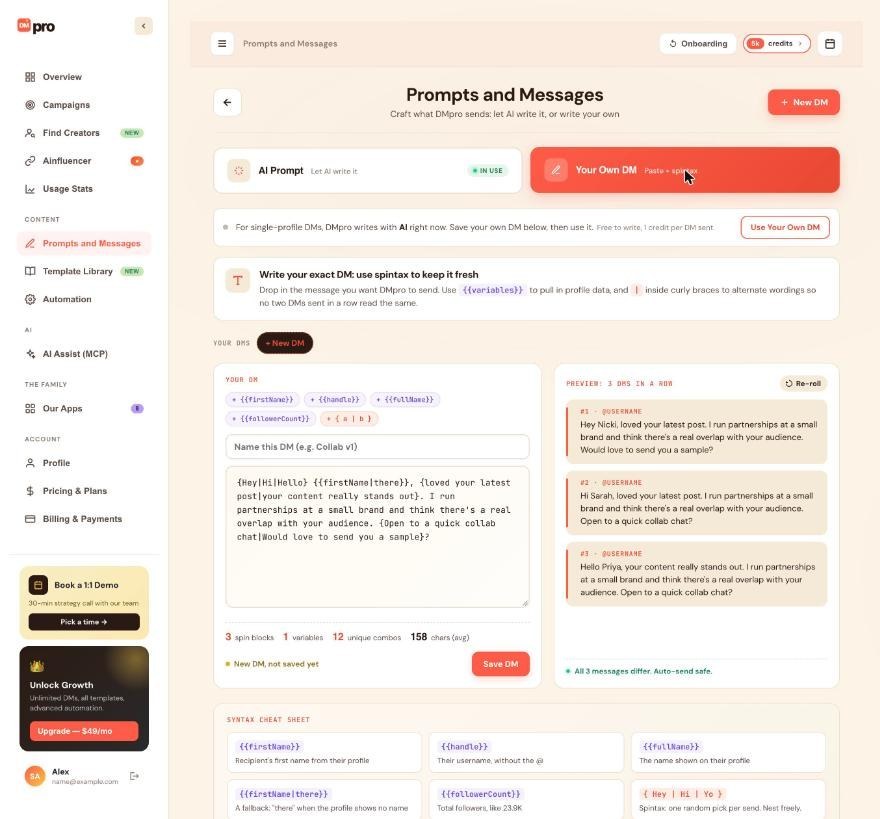
2. An Example
For a profile named Nicki Odom this could become “Hi Nicki, your content really stands out. I run partnerships…” and for the next person a different combination.
3. Your Own DM Vs AI Prompt
- Your Own DM: your exact words, the same quality every time, no AI involved. Free to write and preview; 1 credit for each DM DMpro sends.
- AI Prompt: the AI writes a unique message for each person from your instruction. 1 credit for each message written, sent or not.
4. Where You Use It
- Single-profile DMs, when the message mode is Your Own DM. See “AI Prompt Or Your Own DM: How To Switch The Message Mode”.
- Campaigns, by choosing Your Own DM in the campaign form. See “Running A Campaign With Your Own DM”.
5. Where To Write It
Open Prompts and Messages (dashboard left menu, or the extension’s account menu) and click the Your Own DM tab (“Paste + spintax”). Own DMs are saved to your DMpro account, so the dashboard and the extension show the same ones.
6. Several Own DMs, One Active
You can save up to 100 own DMs. One of them is the active own DM, used for single-profile DMs and offered first for new campaigns.
7. What It Costs
Writing, previewing and copying are free. DMpro uses 1 credit for each DM it sends with your own message, and a DM that fails is refunded. See “How Credits Work For Your Own DM”.
Related questions:
Writing an own DM takes a few minutes in the editor on Prompts and Messages, and this article walks through every part of it.
1. Open The Editor
Open Prompts and Messages and click the Your Own DM tab. If you have no own DM yet, the editor starts with an example you can change. Otherwise click New DM at the top (or + New DM next to your saved DMs) to start a new one.
2. Name It
Type a name in “Name this DM (e.g. Collab v1)”, up to 120 characters. If you leave it empty, DMpro names it “My DM” (then “My DM 2” and so on).
3. Write The Message
Type or paste your DM into the text box, up to 5,000 characters. Use the chips above the box to insert at the cursor:
- + {{firstName}}, + {{handle}}, + {{fullName}}, + {{followerCount}}
- + { a | b }: adds a spintax block, or wraps the selected text in one.
See “Using Variables And Fallbacks In Your Own DM” and “Using Spintax To Vary Your Wording”.
4. Watch The Checks
As you type, DMpro checks the message:
- Errors (shown with the line and column) must be fixed before you can save, for example an unclosed
{. - Notes are warnings, for example a version longer than Instagram’s limit of about 1,000 characters.
- Stats show how many versions your spintax gives, how many variables you used and the average length. The dashboard also shows the number of spin blocks.
5. Check The Preview
Preview: 3 DMs in a row fills your DM in for three sample profiles. Click Re-roll for three new versions. See “Previewing Your Own DM Before It Goes Out”.
6. Save It
Click Save DM (or press Ctrl+S, or Cmd+S on a Mac). The line next to the buttons shows “New DM, not saved yet”, “Unsaved changes” or “Saved”, plus how many times this DM was sent. DMpro checks the DM with the same engine that sends it, so a saved DM always works.
7. Other Buttons
- Discard (extension) or Discard changes (dashboard): go back to the saved version.
- Set as active DM: make this DM the active one (shown when it is not).
- Delete: click once, then again (“Click again to delete”) to delete it.
8. Your First DM Is Active Automatically
The first own DM you save becomes your active own DM. Saving more does not change which one is active.
Related questions:
Variables put each person’s details into your own DM, and fallbacks cover profiles where a detail is missing, and this article lists every variable and how it behaves.
1. The Variables
Write variables between double braces:
{{firstName}}: the first name on their profile.{{lastName}}: the last name, when the profile shows one.{{fullName}}: the name shown on their profile.{{handle}}: their username, without the @.{{followerCount}}: their followers, like 23.9K.{{followingCount}}: how many accounts they follow.{{postCount}}: their number of posts (Instagram only).
2. Other Spellings Work Too
Variable names are not case sensitive, and common spellings are understood: {{username}} is {{handle}}, {{followers}} is {{followerCount}}, {{name}} is {{firstName}}, and forms like {{first_name}} work too.
3. Fallbacks
Add a fallback after a bar: {{firstName|there}} sends “there” when the profile shows no first name. A fallback cannot contain braces or another bar.
4. Without A Fallback
When a variable has no value and no fallback, DMpro leaves it out and tidies the text around it, so “Hey {{firstName}}, love your page” becomes “Hey, love your page”.
5. How DMpro Finds The Name
DMpro takes the first and last name from the profile’s display name and skips emoji, symbols and words like “Dr”, “Coach” or “Official”. When a profile shows no name (only the username), the name variables are empty and your fallback is used. All-caps or all-lowercase names are written with a capital first letter.
6. Numbers
Large counts are shortened the way profiles show them, for example 23.9K or 1.2M. On TikTok, {{postCount}} stays empty, because DMpro reads likes there instead of posts.
7. Unknown Variables Are Errors
A name DMpro does not know, for example {{city}}, is an error: “{{city}} is not a variable DMpro can fill.” Fix it before saving.
8. Not The Same As AI Prompt Variables
AI prompts use $firstName, $bio and so on. In an own DM, write {{firstName}}. There is no bio variable in an own DM.
Related questions:
Spintax lets one own DM produce many different wordings, so no two DMs in a row read the same, and this article explains the syntax.
1. The Basics
Put options between single braces, separated by bars: {Hey|Hi|Hello}. For each DM, DMpro picks one option.
This line alone gives 3 x 2 = 6 versions.
2. Options Can Hold Anything
An option can contain variables, punctuation, whole sentences and even other spintax blocks: {Open to a quick {chat|call}?|Would love to send you a sample.}.
3. Never The Same Wording Twice In A Row
When your DM has more than one version, DMpro avoids sending the same wording as the DM before it, both for single profiles and in campaigns. A new name alone does not count as a new wording; the spintax choices must differ.
4. Literal Braces And Bars
To send a real brace, bar or backslash, put a backslash in front: \{, \}, \|, \\.
5. Braces Without A Bar
{text} with no bar is not spintax. DMpro sends it as written, braces included, and shows a note.
6. Common Errors
- “This “{” is never closed. Add a “}” after the last option.”
- “This “}” has no matching “{“. Remove it, or write \} for a literal brace.”
7. How Many Versions
The editor counts the versions your DM can produce (shown as versions in the extension and unique combos on the dashboard). Very large numbers show as 1.2M, 3.4B or 1T+.
8. Why It Matters
Sending the same text to many people can look like spam to Instagram and TikTok. A few spintax blocks keep each DM fresh. The preview tells you when every DM reads the same (“Every DM reads the same. Add { a | b } choices so each one is different.”).
Related questions:
The preview shows exactly how your own DM reads for real people before anything is sent, and this article explains how to use it.
1. Preview: 3 DMs In A Row
Under the editor, DMpro fills your DM in for three sample profiles (@nicki.odom.diy, @sarah.trains and @priya.knits), each worded differently when your spintax allows. The preview uses the same engine that sends, so what you see is what people get. When an AI app previews an own DM through AI Assist (MCP), it can use up to 5 sample profiles at a time; without any of its own it gets three built-in ones.
2. Re-roll
Click Re-roll (“Show 3 new versions”) to see three other combinations.
3. The Line Under The Preview
- “All 3 messages differ. Auto-send safe.” Your spintax gives enough variety.
- “Two versions only, so messages alternate. Add more { a | b } choices.” (the dashboard adds “for more variety”)
- “Every DM reads the same. Add { a | b } choices so each one is different.”
- “Fix the issue in your DM first. Until then the braces are sent as written.”
4. Previews In The Campaign Form
When you pick Your Own DM for a campaign, the form shows a preview of the chosen DM for sample profiles, with Re-roll.
5. Previewing Is Free
Previews never send anything and never use credits.
6. Check A Real Profile Too
To see your DM for a real person without sending it, turn Auto Send DMs off on the extension’s main screen, open the profile, click Refresh, then Fill in. Filling in is free.
Related questions:
You can keep several own DMs and choose which one is active, and this article explains how.
1. Your Saved DMs
Above the editor, your saved own DMs appear as chips, with the active one first and marked with a green dot. Click a chip to open that DM in the editor. You can save up to 100 own DMs; at 100, DMpro asks you to delete one to make room.
2. The Active Own DM
The active own DM is the one:
- single-profile DMs send while the message mode is Your Own DM,
- the campaign form offers first when you choose Your Own DM.
3. Make Another DM Active
Open the DM and click Set as active DM. DMpro confirms “[Name] is now your active DM.” This does not switch the message mode by itself. See “AI Prompt Or Your Own DM: How To Switch The Message Mode”.
4. Save Before You Switch
If the editor has unsaved changes, DMpro asks you to “Save or discard your changes first” before you open another DM or start a new one.
5. Deleting An Own DM
Click Delete, then click again to confirm.
- If it was the active DM, your newest remaining own DM becomes active.
- If it was your last own DM while the message mode was Your Own DM, single-profile DMs go back to AI: “Deleted. You have no own DM left, so DMpro writes your DMs with AI again.”
6. Campaigns Send The Own DM You Picked
A campaign sends the own DM you picked when you created it, not your active one, so making another DM active does not change it. Changes you save to that DM apply to the DMs the campaign still has to send. If you delete it, the campaign keeps sending the copy it saved when it was created.
7. Times Sent
The save line shows how many times a DM was sent (“Saved · sent 42×”), so you can see which ones you use.
Related questions:
The message mode decides whether single-profile DMs are written by AI or send your own DM, and this article shows how to switch it and what changes.
1. Two Modes
- AI Prompt: for single-profile DMs, DMpro writes each message with AI from your active prompt. 1 credit per AI-written message.
- Your Own DM: for single-profile DMs, DMpro sends your active own DM, filled in for each person. Free to write, 1 credit per DM sent.
2. The Tabs Only Change The View
On Prompts and Messages, clicking the AI Prompt or Your Own DM tab only shows that tab. The mode in use is marked with an In use badge on its tab and a line at the top of each tab.
3. Switch On The Dashboard Or In The Extension
Open Prompts and Messages (dashboard left menu, or the extension’s account menu). The button shows on the tab of the mode that is not in use:
- To use AI: on the AI Prompt tab, click Use AI Prompt. The AI writes from your active prompt.
- To use your own DM: on the Your Own DM tab, click Use Your Own DM. DMpro sends your active own DM (the one with the green dot). To send a different one, open it and click Set as active DM first.
DMpro confirms “DMpro now sends your own DM.” or “DMpro now writes your DMs with AI.” Unsaved changes in the editor are saved first.
4. Choosing A Prompt Or Own DM Does Not Switch The Mode
Set active on a prompt and Set as active DM on an own DM choose which one is used, but they do not switch the mode. Use the buttons above for that.
5. You Need A Saved Own DM
Your Own DM mode needs a saved own DM. If you have none, clicking Use Your Own DM saves whatever is in the editor (the example text, if you did not change it) as “My DM” and sends that, so write your own message first.
6. What Changes On The Main Screen
In Your Own DM mode, the extension’s main screen shows Your own DM with the DM’s name instead of Active prompt, the Generate button reads Fill in, the Prompt button reads My DM, and a line says “Sending your own DM: [name]. Filling it in is free; DMpro uses 1 credit for each DM it sends.”
7. Campaigns Are Not Affected
The mode only decides single-profile DMs. Each campaign picks AI Prompt or Your Own DM when you create it (the form starts on your current mode). An AI Prompt campaign writes each DM from your active prompt at that moment (unless it rotates 2 or more prompts), so changing your active prompt changes the DMs it still has to write. An own DM campaign sends the own DM it was created with.
8. One Mode For Your Account
The mode is saved to your DMpro account, so the dashboard and every extension where you are signed in use the same one. An AI app you connected through AI Assist (MCP) can switch it too, for example when you tell it to use a prompt or an own DM.
Related questions:
In Your Own DM mode, the extension fills in your own DM for the profile in front of you and can send it in one click, and this article walks through it.
1. Before You Start
Set the message mode to Your Own DM (see “AI Prompt Or Your Own DM: How To Switch The Message Mode”). The chip on the extension’s main screen shows Your own DM and the DM’s name.
2. Open The Profile
Open the Instagram or TikTok profile, click the DMpro icon to open the side panel, and click Refresh if the panel shows another profile.
3. Click Fill In
Click Fill in. DMpro fills in your active own DM for this person instantly: variables from the profile, one option from each spintax block, never the same wording as the DM before when your spintax allows. Filling in is free.
4. Sending
- Auto Send DMs on: DMpro reserves 1 credit and sends the DM right away. “Auto-DM sent successfully to @username! 1 credit used.”
- Auto Send DMs off: the DM stays in the box. Click Copy To Clipboard and paste it yourself; nothing is charged.
5. If The DM Fails
DMpro gives the credit back: “Auto-DM failed: [reason]. Your credit was given back.” If the page did not answer and DMpro cannot tell whether the DM went out, it keeps the credit and asks you to check the chat before sending again.
6. Next Profile
Open the next profile and click Refresh. With Smart Message Update on Automatic and a DM already in the message box, DMpro fills in your DM for the new person by itself (and sends it if Auto Send DMs is on). Click Fill in again any time for another wording.
7. Messages You May See
- “Pick your own DM first: open Prompts and Messages, then Your Own DM.”
- “Your DM “[name]” needs a fix first: [the error].”
- “Your DM came out empty for this profile. Add text around the variables.”
- “You’re out of credits. Each DM sent with your own message uses 1 credit. Upgrade your plan to keep sending.”
- “DM already sent to @username – Duplicate messages prevented!” You already messaged this person, so nothing is sent and no credit is used.
- “Auto-DM failed: Please switch to an Instagram or TikTok tab to send direct messages” The Instagram or TikTok tab must be the one in front. No credit is used.
8. Auto Email
With Auto Email on and an email in the person’s bio, DMpro emails the same message too (or only if the DM fails, depending on your setting).
Related questions:
Your own DM costs credits only when DMpro sends it, and this article explains exactly when a credit is used, refunded or kept.
1. Free
- Writing, editing and saving own DMs.
- Previews and Re-roll.
- Fill in in the extension.
- Copying a DM and pasting it yourself.
- Own DM campaigns with Auto-send DMs off (DMpro only prepares the messages).
2. 1 Credit Per DM Sent
Each DM DMpro sends with your own message uses 1 credit, on Instagram or TikTok, for single profiles and in campaigns.
3. When The Credit Is Taken
Right before the DM goes out. If you have no credits, nothing is sent and DMpro opens the upgrade options.
4. Refunds
- The DM failed: the credit is given back. Campaign details show “credit refunded”.
- The DM failed but Auto Email delivered the message: it counts as one DM sent.
- DMpro cannot tell whether the DM went out (for example Chrome closed mid-send, or the page stopped answering): the credit is kept, because the DM may have been sent. Such a campaign DM is never sent again.
- No result ever reaches DMpro for a single-profile send: after 10 minutes it counts as sent.
5. Same Credits As Everything Else
Own DMs use the same credits as AI messages (subscription credits first, then one-time credits, then free credits). They are counted separately from AI messages in your usage (“own DMs sent”).
6. Compared With AI Prompts
An AI prompt uses 1 credit for every message the AI writes, even if you never send it. An own DM uses 1 credit only for DMs that are sent. For a campaign, the dashboard’s campaign form shows the most the list can cost.
Related questions:
The own DM editor checks your message as you type, and this article explains each error and note and how to fix it.
1. Errors (Must Fix Before Saving)
Errors appear in red with the line and column.
- An empty DM: Save DM stays disabled until you type something (“Write the DM you want DMpro to send.”).
- “This “{” is never closed. Add a “}” after the last option.” A spintax block is missing its closing brace.
- “This “}” has no matching “{“. Remove it, or write \} for a literal brace.”
- “{{city}} is not a variable DMpro can fill. Use one of: …” (with the name you typed) The variable is misspelled or does not exist. See “Using Variables And Fallbacks In Your Own DM”.
- “Keep it under 5,000 characters.”
2. Notes (Warnings)
Notes appear in yellow. You can save with them, but check them:
- “”{text}” has no “|”, so it is sent as written, braces included.” Add a bar for spintax, or remove the braces.
- “Some versions can reach [number] characters. Instagram cuts a DM at about 1,000.” Shorten the longest options.
3. Preview Warnings
- “Every DM reads the same. Add { a | b } choices so each one is different.”
- “Two versions only, so messages alternate. Add more { a | b } choices.” (the dashboard adds “for more variety”)
4. When Sending
- “Your DM came out empty for this profile.” Your DM is only variables and the profile had none of them. Add text around the variables, or use fallbacks.
- “Your DM “[name]” needs a fix first.” The active own DM has an error. Open it on Prompts and Messages and fix it.
5. In The Campaign Form
A campaign with Your Own DM cannot be created while the chosen DM has an error (“[name] needs a fix first”) or when you have no saved own DM.
6. A Literal Brace Or Bar
Write \{, \}, \| or \\ to send the character itself.
Related questions:
Still stuck? We’re happy to help.
Create your account, or reach out to support.




