
Automation Settings
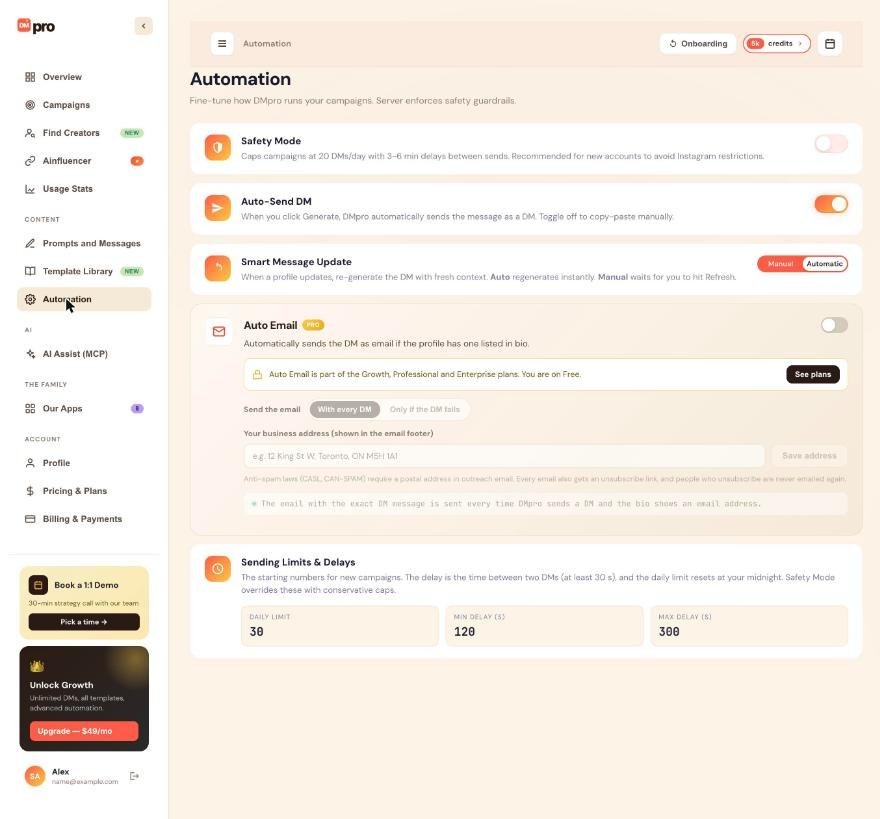
Safety Mode, delays, daily limits, Smart Message Update modes and how settings sync between the dashboard and the extension.
Safety Mode gives every new campaign a conservative pace, and this article explains what it changes, what it does not, and when to use it.
1. What Safety Mode Does
With Safety Mode on, every campaign you create sends:
- at most 20 DMs a day,
- with 3 to 6 minutes (180 to 360 seconds) between DMs.
The campaign form shows these numbers and locks the fields: “Safety Mode is on, so this campaign sends up to 20 DMs a day, one every 3 to 6 minutes.”
2. It Is Off By Default
New accounts start with Safety Mode off. Turn it on yourself if your account is new or was restricted recently.
3. It Applies When A Campaign Is Created
Safety Mode sets the pace of campaigns created while it is on. “Campaigns you already created keep their numbers.” Turning it on does not slow down a campaign that is already running, and turning it off does not speed one up.
4. What It Does Not Cover
- Single-profile DMs. Safety Mode and campaign limits do not apply to DMs you send from a profile in Single Profile mode.
- Platform warnings. DMpro does not watch for Instagram or TikTok blocks. If you get a warning, pause your campaigns yourself.
5. Where To Turn It On Or Off
- Dashboard: Automation, Safety Mode.
- Extension: account menu, Automation settings, Safety Mode.
The setting is saved to your account, so both places show the same choice. When you turn it on, the extension confirms: “Safety Mode is on: new campaigns send up to 20 DMs a day, one every 3 to 6 minutes.”
6. Your Own Numbers Are Kept
While Safety Mode is on, your Sending Limits & Delays stay saved and editable. “These numbers apply when you turn it off.”
7. Who Should Use It
- New Instagram or TikTok accounts.
- Accounts that were recently restricted.
- Anyone running automated outreach for the first time.
8. Turning It Off
Turn it off when you want to use your own daily limit and delays, and raise them gradually. If an AI app connected through AI Assist (MCP) wants to turn Safety Mode off, it asks you first.
Related questions:
The Min and Max delay set the time between two campaign DMs, and this article explains the rules and how to choose good values.
1. Where Delays Are Set
- For one campaign: Min Delay and Max Delay in the campaign form.
- For new campaigns (defaults): Sending Limits & Delays on the dashboard’s Automation page, or in the extension’s Automation settings (Min delay (s) and Max delay (s)).
The defaults are 120 and 300 seconds until you change them.
2. How Delays Work
- The delay is the time between two DMs that go out, from one send to the next.
- DMpro picks a random time between Min and Max for each gap, both included, and never sends sooner than Min.
- Max can equal Min if you want a fixed delay.
3. The Rules
- Min delay: at least 30 seconds, at most 3,600 seconds (1 hour).
- Max delay: at most 3,600 seconds, and not lower than Min delay.
- Whole numbers only.
The forms refuse other values and say why, for example “Max delay can’t be lower than Min delay. Use the same number for a fixed delay.” Nothing is changed without telling you.
4. Safety Mode Overrides Them
With Safety Mode on, new campaigns use 180 to 360 seconds regardless of these numbers.
5. Choosing Values
- The defaults (2 to 5 minutes) are a balanced starting point.
- For a new or recently restricted account, use Safety Mode or longer delays.
- Very short delays can run a little longer than you set, because opening a profile and writing the DM takes about 20 to 40 seconds.
6. How Delays Affect Campaign Length
A rough guide: 50 people at 2 to 5 minutes take about 100 to 250 minutes. With a daily limit of 30, a list of 100 takes at least 4 days.
7. Watching The Timer
The extension’s campaign screen shows Next send in with a countdown, and the dashboard card shows “next DM in” while the campaign waits.
8. Changing Delays Of An Existing Campaign
Delays are fixed when a campaign is created. Your defaults only affect campaigns you create afterwards.
Related questions:
The daily limit caps how many DMs a campaign sends per day, and this article explains where to set it and how it behaves.
1. Where To Set It
- For one campaign: Daily Limit in the campaign form, from 1 to 200.
- For new campaigns (default): Daily limit in Sending Limits & Delays on the dashboard’s Automation page or in the extension’s Automation settings. It is 30 until you change it.
While your default is 30, new TikTok campaigns start at 20 a day.
2. How It Counts
The limit counts DMs per campaign per day (messages written, if the campaign’s Auto-send DMs is off). The day resets at your own midnight.
3. At The Limit
The campaign stays Running and waits: “Daily limit reached for today · continues after midnight, in [time]”. It continues by itself after midnight while Chrome with the extension is open.
4. Safety Mode
With Safety Mode on, new campaigns are limited to 20 a day whatever you type.
5. Changing It Later
The daily limit of a campaign is fixed when you create it. Changing your default affects only campaigns you create afterwards.
6. Choosing A Number
- Start low (10 to 20) on new accounts and when testing a new message.
- Raise it slowly while your DMs go through without warnings.
- Remember that each campaign has its own limit.
7. Single-Profile DMs
The daily limit does not apply to DMs you send yourself in Single Profile mode.
Related questions:
Smart Message Update has two settings, Automatic and Manual, and this article explains when to use each.
1. Where To Set It
- Extension: account menu, Automation settings, Smart Message Update. Click the switch (or use Enter or Space) to move between Manual and Automatic.
- Dashboard: Automation, Smart Message Update.
It is set to Automatic for new accounts and saved to your account.
2. Automatic
When you click Refresh on a new profile and a message is already in the box, DMpro writes it again for the new profile: a new AI message (1 credit) in AI Prompt mode, or your own DM filled in for the new person (free to fill in, 1 credit when it is sent) in Your Own DM mode. With Auto Send DM on, it is sent right away.
3. Manual
Refresh only loads the new profile. The box shows any message you already wrote for that person, and you click Generate (or Fill in) when you want a new one.
4. Which One Fits
- Automatic for fast flows where you move from profile to profile and trust your prompt or own DM.
- Manual when you want to look at each profile first, or keep AI credits under control.
5. Combined With Auto Send DM
- Automatic + Auto Send DM on: each Refresh on a new profile writes and sends a DM. The fastest flow, with no review step.
- Automatic + Auto Send DM off: each Refresh writes a new message for you to check and copy.
- Manual + Auto Send DM on: nothing happens until you click Generate or Fill in, which then sends.
- Manual + Auto Send DM off: full control.
6. The Counters
In the extension, Updated counts messages Smart Message Update rewrote and Auto Sent counts the ones it sent.
7. Campaigns
Smart Message Update only affects single-profile DMs. Campaigns write each DM once, when that person’s turn comes.
Related questions:
Beyond your own settings, DMpro has built-in rules that keep sending safe and fair, and this article lists the ones that protect you.
1. Pace Rules For Every Campaign
- Min delay at least 30 seconds, delays at most 3,600 seconds, daily limit from 1 to 200.
- These rules are checked by DMpro itself when a campaign is created, not only by the form. If a number had to change, DMpro says so (“Safety Mode applied: up to 20 a day, a DM every 3 to 6 min.”, or which number changed and why).
2. One DM At A Time
The extension sends one DM at a time and runs one campaign at a time, in its own tab. It never uses a DMpro page or another extension page for sending.
3. Never The Same DM Twice
- Before each campaign DM goes out, DMpro marks that person as being sent. A DM that may already have gone out (for example Chrome closed mid-send) is never sent again.
- In single-profile mode, DMpro warns you before writing for someone it already messaged (“Already messaged”) and stops a duplicate send.
- DMpro only sends a message to the profile it was written for.
4. Credits Are Checked By DMpro
Credits are taken by DMpro’s server, before the AI writes or right before an own DM goes out. Without credits nothing is written or sent, and a failed AI write is never charged.
5. Email Rules
Outreach email has per-plan hourly and daily limits, never goes to people who unsubscribed, never repeats to the same person automatically within 30 days, and only uses addresses shown in the bio. See “Auto Email Rules: Plans, Limits, Footer And Unsubscribes”.
6. AI Apps
Apps connected through AI Assist (MCP) work within extra limits: anything that reaches people or spends credits asks you first, bigger requests wait for your approval, and an hourly limit applies to changes that reach people. You can pause every AI app with one switch. See “AI Assist Limits: The Hourly Limit On Changes That Reach People And More”.
7. What Guardrails Do Not Do
DMpro does not detect Instagram or TikTok restrictions on your account and does not limit single-profile DMs. Your pace and judgment still matter. See “How DMpro Handles Instagram’s Rate Limits”.
Related questions:
The extension’s Automation settings page holds every setting for how DMpro writes and sends, and this article walks through it.
1. How To Open It
- Open the account menu (your initials at the top right) and click Automation settings (the gear icon).
- On the campaign form, the Safety Mode note links to it.
- On Prompts and Messages, the note “Smart Message Update, Auto Send DM and Auto Email are now in Automation settings.” has an Open button.
The page explains: “How DMpro writes and sends your DMs. Signed in, these settings are saved to your DMpro account, so the Automation page of the dashboard shows the same ones.”
2. Smart Message Update
Choose Manual or Automatic. See “Smart Message Update Modes (Auto Vs Manual)”.
3. Auto Send DM
Turn automatic sending of single-profile DMs on or off. The counters show DMs Sent and Failed. See “Auto-Send DM Explained”.
4. Auto Email
The same Auto Email card as on the dashboard: the switch, With every DM or Only if the DM fails, and your business address. See “What Is Auto Email And How Do You Turn It On?”.
5. Safety Mode
The switch for conservative campaign pacing, with a line that explains what On and Off mean for new campaigns. See “Safety Mode: What It Does And Why Use It”.
6. Sending Limits & Delays
The starting numbers for new campaigns: Daily limit, Min delay (s) and Max delay (s). A note under them describes the pace, for example “New campaigns start at a DM every 2 min to 5 min (random), never sooner, and at most 30 a day (TikTok: 20). You can still change them in each campaign.”
7. Saving
There is no Save button:
- The switches save as soon as you change them.
- A number saves shortly after you change it (when you leave the box, use the arrows or press Enter). The line under the card shows Saving…, then “Saved. New campaigns start from these numbers.”, or “Not saved” with the reason and Try again.
- If you close the panel right after a change, DMpro still saves it.
8. Signed Out Or Session Ended
Safety Mode and the sending limits need you to be signed in: “Sign in to use Safety Mode and your sending limits.” If your session ended, the page says so and offers Sign in.
9. Going Back
Back returns you to where you opened the page (the main screen, Prompts and Messages or the campaign form), with what you were doing kept.
Related questions:
Your automation settings are saved to your DMpro account, so the extension and the dashboard always show the same ones, and this article explains how the two stay in step.
1. What Is Shared
- Safety Mode.
- Sending Limits & Delays (daily limit, Min delay, Max delay for new campaigns).
- Smart Message Update and Auto Send DM.
- Auto Email (on or off, when to email, your business address).
- The message mode, your prompts and your own DMs.
2. Where Each Setting Lives
- Dashboard, Automation page: Safety Mode, Auto-Send DM, Smart Message Update, Auto Email and Sending Limits & Delays.
- Dashboard, Prompts and Messages: the message mode, prompts, own DMs and the same Auto Email card.
- Extension, Automation settings: Smart Message Update, Auto Send DM, Auto Email, Safety Mode and Sending Limits & Delays.
- Extension, Prompts and Messages: the message mode, prompts and own DMs.
3. How Fast Changes Appear
- Same Chrome: when the dashboard and the extension are open in the same browser, a change in one shows in the other within moments.
- Different computers: the other side shows the change the next time you open it or come back to it.
4. Nothing Gets Written Back Over
Each side saves only what you changed. A number you change on the dashboard is not overwritten by an older value still shown in the extension, and the other way around. A box you are typing in keeps what you typed.
5. Existing Campaigns Keep Their Numbers
Safety Mode and Sending Limits & Delays apply to campaigns created after the change. Running campaigns keep the numbers they were created with.
6. Settings Belong To Your Account
If you sign in to the extension with another DMpro account, it shows that account’s settings. Nothing typed for one account is saved to the other.
7. Changes Made By AI Apps
Settings an AI app changes for you (through AI Assist (MCP)) appear on both sides as well, and the AI Assist page lists every change with Undo.
Related questions:
Still stuck? We’re happy to help.
Create your account, or reach out to support.




