
How to connect a social account to DMpro
Connect Instagram, TikTok, Telegram or Discord on the Social Accounts page so your campaigns have an account to run on.
Before you start
- An Instagram Business or Creator account linked to a Facebook Page, a TikTok Business or Creator account, a Telegram bot token or a Discord bot token, depending on what you connect
- Pop-ups allowed for dmpro.brandid.app
Open Social Accounts
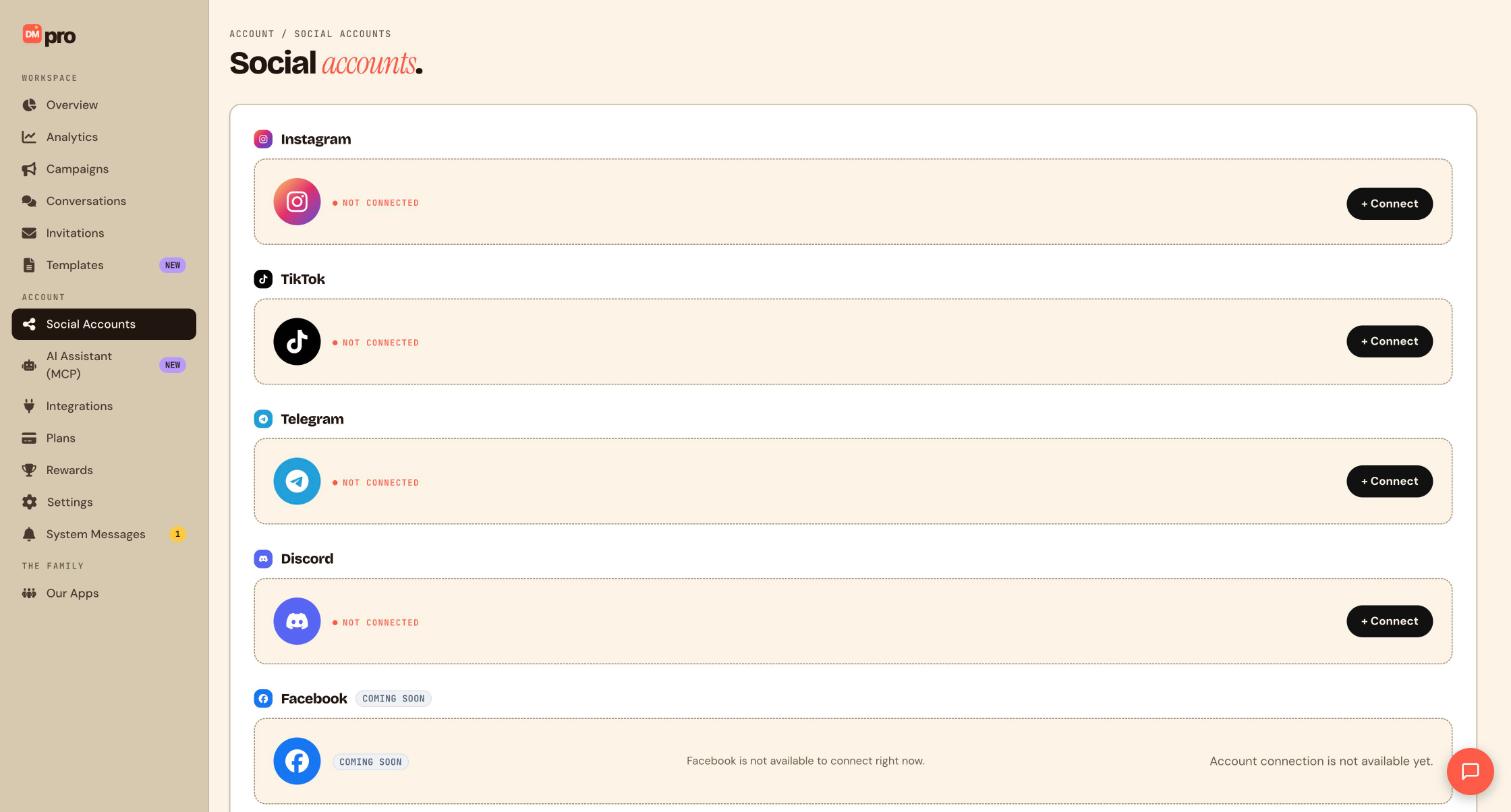
Click Social Accounts in the ACCOUNT section of the sidebar. The page lists one row per platform.
See which platforms you can connect
Instagram, TikTok, Telegram and Discord each show NOT CONNECTED and a + Connect button. Facebook is marked COMING SOON and says account connection is not available yet. WhatsApp and LinkedIn are also coming soon, and LinkedIn cannot send DMs yet. Plan your first campaign around one of the four available platforms.
Connect Instagram
Click + Connect on the Instagram row. This opens Meta’s own login window. Nothing is connected until you approve there, and DMpro never sees your Instagram password. Choose the Facebook Page that is linked to your Instagram account and approve the permissions it lists.
Your Instagram account must be a Business or Creator account linked to a Facebook Page. Personal accounts cannot receive messages through the API.
Connect TikTok
Click + Connect on the TikTok row. TikTok asks you to authorize twice, back to back: first the login authorization, which lets DMpro read and reply to comments, then the Business Messaging authorization, which lets DMpro use DM triggers and send DMs. Finish both. If you stop after the first, comment replies work but DM options will be missing, so connect again to complete the second.
Connect Telegram
Telegram uses a bot token instead of a login. In Telegram, message @BotFather, send /newbot, follow the prompts and copy the bot token it gives you. Back in DMpro, click + Connect on the Telegram row and paste the token into the bot token box. DMpro sets up the connection for you.
Connect Discord
Discord also uses a bot token, not a login. In the Discord Developer Portal, create an application, add a bot, and copy the token from the Bot tab. In DMpro, click + Connect on the Discord row and paste it. When the account shows as active, use the invite link DMpro gives you to add the bot to your server.
Confirm the connection
Back on Social Accounts, the platform’s row should no longer say NOT CONNECTED. On the Free plan you can connect as many accounts as you like, but each campaign can run on one account. If an account is later disconnected or its permission expires, campaigns that use it pause, so reconnect it from this same page.
Tips
- Use Chrome or Edge with pop-ups allowed. A blocked pop-up is the most common reason a connection seems to do nothing.
- Connect the account you will actually use for your first campaign before you open a template, because the campaign builder asks you to pick one.
If something goes wrong
The Instagram window opens and closes straight away.
Your browser is probably blocking the pop-up or third-party cookies. Allow pop-ups for dmpro.brandid.app, try Chrome or Edge with cookies enabled, clear Facebook cookies if it persists, and confirm the Instagram account is a Business or Creator account linked to a Facebook Page.
TikTok shows an unauthorized error.
Check that the account is a TikTok Business or Creator account with Business Messaging available and that you are an admin of it, then connect again from Social Accounts.
Telegram or Discord rejects my token.
Copy a fresh token without spaces. For Telegram, ask BotFather for the token again. For Discord, copy it from the Bot tab of your own application in the Developer Portal; a user token, client secret or OAuth code will not work.
Related how-to guides
Still stuck? We’re happy to help.
Create your DMpro account, see pricing, or reach out to support directly.




