
How to connect Instagram to DMpro
Link your Instagram Business or Creator account through Meta’s own login so DMpro can reply to comments and DMs for you.
Before you start
- An Instagram Business or Creator account (personal accounts cannot receive automated messages)
- That account linked to a Facebook Page you manage
- A browser that allows popups for DMpro
Check your Instagram account type
DMpro connects through Meta’s official API, which only works with Instagram Business or Creator accounts linked to a Facebook Page. If yours is a personal account, switch the account type in the Instagram app and link a Page first.
Open Social Accounts
Click Social Accounts in the sidebar, in the Account section. You will see a card for each platform. Instagram is at the top and shows NOT CONNECTED until you link an account.
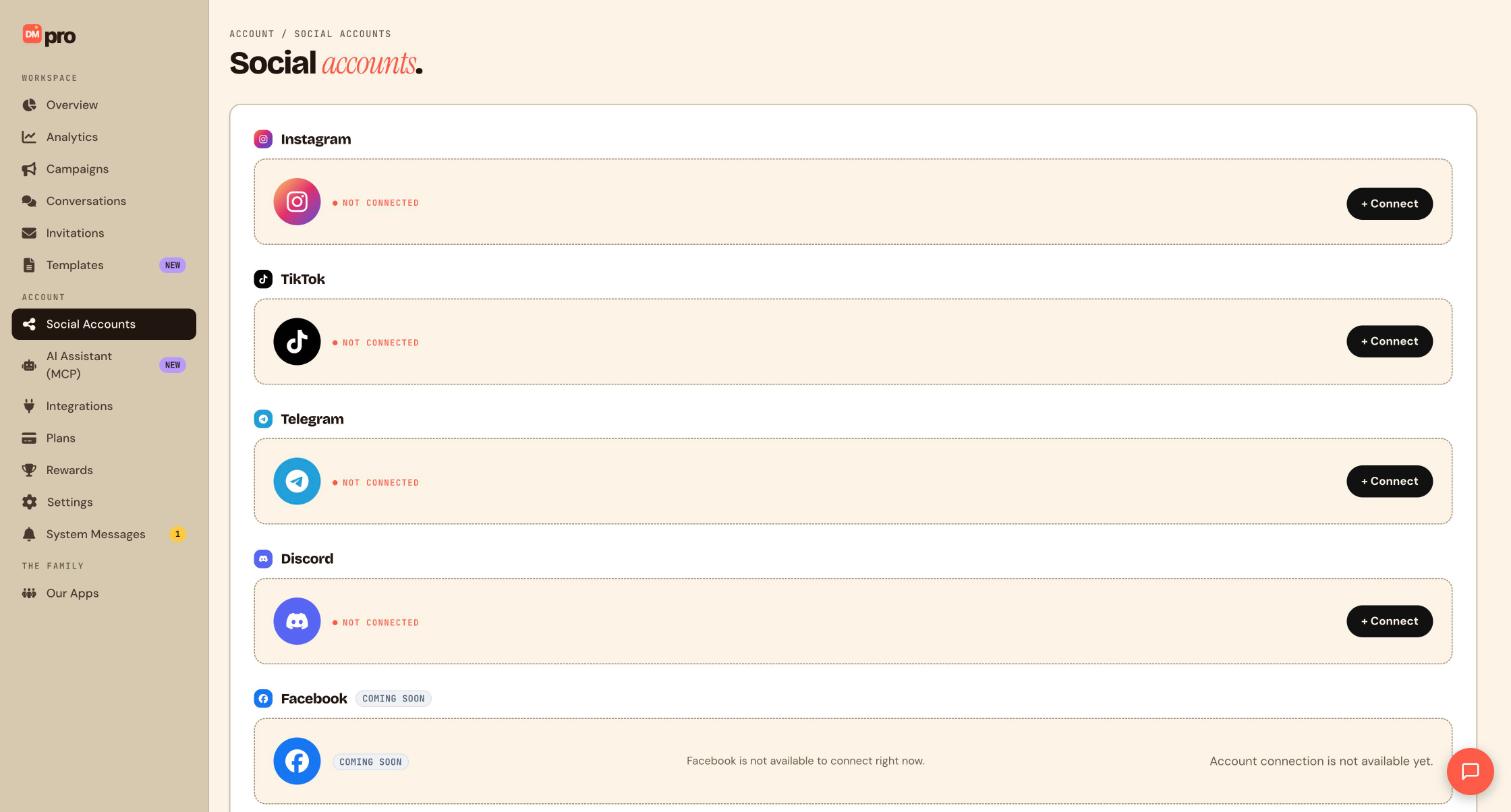
Click Connect on the Instagram card
Click + Connect next to Instagram. A Meta login window opens. This starts a real sign-in with Instagram and Facebook, so make sure you sign in with the account you want to automate.
DMpro never sees your Instagram password. You sign in on Meta’s own screen. If nothing opens, allow popups for DMpro in your browser and try again.
Approve the permissions
Meta asks which Facebook Page to use and which permissions to grant. Select the Page that is linked to your Instagram account, then approve. DMpro asks for what it needs to read comments, send DMs and read insights. You can review or remove the access later from your Instagram settings, in the area for apps and websites.
Confirm the account is connected
Back in DMpro, the Instagram card should no longer say NOT CONNECTED and should show your account name. If it does not, refresh the Social Accounts page.
Build something with it
A connected account does nothing on its own. Start from the Templates page, for example the Reel comment template with the keyword REEL, or build a comment-to-DM campaign from scratch. Nothing is sent to real people until you publish a campaign.
The Free plan lets you connect unlimited social accounts, but one social account per campaign.
Tips
- Connect the account you actually post from. Campaigns run on whichever account you attach.
- Turn on Workflow paused alerts in Settings, Notifications, so you get an email if a campaign pauses because the connection dropped.
- Instagram only allows one private reply per comment and a 24 hour window for DMs after a fan’s last message.
If something goes wrong
The Meta window flashes and closes.
Allow popups for DMpro, make sure third party cookies are not blocked, and try Chrome or Edge. If it still closes, clear your Facebook cookies, then confirm the Instagram account is Business or Creator and linked to a Facebook Page.
No Facebook Page appears in the list.
You need an admin role on the Page, and the Page must be published rather than restricted. Check your Page roles in Facebook, then connect again.
The account disconnected after a few weeks.
Changing your Instagram password, losing your Page role, an expired Meta token, or removing the app in Facebook settings can all cut the connection. Click + Connect again to reconnect, then check the Campaigns list because campaigns may have paused while the account was offline.
Related how-to guides
Still stuck? We’re happy to help.
Create your DMpro account, see pricing, or reach out to support directly.




