
How to choose what an AI app may do
Decide which parts of your contactID account a connected AI app can look at or change, and change it later. It takes about 3 minutes.
Before you start
- An AI app already connected to contactID
Know the three choices
When an AI app connects, contactID’s own page asks what it may do:
- View only: the app can look at your account, lists, Agents, results and lead lists, and changes nothing.
- View and manage: the app can also make changes, with contactID’s safety rules.
- Custom: for each area (Account and usage, Agents, AI writing, Send lists and imports, Sending, Find websites, Results, Referrals), choose Off, View or Change.
If you are unsure, View only is the safe start.
Open the app’s access
In the dashboard, open Account, then AI Assist (MCP), then the Apps tab. Find the app under Connected apps and press Change access.
Set each area
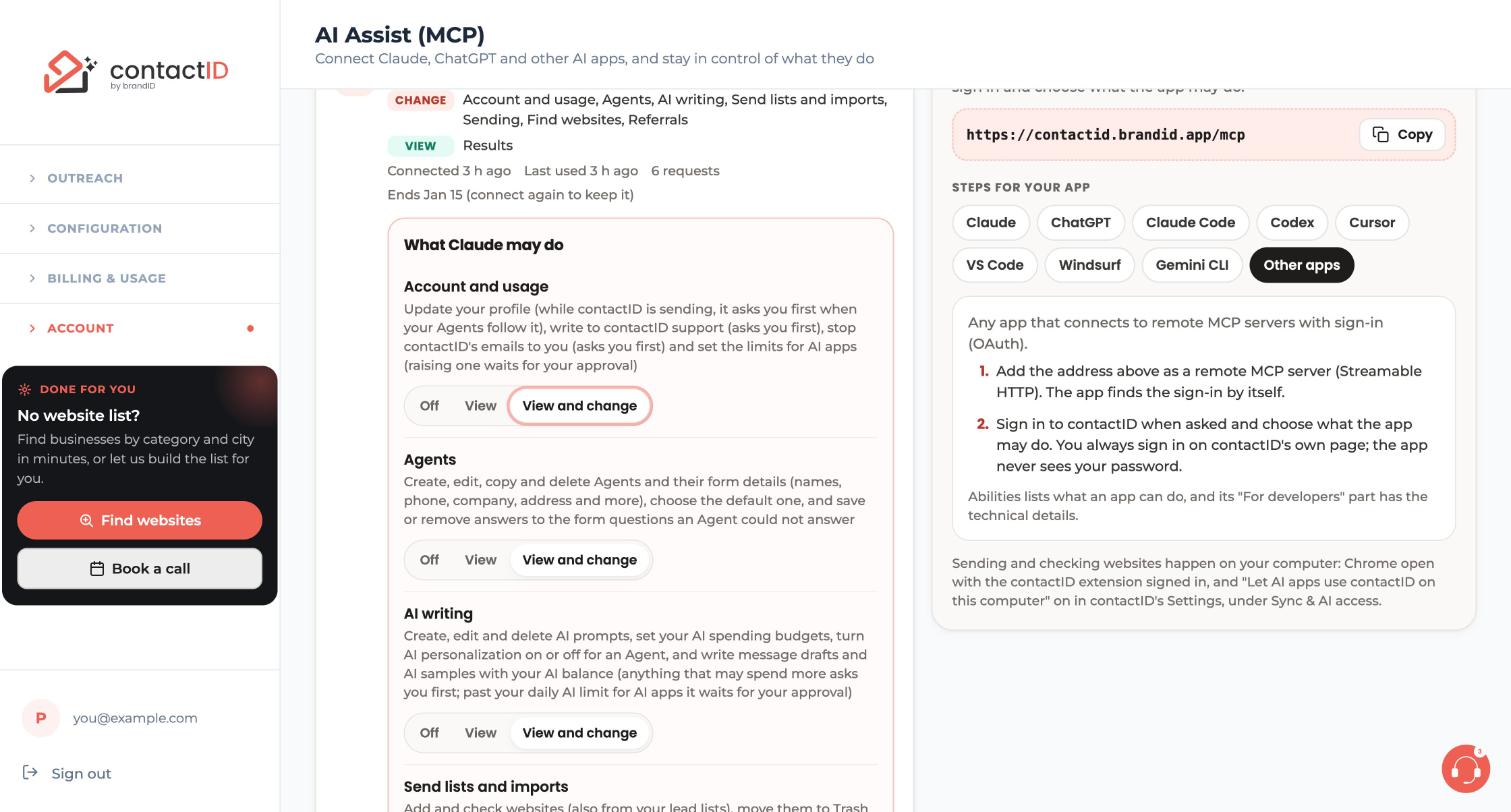
The What Claude may do panel opens (it shows the name of your app). Each area has a switch with Off, View and View and change. Pick one for each area, for example:
- Account and usage: your profile, plan, credit balances, usage and billing history.
- Agents: create, edit, copy and delete Agents and their form details.
- AI writing: AI prompts, AI budgets, AI personalization, message drafts and AI samples.
- Send lists and imports: add and check websites, move them to Trash or back, and more.
Scroll down for Sending, Find websites, Results (view only) and Referrals.
Know what less and more access do
Less access applies at once, and work that needed the removed access stops. More access asks you to confirm it is you with a code contactID emails you.
See everything an app can do
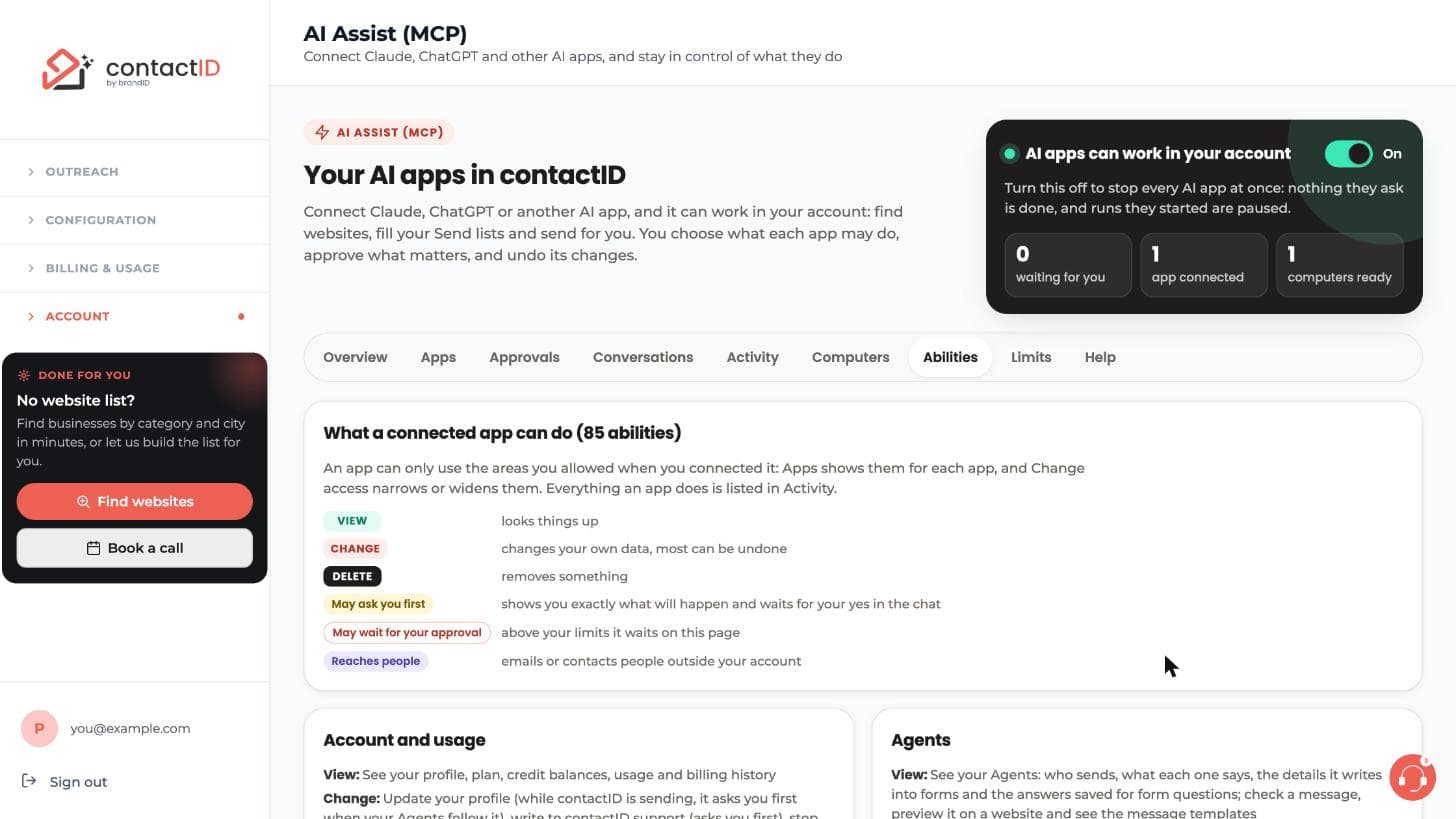
Open the Abilities tab. It lists all 85 abilities with labels: View looks things up, Change changes your own data (most can be undone), Delete removes something, May ask you first shows you exactly what will happen and waits for your yes in the chat, May wait for your approval waits on the AI Assist page above your limits, and Reaches people emails or contacts people outside your account.
Understand what stays safe whatever you choose
Changes to your own things (an Agent, an AI prompt, a category, moving websites to Trash) happen right away, are listed on the AI Assist page and can be undone there for 30 days. Anything that reaches people, spends credits or cannot be taken back asks you first, and high-impact requests wait for your approval on the AI Assist page.
No app can ever pay, buy credits or change your plan, change your password or sign-in, change how fast contactID sends, or approve, undo, pause, change access or disconnect on your behalf.
Tips
- Give an app only the areas it needs. A research task may need only Find websites and Results.
- Ask the app to “preview” a change to see what it would do without doing it.
- To set money and volume limits instead of access, see the guide on setting limits for AI apps.
If something goes wrong
The app says it is not allowed to do something
Open Apps, press Change access and check the area is not Off or View when it needs View and change. Some things stay with you whatever you choose, such as paying, changing your plan and approving requests.
I want more access but it asks for a code
More access asks you to confirm it is you with a code contactID emails you. Less access applies at once.
A connection page opened and I did not start it
Press Cancel. Only connect apps you added yourself.
Related how-to guides
Still stuck? We’re happy to help.
Install the extension, start a free trial, or reach out to support.




