
How to invite teammates to your workspace
Invite people to your DMpro workspace from Settings so they can work under your shared plan, then manage their seats.
Before you start
- The email address of each teammate
- A plan with a free seat: Free includes 1 team seat, Pro offers unlimited seats
Open Settings and Team seats
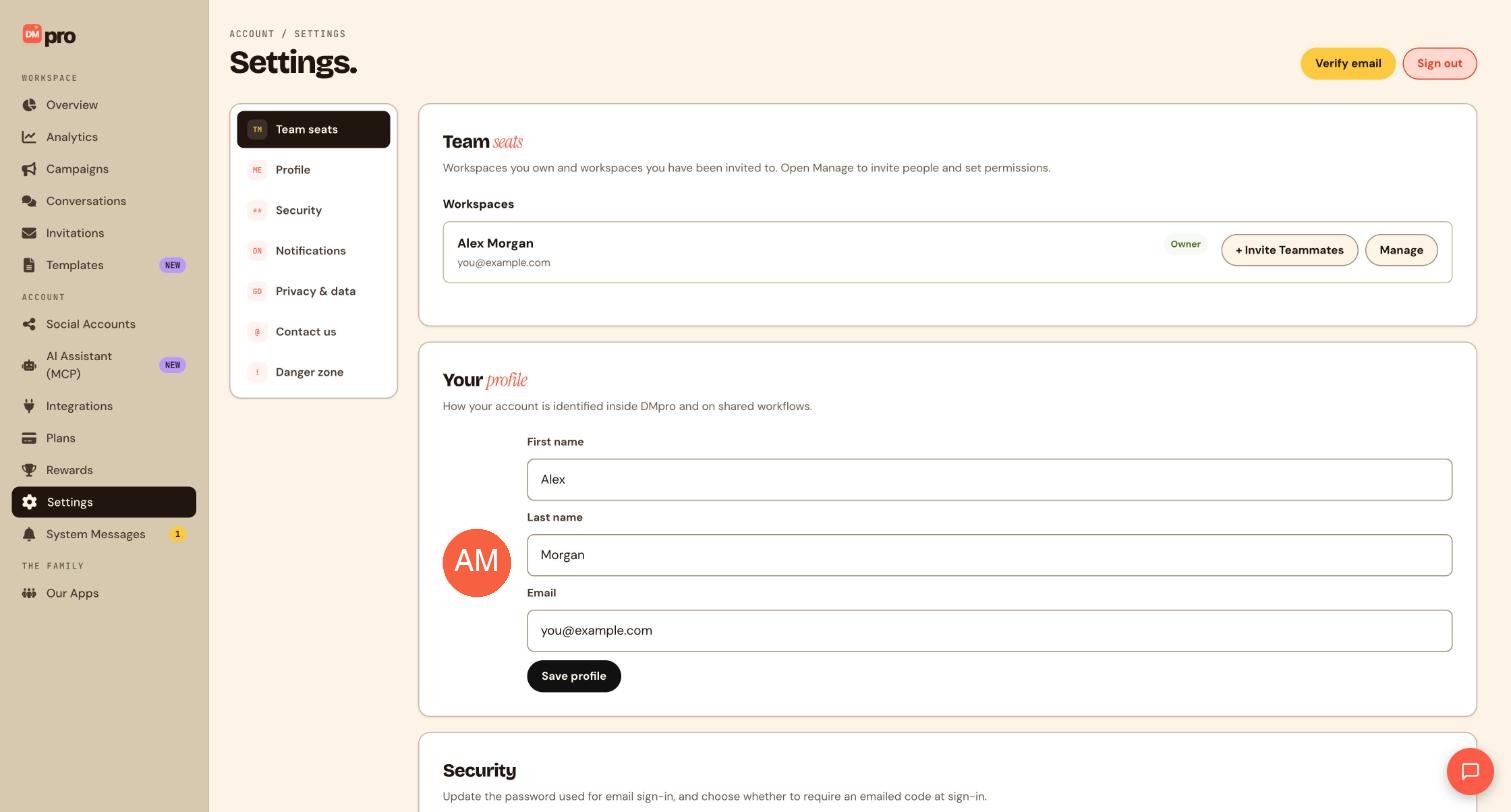
Click Settings in the ACCOUNT section of the sidebar. Team seats is the first item in the list on the left and the first card on the page.
Find your workspace in the Team seats card
The card lists the workspaces you own and the workspaces you have been invited to. Your own workspace is marked Owner and has two buttons: + Invite Teammates and Manage. A workspace shares one subscription, one set of connected accounts and one bill, so teammates do not need their own plan. Usage limits, such as your monthly conversations, are shared by everyone in the workspace.
Send the invite
Click + Invite Teammates and enter your teammate’s email address. DMpro sends them an invitation to join your workspace.
Set what they can do
Click Manage to open the workspace’s people and permissions. Here you invite people and choose what each member is allowed to do, including which connected accounts they can use. Give each person only what their job needs, for example an inbox helper who can reply to conversations but not change campaigns. You can come back to Manage at any time to change someone’s permissions as their role changes.
Wait for your teammate to accept
Your teammate follows the invitation, signs in or creates a DMpro account, and joins. After that they appear in your member list and work inside your workspace under your shared plan. Until they accept, the invite stays pending in the same list.
Resend, cancel or remove
Invites that have not been accepted stay visible so you can resend or cancel them, and you can remove a member you no longer need. Each active member takes one seat, so removing someone frees their seat. Removing a member is different from deleting your workspace, which is permanent and lives in the Danger zone of Settings.
Tips
- Invite teammates before you want to hand them conversations, because only people who hold a seat can be chosen as the person a thread is handed to.
- Inviting a teammate to your workspace is not the same as inviting another account to run one campaign. For that, use Invitations in the sidebar.
If something goes wrong
I cannot invite another person on the Free plan.
The Free plan includes 1 team seat, which is yours. Pro includes unlimited seats. Compare the plans on the Plans page.
My teammate says they never got the invite.
Ask them to check spam. In Manage, check the invite is still pending and the address is right, then resend it or cancel it and send a new one.
I was invited to someone else’s workspace. Where is it?
Workspaces you have been invited to are listed in the same Team seats card in Settings, next to the ones you own.
Related how-to guides
Still stuck? We’re happy to help.
Create your DMpro account, see pricing, or reach out to support directly.




