
How to sign in to DMpro and finish onboarding
Sign in to DMpro with the method that suits you, verify your email if asked, and finish onboarding so you land on your Overview dashboard.
Before you start
- An email address you can open, or a Google, Instagram Professional or TikTok account to sign in with
- A modern browser that allows pop-ups for dmpro.brandid.app
Open the DMpro sign-in page
Go to https://dmpro.brandid.app/. New and returning users use the same page. If you are new, choose the option to create an account; if you already have one, sign in.
Choose how you want to sign in
DMpro offers several ways in. Pick one:
- Email and password: enter your email and a password, then click Create account (first time) or sign in (returning).
- Magic link: choose Magic link, enter your email and click Send magic link. Open the email within 15 minutes and click the link.
- Continue with Google: approve the sign-in in the Google window.
- Continue with Instagram: approve with your Instagram Professional (Business or Creator) account. DMpro creates a workspace linked to that profile.
- Continue with TikTok: approve with your TikTok business account.
With Google, Instagram or TikTok you sign in on that platform’s own screen, so DMpro never sees your password for it.
Verify your email if DMpro asks
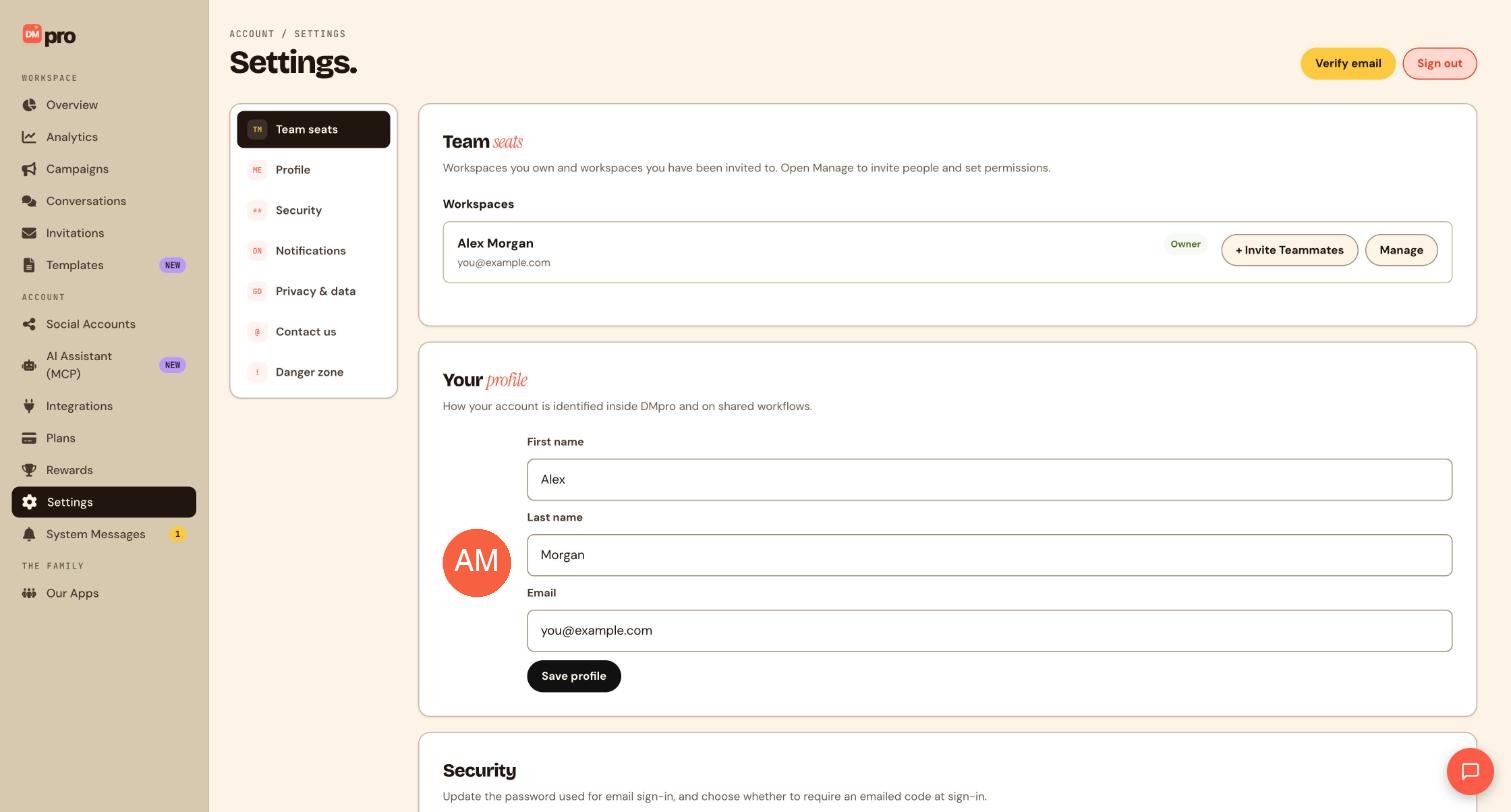
If you signed up with email and password, DMpro may ask you to confirm your address. Open your inbox and click the verification link. If you never did, you will see a yellow Verify email button at the top right of the Settings page, and you can use it later.
Finish onboarding
On your first sign-in, DMpro shows an onboarding screen that invites you to connect a social account and move on to templates. You can connect now or skip and connect later from Social Accounts in the sidebar.
Right now only Instagram, TikTok, Telegram and Discord can be connected. Facebook, WhatsApp and LinkedIn are coming soon.
Land on your Overview dashboard
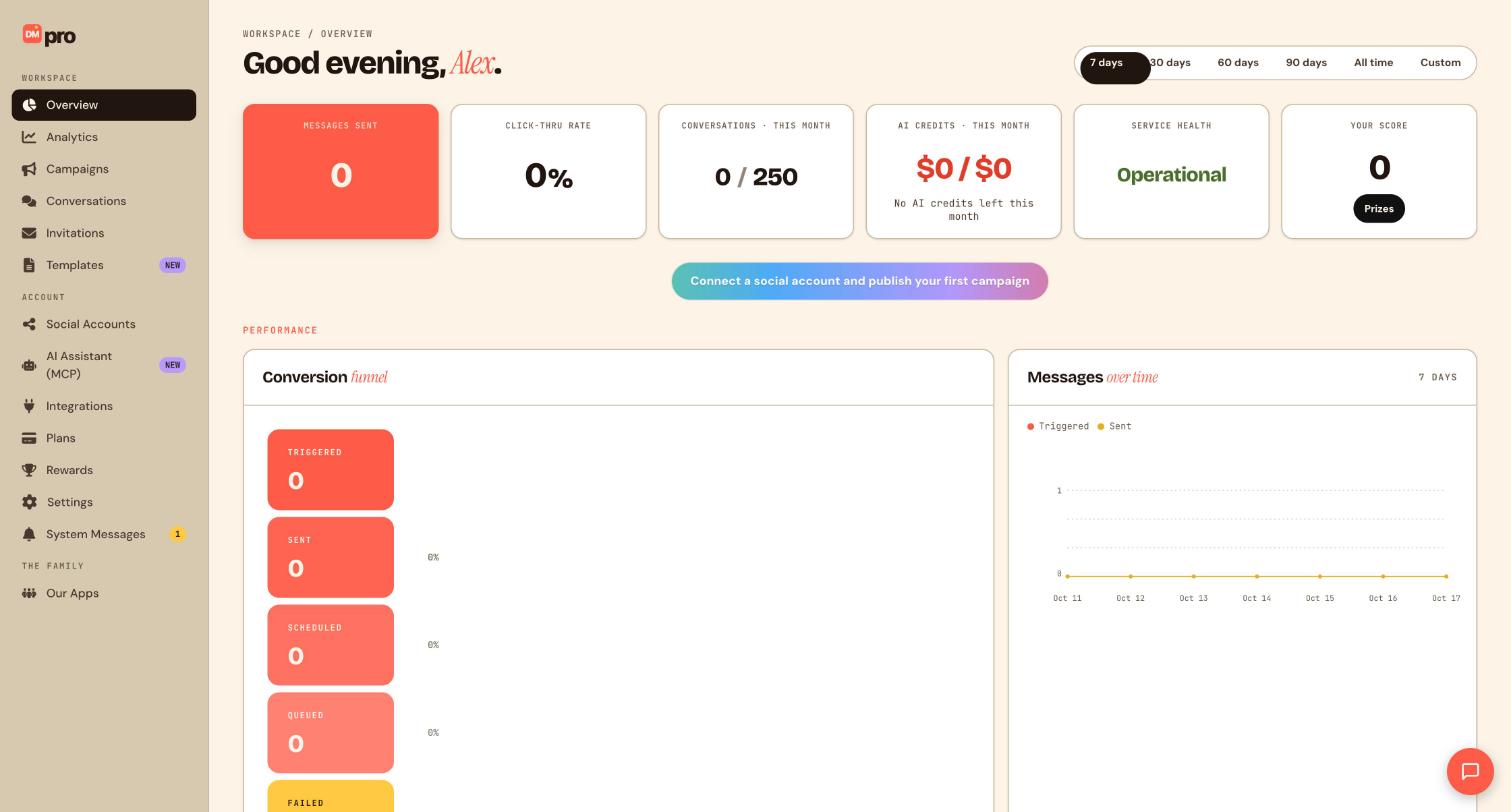
After onboarding you arrive on Overview, the first item in the WORKSPACE section of the sidebar. On a new account the numbers are all zero and a banner invites you to connect a social account and publish your first campaign. The rest of the app is one click away in the sidebar: Analytics, Campaigns, Conversations, Invitations and Templates under WORKSPACE, and Social Accounts, Integrations, Plans, Rewards and Settings under ACCOUNT.
Reset your password or sign out when you need to
If you forget your password, click Forgot password? on the sign-in page, enter your email and follow the link in the email to set a new one. To sign out, open Settings and click Sign out at the top right.
For extra protection, open the Security section of Settings and turn on two-step authentication. DMpro then emails you a sign-in code after your password or Google and other social sign-in.
Tips
- Use an email address you check often. Verification links, magic links and sign-in codes all go there.
- Signing in with Instagram or TikTok is quick, but you can still connect other platforms later from Social Accounts.
If something goes wrong
My magic link says it has expired.
Magic links last 15 minutes. Go back to the sign-in page, choose Magic link, request a new one, open the email promptly and click the link once.
Continue with Google keeps reloading the page.
This is usually third-party cookie blocking or an old session. Clear cookies for dmpro.brandid.app and accounts.google.com, try again in a private window, and turn off extensions that block sign-in pop-ups. If it still loops, sign in with email and password instead.
I turned on two-step authentication and the code email never arrives.
Check your spam folder and wait a minute, then go back to the sign-in page and request a fresh code instead of reusing an old one. If you can no longer open the email on the account, contact DMpro support to verify your identity.
Related how-to guides
Still stuck? We’re happy to help.
Create your DMpro account, see pricing, or reach out to support directly.




