
How to turn on overage billing
Decide whether DMpro should keep your automations running past your monthly limits, and turn on paid overage for conversations or AI credits.
Before you start
- A payment method on file (overage cannot turn on without one)
- An idea of your usual monthly volume, so a surprise bill does not catch you out
Understand what happens at your limit
Overage billing is opt in and off by default. If it is off, DMpro simply pauses new responses once you hit your limit and they stay paused until your next billing cycle, until you upgrade, or until you redeem a gift. If it is on, your automations keep running and the extra usage is billed to you.
Check your usage
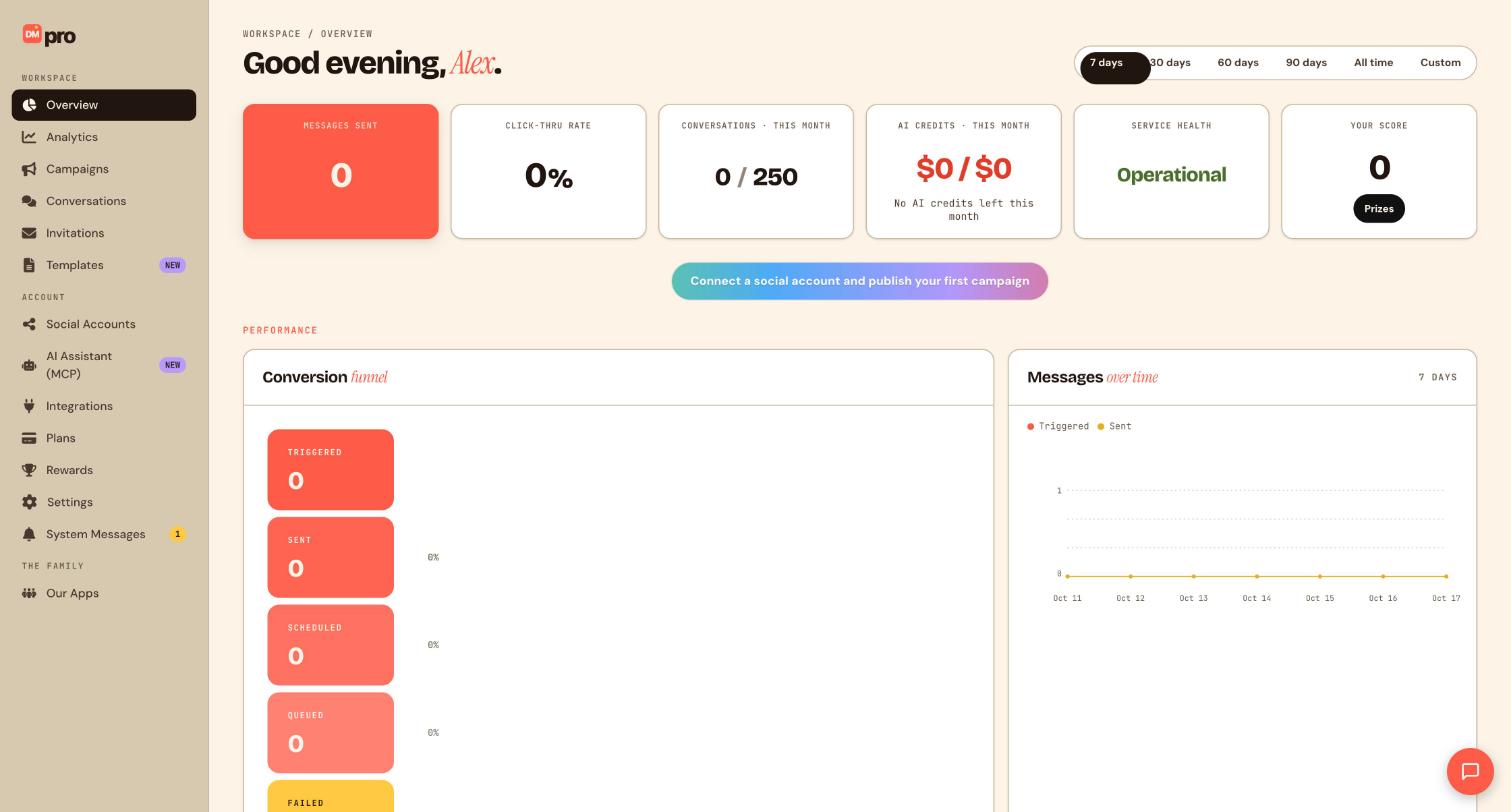
Open Overview. The Conversations this month card shows how many you have used out of your plan’s limit, for example 0 of 250 on Free, and AI credits this month shows your AI budget. The usage meters turn amber at 80 percent and red at 100 percent.
Know what you are paying for
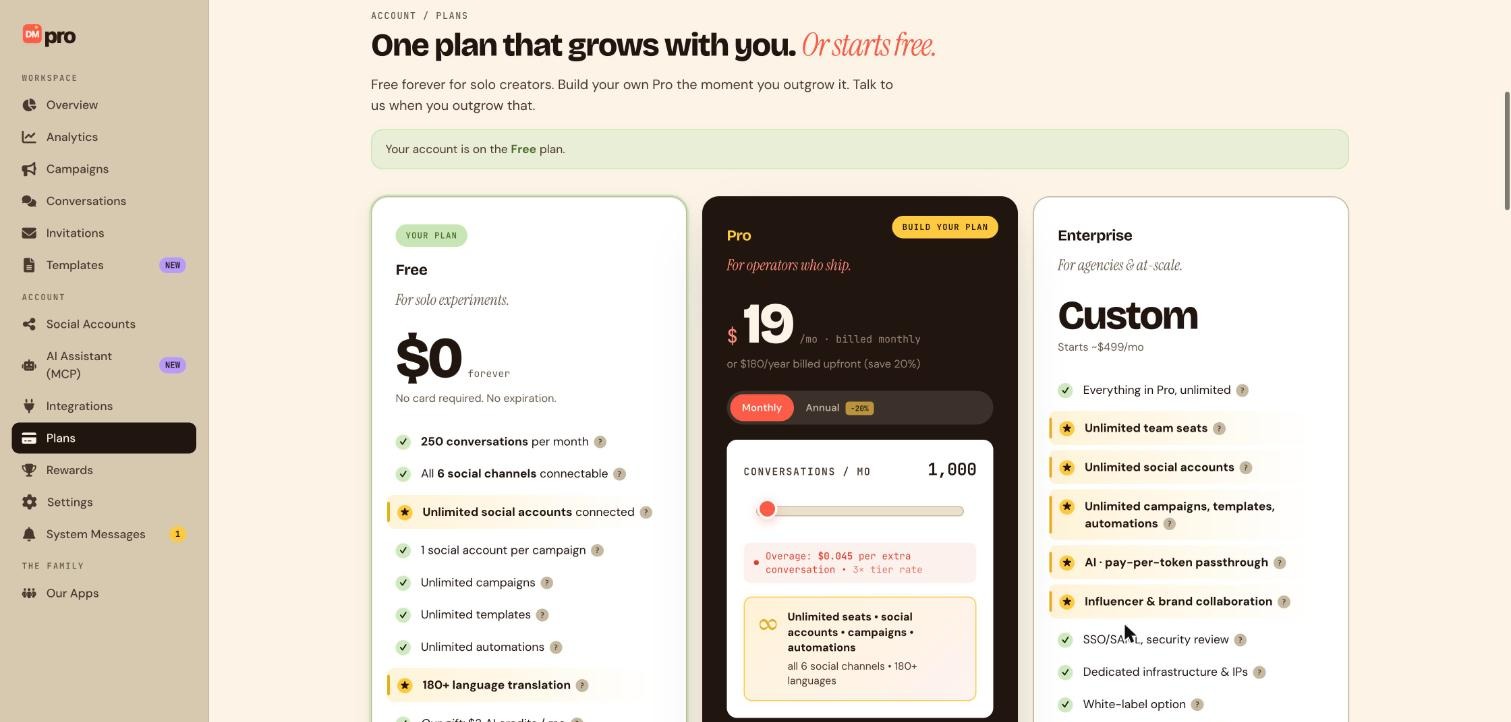
A conversation is one unique person you message within a rolling 30 day window, no matter how many messages you send them. On Pro the card on the Plans page shows the overage rate for the size you choose. Extra AI usage is billed per token at your plan’s rate.
Add a payment method
The overage switches cannot turn on without a payment method on file. If DMpro tells you none is on file, add one first and then come back to the switch.
Turn on conversation overage
On the Plans page, find the overage settings and switch on overage for conversations.
With this on, you are charged for every conversation above your plan’s limit. Set it only when you are sure, and check your usage on Overview regularly.
Turn on AI credit overage if you use AI
The AI credit setting is separate. Turn it on if you want AI Response to keep working after you use your monthly AI credits. It is also off by default and also needs a payment method.
Switch on the safety net
Open Settings, then Notifications, and keep Workflow paused alerts on. DMpro emails you when campaigns auto-pause, including when conversation or AI credit limits are reached.
Tips
- If your usage often goes over, compare the cost of overage with moving to a larger Pro size. A bigger size can be cheaper than paying overage every month.
- Overage for conversations and for AI credits are two separate settings. Check both.
- An AI assistant with the Plans and pricing permission can compare your usage with plan sizes, but it can never change your plan or touch payment.
If something goes wrong
My campaigns paused when I hit the limit.
Overage was off. Turn it on, upgrade your plan, or redeem a gift code to continue, otherwise responses resume at your next billing cycle.
AI Response stopped answering.
You may have used all your AI credits for the month. Campaigns with AI steps pause until credits reset, unless AI credit overage is on.
I cannot switch overage on.
Add a payment method first. Overage cannot turn on without one on file.
Related how-to guides
Still stuck? We’re happy to help.
Create your DMpro account, see pricing, or reach out to support directly.




