
Conversations & Collaboration
Manage threads in the Conversations inbox, apply AI tags, invite collaborators to your campaigns, and manage your team workspace.
Conversations inbox, thread list with AI tags on left, active thread on right.
Route: /conversations, sidebar item Conversations.
Browse conversation threads
- Click Conversations in sidebar.
- Threads grouped by fan across all platforms (Instagram, TikTok, LinkedIn, Facebook, WhatsApp, Telegram).
- Filter by platform, campaign, or unread status.
- Click a thread to open message history.
Read AI-generated messages
- AI replies show AI tag badge in thread.
- Hover for model and token usage summary (Pro accounts).
- Continuous AI sessions show thread continuity indicator.
Ignored webhooks
- Some inbound events appear as Ignored webhook rows when no campaign matched.
- Reasons: keyword mismatch, paused campaign, frequency cap, Must follow account rule failed.
- Click Ignored badge for detail, use to debug trigger keywords.
Affiliate context in threads
- Outbound messages containing tracked links show Affiliate icon.
- Click to see destination URL and click status for that fan.
- Cross-reference with campaign Affiliate clicks total on
/campaigns.
Reply manually
- Open thread, type in Reply composer at bottom (where platform API allows).
- Manual replies count toward conversation limits.
- Some platforms restrict automated vs manual windows, banner explains constraints.
Save lists & reply in bulk
- Save a filtered view of your inbox (by platform, campaign, tag, and so on) as a list so you can jump straight back to it later.
- Select several threads at once and send a batch reply instead of replying one by one.
- Private photos and videos sent in a DM load inline in the thread.
—
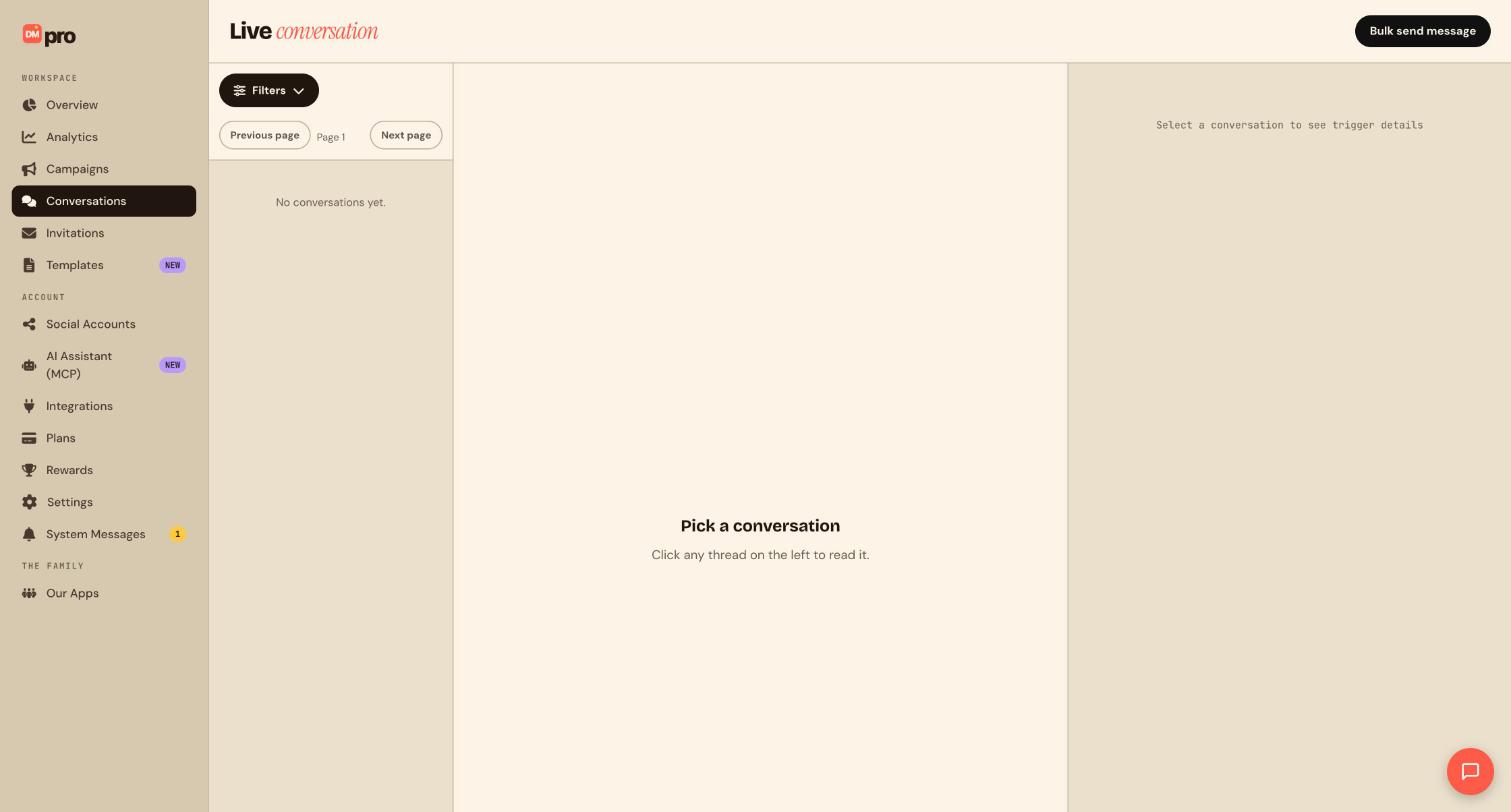
Route: /campaigns/invitations, sidebar item Invitations.
Plan requirement: Influencer & brand collaboration requires Pro or Enterprise (excluded on Free).
Invite collaborator by email
- Open campaign at
/campaigns/{id}/manage. - Click Invite collaborators in header.
- Enter email address, DMpro sends Campaign invite email.
- Recipient accepts at
/campaign-invitedeep link. - Their Instagram/TikTok/Telegram account joins the campaign.
Share invite link
- In Invite collaborators modal, click Copy invite link.
- Share link externally, opens
/campaign-invite?token=.... - Invitee connects their social account and joins campaign.
Wait for invites start mode
- When creating multi-account campaign, enable Wait for invites start mode.
- Campaign stays in Pending invites status until all invited accounts accept.
- Publish is blocked until pending invites resolve, validation banner lists outstanding invites.
- View pending/sent invites on
/campaigns/invitations.
Manage invitations
- Click Invitations in sidebar.
- Received tab, invites from other DMpro users.
- Sent tab, invites you issued.
- Unseen invites show badge count on sidebar Invitations item.
Trigger conflicts & account restrictions
- DMpro checks for trigger conflicts before an invite is accepted, so two active campaigns can’t fight over the same trigger on one connected account.
- Steps like Send Instagram post and Send products only work on the account that owns the post or catalog, so invited participant accounts can’t be used for those specific steps.
—
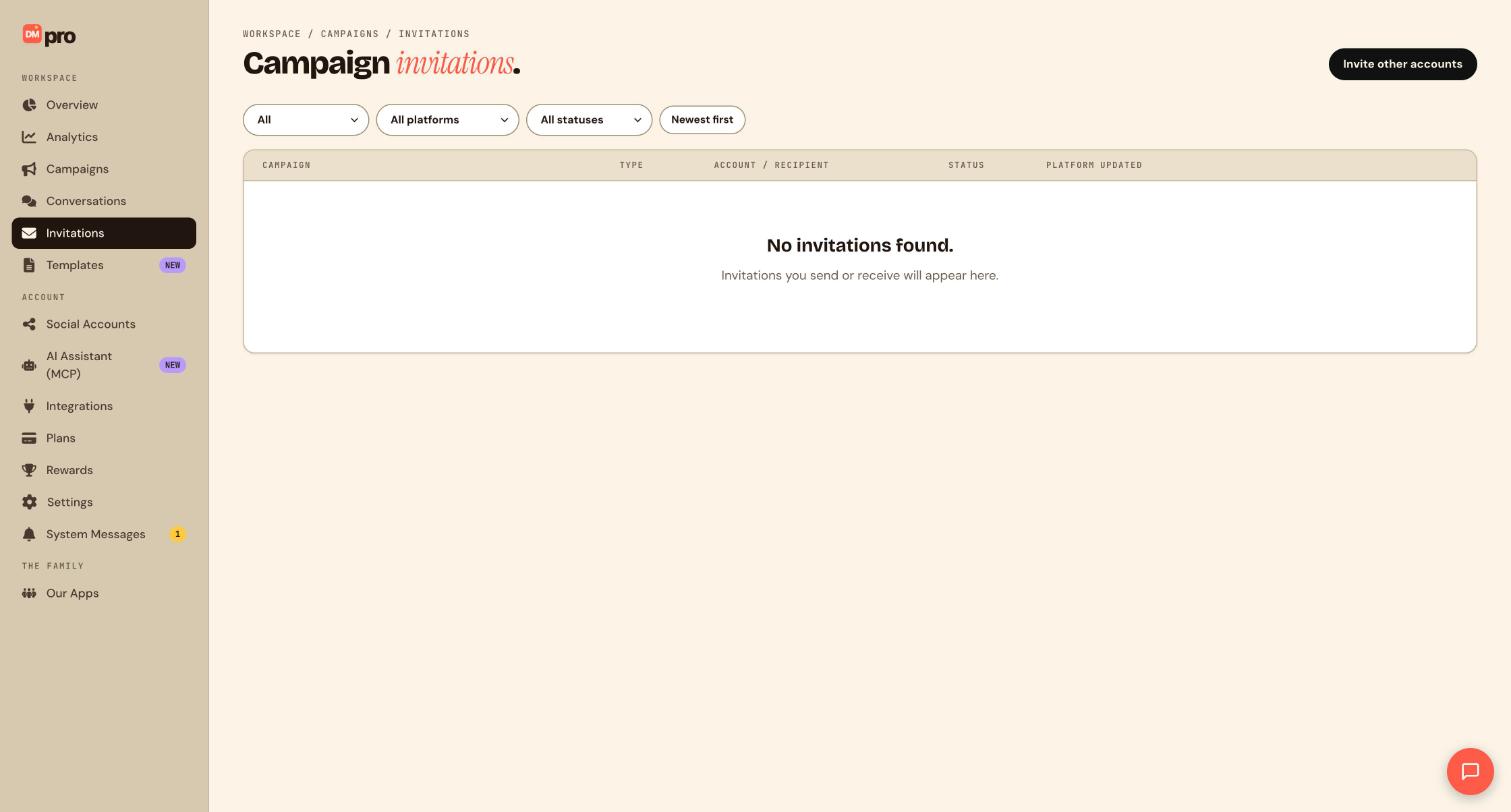
Route: /team-seats, sidebar item Team.
A workspace lets an agency or brand share one DMpro subscription across several people, with one bill and one set of connected accounts, instead of everyone signing up separately.
Invite a team member
- Open Team in the sidebar.
- Click Invite member and enter their email address.
- DMpro sends them an invite to join your workspace.
- Once they accept, they appear in your member list and can work inside the workspace under your shared subscription.
Manage seats
- Each active member takes up one seat on your plan.
- Remove a member from the Team page to free up their seat.
- Invites you’ve sent that haven’t been accepted yet also show up here, so you can resend or cancel them.
Shared billing
- Subscription and usage limits are scoped to the workspace rather than to any one member, so everyone in the workspace shares the same plan and limits.
- Billing and subscription changes are managed at the workspace level, not per member.
Note: Deleting your workspace is a separate, permanent action from your account settings, not the same as removing an individual member. Contact support first if you’re not sure which one you need.
—
Still stuck? We’re happy to help.
Create your DMpro account, see pricing, or reach out to support directly.




