
How to turn on Smart Message Update
Set Smart Message Update to Automatic so clicking Refresh on a new profile writes the message for that person. It takes under a minute.
Before you start
- The DMpro extension installed and signed in
- An active prompt or a saved own DM
Understand what it does
In Single Profile mode you move from profile to profile and click Refresh so DMpro reads the new one. Smart Message Update decides what happens to the message box at that moment. It is set to Automatic for new accounts.
- Automatic: with a message already in the box, Refresh writes it again for the new profile. In AI Prompt mode that is a new AI message (1 credit). In Your Own DM mode it fills in your own DM for the new person, which is free to fill in.
- Manual: Refresh only loads the new profile. You click Generate (or Fill in) yourself.
Set it on the dashboard
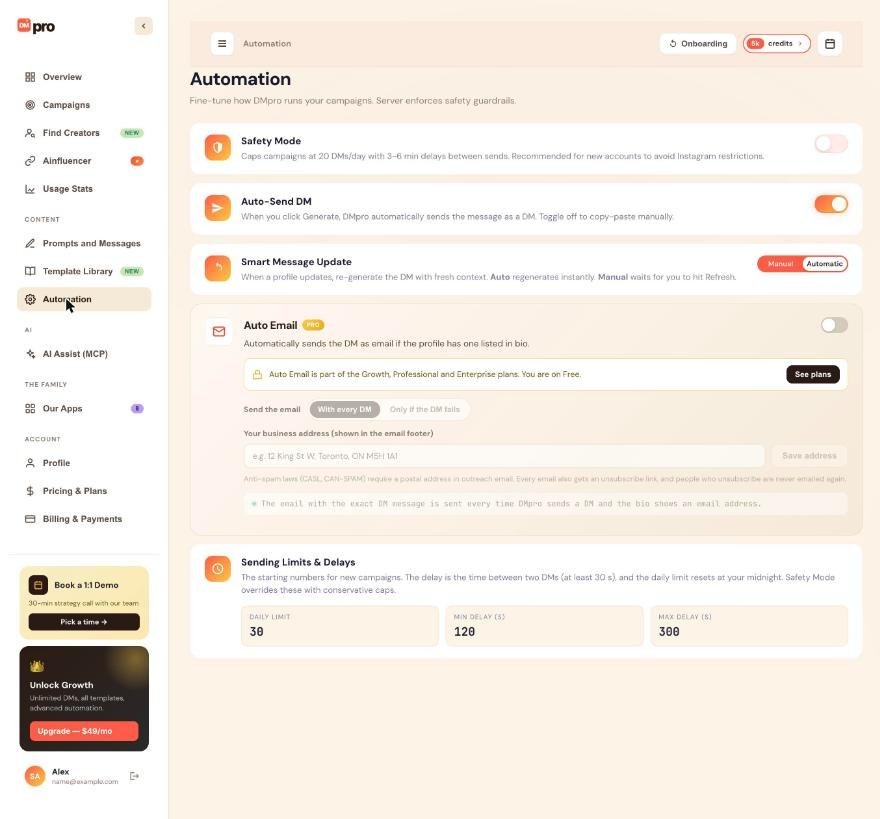
In the dashboard, click Automation and find Smart Message Update. Click Automatic to turn it on, or Manual to turn it off. The card says “Auto regenerates instantly. Manual waits for you to hit Refresh.”
Or set it in the extension
Click your initials at the top right, choose Automation settings and click the Smart Message Update switch (or press Enter or Space on it) to move between Manual and Automatic. There is no Save button. The change is saved to your account as soon as you make it, so the dashboard shows the same value.
Think about it together with Auto Send DM
- Automatic and Auto Send DM on: each Refresh on a new profile writes and sends a DM. This is the fastest flow, with no review step.
- Automatic and Auto Send DM off: each Refresh writes a message for you to check and copy.
- Manual and Auto Send DM on: nothing happens until you click Generate or Fill in, which then sends.
- Manual and Auto Send DM off: full control.
Try it on two profiles
Turn Auto Send DMs off, open a profile and click Generate once. Then open a second profile and click Refresh. With Automatic on, the message box now holds a new message for the second person. In the extension, the counters Updated and Auto Sent show how many messages Smart Message Update rewrote and sent.
Tips
- Automatic only starts working after your first Generate in that browser. Before that, Refresh only loads the profile.
- Use Manual when you want to look at each profile first or keep AI credits under control.
- Smart Message Update does not affect campaigns. Campaigns write each DM once, when that person’s turn comes.
If something goes wrong
Refresh did not write a new message.
The setting may be on Manual, or the message box was empty. Automatic needs a message already in the box, and in AI Prompt mode it starts after your first Generate in that browser.
It used more credits than I expected.
In AI Prompt mode every automatic rewrite is a new AI message and uses 1 credit. Switch to Manual, or use Your Own DM mode, where filling in is free and only a sent DM uses a credit.
A DM was sent just by clicking Refresh.
Both Automatic and Auto Send DM were on. Turn off Auto Send DM in the extension or under Automation on the dashboard if you do not want that.
Related how-to guides
Still stuck? We’re happy to help.
Create your account, or reach out to support.




