
How to set your automation defaults
Choose the starting settings DMpro uses for sending: Safety Mode, Auto-Send DM, Smart Message Update, Auto Email and the pace of new campaigns. It takes about 5 minutes.
Before you start
- A DMpro account
- A Growth, Professional or Enterprise plan if you want Auto Email
Open the Automation page
On the dashboard, click Automation in the left menu. The page says “Fine-tune how DMpro runs your campaigns. Server enforces safety guardrails.” It has five cards.
In the extension, open the account menu (your initials at the top right) and click Automation settings. The dashboard and the extension show the same settings, because they are saved to your account.
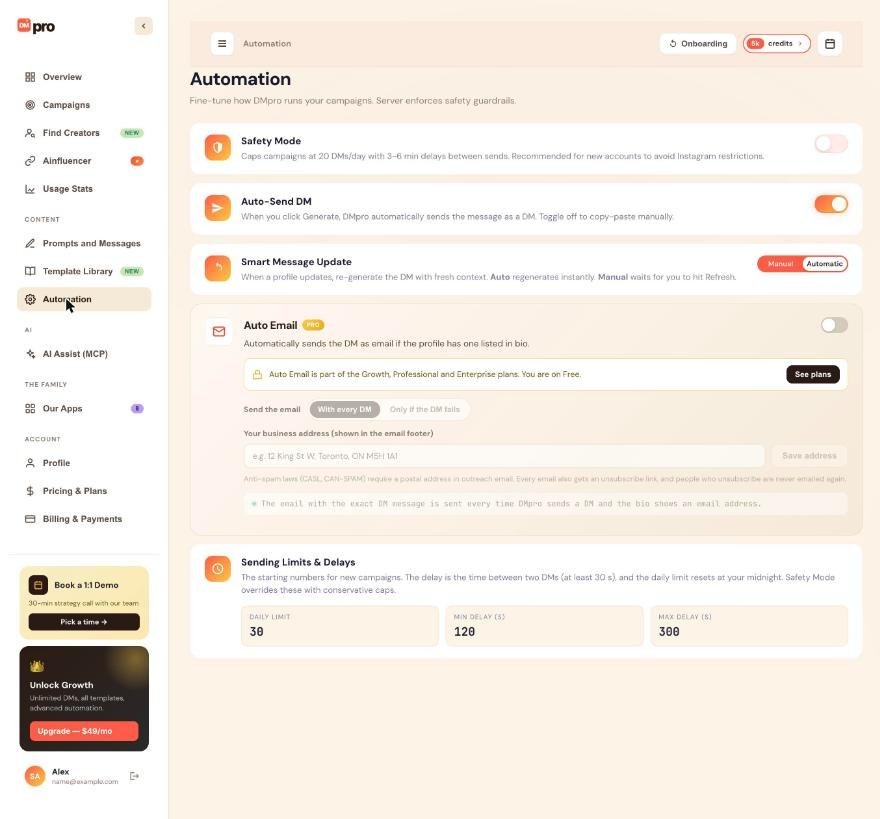
Set Sending Limits & Delays
This card holds the starting numbers for new campaigns: DAILY LIMIT (1 to 200, default 30), MIN DELAY (S) (at least 30, default 120) and MAX DELAY (S) (at most 3,600, default 300). The delay is the time between two DMs, and the daily limit resets at your midnight.
These numbers only affect campaigns you create afterwards. Running campaigns keep theirs.
Choose Safety Mode
The Safety Mode switch caps new campaigns at 20 DMs a day with 3 to 6 minutes between sends, and it overrides the numbers above while it is on. Your own numbers stay saved. The guide How to turn on Safety Mode has the details.
Decide on Auto-Send DM
Auto-Send DM is for DMs you send from a profile yourself. When it is on, “When you click Generate, DMpro automatically sends the message as a DM.” Turn it off to copy and paste each message by hand instead. It does not change the Auto-send DMs checkbox inside a campaign form, which you choose for each campaign.
Choose Smart Message Update
Choose Manual or Automatic. With Automatic, “When a profile updates, re-generate the DM with fresh context”: clicking Refresh on a new profile writes a new message straight away. With Manual, Refresh only loads the profile and waits for you to click Generate (or Fill in).
It only affects single-profile DMs. Campaigns write each DM once, when that person’s turn comes.
Set up Auto Email if your plan includes it
The Auto Email card is marked PRO and is part of the Growth, Professional and Enterprise plans. On a Free plan it is locked and shows a See plans button.
On a plan that includes it, use the switch, choose With every DM or Only if the DM fails, type your business address (shown in the email footer) and click Save address. Outreach email needs a postal address, every email gets an unsubscribe link, and people who unsubscribe are never emailed again.
Tips
- Settings you change in the extension have no Save button. Switches save at once, and a number saves shortly after you change it.
- If you connect an AI app through AI Assist (MCP), changes it makes here appear on both sides, and the AI Assist page lists each change with Undo.
- Start with the defaults and Safety Mode on, then change one setting at a time so you can tell which change helped.
If something goes wrong
My change did not show up in the extension.
If both are open in the same Chrome, the change shows within moments. On different computers, the other side shows it the next time you open it or come back to it. Reload the page if in doubt.
Auto Email is greyed out.
It is part of the Growth, Professional and Enterprise plans, and it needs a business address. On Free, the card is locked and offers See plans.
A new campaign did not use my new defaults.
Defaults only apply to campaigns created after the change. If Safety Mode is on, it overrides your numbers for new campaigns.
Related how-to guides
Still stuck? We’re happy to help.
Create your account, or reach out to support.




