
How to create your first campaign
Set up a bulk campaign on the dashboard that writes and sends a DM to every person on a list, one at a time, at a pace you choose. It takes about 5 minutes.
Before you start
- The DMpro extension installed in Chrome and signed in to your DMpro account (the extension does the sending)
- Chrome signed in to the Instagram or TikTok account you will send from
- A list of usernames or profile links (or a plan to use Find Creators)
- An AI prompt or your own DM saved on Prompts and Messages
- Credits on your account
Open the campaign form
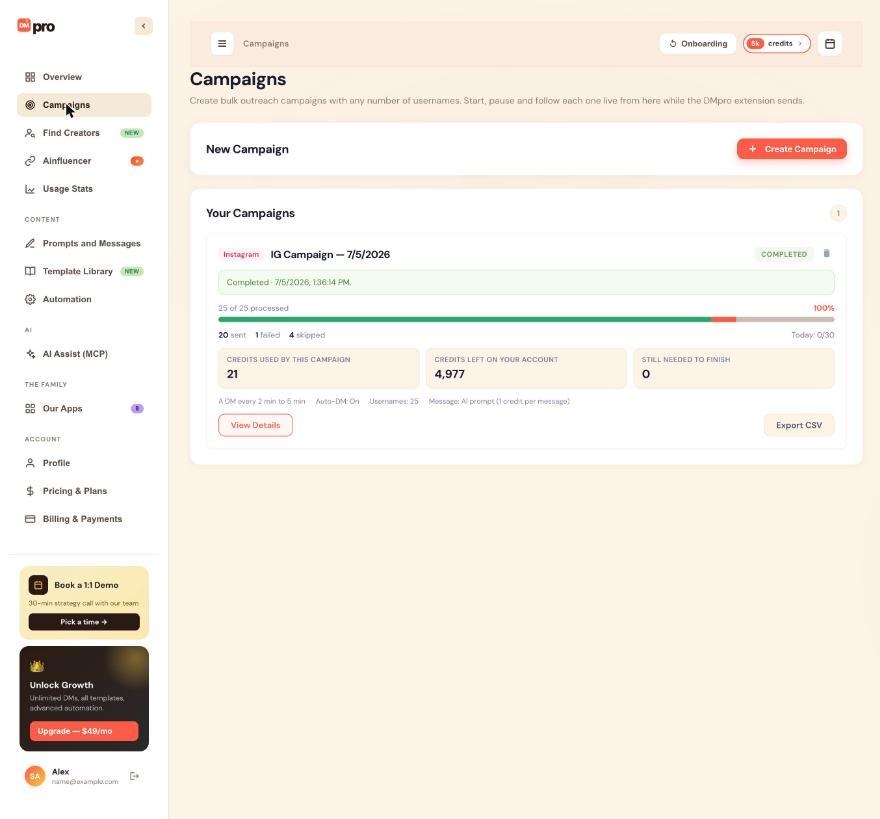
Open the dashboard, click Campaigns in the left menu, then click Create Campaign in the New Campaign card.
The Your Campaigns list below it shows every campaign you have made. On a new account it is empty.
Name the campaign and choose a platform
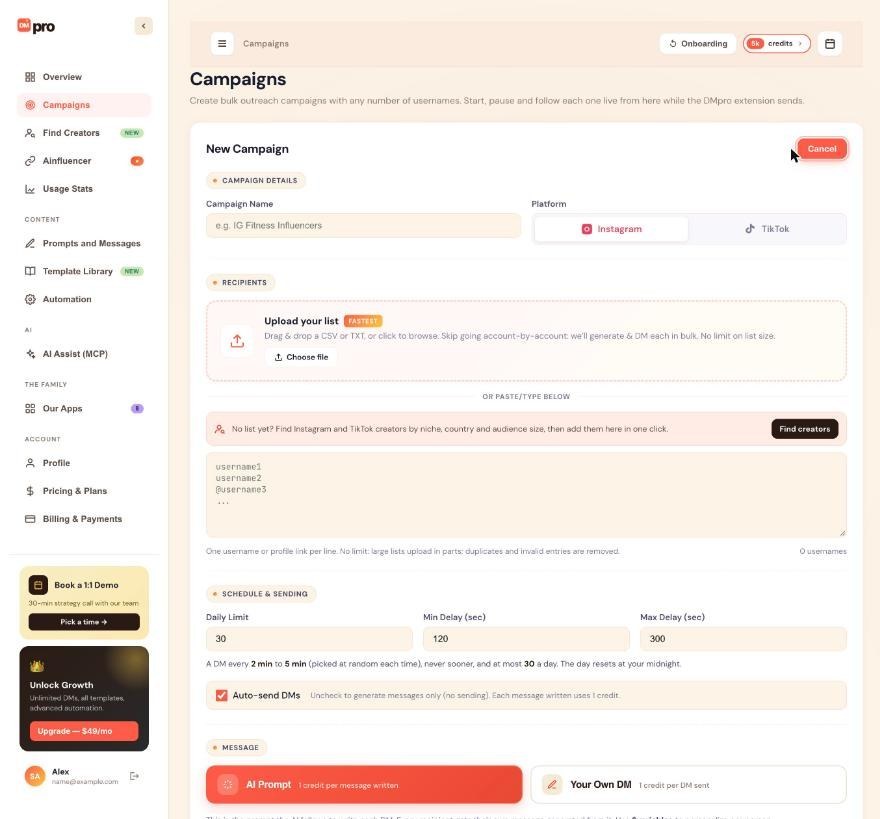
Under CAMPAIGN DETAILS, type a Campaign Name. Only you see it, so use something you will recognise later, for example Fitness creators, October. If you leave it empty, DMpro names it for you with the platform and the date.
Choose Instagram or TikTok. One campaign targets one platform, so make two campaigns if you want to reach people on both.
Add your recipients
Under RECIPIENTS, drop a CSV or TXT file on Upload your list (or click Choose file), or paste usernames into the box below it. Use one username or profile link per line. The counter under the box shows how many usernames DMpro found, and duplicates and invalid entries are removed for you.
If you have no list yet, the Find creators button in the same area lets you find Instagram and TikTok creators by niche, country and audience size and add them in one click. The guide How to add usernames to a campaign covers the formats in detail.
Check the pace and Auto-send
Under SCHEDULE & SENDING, Daily Limit, Min Delay (sec) and Max Delay (sec) start from your Automation defaults, which are 30 a day and 120 to 300 seconds until you change them. A line under the fields puts the pace in words, for example “A DM every 2 min to 5 min (picked at random each time), never sooner, and at most 30 a day.”
If Safety Mode is on, the fields show 20 a day and 180 to 360 seconds and cannot be edited.
Leave Auto-send DMs checked if you want DMpro to send. Uncheck it to only write the messages (each AI message uses 1 credit) or only prepare them (your own DM, free) without sending anything.
Choose the message
Under MESSAGE, pick one of two options:
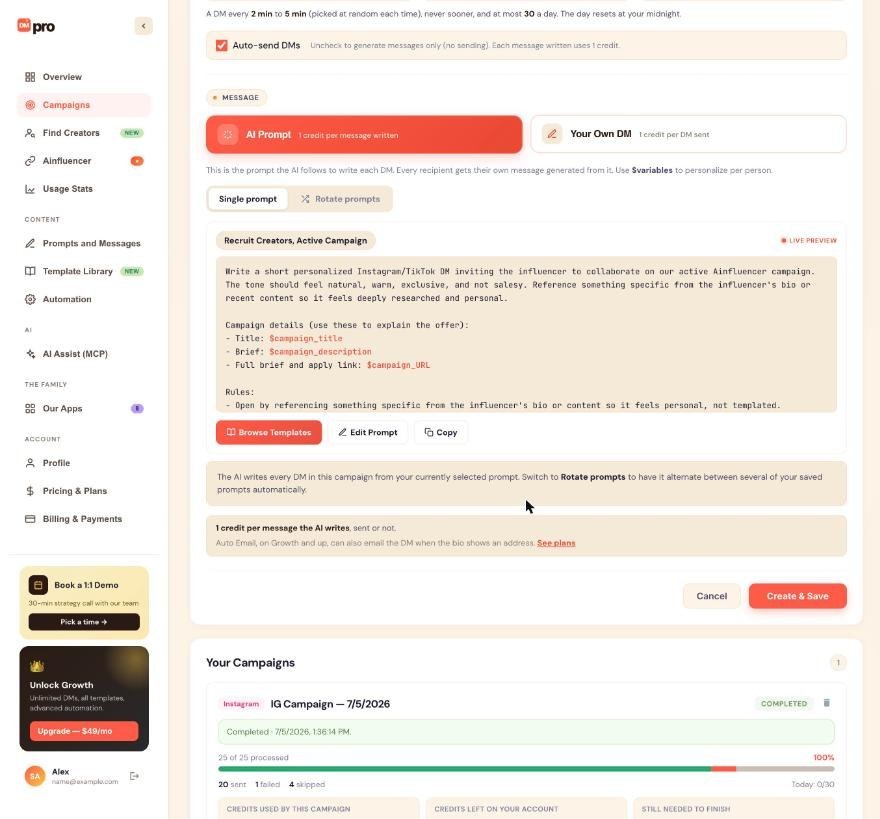
- AI Prompt (“1 credit per message written”). Choose Single prompt to write every DM from your active prompt, or Rotate prompts to split the list across two or more prompts. The card shows a live preview with Browse Templates, Edit Prompt and Copy.
- Your Own DM (“1 credit per DM sent”). Pick which saved own DM to send and check its preview.
The note under the message shows what a message costs. For AI it reads “1 credit per message the AI writes, sent or not.”
Create and save, then start
Click Create & Save. The campaign is saved as a Draft and its card says “Ready. Press Start: the DMpro extension in Chrome does the sending.” Nothing has been sent yet.
If DMpro had to change one of your numbers, it tells you which one and why, for example “Min delay 10 became 30 (the lowest allowed is 30 s)”.
When you are ready, click Start on the campaign card. The guide How to start, pause and stop a campaign explains what happens next.
Tips
- Try your first campaign with a short list of 5 to 10 people so you can see how the messages read before you send hundreds.
- If your Instagram or TikTok account is new, turn on Safety Mode on the Automation page before you create the campaign. It only applies to campaigns created after you switch it on.
- The daily limit and delays are fixed when you create the campaign. To use other numbers later, stop it and create a new one.
If something goes wrong
Create & Save refuses my Your Own DM campaign.
DMpro does not create an own DM campaign without a saved own DM that passes its check. The form says “Write and save your own DM first, or pick AI Prompt.” Open Prompts and Messages, Your Own DM, fix any error shown there and save it, then come back.
I clicked Start but nothing is being sent.
The extension does the sending, not the dashboard. Chrome must be open on a computer where the DMpro extension is installed and signed in to the same account. The extension picks a started campaign up within about a minute. If the card still shows a waiting message, see How to fix a campaign that is not sending.
The numbers on the card are not the ones I typed.
DMpro checks the pace rules itself (daily limit 1 to 200, delays 30 to 3,600 seconds) and, with Safety Mode on, uses 20 a day and 3 to 6 minutes. It says which number changed when you save.
Related how-to guides
Still stuck? We’re happy to help.
Create your account, or reach out to support.




