
How to set a campaign’s daily limit and delays
Choose how many DMs a campaign sends per day and how long it waits between two DMs, for one campaign or as your default for new ones. It takes about 3 minutes.
Before you start
- A DMpro account
- A decision on how fast the campaign should go (start low if your account is new)
Open the pace fields in the campaign form
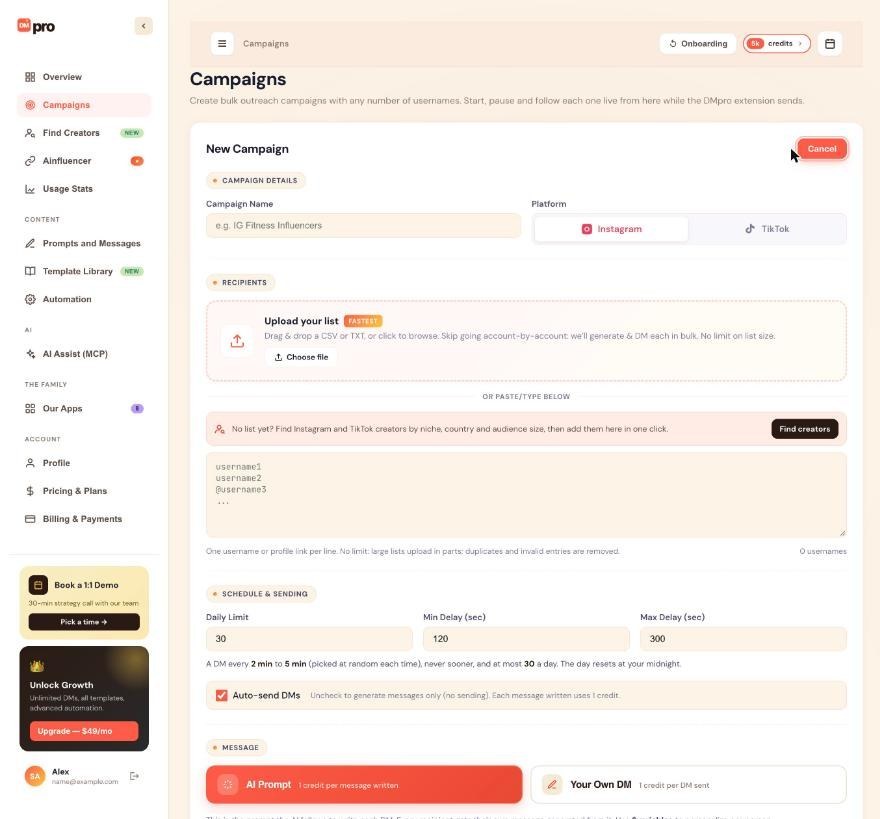
On the dashboard, click Campaigns, then Create Campaign. Scroll to SCHEDULE & SENDING. It has three fields: Daily Limit, Min Delay (sec) and Max Delay (sec).
In the extension, the same fields are in the Bulk Campaign form.
Set the daily limit
Daily Limit is the most DMs this campaign sends in one day. Enter a whole number from 1 to 200.
- Only DMs that went out count, including ones delivered by email. Failed and skipped people do not.
- If Auto-send DMs is off, the limit counts messages written instead.
- The day resets at your own midnight, in your browser’s time zone.
When the limit is reached the campaign stays Running and waits. Its card says “Daily limit reached for today” and shows when it continues, which happens by itself while Chrome with the extension is open.
Set the delays
Min Delay (sec) and Max Delay (sec) set the time between two DMs. DMpro picks a random time between the two for each gap, never less than the minimum.
- Min Delay is at least 30 seconds. Both delays are at most 3,600 seconds (1 hour).
- Max Delay cannot be lower than Min Delay. Use the same number in both fields for a fixed delay.
- Use whole numbers.
If a number breaks a rule, the form refuses it and says why, for example “Min delay: at least 30 s. Faster DMs get accounts restricted.” Nothing is changed silently.
Read the pace note and estimate the length
Under the fields, DMpro describes your pace in words, for example “A DM every 2 min to 5 min (picked at random each time), never sooner, and at most 30 a day. The day resets at your midnight.” Check that it says what you meant.
A rough guide: 50 people at 2 to 5 minutes between DMs take about 100 to 250 minutes. With a daily limit of 30, a list of 100 takes at least 4 days.
Very short delays can run a little longer than you set, because opening a profile and preparing the DM takes about 20 to 40 seconds.
Set your defaults for new campaigns
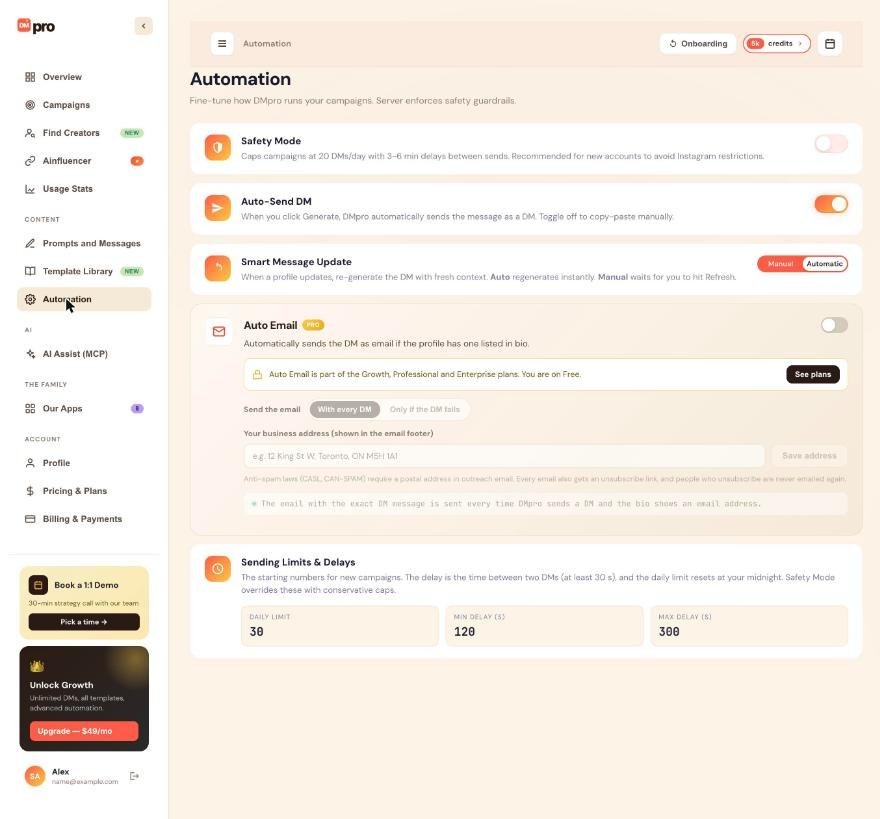
To change the starting numbers for every new campaign, open Automation in the left menu and find Sending Limits & Delays. Edit DAILY LIMIT, MIN DELAY (S) and MAX DELAY (S). The defaults are 30, 120 and 300.
In the extension, open the account menu (your initials at the top right), click Automation settings and use Sending Limits & Delays there. It has no Save button: a number saves shortly after you change it, and the line under the card reads “Saved. New campaigns start from these numbers.”
These defaults only affect campaigns you create afterwards. Reload the page and check the numbers if you want to be sure they stuck.
Know when Safety Mode overrides your numbers
With Safety Mode on, every new campaign sends at most 20 DMs a day with 180 to 360 seconds between DMs, whatever you type, and the form locks the fields. Your own numbers stay saved and come back when you turn Safety Mode off.
Tips
- On a new or recently restricted account, start with 10 to 20 a day and raise the number slowly.
- Each campaign has its own daily limit. The extension runs one campaign at a time, but several campaigns in one day add up, so keep your total in mind.
- Single-profile DMs that you send yourself are not covered by the daily limit or by Safety Mode.
If something goes wrong
The form says “Max delay can’t be lower than Min delay.”
Raise Max Delay or lower Min Delay. Use the same number in both if you want a fixed delay.
My new TikTok campaign starts at 20 a day, not 30.
The Help Center says that while your default daily limit is 30, a new TikTok campaign starts at 20 a day. You can still change the number in the form before you save. Check the field after you pick TikTok.
The campaign shows “Daily limit reached for today” but it is still Running.
That is normal. It waits for your midnight and continues by itself, as long as Chrome is open with the extension signed in.
I need a different limit for a campaign that already exists.
The numbers cannot be edited after creation. Stop the campaign, export its results to find who is still waiting, and create a new campaign with the new numbers.
Related how-to guides
Still stuck? We’re happy to help.
Create your account, or reach out to support.




