
How to write your first AI prompt
Write a prompt that tells DMpro’s AI how to word each DM, save it, make it active and test it on a few profiles. It takes about five minutes.
Before you start
- A DMpro account
- The DMpro extension, if you want to test the prompt on real profiles
Open Prompts and Messages
In the dashboard, click Prompts and Messages in the left menu and stay on the AI Prompt tab. In the extension, click your initials at the top right and choose Prompts and Messages.
You will see your existing prompts as cards. Every account has a “Default Prompt”, and onboarding may have added a starter prompt.
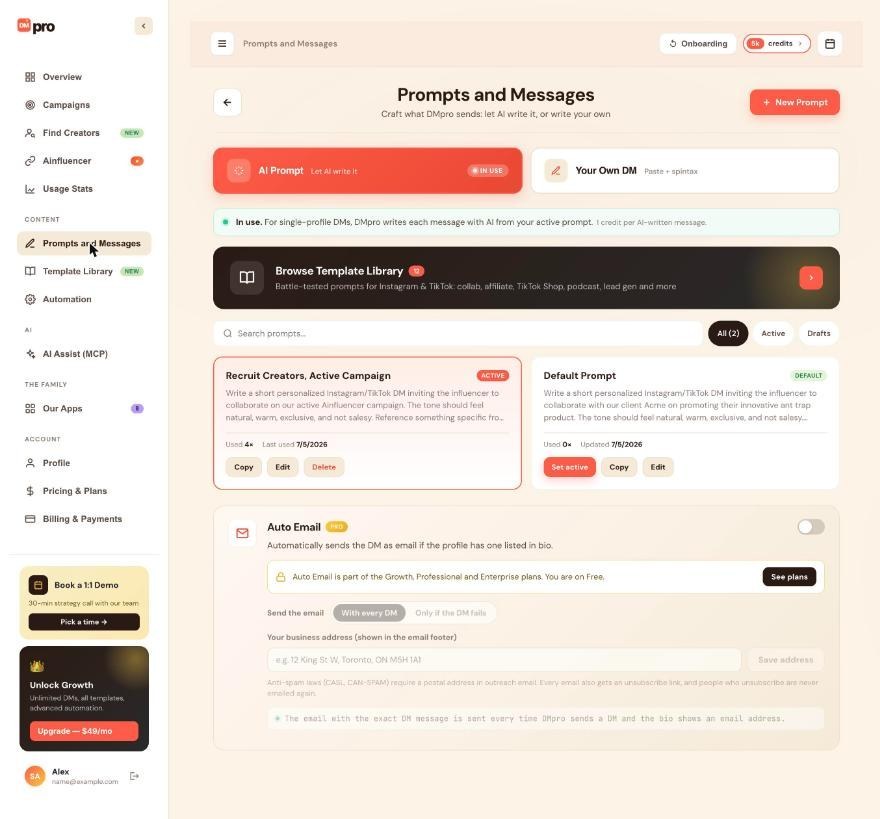
Click New Prompt
Click New Prompt at the top right. A form opens with two fields: Title and Prompt Content.
- Title: a short name only you see, for example “Collab pitch to fitness creators”. Up to 200 characters.
- Prompt Content: the instruction the AI follows. At least 10 and at most 20,000 characters.
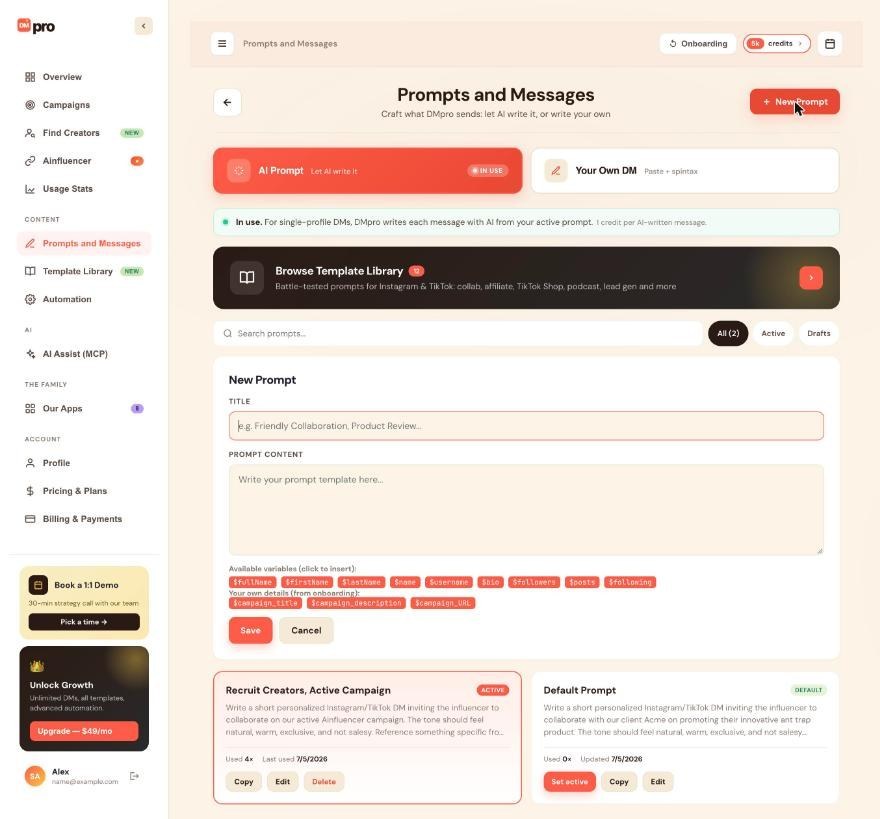
Write the instruction
A good prompt covers five things: the tone, what to mention, who you are, how long the message should be and what you are asking for. For example:
Write a warm, casual Instagram DM to $firstName. Mention one specific thing from their bio: $bio. Say I run partnerships at a small skincare brand and suggest a collab. Keep it under 3 sentences. No emojis. End by asking if they would be open to a quick chat.
The AI only knows what DMpro reads from the profile (name, username, bio and counts), so ask it to use those. Write the facts about you into the prompt, because the AI cannot look up your website.
Insert variables
Under the text box, click a chip such as $firstName, $username or $bio to insert it at the cursor. DMpro replaces each variable with that person’s details before the AI writes. The variables guide lists them all.
Save the prompt
Click Save. The prompt appears in your list. A new prompt is only saved. It is not used until you make it active.
Make it active
Click Set active on the new prompt card. The card shows ACTIVE and moves to the top. In the extension, select the round button next to the prompt instead.
If your message mode is Your Own DM, single-profile DMs keep sending your own DM until you click Use AI Prompt on the AI Prompt tab.
Test it on real profiles
Open the extension’s main screen and turn Auto Send DMs off first. It is on by default, and then every Generate also sends the DM to the person.
Open three to five very different Instagram or TikTok profiles (a sparse bio, a rich bio, a small and a large account), click Refresh and then Generate. Each message the AI writes uses 1 credit. Adjust the prompt and try again until the messages read the way you want.
Tips
- Tell the AI what to avoid, for example “Do not start with ‘I hope this message finds you well’. No hashtags.”
- If you want exact wording every time, use Your Own DM instead of an AI prompt.
- Start from a template in the Template Library if a blank page is hard, then edit your copy.
- Saving, editing and switching prompts is free. Only a message the AI writes uses a credit.
If something goes wrong
The prompt will not save.
A prompt must be at least 10 characters. A very short instruction such as “Write DM” is too short and also gives the AI too little to work with. Add tone, what to mention, length and an ask.
My messages do not follow the prompt.
Check the chip on the extension’s main screen. If it says Your own DM, single-profile DMs send your own DM, not a prompt. Switch with Use AI Prompt. Also confirm the right prompt is marked ACTIVE and that you wrote variables as $firstName, not [Name] or {{firstName}}.
Generate returns an empty or very short message.
If the AI returns nothing or fails, DMpro gives the credit back and sends nothing. Check that the prompt is not contradictory or too short, click Refresh so the profile is read again, and try again. A profile with an empty bio gives the AI less to work with.
Related how-to guides
Still stuck? We’re happy to help.
Create your account, or reach out to support.




