
How to check your credits and usage
See how many credits you have left, how many you have used this cycle and what a campaign still needs. It takes about two minutes.
Before you start
- You are signed in to the DMpro dashboard at https://invite-extension.dmpro.app/dashboard or to the extension
Read the credits pill
Every dashboard page shows a pill labelled credits at the top right. It is your balance right now. Large numbers are shortened, so 1,200 shows as 1.2k. Click the pill to open Pricing & Plans.
The extension side panel has the same credits pill at the top right. Point at it to see the exact number. The extension reads your balance again after every message DMpro writes or sends and each time you open the panel.
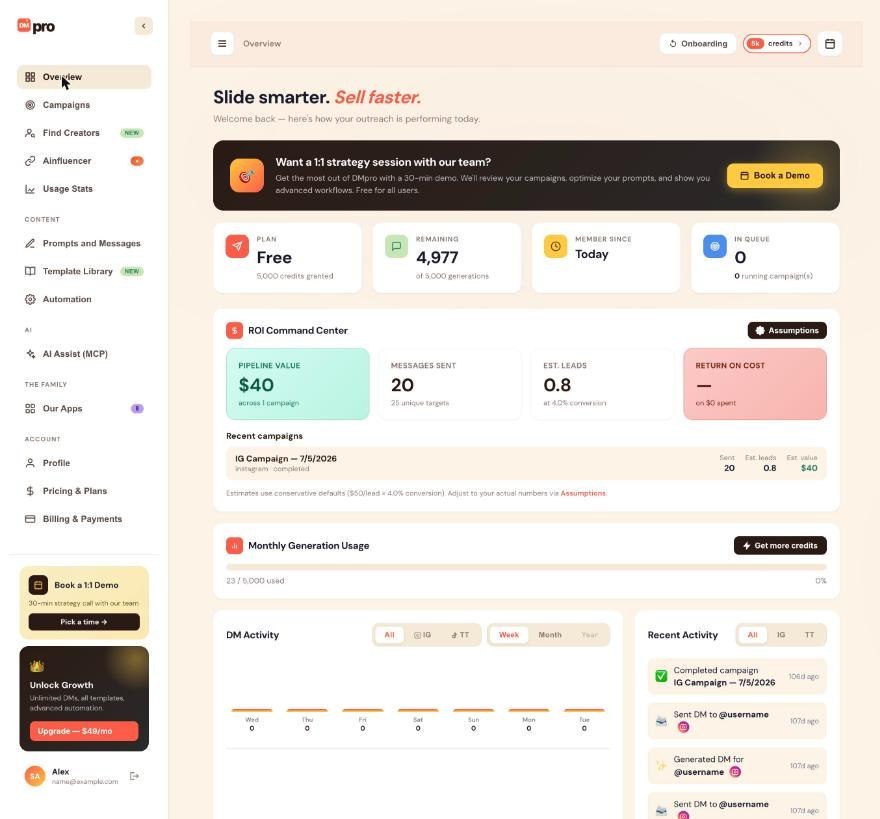
Open Overview for your balance and cycle use
Click Overview in the left menu. Two things matter here:
- Remaining is what you can spend now. The line under it (“of N generations”) is the total it came from.
- Monthly Generation Usage is a bar with “X / Y used” and the percentage. Get more credits next to it opens Pricing & Plans.
In these screens the word “generations” means credits, so an own DM that was sent counts too.
Open Usage Stats for the lifetime picture
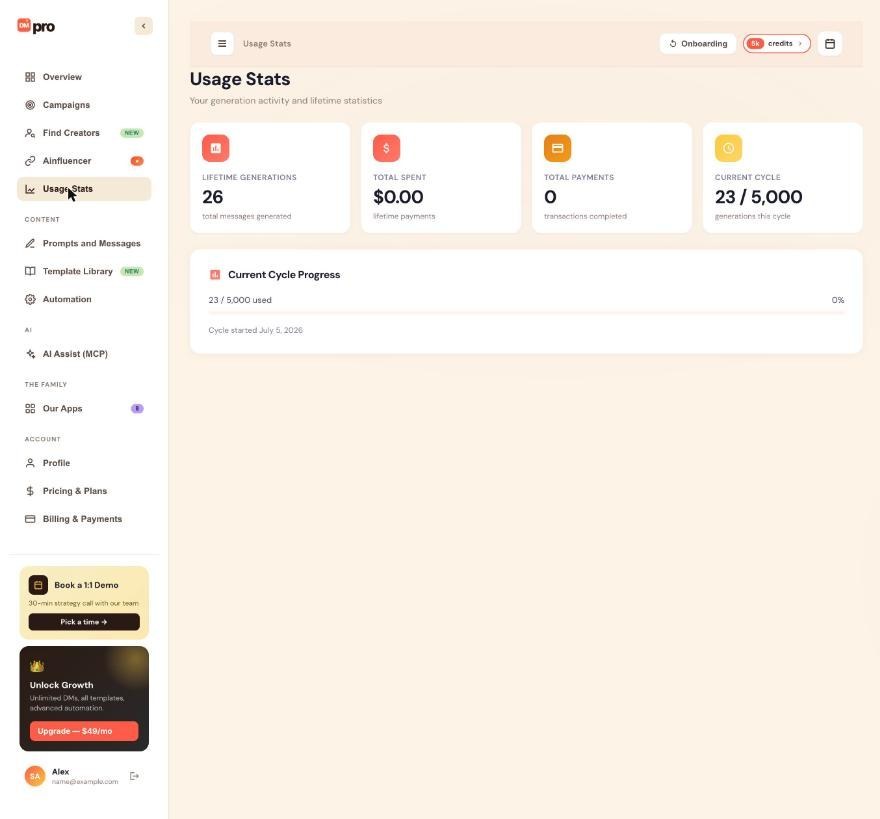
Click Usage Stats. You see four cards:
- Lifetime Generations: messages the AI has written for you.
- Total Spent: what you have paid DMpro.
- Total Payments: how many payments that was.
- Current Cycle: credits used of your current total.
Below them, Current Cycle Progress shows the same numbers as a bar, with the date the cycle started.
Check what a campaign has used and still needs
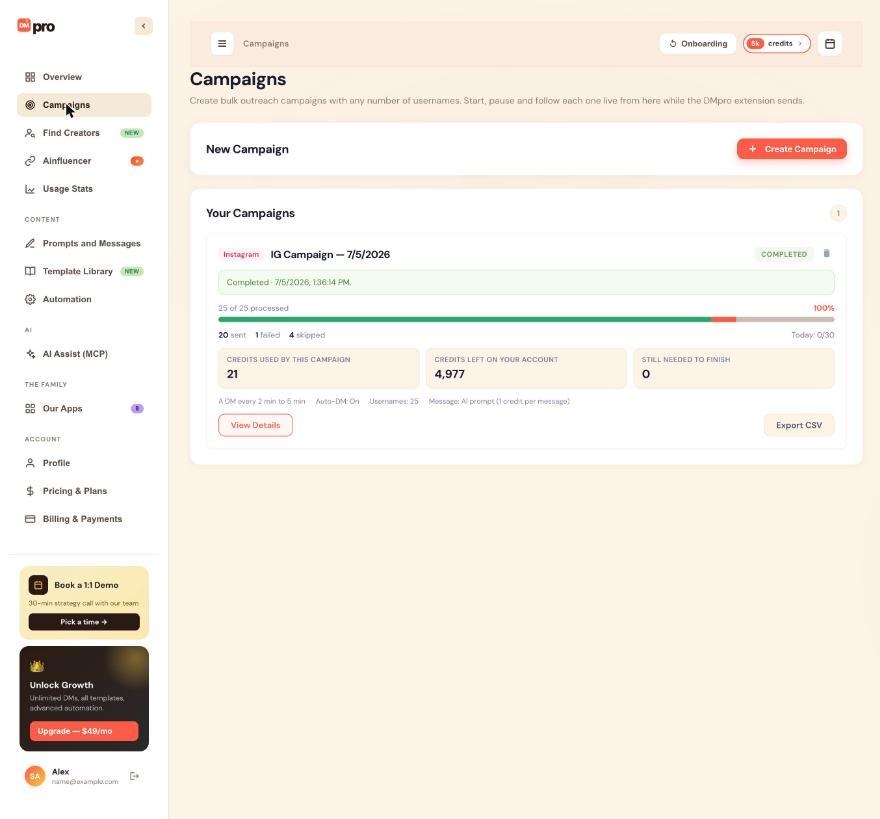
Click Campaigns. Each campaign card has three boxes:
- Credits used by this campaign
- Credits left on your account
- Still needed to finish
If your balance does not cover the rest of an AI campaign, the card tells you before you start it. For an own DM campaign the last box reads Needed at most to finish.
Know what spends a credit
- An AI-written message: 1 credit, whether or not you send it. Writing again for the same profile costs another credit.
- An own DM that was sent: 1 credit. Writing, previewing and copying your own DMs is free.
- Revealing a creator in Find Creators: your plan’s monthly reveals first, then 3 credits each.
Free: sending an AI message that is already written, editing it, a message the AI failed to write, and an own DM that failed to send (the credit is given back).
Credits are used in this order: subscription credits, then one-time credits, then free credits. Subscription credits refill on your billing date and do not roll over. One-time credits stay until you use them.
Watch for the early run-out warning
On a subscription, a yellow banner appears at the top of Overview when your pace so far would use up your plan credits before the period ends. Its button opens Pricing & Plans. When you are not on course to run out early, no banner shows, and that is normal.
Tips
- An own DM stretches your credits: you write and preview it for free and pay 1 credit only when it is sent.
- If an AI app is connected through AI Assist (MCP) with access to Reports, you can ask it for your usage report: credits, this cycle’s use, your pace and DMs per day for 7 or 30 days.
- The dashboard does not refresh while its browser tab is hidden. It catches up when you come back.
If something goes wrong
My balance looks wrong or did not change after I paid
Reload the dashboard (Cmd+Shift+R on Mac, Ctrl+Shift+R on Windows) and close and reopen the extension panel. Check that the extension and the dashboard are signed in to the same account, because balances belong to the account, not the browser. If you just paid, wait a minute and reload. If the credits still have not arrived, contact support with a screenshot of the extension counter and the dashboard.
My credits dropped even though I did not send the message
The AI used a credit when it wrote the message, sent or not. Each time you generate again for the same profile, that costs another credit. Improving your prompt or using Your Own DM for exact wording helps you avoid repeats.
A campaign stopped with Out of Credits
Nobody is skipped: the campaign waits where it was. Add credits (upgrade, a one-time package, or wait for your subscription to renew), then click Resume on the campaign. It does not restart by itself.
Related how-to guides
Still stuck? We’re happy to help.
Create your account, or reach out to support.




