
How to read the ROI Command Center
Understand the four numbers on the ROI Command Center and set your own value per lead and conversion rate. About five minutes.
Before you start
- At least one campaign that has sent DMs, otherwise the numbers stay at zero
Open Overview and find the card
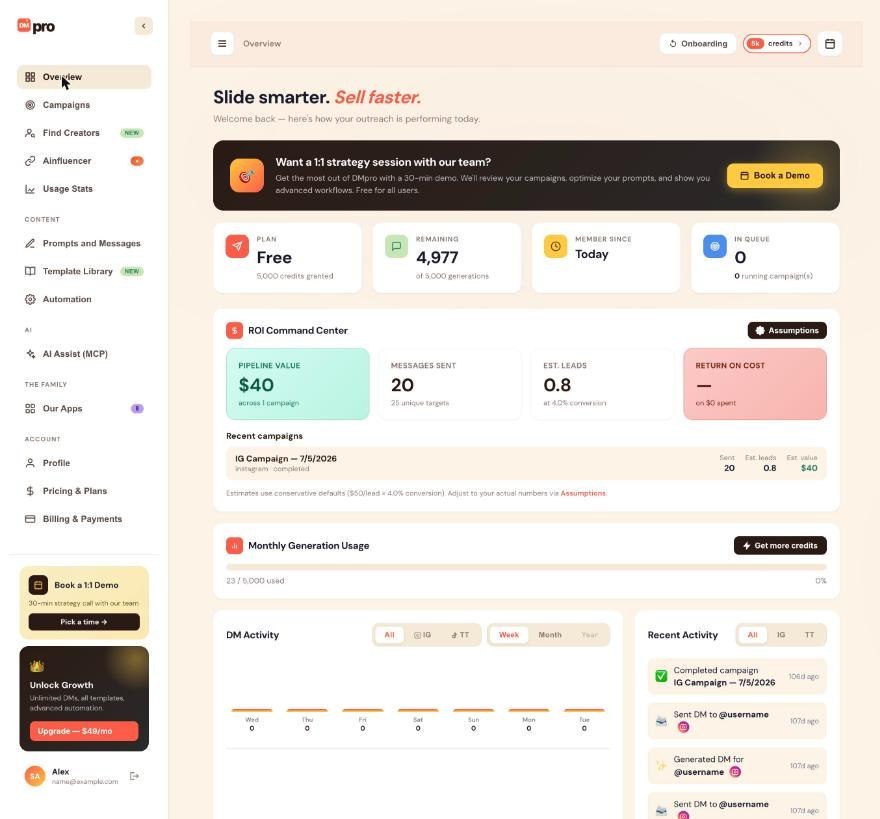
Click Overview in the left menu. The ROI Command Center card sits below the Plan, Remaining, Member Since and In Queue cards. Every plan has it, including Free.
Read the four numbers
- Pipeline value: estimated leads times your value per lead. The line under it says how many campaigns it covers.
- Messages sent: DMs your campaigns have sent. The line under it counts the people on those lists (“unique targets”).
- Est. leads: messages sent times your conversion rate. The line under it shows the rate used.
- Return on cost: pipeline value divided by what you have paid DMpro, shown as a multiple such as 20.4x. Until you have made a payment it shows a dash.
Check Recent campaigns
Under the numbers, Recent campaigns lists your 10 latest campaigns with platform, status, Sent, Est. leads and Est. value. Use it to see which campaign the estimate comes from.
Know what is and is not counted
- Counted: DMs that campaigns sent, from your 50 most recent campaigns. Deleting a campaign removes its DMs from the estimate.
- Not counted: DMs you send one at a time in Single Profile mode, and messages a campaign wrote but did not send (Auto-send DMs off).
- Not tracked at all: replies and deals.
Set your own assumptions
The card starts from $50 per lead and a 4% conversion rate. To use your own numbers:
- Click Assumptions at the top right of the card, or the Assumptions link in the note under it.
- In the ROI Assumptions window, enter Value per lead (USD) (1 to 10,000) and Conversion rate (%) (0.1 to 100).
- Click Save.
The card recalculates at once. A box left empty saves its default. The note under the card always shows the values in use, and the assumptions are visible only to you.
Check the math with an example
Say your campaigns have sent 500 DMs, with $50 per lead and 4% conversion. Est. leads is 500 x 4% = 20. Pipeline value is 20 x $50 = $1,000. If you have paid $49 for a plan, Return on cost is $1,000 divided by $49, about 20.4x. Use your own figures: set the conversion rate from the conversations that became leads divided by the DMs sent, and the value per lead from what a lead is really worth to you.
Tips
- Revisit both assumptions as your results change. The estimate is only as realistic as the two numbers you give it.
- An AI app connected with access to Reports can read the same estimate, overall and for your 10 latest campaigns. An app allowed to make changes in the Account area can also update the assumptions, and you can undo that on the AI Assist (MCP) page.
If something goes wrong
Return on cost shows a dash
That is normal until you have paid DMpro at least once. The multiple needs a payment amount to divide by.
Messages sent is lower than the DMs I sent
Only campaign DMs count. DMs sent one at a time from the extension, and messages a campaign wrote but did not send, are left out. Only your 50 most recent campaigns are included.
My assumptions will not save
Value per lead must be between 1 and 10,000, and the conversion rate between 0.1 and 100. Fix the box that is outside its range and click Save again.
Related how-to guides
Still stuck? We’re happy to help.
Create your account, or reach out to support.




