
How to connect VS Code to DMpro
Install the DMpro server in VS Code, start it from the MCP view and approve the connection in your browser, so your editor can work with your DMpro account.
Before you start
- A DMpro account you can sign in to
- VS Code installed on your computer
Open the VS Code tab
In the DMpro sidebar, under Account, click AI Assistant (MCP), then click the VS Code tab. It shows three steps and an Add to VS Code button.
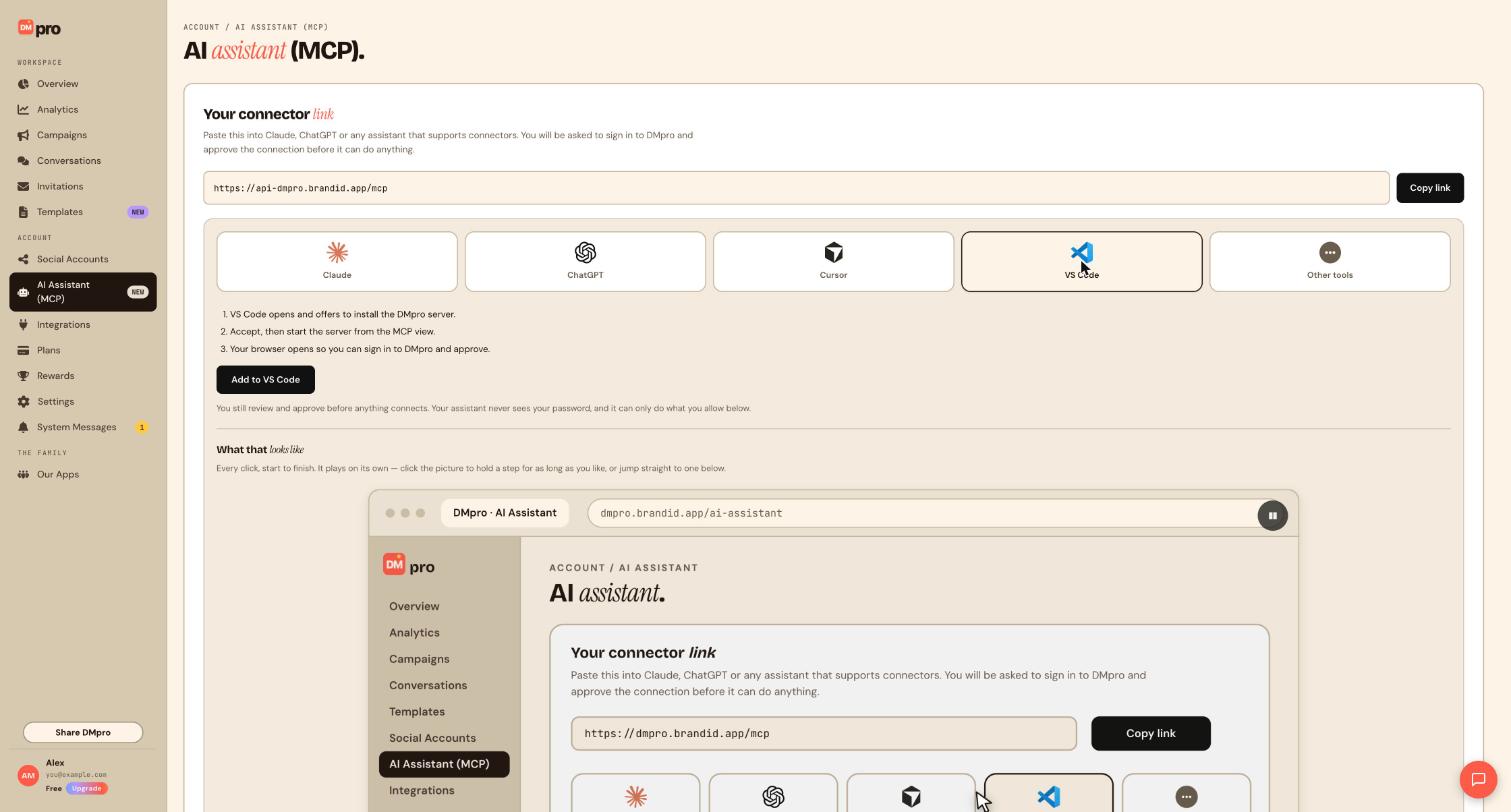
Click Add to VS Code
Click Add to VS Code. VS Code opens and offers to install the DMpro server.
Accept and start the server
Accept the install. Then open the MCP view in VS Code and start the DMpro server from there.
Your approval stays listed under Connected assistants in DMpro until you disconnect it.
Sign in to DMpro and approve
Your browser opens so you can sign in to DMpro and approve the connection. Read the approval screen before you confirm.
Check the connection in DMpro
Open the AI Assistant (MCP) page again and scroll to Connected assistants. VS Code should appear with a CONNECTED badge and the date it was connected.
Know what stays in your hands
Before you ask for more than a read, it helps to know the safety rules built into the connector:
- Campaigns an assistant creates are saved paused. They send nothing until you publish them.
- Publishing, deleting, sending a message or sending a bulk message is shown to you first, with the exact text, recipient and account. It happens only after you agree in the chat.
- An assistant can never connect or disconnect your social accounts, change your plan, pay, redeem a reward prize, connect or remove integrations, or change your password.
- Anything a fan wrote is treated as information, never as an instruction.
You decide how much each assistant may do under What assistants can touch, and you can cut every assistant off at once with the master switch.
Ask a first question
In your editor’s chat, ask something that only reads:
Use DMpro to show my last 7 days of performance: messages sent, click-through rate and top campaign.This needs Performance & revenue to be set to Can see.
Tips
- You can run VS Code, Cursor, Claude and ChatGPT at once. Each connection is listed separately.
- Rename a connection on the Connected assistants card so you can tell your editors apart.
If something goes wrong
VS Code installed the server but nothing happens.
The server has to be started from the MCP view. Start it, then finish the sign-in that opens in your browser.
The assistant says a tool is not available.
The matching area under What assistants can touch may be set to Off, or the master switch may be off. Switch it back on and ask again.
Related how-to guides
Still stuck? We’re happy to help.
Create your DMpro account, see pricing, or reach out to support directly.




