
How to change your notification settings
Choose which emails DMpro sends you: product news, a morning digest, and alerts when a campaign pauses.
Before you start
- Access to the email address on your DMpro account
Open Settings
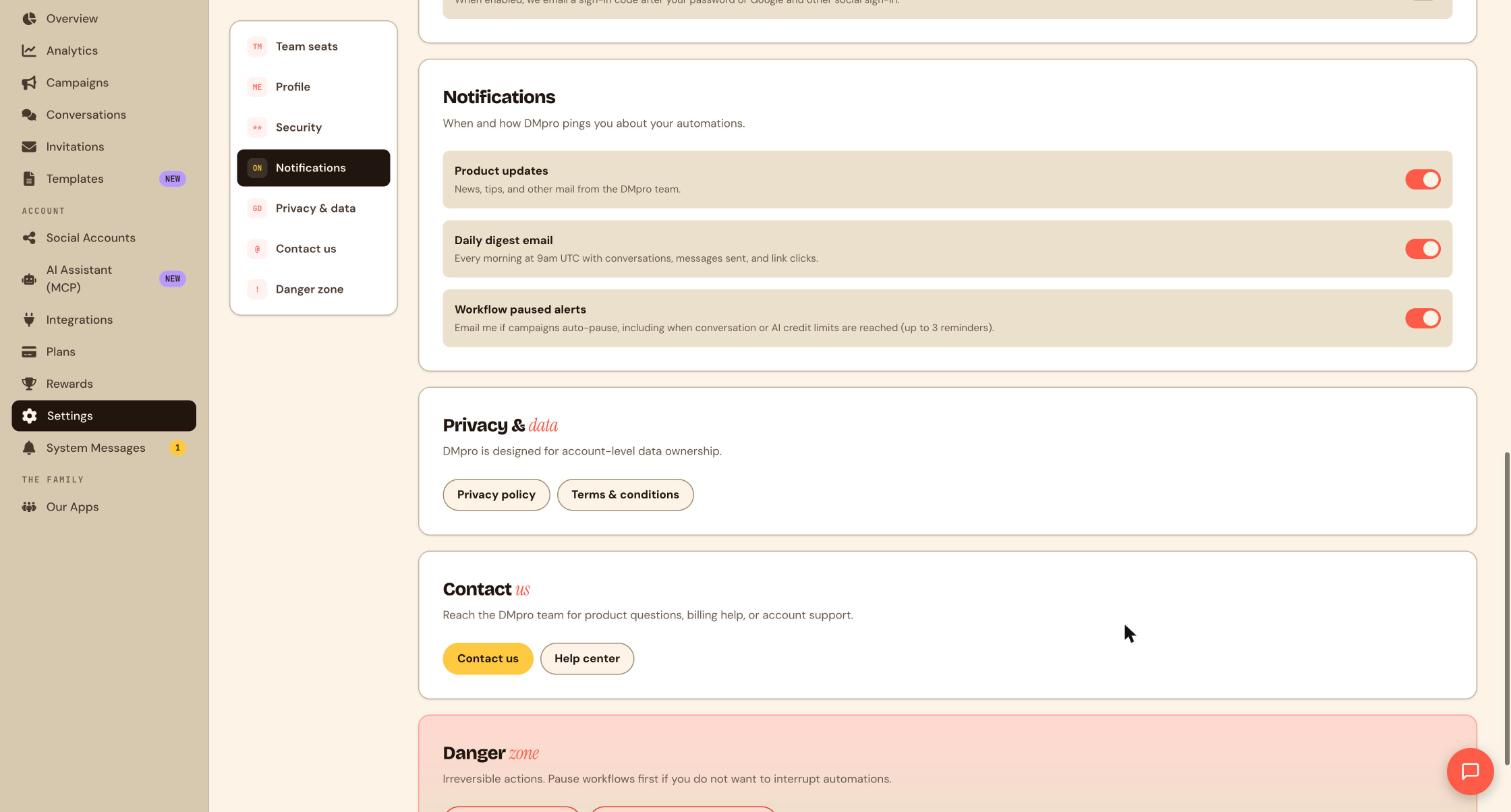
Click Settings in the sidebar, then choose Notifications in the list on the left. The section is titled Notifications with the line “When and how DMpro pings you about your automations.”
Decide on Product updates
Product updates covers news, tips and other mail from the DMpro team. Turn it off if you only want account emails.
Decide on the Daily digest email
The Daily digest email arrives every morning at 9am UTC with your conversations, messages sent and link clicks. The time is fixed in UTC, so it lands at a different local time depending on where you are. It is a quick way to check on your automations without opening the dashboard.
For example, if you run a comment-to-DM campaign on a post that is getting attention, the morning email shows how many conversations started and how many link clicks came in, so you can see whether it is worth keeping the post pinned. If you already open Overview every day, you may not need it.
Keep Workflow paused alerts on
Workflow paused alerts emails you if campaigns auto-pause, including when your conversation or AI credit limits are reached. You get up to 3 reminders. This is the email that tells you something has stopped working, so most people should leave it on.
Example: you reach your monthly conversation limit on a busy weekend and campaigns pause. Without this alert you might only find out when fans complain that nobody answered. With it, you get an email and can upgrade, turn on overage billing or redeem a gift code the same day.
Flip the switches and check
Click a switch to turn it on or off. Orange means on. Reload the page afterwards to confirm each setting kept your choice. If an email is missing, check spam and make sure the address in Profile is correct.
Tips
- If a campaign stops and you are not sure why, the paused alert email and the Overview usage meters are the first places to look.
- Pair the daily digest with the Analytics page: the digest tells you if something changed, Analytics tells you where.
- Each switch works on its own, so you can silence one kind of email without losing the others.
If something goes wrong
I never get the daily digest.
Check the switch is on, look in spam, and remember it is sent at 9am UTC. Confirm the email address in Profile.
A campaign paused and I got no email.
Make sure Workflow paused alerts is on. You get up to 3 reminders, so look back through earlier messages as well.
I want fewer emails.
Turn off Product updates and the Daily digest email, and keep Workflow paused alerts so you still hear about problems.
Related how-to guides
Still stuck? We’re happy to help.
Create your DMpro account, see pricing, or reach out to support directly.




