
How to use variables in a prompt
Use $ variables so one prompt describes each person you message and you. It takes about five minutes to learn and use them.
Before you start
- At least one AI prompt, or the New Prompt form open on Prompts and Messages
Understand what a variable is
A variable is a word that starts with $. Before the AI writes, DMpro replaces each variable with the matching detail for the person you are messaging and for you. The AI receives your instruction plus the real information. For example:
Write a short DM to $firstName. Their bio says: $bio. Mention our campaign $campaign_title.
Use the variables about the person
These come from the public profile DMpro reads:
$fullName: the name shown on the profile$firstName: the first name ($nameis the same)$lastName: the last name, when there is more than one word$username: the handle without the @ (write@$usernameto show the @)$bio: the bio text$followersand$following: the counts$posts: the post count (on TikTok, DMpro reads the likes count here)
Use the variables about you
These come from your own account and connections, and the editor shows them under “Your own details (from onboarding)” when they are set up:
$offerand$icp: your offer and ideal customer, from Business onboarding$brandidUrl,$brandidNameand$niche: from your connected brandID page$campaign_title,$campaign_descriptionand$campaign_URL: from the Ainfluencer campaign you selected
Insert them with the chips
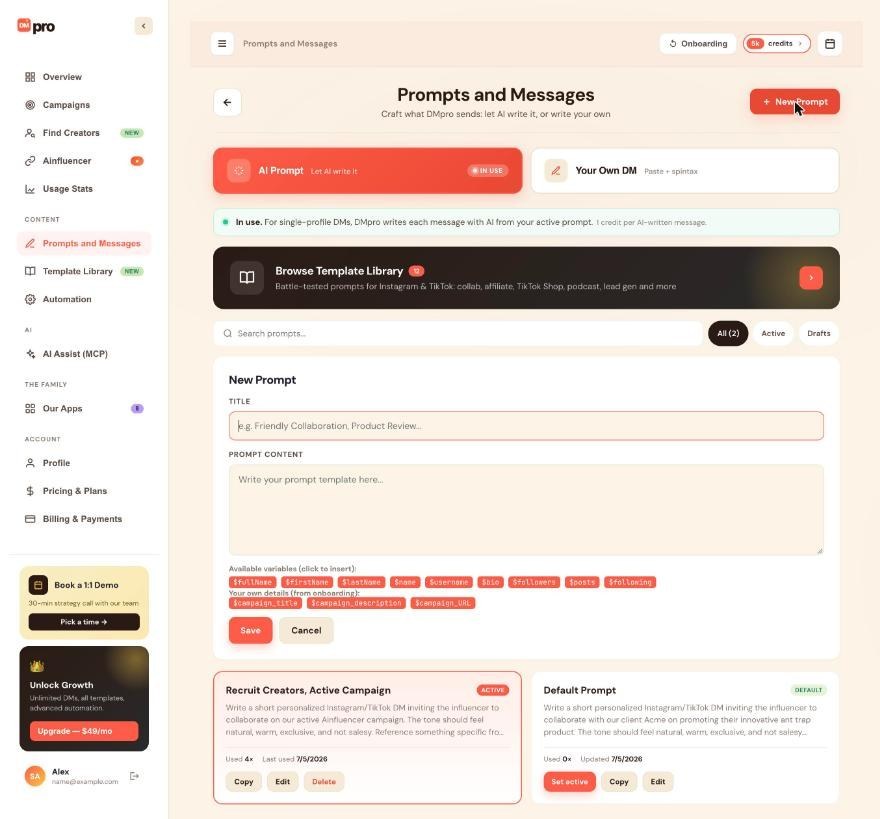
Open Prompts and Messages, click New Prompt (or Edit on an existing prompt) and place the cursor in Prompt Content. Click a chip under Available variables (click to insert) to add it at the cursor. You can also type the variable yourself.
Write variables exactly as listed, with the same capital letters. $Offer or $campaign_url reach the AI as typed text.
Know what happens when a detail is empty
If one of your own details is missing, for example you never connected brandID, DMpro removes that variable before the AI writes, together with a short label in front of it such as “My link:”, or the whole bullet line it sits on. The AI never sees an empty placeholder.
Keep each of these variables on a line of its own, because a few words just before them can be removed too.
Test with a real profile
Save the prompt and make it active. In the extension, turn Auto Send DMs off, open a profile, click Refresh and then Generate. Read the message and check that the details match the profile. Each message uses 1 credit.
Tips
- You cannot create your own variables. If you need another detail, write it into the prompt as plain text.
- Your Own DM uses a different style,
{{firstName}}with double braces. Do not mix the two. - A name like “Jane Doe | Coach” gives
$firstNameas Jane. When a profile shows no name, DMpro uses the username for the first name.
If something goes wrong
The variable appears as typed text in the message.
It was not written exactly as listed. Write the capital letters exactly: $campaign_url or $Offer reach the AI as typed text. Use the chips to insert variables.
{{firstName}} or [Name] does not work in my prompt.
AI prompts use $firstName. The double-brace style belongs to Your Own DM only, and square brackets or single braces are never filled in.
My offer, niche or campaign details are missing from the DM.
That detail is not set up on your account, so DMpro left it out. Fill in your offer in onboarding, connect brandID, or connect Ainfluencer and select a campaign. Or write the details into the prompt as plain text.
Related how-to guides
Still stuck? We’re happy to help.
Create your account, or reach out to support.




