
How to write your own DM with spintax
Write your exact DM once, add variables and wording choices, preview it and save it. It takes about five minutes and writing is free.
Before you start
- A DMpro account
- An idea of the message you want to send, with a few places where wording can vary
Open the Your Own DM tab
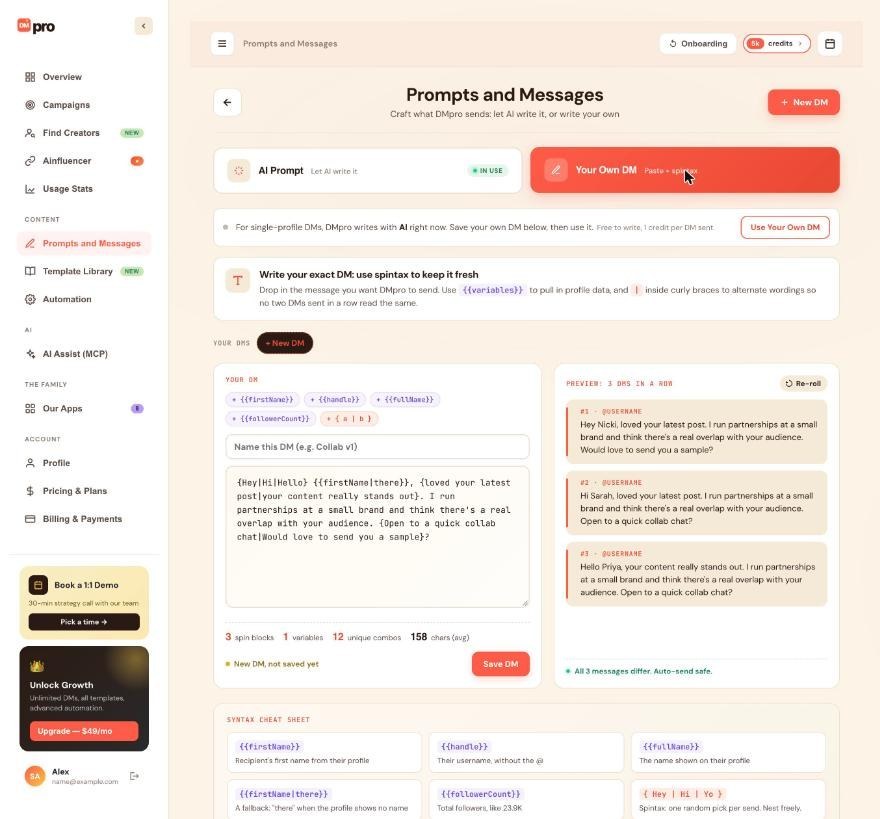
In the dashboard, click Prompts and Messages and then the Your Own DM tab (“Paste + spintax”). In the extension, open Prompts and Messages from your initials menu and choose the same tab.
If you have no own DM yet, the editor starts with an example you can change. Otherwise click New DM.
Name it
Type a name in Name this DM (e.g. Collab v1), up to 120 characters. If you leave it empty, DMpro names it “My DM”.
Write the message and add variables
Type your DM in the text box (up to 5,000 characters). Variables use double braces. Click a chip above the box to insert one at the cursor:
{{firstName}},{{lastName}}and{{fullName}}{{handle}}: the username without the @{{followerCount}}: for example 23.9K{{followingCount}}and{{postCount}}(post count is Instagram only)
Add a fallback after a bar, {{firstName|there}}, for profiles that show no first name.
Add spintax for variety
Put options between single braces, separated by bars: {Hey|Hi|Hello}. For each DM, DMpro picks one option. The + { a | b } chip adds a block, or wraps the text you selected in one. For example:
{Hey|Hi|Hello} {{firstName|there}}, {loved your latest post|your content really stands out}. I run partnerships at a small brand and think there is a real overlap with your audience. {Open to a quick collab chat|Would love to send you a sample}?This gives 3 x 2 x 2 = 12 versions. DMpro avoids using the same wording as the DM before it when your spintax allows. To send a real brace, bar or backslash, put a backslash in front of it.
Read the checks and the preview
As you type, DMpro lists errors in red with a line and column (you must fix them before you can save, for example a { that is never closed) and notes in yellow (for example a version longer than Instagram’s limit of about 1,000 characters). Counters show your spin blocks, variables and number of versions.
Preview: 3 DMs in a row fills your DM in for three sample profiles. Click Re-roll for three new versions. The line below should read “All 3 messages differ.” Previews send nothing and cost nothing.
Save it and make it active
Click Save DM (or press Ctrl+S, or Cmd+S on a Mac). The first own DM you save becomes your active own DM automatically. For later ones, open the DM and click Set as active DM.
Saving does not switch your message mode. See the guide on switching between an AI prompt and your own DM.
Tips
- Use spintax. Sending the same text to many people can look like spam to Instagram and TikTok.
- Own DMs use
{{firstName}}. AI prompts use$firstName. The two do not work in each other. - You can save up to 100 own DMs. Edits you save to an existing own DM apply right away to the campaigns that send it.
If something goes wrong
Save DM is disabled.
An error is blocking it. Typical ones are an empty DM, a { with no closing }, a } with no opening {, an unknown variable such as {{city}}, or more than 5,000 characters. Fix the red error and the button works again.
The preview says “Every DM reads the same.”
Your DM has no spintax choices. Add at least one {a|b} block so each DM reads differently. “Two versions only” means there is not enough variety yet.
A part of my DM went missing or braces appear in it.
A variable with no value and no fallback is left out, so “Hey {{firstName}}, love your page” becomes “Hey, love your page”. Braces without a bar, like {text}, are sent as written. Add a fallback or a bar, or write \{ for a literal brace.
Related how-to guides
Still stuck? We’re happy to help.
Create your account, or reach out to support.




