
How to turn on Auto Email
Let DMpro also email your DM when a profile’s bio shows an email address. Setup takes about three minutes and needs a Growth, Professional or Enterprise plan.
Before you start
- A Growth, Professional or Enterprise plan (including trials and gift plans of those plans)
- A postal address for your business, which anti-spam laws require in the email footer
Check your plan
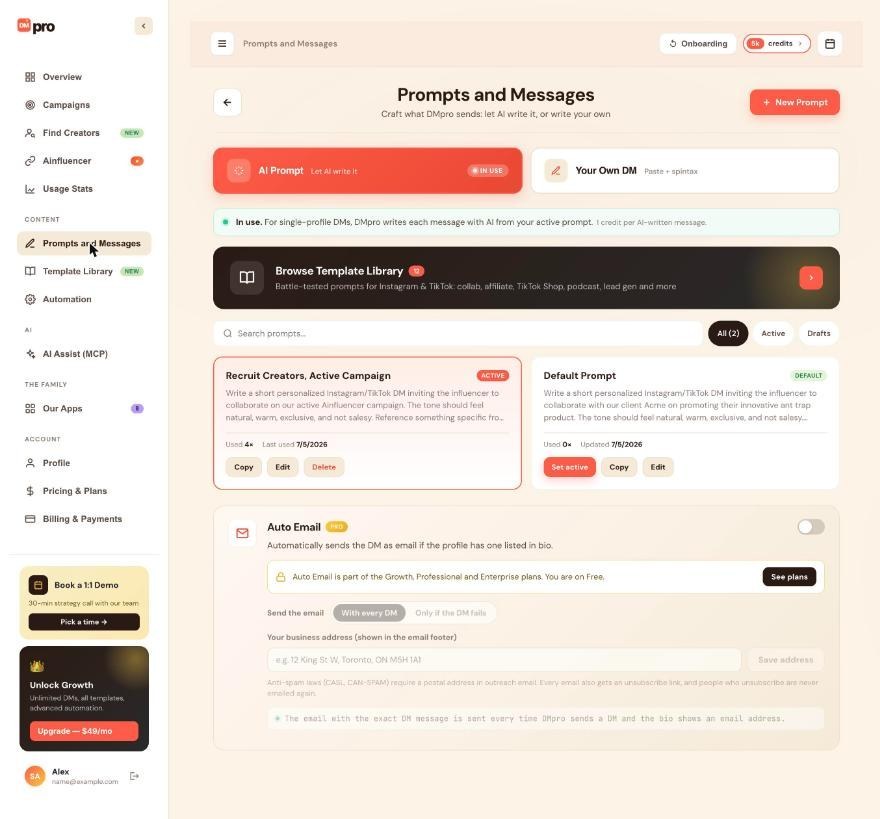
Auto Email is part of the Growth, Professional and Enterprise plans. On Free and Starter the Auto Email card is locked and shows See plans. Manual Send Email in the extension works on every plan.
Open the Auto Email card
In the dashboard, open Prompts and Messages or Automation. Both show the same Auto Email card: “Automatically sends the DM as email if the profile has one listed in bio.” In the extension, open your initials menu and choose Automation settings.
Choose when to email
Under Send the email, pick one:
- With every DM (the default): every DM that DMpro sends is also emailed.
- Only if the DM fails: the email goes out only when the DM could not be sent, so the person still gets your message.
Save your business address
Enter your postal address in Your business address (shown in the email footer) and click Save address (dashboard) or Save (extension). Auto Email cannot be turned on without it. Every email carries an unsubscribe link, and people who unsubscribe are never emailed again.
Turn the switch on
Flip the Auto Email switch. The three places show the same setting. From now on, when DMpro sends a DM for you (single-profile with Auto Send DM on, or a campaign that sends DMs) and the person’s bio shows an email address, DMpro emails the same message.
Know when no email is sent
- The bio shows no email address. DMpro only uses an address written in the bio.
- DMpro did not send the DM itself, for example you copied and pasted it, or a campaign has Auto-send DMs off.
- The person unsubscribed from DMpro emails.
- That person already got an email from you through DMpro in the last 30 days.
- You reached your plan’s hourly or daily email limit.
- DMpro could not tell whether the DM went out, so it does not email on top of it.
Emails do not use credits. Credits work as usual for the DM.
Tips
- The email comes from “Your Name via DMpro”, the subject is “A quick note for you”, and replies go to your own email address.
- Limits for Growth are 60 emails an hour and 300 a day. Professional and Enterprise allow 200 an hour and 2,000 a day (fair use).
- An AI app connected through AI Assist (MCP) can turn Auto Email off right away, but turning it on or setting a new address waits for your approval.
If something goes wrong
Auto Email is on but nothing is sent.
Check that your plan includes it and that your business address is saved. The card tells you what is missing, for example “Add your business address to start sending”. Then check the list above for the reasons an email is skipped.
The switch is locked.
You are on Free or Starter. Click See plans to compare plans on Pricing & Plans.
I see “Email limit reached” or “Not emailed: this person unsubscribed from DMpro emails.”
The first means you used your plan’s hourly or daily email allowance, which counts manual, Auto Email and campaign emails together. The second means that person clicked the unsubscribe link, so no one on DMpro can email that address again.
Related how-to guides
Still stuck? We’re happy to help.
Create your account, or reach out to support.




