
Meetings
Manage every meeting from your Meetings page: view upcoming and past, reschedule, cancel, and follow up with attendees.
The Meetings page is the inbox for every booking you are part of: meetings you host, meetings you co-host, meetings you booked with someone else, and meetings another bookme host added you to as a guest.
1. Open Meetings
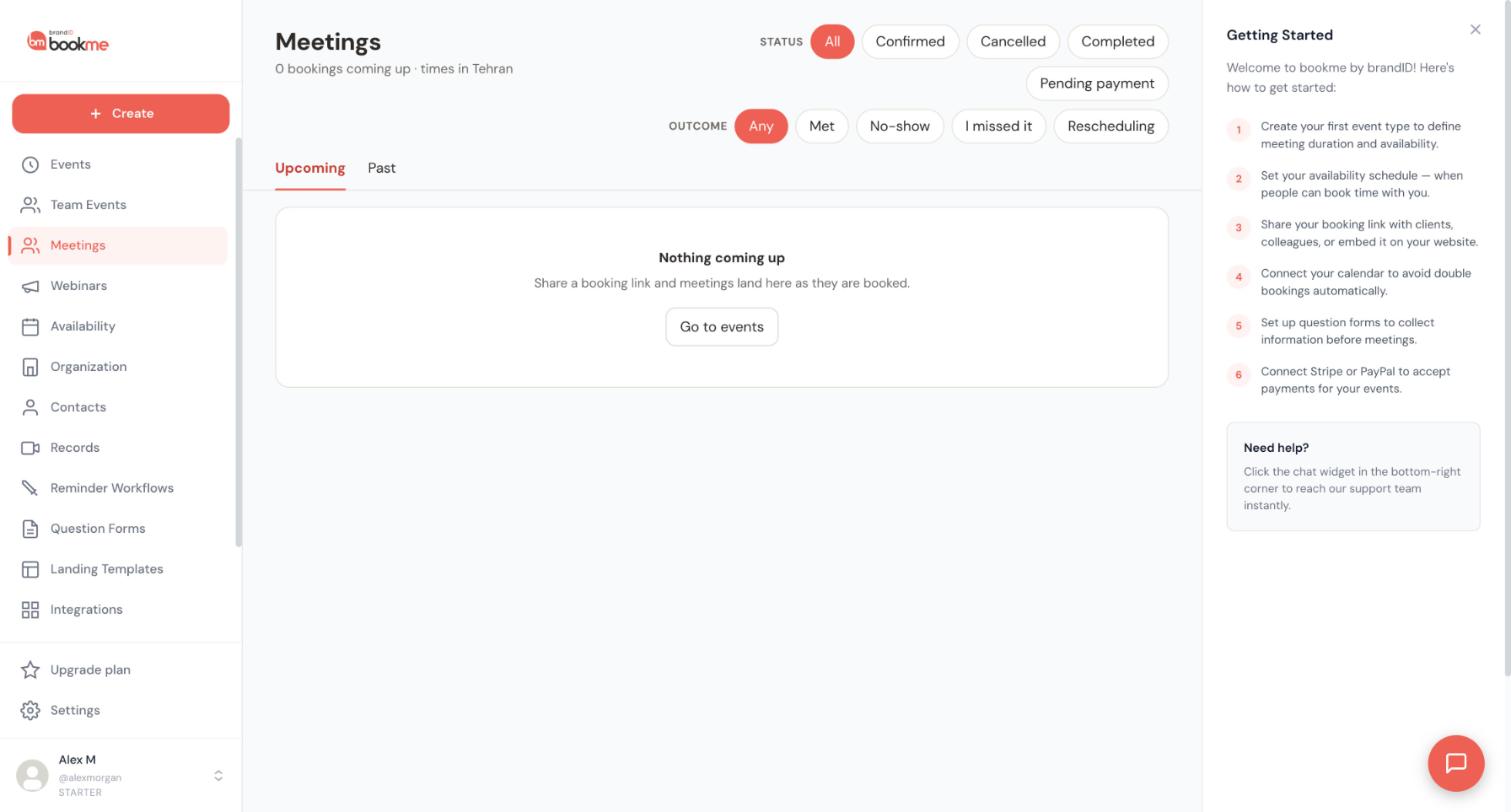
Click Meetings in the sidebar. The heading tells you how many bookings are listed, how many are waiting on you, and the time zone every time is shown in (your profile time zone).
2. Upcoming And Past
- Upcoming. Lists everything that has not ended yet, grouped by day (Today, Tomorrow, then dates). A meeting in progress stays here with an In progress chip until it ends.
- Past. Lists ended meetings, newest first.
3. Each Row
Each row shows who (the invitee, or the host when you booked or are a guest), the event, date and time, status, and payment. Chips tell you your role: You booked, Co-host, Guest, Webinar, plus +N guests when guests were added. When the invitee is in another time zone, their local time is shown under yours.
4. Just Ended
At the top of Upcoming, a Just ended band lists meetings you hosted that finished in the last three days and have no outcome yet, with the outcome buttons (Met, Decided to reschedule, I missed it, No-show). Each opens the outcome window with a note box and the follow-up email before anything is saved. The Upcoming tab shows the count.
5. Booking Details
Click any row to open the details panel. It shows when (in your time and theirs), where (Join and Copy link for video, the number for phone, the address and a Maps link for in-person), the invitee’s note and answers, your own notes, the hosts, the guests, the payment, and every action you can take: outcomes (with your note and the follow-up email before anything is sent), Copy a follow-up booking link, They need a new time, Reschedule, Bring it back, Cancel booking, Refund in full, add or remove guests. Press Escape to close.
6. Direct Links
Every host email about a booking links straight to that booking’s details.
Every ended meeting asks “What happened?” Your answer records the outcome and sends the matching follow-up to the invitee. Each meeting is classified once; you can clear and re-choose, but an email already sent is not recalled.
1. Three Places To Answer
- The check-in email you receive five minutes after the meeting ends, with four buttons.
- The Just ended band on the Meetings page.
- The booking details, under “What happened?”.
On the Meetings page every outcome opens the outcome window first:
- What the outcome does to the booking.
- Note about this meeting. Optional, saved with the meeting and shown in its details. Only you and your co-hosts see it. When the follow-up template has a place for notes (
{{host_meeting_notes}}, the default Met email does), Add this note to the email puts it in the email instead. - The follow-up email exactly as the invitee will see it (to, reply-to, subject and the email itself). When your workflows send more than one email, a tab per email.
- Email them now. On by default. Switch it off to save the outcome without emailing the invitee.
- Save and email (or Save). Nothing is saved or sent before you click it; Cancel or Escape closes the window. Ctrl+Enter (Cmd+Enter on a Mac) saves.
2. The Four Outcomes
- Met. The meeting happened. You can add notes; the Met follow-up can include them. The booking becomes completed.
- Decided to reschedule. You both agreed to move it. The slot is released, the calendar entries come off, and the invitee gets the email with the reschedule link. The booking stays confirmed and shows “Rescheduling” until a new time is picked.
- I missed it. You did not attend. The invitee gets your apology and your booking link. The booking becomes completed.
- No-show. The invitee did not attend. They get the “we missed each other” email. The booking becomes no-show.
3. Which Email Goes Out
The Reminder Workflow with the “attendance marked” trigger and the matching outcome, if it is on. The outcome window shows the exact email before you save, or tells you that none is set up, with a link to Reminder Workflows.
4. Team Events
Any attending host can answer, from their own check-in email or from Meetings. The first answer wins; the follow-up uses that host’s workflows.
5. Clearing An Outcome
In the booking details click Clear outcome. The status returns to needing an outcome (the meeting is back in the Just ended band while it is recent) and the buttons are enabled again. Your note stays. Clearing “Decided to reschedule” on a meeting that is still ahead restores its original time, calendar entries, and reminders.
6. Outcome Needed
Ended meetings without an outcome show an Outcome needed chip in the list so nothing is forgotten. Webinar attendances have no outcomes.
You can cancel any upcoming booking you host or co-host from the Meetings page, with a reason, an optional AI-written note, a refund choice for paid bookings, and the option to cancel quietly.
1. Open The Cancel Panel
Open the booking and click Cancel booking. The panel shows who loses the meeting from their calendar (the invitee, co-hosts, guests) and reminds you that cancelling cannot be undone.
2. Move It Instead?
If the meeting should happen at another time, click Move it instead to switch to the reschedule panel and keep everyone on the booking.
3. Reason
Pick a reason chip (Schedule conflict, No longer needed, They asked me to, Duplicate booking, Wrong fit) or write your own. The reason goes into the cancellation email. bookme AI, write it for me drafts a short note from a few words in the tone you pick (warm, professional, brief, apologetic); edit it freely.
4. Tell The Invitee Or Cancel Quietly
Email the invitee the reason is on by default: they get a short note with your reason and a link to rebook, co-hosts and guests are told, and your cancellation workflows run. Switch it off for spam or a booking made by mistake: nobody but your co-hosts is emailed, and the calendar holds still disappear.
5. Paid Bookings
Choose Refund in full (default) or Keep the payment. The refund goes back through Stripe or PayPal and takes 5 to 10 days to appear. You can still refund later from the booking’s details.
6. What Happens
The booking is marked cancelled, the slot opens up, calendar events are removed, the Zoom meeting (if any) is deleted, queued reminders are cancelled, and the emails go out according to your choice. The row stays on your Meetings page, dimmed, with the reason in its details.
7. Bringing It Back
A cancelled booking that was free or paid can be brought back with a new time from its details (Bring it back). A cancelled checkout that was never paid cannot.
Reschedule from the booking’s details: pick a day and a free time, add an optional reason, confirm. Everyone on the booking is told and their calendar entries move.
1. Open The Reschedule Panel
Open the booking on Meetings and click Reschedule. The panel shows a month grid with the days that have free times highlighted. Free times are the event’s real availability (your schedule, calendars, buffers, notice), with the booking’s own current time counted as free so you can shift it by a few minutes.
2. Pick A Day And A Time
Click a highlighted day, then a time. Times are shown in your time zone; the panel reminds you which zone the invitee is told in.
3. Reason (Optional)
Pick a chip (Schedule conflict, Another meeting is running over, Urgent client issue, Travel change, Out sick, Waiting on information, They asked to move it) or write your own. bookme AI, write it for me can draft the note, aware of the new time you picked.
4. Confirm
Click Reschedule. The booking keeps its id, links, and answers; the times change; the invitee, co-hosts, and guests get the reschedule email; calendar events are moved in place (a Zoom meeting is recreated); reminders are re-queued for the new time.
5. Let The Invitee Choose Instead
Two alternatives when you do not know their preference:
- Copy the Reschedule link from the booking’s details and send it; they pick a new time on the same page their confirmation email links to. Nothing changes until they choose. If you open that page yourself while signed in, bookme recognises you as the host: it offers host-specific reasons, and bookme AI writes the note as you, to the invitee.
- Click They need a new time to release the slot now and email them the link (see the dedicated article below).
6. Team Events
Any attending host can reschedule. The new time must be free for every required host; free times are computed under the event creator’s booking page.
Every meeting you host or co-host has a note: what you agreed, what to prepare, what happened. It is private unless you choose to put it in the follow-up email.
1. When You Mark What Happened
Any outcome (Met, Decided to reschedule, I missed it, No-show) opens the outcome window with a Note about this meeting box. The note is saved with the outcome. When the follow-up template has a place for notes ({{host_meeting_notes}}), tick Add this note to the email to send it to the invitee; the preview shows exactly where it lands.
2. Any Time From The Details
Open the booking and use Add a note (or Edit) under Notes, before or after the meeting. Save with the button or Ctrl+Enter; Escape cancels the edit. Nothing is emailed and the outcome does not change. To remove a note, empty it and click Remove note.
3. From The Check-In Email
Click Met in the “How did your meeting go?” email; the page that opens has a notes box for the thank-you email. Those notes go in the email.
4. Who Sees It
You and your co-hosts on that meeting. The details show Private or In the email, who wrote it and when, and the list marks meetings that have a note. The invitee and guests never see it, except what you added to an email.
5. Editing After The Email Went Out
Editing changes your copy only; the email that was sent stays as it was.
Two rows of filter chips sit above the list: Status and Outcome. Filters apply to the current tab; switching tabs resets them.
1. Status
All, Confirmed, Cancelled, Completed, Pending payment. Upcoming shows confirmed, pending-payment, and cancelled bookings by default; Past shows everything.
2. Outcome
Any, Met, No-show, I missed it, Rescheduling. Most useful on the Past tab; on Upcoming, Rescheduling finds bookings waiting for a new time.
3. Combining
Both rows combine (Completed + Met). An empty result shows “Nothing matches those filters” with a Clear filters button.
4. By Event Or Date Range
There is no event-type or date-range filter yet. Rows are grouped by day, so scroll to the date; the event name and colour dot on each row make one event easy to spot.
5. Pagination
The list shows 20 bookings per page with Previous and Next controls at the bottom.
There is no export button on the Meetings page. Use a webhook workflow for an ongoing export, your payment gateway for paid bookings, or ask support for a one-off file.
1. Ongoing: Webhook To A Spreadsheet
Create a workflow on “when an event is booked” (and one on “cancelled” if you want that too) with a webhook action pointing at a Zapier, Make, or n8n hook that writes to a sheet. Every booking is appended as it happens.
2. Paid Bookings
Your Stripe or PayPal dashboard exports payments. The Earnings page lists bookme-gateway payments.
3. Contacts
The Contacts page lists every person who has booked you with their booking count and last meeting date, built from your bookings.
4. One-Off Export
Email [email protected] from your account address to request a file of your bookings.
Invitees manage their booking from the links in their confirmation email. You are told by email, the Meetings page updates, and your calendar follows.
1. When They Reschedule
- They pick a new time from your real availability (with their old slot counted as free).
- You receive a reschedule email with the old and new time. Co-hosts and guests are told too.
- The calendar event moves; a Zoom meeting is recreated; reminders are re-queued.
- The booking keeps its details and answers. It is marked as having been rescheduled once in its details.
2. When They Cancel
- They can give a reason on the cancel page.
- You receive a cancellation email with the reason. Co-hosts and guests are told; guests’ calendar invitations are withdrawn.
- The booking shows as cancelled on Meetings with the reason in its details; the calendar event is removed; queued reminders are cancelled.
- For a paid booking nothing is refunded automatically. Decide from the booking’s details.
3. Late Cancellations
There is no cut-off: invitees can use their links until the meeting starts. State a policy in the event description and enforce it with the refund choice.
4. Bringing A Cancelled Booking Back
If they cancelled by mistake, open the booking and click Bring it back: pick a time (the same one if it is still free) and the booking is confirmed again with fresh links and calendar entries.
Guests are extra people you put on a booked meeting: a colleague, the invitee’s teammate, a translator. They get the meeting on their calendar and the join link, without a bookme account.
1. Add A Guest
Open the booking on Meetings. Under Guests, type the email and click Add. Up to 20 guests per meeting, on confirmed upcoming bookings. The invitee and the hosts cannot be added as guests.
2. What The Guest Receives
- An email from bookme with the event, the time in your time zone, and a Join Meeting button.
- A calendar entry: if you have Google Calendar connected they are added to your calendar event and Google sends its invitation; if not, the bookme email carries a calendar file.
- Every later change: reschedule notices and cancellations reach them and update their calendar.
3. “Invite Them To bookme As Well”
Leave the checkbox on and the email ends with a link to get their own free booking page. Someone who already has a bookme account never gets that line.
4. Guests Who Use bookme
If the guest’s email belongs to a bookme account, the meeting also appears on their own Meetings page with a Guest chip: host, time, join link, hosts and guest list. They never see the invitee’s answers, note, or payment, and they cannot change the booking; their only action is Leave this meeting, which withdraws their invitation and emails you. The meeting also counts as busy time on their own booking pages.
5. Remove A Guest
Click the x next to the guest. Their calendar invitation is withdrawn (or they get a cancellation file) and they are told.
6. Who Can Add Guests
The event creator and any attending co-host. Guests cannot add guests.
When an invitee tells you they cannot make it but you do not know when they can, release the slot and let them choose. The booking stays alive while it waits.
1. Release The Time
Open the upcoming booking and click They need a new time. A window explains what happens, takes an optional note, and shows the “Decided to reschedule” email with the reschedule link. Click Release and email (or switch Email them now off and click Release the time, then send them the link yourself with Copy the reschedule link).
2. What Happens
- The slot opens up for other bookings.
- The calendar entries for the meeting are taken off (yours, your co-hosts’, the invitee’s invitation).
- Queued reminders are cancelled.
- The invitee gets your “Decided to reschedule” follow-up email with their reschedule link (if that workflow is on).
- The booking shows Rescheduling in the list and “Waiting for a new time” in its details.
3. While It Waits
From the details you can:
- Pick a time for them yourself (opens the reschedule panel).
- Keep the original time if they change their mind: the slot is taken again, calendar entries and reminders come back.
- Cancel booking if it will not happen.
4. When They Choose
Their new booking time confirms everything again: calendar entries are restored at the new time, reminders are queued, and everyone gets the reschedule email.
Still stuck? We’re happy to help.
Create your bookme account, see pricing, or reach out to support directly.




