
bookme for University advisors
Appointments peak around deadlines. bookme lets students book advising time and spreads the load across advisors.
What you will learn
- Create an event type
- Set your hours and protect your week
- Share meetings across a team
- Run a webinar or group session
- Automate reminders and follow ups
- Record what happened after each meeting
Who this is for
Academic advisors, career services staff and admissions counselors.
Advising demand is lumpy. Most weeks are calm, then registration or application deadlines arrive and every student wants time at once. Phone queues and email threads cannot absorb that spike, and students who cannot get an appointment turn up unannounced.
bookme lets students choose from the times you have opened, and shares load across advisors so no one is buried.
The scheduling problems in university advising
Deadline rushes
Many advisors
Appointment types
No shows
How bookme solves it
- Appointment types. See how to create an event type.
- Spread across advisors. See how to create a team event.
- Reminders. See how to create an email workflow.
- Group sessions. See how to create a webinar.
See bookme in action
This short tour shows the dashboard you will use in the steps below: your events, meetings and settings in one place.
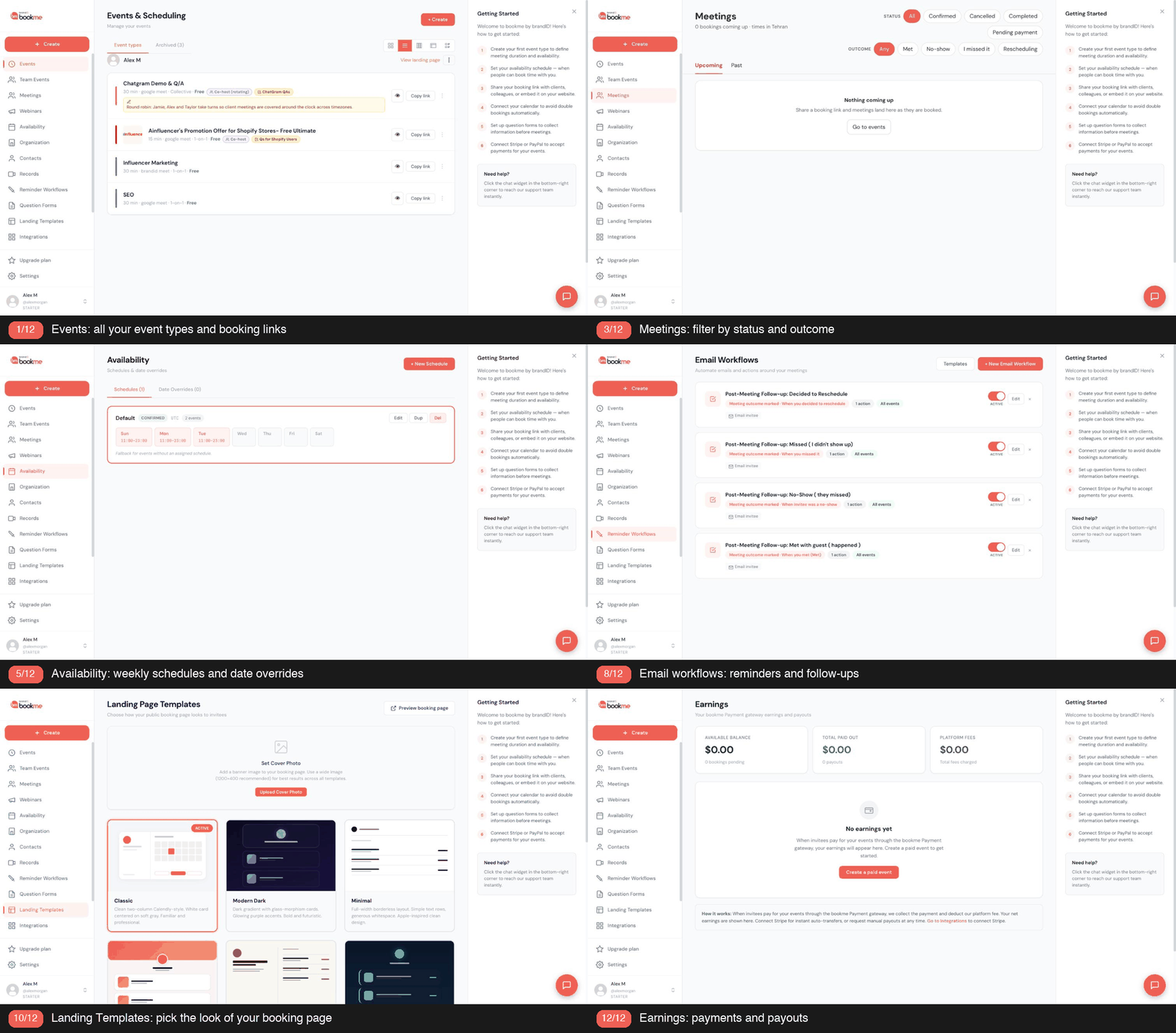
Set it up step by step
Create an event type
Quick questions and plans are different events.
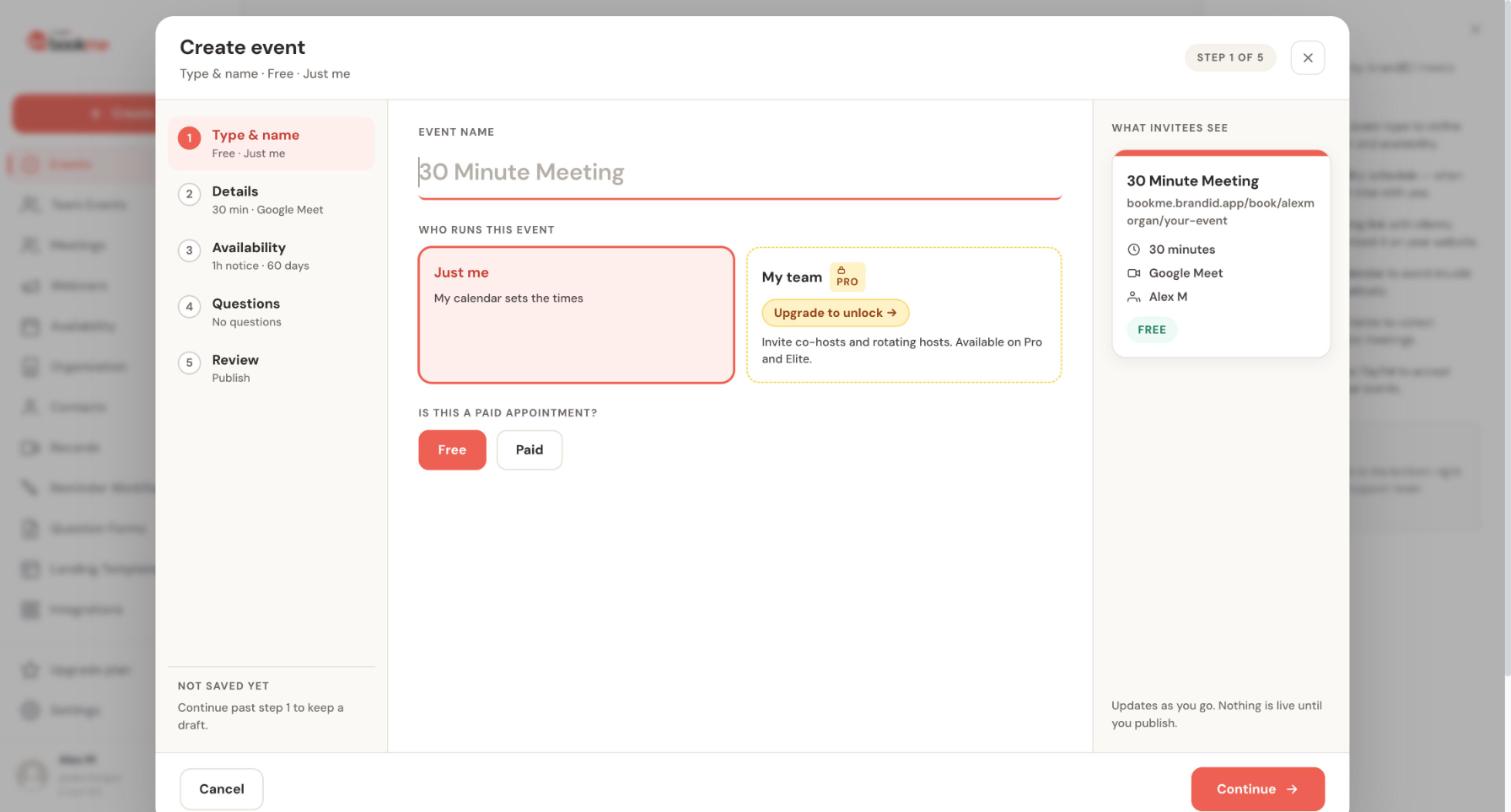
An event type is a meeting you offer, such as a 30 minute intro call. The Create event wizard builds one in five steps and keeps nothing public until you publish.
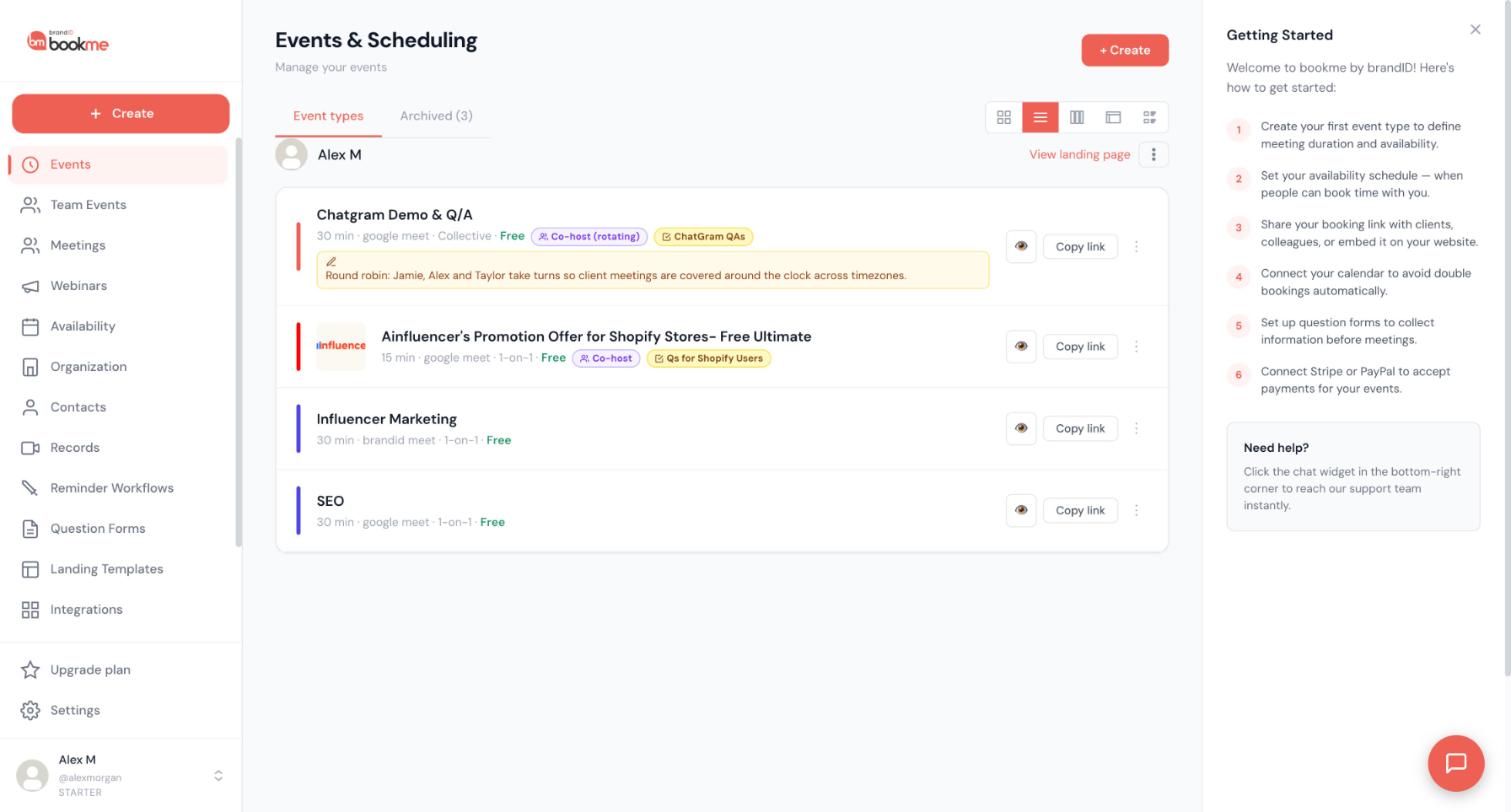
- On the Events page click + Create. The wizard lists five steps: Type & name, Details, Availability, Questions and Review.
- Name the event and choose Just me or My team, then choose Free or Paid.
- In Details set the description, the duration and the location: Google Meet, Zoom, brandID Meet, Phone call or In person.
- In Availability choose a schedule, how much notice you need, how far ahead people can book, an optional cap on bookings per day and buffers before and after each booking.
- Click Publish event, then use Copy link on the Events page to get the event’s direct link.
For university advising:
- Create 15 and 45 minute events.
- Name by student need.
Full guide: how to create an event type.
Set your hours and protect your week
Open slots in waves.
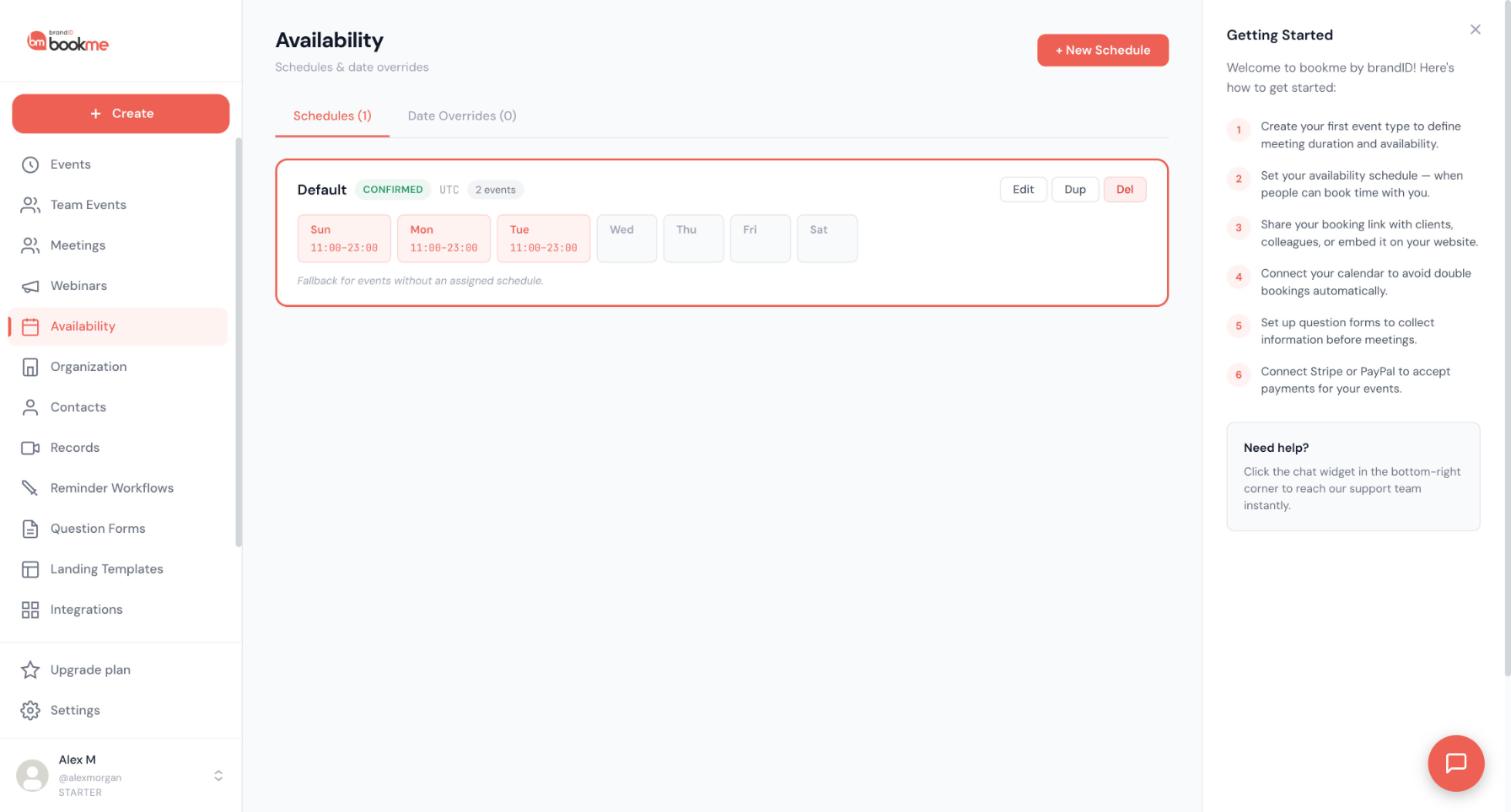
Your weekly hours decide which times invitees can book. You set them once in a schedule, and every event that uses that schedule follows it.
- Click Availability in the sidebar and press Edit on the Default schedule.
- Switch days on or off, set a start and end time, and add more than one time window to a day if you need a break in the middle.
- Use Copy to all to repeat one day’s hours on the others, and check the schedule’s time zone before you save.
- Click + New Schedule when some events need different hours, for example paid sessions only on certain days, then assign that schedule in the event’s Availability step.
- In each event, add a minimum notice, a limit on how far ahead people can book, a cap on bookings per day and buffers before and after.
For university advising:
- Use weekly hours and daily caps.
- Add minimum notice.
Full guide: how to set your hours and protect your week.
Share meetings across a team
Round robin spreads load across advisors.
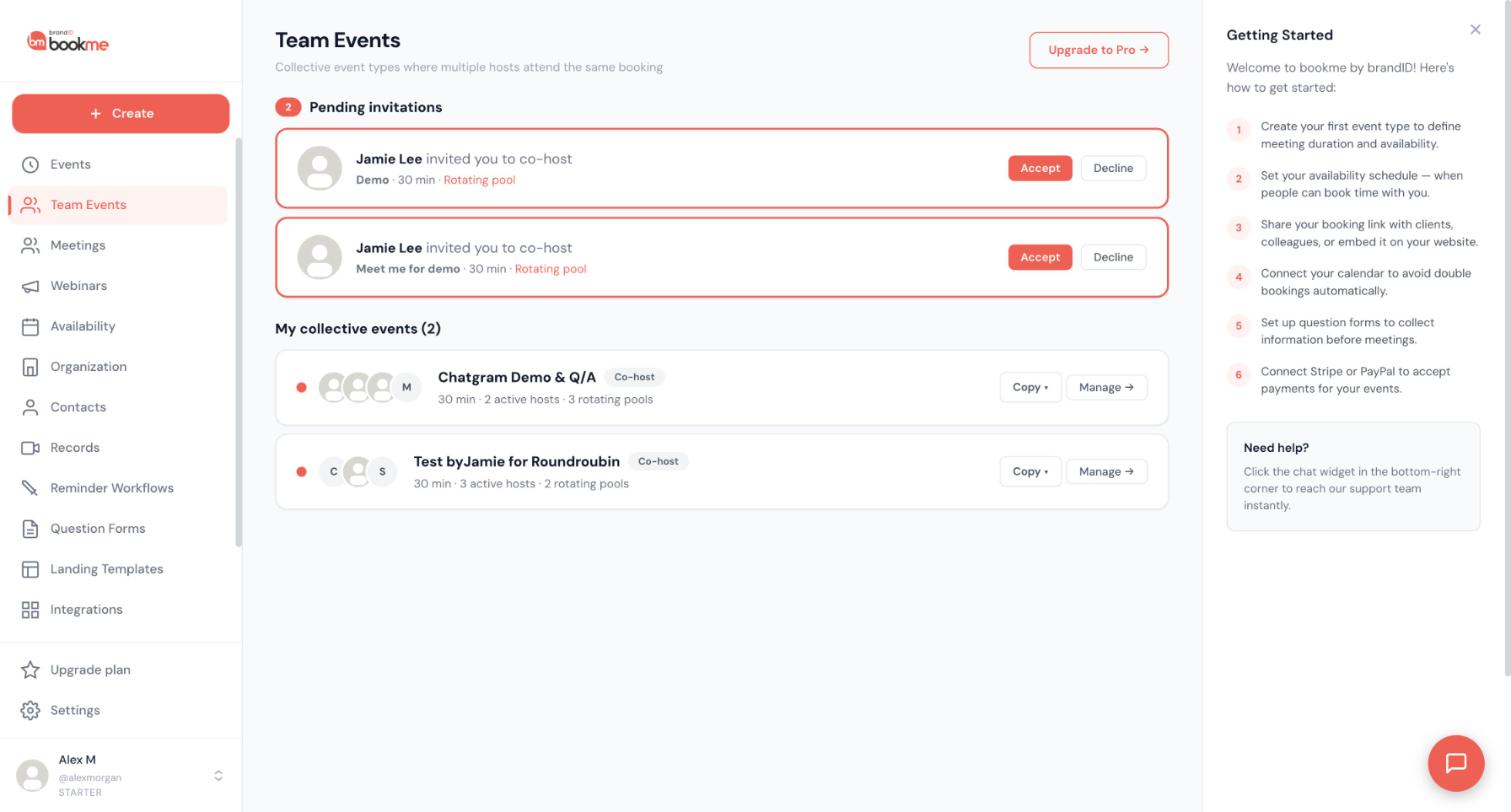
A team event lets several bookme users host the same booking, either all together or by taking turns.
- Check your plan first. Collective and round robin events are on the Elite plan.
- In the Create event wizard choose My team under Who runs this event.
- Choose how the team hosts: Everyone attends (collective), where a time is offered only when every required host is free, or Take turns (round robin), where one host takes each booking.
- Add co hosts by bookme username, by email or with an invite link. Each stays Pending until they accept.
- Publish the event, then manage it from Team Events.
For university advising:
- Use round robin for general advising.
- Remember it is on the Elite plan.
Full guide: how to share meetings across a team.
Run a webinar or group session
A group info session answers common questions.
A webinar is a session at a fixed date and time with its own attendee list and emails. You can start one from scratch or from an event type you already have.
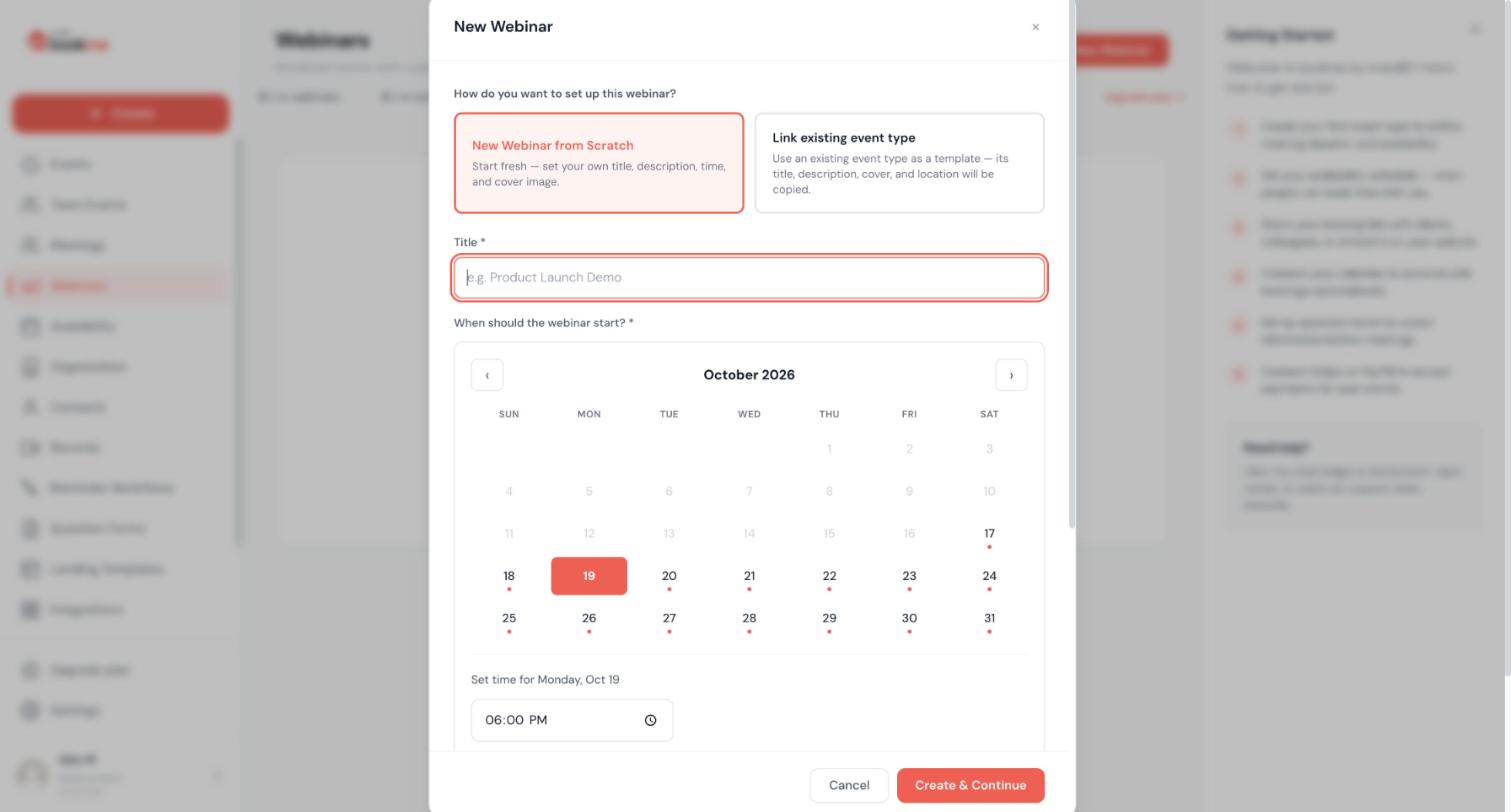
- Click Webinars in the sidebar, then + New Webinar.
- Choose New Webinar from Scratch, or link an existing event type.
- Enter the title and pick the start date and time, then click Create & Continue.
- Complete the details: description, cover image, time zone, duration and meeting type.
- Send invites and reminders from the webinar itself, because emails go out only when you send them.
For university advising:
- Create it as a webinar.
- Send reminders from it.
Full guide: how to run a webinar or group session.
Automate reminders and follow ups
Reminders reduce no shows.
An email workflow sends an email when something happens around a meeting: before it, after it, or when it is booked, cancelled, rescheduled or marked with an outcome.
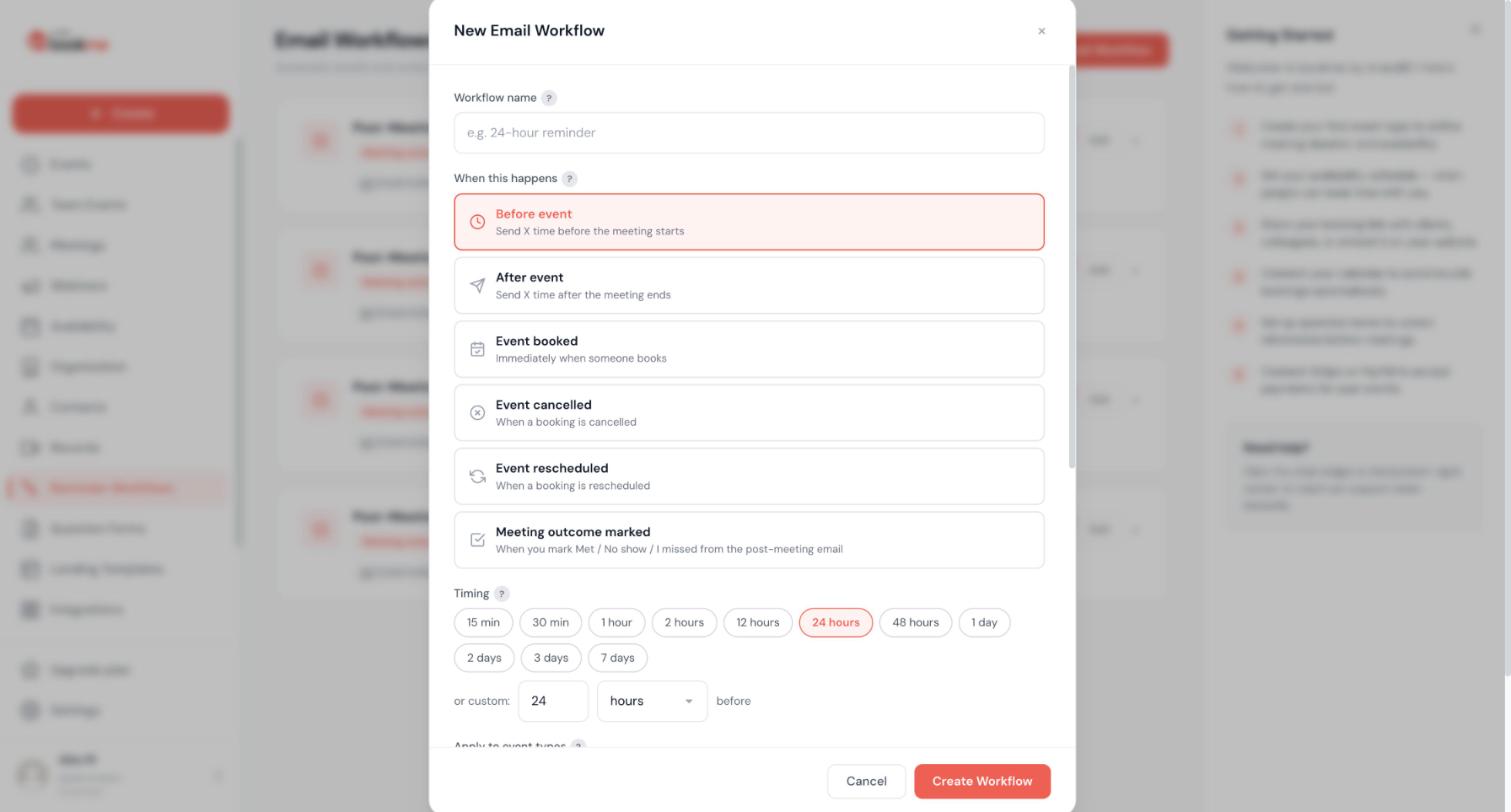
- Click Reminder Workflows in the sidebar, then + New Email Workflow, and name it, for example 24-hour reminder.
- Under When this happens choose a trigger: Before event, After event, Event booked, Event cancelled, Event rescheduled or Meeting outcome marked.
- For before and after triggers pick a timing chip such as 15 min, 1 hour or 24 hours, or enter your own.
- Choose which event types it applies to, leave it empty for all, and write the subject and body. You can insert merge variables such as {{invitee_name}} and {{event_name}}.
- Click Create Workflow and test it first with your own address.
For university advising:
- Send a reminder the day before.
- Include the reschedule link.
Full guide: how to automate reminders and follow ups.
Record what happened after each meeting
Outcomes trigger the right follow up.
After a meeting ends, tell bookme what happened: Met, No-show, I missed it, or Decided to reschedule. Your answer sets the booking’s status and can send a follow up email to the invitee.
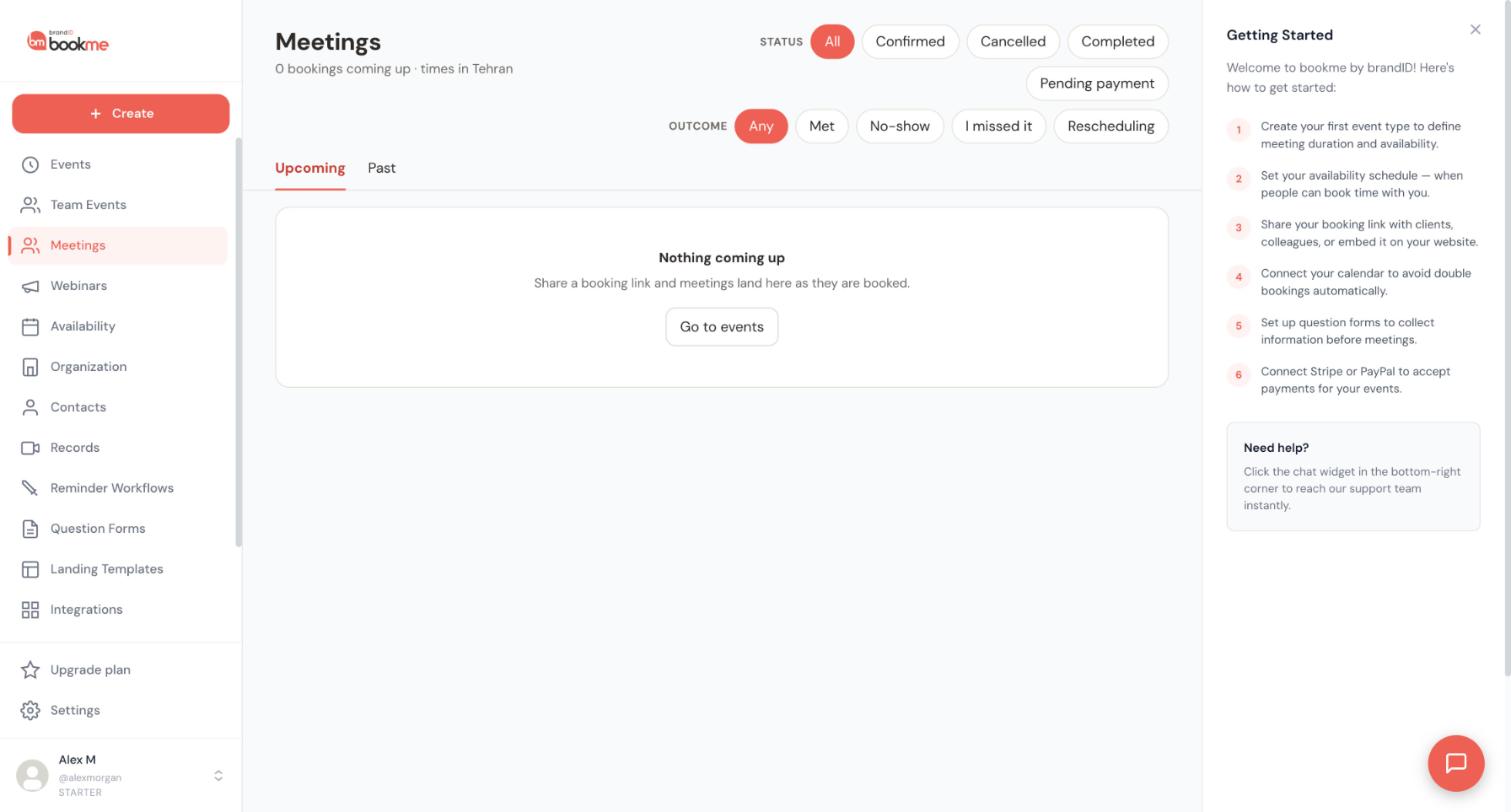
- Find the meeting that needs an outcome in the check in email sent five minutes after it ends, in the Just ended band on the Meetings page, or in the booking itself.
- Pick the outcome: Met, No-show, I missed it or Decided to reschedule.
- Review the window that opens. It shows a private note box and the follow up email exactly as the invitee will see it.
- Leave Email them now on to send it, or switch it off to save only your note.
- Later, use the Outcome filters on the Meetings page to review what happened.
For university advising:
- Mark each appointment.
- Send a checklist for next steps.
Full guide: how to record what happened after each meeting.
Case study: an advising office managing deadline weeks
An office creates a 15 minute quick question event and a 45 minute planning event, with round robin across advisors on the Elite plan and a group info session for common questions.
The office also offers a group info session for the questions that come up repeatedly, such as deadlines and required documents, which takes pressure off individual slots. Advisors record the outcome of each appointment so follow ups, like sending a checklist, go out consistently.
Publishing one booking page gives students a clear way to get time with an advisor, which helps the advisor plan the day around confirmed appointments instead of reacting to a queue. The same page can be linked from the department website, from registration emails and from deadline reminders, so students find it at the moment they need it.
Before and after
Before:
- Deadline weeks flood the phones and inboxes
- Students pick advisors at random
- Quick questions fill long appointments
- No shows block other students
After:
- Students book from open slots at any hour
- Bookings can be shared across advisors
- Quick and long appointments have separate events
- Reminders and reschedule links reduce no shows
A typical week with bookme
In a calm week, students book quick questions at their convenience, and advisors use the open slots for longer plans. As a deadline approaches, the office releases extra slots, switches on a daily cap and runs a group info session for the questions that keep recurring.
After each appointment, the advisor records the outcome and the matching follow up goes out, for example a checklist of next steps.
Launch checklist for university advising
Tick these off before you share your link.
- Quick and planning events exist.
- Slots open in waves.
- Advisors are in the team event.
- A group session exists.
- Reminders and outcomes are on.
Common mistakes to avoid
- Offering unlimited same day bookings that advisors cannot prepare for. Use minimum notice.
- Using one long event for everything. Quick questions then fill slots meant for plans.
- Not telling students how to prepare, which turns appointments into introductions.
Tips that make it work
- Open slots in waves. Releasing availability gradually through weekly hours keeps the calendar manageable.
- Use minimum notice. A minimum notice rule prevents same hour bookings that advisors cannot prepare for.
- Write plain event names. “Quick question, 15 minutes” is clearer than an internal code.
- Share one link. A single booking page on the department website beats several scattered email addresses.
Let your AI assistant do the setup
bookme works with Claude, ChatGPT and other MCP apps, so you can describe what you want in plain words and let your assistant build it. Anything that reaches another person, such as cancelling a meeting or emailing an invitee, waits for your approval first. Here is an example request for university advising:
Create a 15 minute quick question event and a 45 minute planning event, share them across three advisors and set a daily cap during deadline weeks.
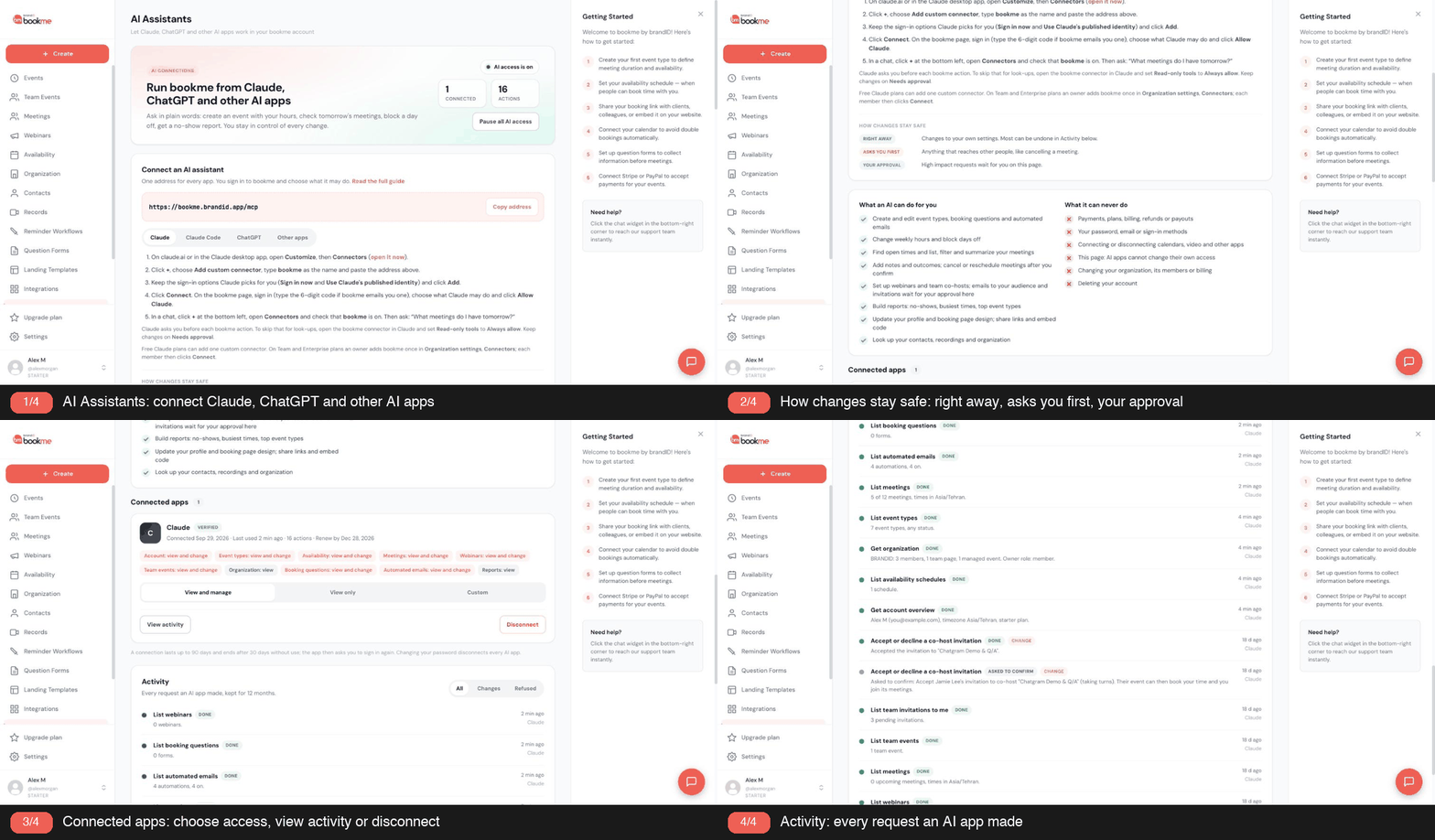
Setup guide: how to connect Claude to bookme.
Words you will see
- Event type. A meeting you offer, with its own length, location, price and rules.
- Schedule. A set of weekly hours that events can follow.
- Booking window. How much notice you need, and how far ahead people can book.
- Buffer. Time kept free before or after a booking.
- Question form. Custom questions invitees answer before they book.
- Collective event. All hosts attend, and a time is offered only when every required host is free.
- Round robin. Hosts take turns, with one host per booking.
- Email workflow. An email sent automatically before, after or around a meeting.
- Outcome. What happened to a meeting: Met, No-show, I missed it or Decided to reschedule.
Frequently asked questions
Can bookings be shared?
Can I run group info sessions?
Can I set a daily cap?
Do students need an account?
Can students choose their own advisor?
Can I keep sessions from being booked at the last minute?
Ready to try it?
Create a quick question event and share it with students.




