Picking the best video translator app is harder than it looks. TikTok creators who want translated captions have to run through how to add captions on TikTok first, because the native transcript becomes the input every translation tool actually works from. Almost every tool promises "instant global reach," "high-quality dubbing," "one-click subtitles," or multilingual content marketing in a single click. Try a few, though, and the differences in accuracy, speed, voice quality, and cost become obvious fast. So with dozens of apps all claiming to be the best, how do you tell which one is actually worth your time and money?
This guide reviews 17 of the best video translation apps for 2026, with their key features, real pros and cons, and honest pricing, so creators, businesses, and viewers can choose with confidence. You will also see why brandID stands out as the best video translator app for turning your content into a global brand. We have added a full comparison table, a section on how we evaluated each tool, picks by use case, and the advanced AI features that separate the leaders, so keep reading to find the perfect fit for your needs and budget.
Key Takeaways
- Best video translator app overall: brandID translates into 200+ languages with voice cloning, lip-sync, and one-tap social publishing
- 17 best video translator apps compared: From HeyGen and Synthesia to Rask, Smartcat, and viewer tools like Immersive Translate
- Match the tool to the job: Creators, businesses, casual viewers, and live events each have a different best pick
- Subtitles vs dubbing: Captions are cheap and fast; AI dubbing with voice cloning feels native but costs more
- What to check in a video translator app: Accuracy, language range, lip-sync and voice cloning, editing control, ease of use, and price
Why Use Video Translator Apps?
Video translation apps do more than swap one language for another. They help you reach people worldwide, support your personal branding, and turn each video into something useful across many countries. The best video translator apps help you:
- Reach a wider global audience: translating audio and subtitles lets viewers in many countries watch, enjoy, and share your content.
- Improve accessibility and inclusivity: translated subtitles and dubbing help people who do not speak your language and those with hearing difficulties.
- Boost SEO and online presence: videos in multiple languages appear in more search results, driving free traffic and better ad results.
- Strengthen brand image: localizing shows you respect each audience's culture and language, which builds trust and looks more professional.
- Unlock new markets and growth: speaking your audience's language increases watch time, likes, and sales, and turns one video into many.
How We Evaluated These Video Translator Apps
To keep this list useful rather than promotional, we judged every app against the same criteria, the ones that decide whether a translated video actually performs:
- Translation accuracy: how natural the output sounds to native speakers, including slang, names, and technical terms.
- Language coverage: the number of languages and dialects, and whether dubbing matches subtitle support.
- Voice and lip-sync quality: how convincing the cloned voice and synced mouth movements are.
- Speed: turnaround time for a typical short video.
- Ease of use: how quickly a non-technical creator can upload, translate, review, and export.
- Advanced features: multi-speaker support, on-screen text translation, real-time tools, and editing control.
- Pricing and value: free tiers, cost per minute, and how the price scales with volume.
We combined hands-on impressions with verified user feedback from review platforms like G2 and Capterra so the strengths and weaknesses reflect real-world use, not marketing claims.
Best Video Translator Apps Compared at a Glance
Before the detailed reviews, here is every app side by side. Use it to shortlist two or three tools, then read their full reviews below for pros, cons, and step-by-step workflows.
| App | Standout features | Languages | Lip-sync / Voice cloning | Pricing model | Best for |
|---|---|---|---|---|---|
| brandID | Voice cloning, multi-speaker (up to 8), one-tap social publishing, Chrome + mobile apps | 200+ | Yes / Yes | Pay-as-you-go credits from $0.49 | Creators localizing for TikTok, Instagram & YouTube |
| HeyGen | AI avatars, hyper-realistic lip-sync, YouTube/Drive import | 175+ | Yes / Yes | Free; from $29/mo | Studio-quality brand & creator videos |
| Vizard | Long-video repurposing into clips, subtitle styling, scheduling | 100+ | No / No | Free; from $29/mo | Social clips with translated subtitles |
| Filmora | Desktop editor with AI dubbing, 95% accuracy, SRT editing | 23+ | Yes / Yes | From $49.99/yr (credits) | Editors who want one all-in-one app |
| CapCut | Auto-captions (98%), templates, TikTok integration | 27+ | Partial / Yes | Free; Pro $19.99/mo | TikTok and short-form subtitles |
| Synthesia | AI avatars, editable transcript, enterprise security | 140 (32 dub) | Yes / Yes | From $18/mo (annual) | Corporate training and L&D |
| ElevenLabs | Most natural AI voices, speaker detection, Dubbing Studio | 29 | No lip-sync / Yes | Free; from $5/mo | Podcasts, audiobooks, voice-over |
| Veed | Browser editor, background-audio retention, brand kits | 125+ | Higher tiers / Yes | Pro $55/mo | Browser editing plus subtitles |
| Kapwing | Editor with dubbing, 180+ AI voices, pronunciation control | 100+ (40+ dub) | Add-on / Yes | Free; $24/mo | Affordable creator dubbing |
| Akool | Real-time engine, on-screen text translation, custom voices | 155+ (40+ dub) | Yes / Yes | Free; from $21/mo | Global marketing campaigns |
| Rask AI | VoiceClone, multi-speaker detection, API, long-form video | 130+ | Creator Pro / Yes | From ~$60/mo | High-volume multilingual dubbing |
| Maestra AI | Transcription + subtitles + dubbing, real-time captioner | 125+ (30+ dub) | Paid add-on / Yes | Free; from $29/mo | All-in-one transcript to dub |
| BlipCut | Subtitle translation, dubbing, voice cloning, batch processing | 130+ (75+ clone) | Yes / Yes | Free trial; credits + sub | YouTube & TikTok creators |
| Immersive Translate | Bilingual side-by-side subtitles, browser extension, SRT upload | 100+ | No / No | Free; Pro (annual) | Viewers and language learners |
| Smartcat | Enterprise TMS, 500k+ linguist marketplace, API, SOC 2 | 280+ | No lip-sync / Yes | From $99/mo; custom | Enterprise teams at scale |
| Zeemo.ai | Auto-captions, retention-focused subtitle styling, mobile app | ~18 | No / No | Free; flexible paid | Caption-first short-form creators |
| TransGull | Live interpretation, bilingual video subtitles, image translation | 33+ | No / No | Free; pay per length | Travelers and casual viewers |
10 Best Video Translator Apps Reviewed
To truly connect with viewers who do not share your language, you need capable AI video translators. A translation only lands if the source video feels real to begin with, so it is worth learning how to build trust with authentic AI videos before scaling one across languages. Let us explore the leading tools for translating videos and generating captions in multiple languages, starting with our top 10 and then seven more strong contenders.
| 1. brandID | 2. HeyGen | 3. Vizard |
| 4. Filmora | 5. CapCut | 6. Synthesia |
| 7. ElevenLabs | 8. Veed | 9. Kapwing |
| 10. Akool |
1. brandID AI Video TranslatorTop Pick for Creators
brandID offers an advanced AI video translator that dubs and translates your videos into 200+ languages and dialects while preserving your original voice, tone, and emotion. It is built for creators who want to reach a global audience without re-recording a single take.
What makes its translation stand out is the detail it keeps. Authentic voice cloning carries your tone, pitch, and emotional delivery into every language; flawless lip-sync matches the translated audio to your mouth movements; and multi-speaker support separates and clones up to eight voices, so interviews and podcasts stay natural. It is also YouTube multi-audio ready, so one upload can carry native-language tracks for many markets.
It works on the web, as a Chrome extension, and through the iOS and Android apps, and the whole process takes just a few minutes. Here is how the AI video translator works, plus where to download the apps.
Best for: Creators, influencers, businesses, marketers, educators, and podcasters who want to localize video for a global audience while keeping one consistent brand voice across languages.
How to Use brandID AI Video Translator
Visit brandID's AI video translator and sign up for free, then follow three simple steps:
- Add your video: upload a file or paste a YouTube link.
- Pick your language: choose from 200+ languages and set your voice and subtitle preferences.
- Translate and share: brandID dubs the video with your cloned voice and lip-sync, then export or publish to social in minutes.
Get brandID on Every Device
brandID AI Video Translator (Pros & Cons)
- Translates videos into more than 200 languages
- Preserves your voice and style; instant voice translation and dubbing keep the original tone, accent, and brand voice
- One-click publishing to TikTok, Instagram, and YouTube in a few taps
- Easy to use; upload once, choose languages, and brandID handles the rest
- Authentic voice and brand personality across every language
- Real-time translation for live shows, webinars, and panels
- High-quality multi-speaker support; keeps each person's cloned voice across languages
- Pay-as-you-go credit model, so you only pay for what you use
- Human review is still useful for complex content; pairing AI with a quick review yields the best engagement and accuracy
brandID Pricing
The brandID video translator app is free to download and uses a credit-based model. The in-app purchase section lists 50 credits for $0.49, 100 credits for $2.99, 500 credits for $5.99, 800 credits for $8.99, and 1,000 credits for $14.99, so you can start small and scale as you publish more.
Clone your voice, keep your lip-sync, and dub into 200+ languages in minutes. Try brandID's AI Video Translator free.
Translate Your Video Free2. HeyGen Video Translator
HeyGen is a powerful AI video editor and translator that lets you upload from your device, YouTube, or Drive and instantly localize with AI-cloned voices, accurate lip-sync, and subtitles. Supporting 175+ languages and dialects, it offers hyper-realistic lip-synced dubbing or faster audio-only translation while keeping your natural tone. Trusted by brands like Coursera and Harvard, it is often called the best AI video translation tool for creators who want studio-level results without a big production budget.
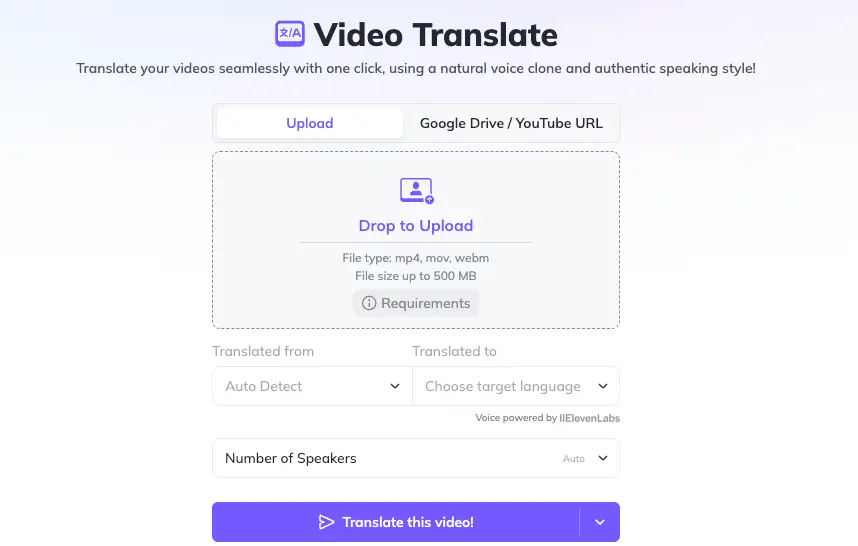
Best for: Creators and brands who want the most realistic lip-sync and the option to generate avatar videos alongside translation.
How to Use the HeyGen Video Translator
- Open HeyGen Labs and choose how to upload: a file from your computer, or a YouTube or Google Drive link.
- Wait for the upload so the AI can process the audio and prepare it for translation.
- Select the target language from 175+ supported languages and dialects.
- Pick your mode: hyper-realistic translation when the speaker is visible, or faster audio-only dubbing when the face is hidden.
- Customize the output with AI voice cloning, subtitles, and video localization options so the tone matches your original.
- Preview, make minor edits, and export or publish for your global audience.
HeyGen Video Translator (Pros & Cons)
- Supports 175+ languages and dialects, great for global brands, YouTubers, and educators
- Voice cloning keeps the speaker's identity, tone, and pacing across languages
- Much faster and cheaper than human dubbing, suitable for scale
- All-in-one platform to create avatar videos, edit, and translate in one place
- Intuitive, beginner-friendly interface
- High satisfaction and strong reviews on major software sites
- Free plan is limited with short videos, watermarks, and low monthly credits
- Pricing can feel high for large content libraries
- Some users report slow support and occasional billing friction
- Limited control over terminology, so sensitive content still needs human review
HeyGen Pricing
- Free Plan: $0/month; up to 3 videos monthly, each up to 3 minutes.
- Creator Plan: $29/month ($24/month billed annually); 120 translation minutes per month.
- Team Plan: $39 per seat/month ($30 per seat annually); 120 minutes per seat.
- Generative Credit Packs: $15/month ($150/year) for 300 credits, with 1 minute of translation costing about five credits.
3. Vizard AI Video Translator
Vizard is an efficient tool that streamlines video translation and dubbing. It supports over 100 languages and pairs translation with a full suite of editing tools, so you can cut clips, translate voice-overs, and customize subtitles in one place. Its speed and social-first features make it a favorite for influencers and creators who repurpose long videos into shareable clips.
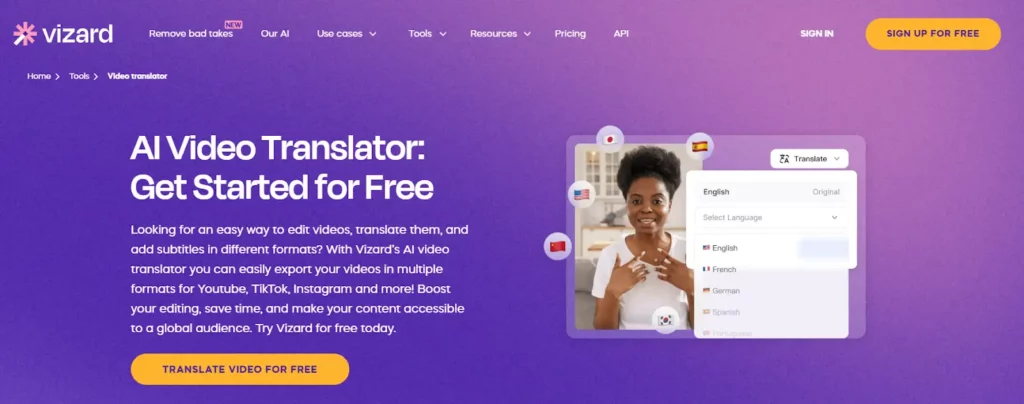
Best for: Social creators who repurpose long videos into translated, captioned clips for multiple platforms.
How to Use Vizard AI Video Translator
- Sign up for free and log in.
- Upload the video you want to translate, or import it from YouTube or Zoom.
- Go to the "Subtitles" section, click "Translate," and select your target language.
- Customize the subtitles by adjusting font, style, and timing to match your video.
- Preview, make edits, and export the finished video to share.
Vizard AI Video Translator (Pros & Cons)
- Supports over 100 languages
- Auto-generates subtitles and translates audio quickly
- Edit videos, translate voice-overs, and customize subtitles in one platform
- Publishes directly to YouTube, TikTok, and more, with auto captions and hashtags
- User-friendly dashboard with a minimal learning curve
- Real-time collaborative workspace for teams
- Browser-based with built-in AI editing; nothing to install
- Analytics and platform-specific aspect ratios
- Free plan limits video length and features
- Accuracy can dip with very fast speech, slang, or heavy accents
- Some features are paid-only
- Can get expensive for high-volume translation
- Limited control over translation style and terminology
- Desktop-only; no mobile app
Vizard Pricing
- Free Plan: $0/month with 60 credits (about 60 minutes), 720p exports, and 3 days of storage.
- Creator Plan: $29/month ($14.50/month annually); 600 credits/month, 4K exports, no watermark, social scheduling.
- Business Plan: $39/month per user ($19.50/month annually); 600 credits/month, team features, and up to 20 social accounts.
4. Filmora
Filmora is automatic video translation software that translates into more than 23 languages with over 95% accuracy, plus lip-syncing for more natural, professional results. What sets it apart is the ability to translate YouTube videos and other content using AI voice cloning that keeps the emotion and tone of the original speaker. It also offers speech-to-text for generating and translating subtitles.
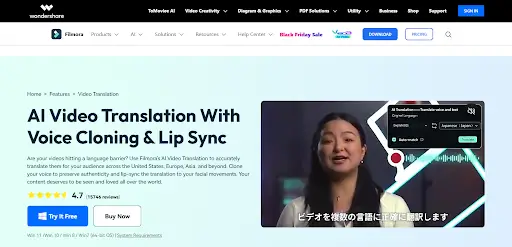
Best for: Video editors who want translation, voice cloning, and lip-sync built into a full desktop editor.
How to Use the Filmora AI Video Translation Tool
- Click the Import icon to upload your video or audio file, then drag it to the timeline.
- Find the AI Video Translation icon in the timeline toolbar, choose your target language and mode, then click Translate.
- Wait for the translation to finish, preview the synced subtitles and audio, make edits, and Export.
Filmora (Pros & Cons)
- Text-to-speech generates audio from text
- Editable translated text for accuracy
- Fast, accurate, and affordable translation
- Voice cloning and lip-sync together
- Multilingual support
- User-friendly drag-and-drop editor
- SRT import and subtitle editing
- Lip-sync sometimes needs manual adjustment
- Struggles with complex linguistic nuances
- Cloud processing can slow on large projects or weak computers
- No free version; paid plans only
- Advanced editing may need extra purchases
- Some learning curve to master navigation
Filmora Pricing
- AI Translation Credits: 16 credits per minute for voice and subtitle translation, 5 credits per minute for subtitles only.
- Free Plan: $0, about 100 AI credits per month with watermarked exports and basic editing.
- Basic Plan: $49.99/year, 200 credits/month, 4K export, 1GB storage.
- Advanced Plan: $59.99/year, 1,000 credits/month, 10GB storage and more AI features.
- Premium Plan: $89.99/year + $14.99/month for 2,000 credits/month and 100GB storage.
Extra credit packs range from $9.99 for 1,500 credits to $399 for 100,000 credits.
5. CapCut
CapCut, owned by TikTok, offers one of the best video translation services for content creators. It automatically generates accurate subtitles with real-time playback so you can preview before finalizing. Key features include auto-subtitles with 98% accuracy, real-time sync with playback, and translation into over 27 languages.
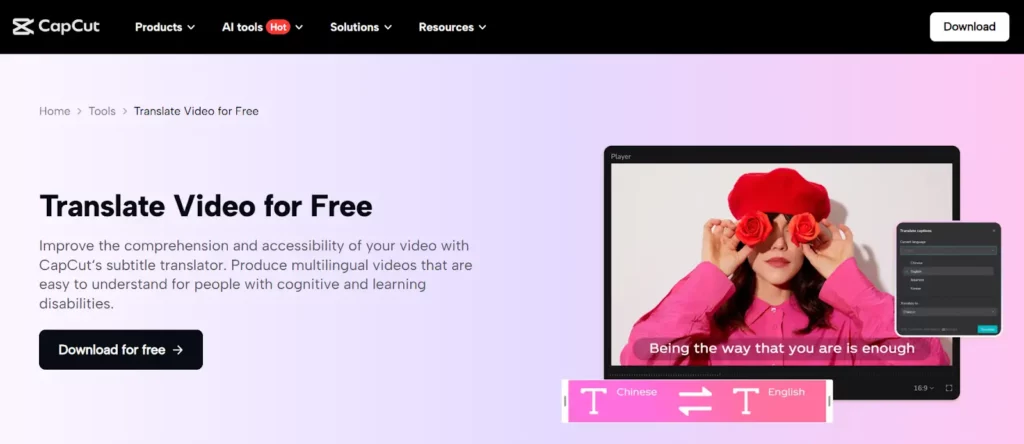
Best for: TikTok and short-form creators who want fast, accurate captions inside a familiar editor.
How to Use the CapCut Video Translator
- Upload your video from your computer, Google Drive, Dropbox, or by QR code, then drag it into CapCut.
- Translate subtitles: CapCut auto-detects the spoken language. Go to Captions > Auto Captions > Generate, then open Translate, pick your target language, and hit Translate.
- Export and share directly to social media or download the final version.
CapCut (Pros & Cons)
- Ready-made templates for social videos
- Quick subtitle generation
- Large audio and music library
- AI-powered translation with voice cloning
- Auto language detection and multilingual support
- Customizable subtitles (fonts, colors, animations)
- Easy-to-use interface and a free tier
- Voice-over and caption tools across mobile, desktop, web, and TikTok
- Translated text and original subtitles can overlap
- Full features need a Pro subscription and AI credits
- Limited in some regions; a VPN may be required
- Accuracy and lip-sync may need manual fixes
- Length and frame-rate limits (about 15 minutes, 60 fps)
- One-track editing and some desktop-only limits
CapCut Pricing
CapCut positions itself among the top content creation tools and best video voice translator apps. Its plans:
- Free Plan: $0/month on mobile and desktop; basic editing and 1080p export with a watermark, but no translation feature.
- Standard Plan: $5.99/month (mobile only); removes the watermark and unlocks premium effects, but still no voice translation.
- Pro Plan: $19.99/month ($179.99/year) on mobile, desktop, and web; unlocks 4K export, cloud storage, and the video translator.
- Teams Plan: $24.99/month per seat with Pro features plus collaboration and shared assets.
6. Synthesia
Synthesia provides translation in more than 32 languages while keeping the original speaker's voice, with accurate lip-syncing and voice cloning. Its editable transcript keeps your message consistent across languages, which makes it a strong choice for training and multilingual marketing where clarity matters most.
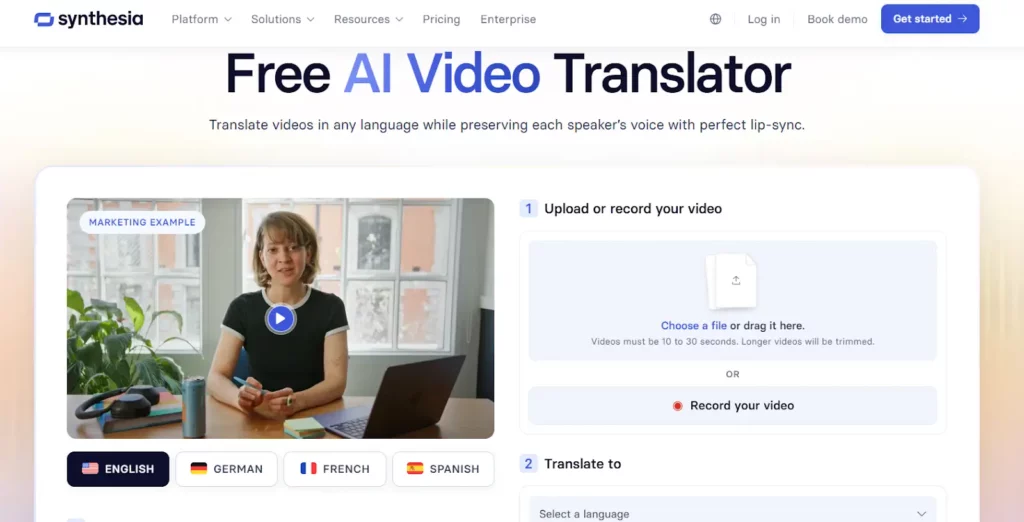
Best for: Businesses and L&D teams creating consistent training and explainer videos across many languages.
How to Use the Synthesia Video Translator App
- Visit the Synthesia website to access the tool.
- Upload or record a video between 10 and 30 seconds.
- Select your language and click "Translate for free." Options include lip-syncing, watermark removal, subtitles, and multiple voices.
The free plan lets you try these features and create multilingual videos, which is ideal for quick translations and content localization.
Synthesia (Pros & Cons)
- Supports over 140 languages with easy localization
- Natural voice cloning retains tone and pacing
- High-quality, realistic avatars and voices
- Intuitive platform, friendly for beginners and non-editors
- Scalable enterprise features for large-scale production
- Editable transcripts and script suggestions improve accuracy
- AI avatars lack emotional depth and expression
- Speech and lip movements are sometimes misaligned
- Restricted customization for complex animations
- Strict content moderation can reject some videos
- Better for training than high-emotion storytelling
Synthesia Pricing
- Plans start at $29/month, or $18/month billed annually.
- Dubbing ranges from $0.8/min to $1.6/min depending on whether you need lip-syncing.
- A free demo lets you try dubbing or translating a YouTube video before subscribing.
7. ElevenLabs
ElevenLabs lets you translate videos into 29 languages with no sign-up or software needed: upload and receive translated MP4, SRT, or VTT files. It shines with voice cloning that captures the speaker's unique essence, plus lip-syncing, speaker detection, and subtitle editing. Whether you translate into Spanish, English, or beyond, it keeps content authentic and engaging.
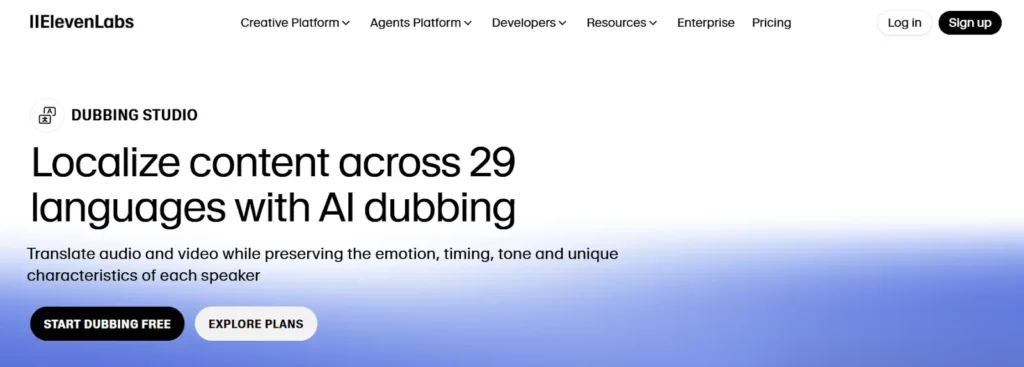
Best for: Podcasters and voice-over creators who prioritize the most natural-sounding dubbed audio.
How to Use the ElevenLabs Online Video Translator
- Drag and drop your video file, or record directly from your browser.
- Choose the source language and a target language from 29+ options.
- Click "Translate Now," then preview, refine, and export as text, subtitles, or video.
Note: this voice translator delivers up to 99% transcription accuracy, keeping context and emotion intact.
ElevenLabs (Pros & Cons)
- Supports 29 languages for broad coverage
- Handles multiple speakers efficiently
- Maintains the original tone and delivery for a natural feel
- Fully automated from upload to final dubbing
- Industry-leading, natural-sounding AI voices
- Limited to the languages in its multilingual model
- Accuracy depends on the quality of the original audio
- No video lip-sync (audio-focused)
ElevenLabs Pricing
- Free Plan: $0/month, no dubbing minutes, dubbing tools with attribution and no commercial use.
- Starter Plan: $5/month, 5 minutes of watermarked auto-dubbing plus 6 Dubbing Studio minutes.
- Creator Plan: $11/month, 15 auto-dubbing minutes and 20 Dubbing Studio minutes; extra at $0.60-$3/min.
- Pro Plan: $99/month, 50 auto-dubbing and 100 Dubbing Studio minutes; extra from $0.48-$2.40/min.
- Scale Plan: $330/month, 250 auto-dubbing and 400 Dubbing Studio minutes; extra from $0.36-$1.80/min.
- Business Plan: $1,320/month, 1,000 auto-dubbing and 1,100 Dubbing Studio minutes; extra from $0.24-$1.20/min.
8. Veed
Veed supports over 125 languages with AI-powered voice translation, lip-syncing, and background-audio retention at up to 99.9% accuracy, so videos feel authentic across cultures. Upload your video, choose a target language, and generate subtitles or dubbing, with full control over subtitle appearance, all inside a browser-based editor.
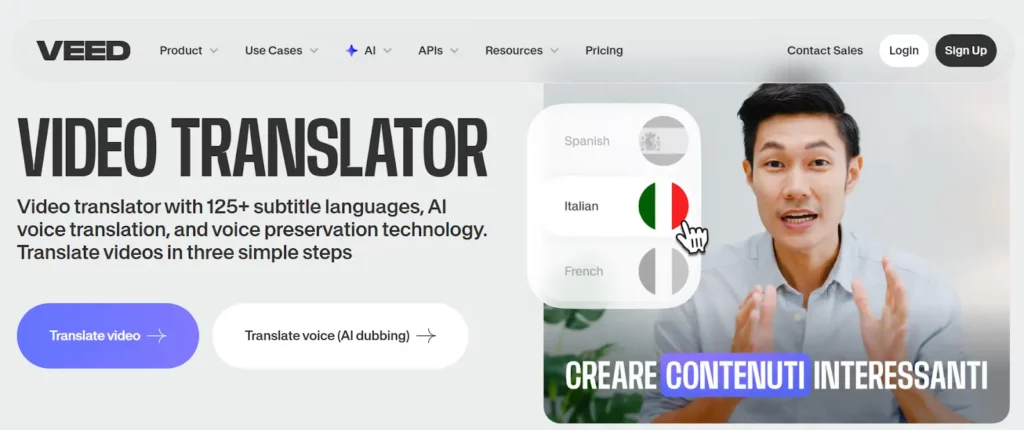
Best for: Teams that want translation built into a browser-based editor with brand and collaboration tools.
How to Use the Veed Video Translator Tool
- Go to the Veed website and upload your video (MP4, MOV, AVI, WEBM, and more).
- Choose your language and voice; use the original or an AI voice, and optionally enable lip-sync and keep background audio.
- Click "Dub Video," add one-click subtitles, then export or keep editing.
Veed (Pros & Cons)
- Preserves the speaker's original voice across languages
- Auto-subtitles and translation in 125+ languages, up to 99.9% accuracy
- Web-based and intuitive; projects sync across devices
- Translation built into the video editor
- Collaboration and brand-kit tools on paid tiers
- Cloud workspace with broad format support
- No lip-sync or voice cloning on lower tiers
- Large projects may lag or crash
- Free tier is watermarked 720p with strict limits; many AI features are paywalled
- Pro tier is costly with confusing tiers and auto-renewal complaints
- Voice and text-to-speech variety is limited
Veed Pricing
Veed offers a Pro plan at $55/month that includes subtitles and voice translation (dubbing). It covers about 4 hours of translation per year, or roughly $2.75 per minute.
9. Kapwing
Kapwing is an affordable, efficient way to translate videos into over 100 languages, ideal for quick localization. Its AI dubbing offers high-quality voice translation, lip-syncing, and voice cloning across 40+ languages, with easy adjustments to pronunciation, timing, and branded terms, all in a beginner-friendly browser interface.
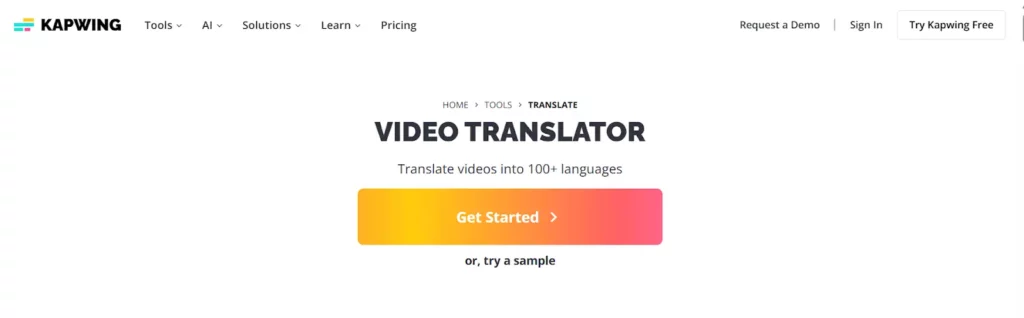
Best for: Budget-conscious creators who want dubbing and lip-sync without a steep learning curve.
How to Use the Kapwing Video Translator
- Upload your video, paste a URL, or record in the studio, then open the "Translate" tab.
- Choose your target language and a voice: the original or one of 180+ AI voices.
- Use Advanced Settings and Review Transcript, click "Dub Video" for subtitles, dubbing, and a transcript, then add lip-sync, edit, and export.
Kapwing (Pros & Cons)
- User-friendly interface, perfect for beginners
- Affordable: $24/month for up to 300 minutes of translation
- Wide language support
- AI voice dubbing and lip-sync with natural-sounding voice-overs
- Advanced editing: crop, cut, resize, animate
- Free tier available; browser-based, works on any device
- May struggle with complex dialogue
- Lacks pro features like keyframe animation, color correction, and noise reduction
- Auto-subtitles and translations can need manual corrections
Kapwing Pricing
The free plan exports 4-minute videos, 10 minutes of auto-subtitles, 2 minutes of text-to-speech, and 720p. The Pro plan translates up to 300 minutes a month for about 8 cents per minute:
- Monthly: $24/month.
- Annual: $16/month (billed annually at $192/year).
- Includes 300 translation minutes/month, watermark removal, 120-minute export, and 6GB uploads.
- Plus 80 minutes of premium text-to-speech, 500 AI credits, and 4K export.
10. Akool
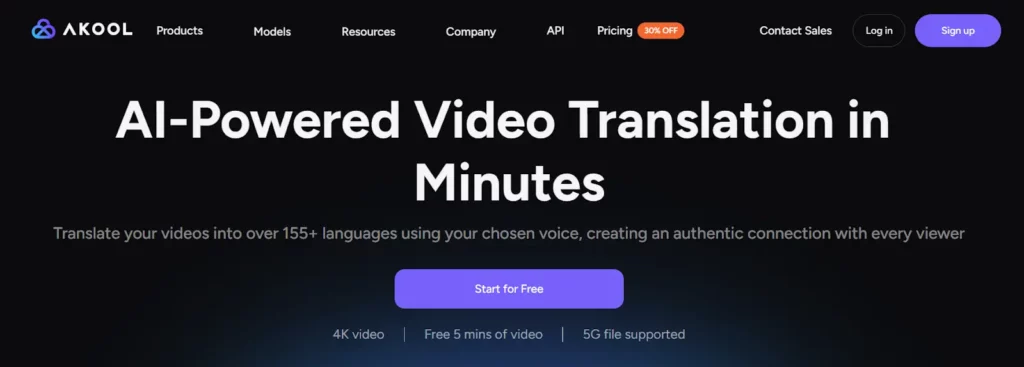
Akool supports over 155 languages and translates video, subtitles, audio, and on-screen text, which makes it a fit for global marketing campaigns. Its hyper-realistic lip-syncing and real-time translation engine let YouTubers, educators, and businesses localize content instantly and unlock new markets.
Best for: Marketing teams localizing campaigns at scale, including on-screen text and real-time needs.
How to Use Akool's AI-Powered Video Translation Tool
- Upload your file or paste a URL.
- Select the language you want to translate into.
- Turn on AI Lip Sync for hyper-realistic mouth movements.
- Review the translated subtitles, make adjustments, and export.
Akool (Pros & Cons)
- Translates subtitles into 100+ languages with AI dubbing in 40+
- Customizable or cloned AI voices with translation rules for up to 99% accuracy
- All-in-one workflow to edit, subtitle, and dub in one tool
- Preserves original video quality
- Free ad-free plan and an intuitive interface
- Choice of AI voices or your own clone
- Accuracy varies; about 85% for English, 50-70% for other languages, often needing manual fixes
- Translation minutes are capped by plan (e.g., 300 min/month on Pro)
- Large or complex videos can be slow to upload and export
- Some users report glitches, export failures, and support issues
Akool Pricing
- Free Plan: 100 credits and API usage with a watermark.
- Professional Plan: $21/month, 600 credits with full access.
- Studio Plan: $350/month, 12,000 credits and 4K downloads.
- Enterprise Plan: custom pricing.
Note: the Professional and Studio plans offer the first 3 days free for new users.
7 More Top Video Translator Apps Worth Knowing
The ten above cover most creator needs, but these seven fill important gaps, from enterprise localization and high-volume dubbing to viewer-only tools for understanding foreign videos.
11. Rask AI
Rask AI is a dedicated dubbing platform built for creators and teams localizing at volume. It supports 130+ languages, clones voices with its VoiceClone feature, detects multiple speakers automatically, and handles long-form videos. It also offers an API and direct YouTube or cloud import, which makes it popular with agencies running many videos at once.
Best for: Agencies and teams dubbing high volumes of long-form video who can absorb a higher cost per minute.
Key Features and Workflow
- Paste a YouTube link or upload a file, then pick from 130+ target languages.
- Auto speaker detection and VoiceClone keep each voice distinct across languages.
- Optional lip-sync is available on the Creator Pro tier; review the transcript before export.
- API access automates dubbing inside your own pipeline.
Rask AI (Pros & Cons)
- One of the widest language ranges, with 130+ options
- VoiceClone preserves the speaker's identity
- Automatic multi-speaker detection
- Long-form video support and API access
- Free trial to test the workflow
- Gets expensive at scale; extra minutes run around $3
- Lip-sync sits behind the pricey Creator Pro tier and quality is inconsistent
- No video download on the free plan
- Edits can consume credits quickly
Rask AI Pricing
- Creator: about $60/month for 25 minutes of dubbing.
- Creator Pro: roughly $120-150/month for 100 minutes, with lip-sync access.
- Business: about $500-750/month for 500 minutes.
- Enterprise: custom pricing; extra minutes around $3, and lip-sync uses double credits.
12. Maestra AI
Maestra is an all-in-one platform that combines transcription, subtitles, AI dubbing, and voice cloning across 125+ languages, with voice cloning in 30+. A transcript-editing step lets you fix wording before you dub, and real-time tools (a browser extension and live captioner) extend it to events and streams. It integrates with TikTok Ads, OBS, and Zoom.
Best for: Creators who want transcription, subtitles, and dubbing in a single transcript-first workflow.
Key Features and Workflow
- Upload a file or paste a YouTube link; Maestra transcribes the audio automatically.
- Edit the transcript, then translate into 125+ languages and generate subtitles or dubbing.
- Clone a voice in 30+ languages, or use the real-time captioner for live content.
- Export captions or dubbed video, or push to connected tools.
Maestra AI (Pros & Cons)
- Transcription, subtitles, and dubbing in one workflow
- Transcript-editing step improves accuracy before dubbing
- Real-time captioner and browser extension for live use
- Integrations with TikTok Ads, OBS, and Zoom
- Free tier to start
- Interface can feel clunky
- Lip-sync is an enterprise-only add-on
- Voice quality is mid-pack versus specialists
- Heavier projects can need manual cleanup
Maestra AI Pricing
- Free tier with limited minutes.
- Lite: about $29/month.
- Basic: about $49/month for 120 minutes.
- Enterprise: custom, and the only tier with lip-sync.
13. BlipCut
BlipCut is a web-based translator (with Windows, macOS, and Chrome options) aimed at YouTube and TikTok creators. It translates subtitles in 130+ languages, dubs in 40+, and clones voices in 75+ using ElevenLabs-grade technology, with AI lip-sync, multi-speaker recognition, batch processing, and direct upload to YouTube or TikTok.
Best for: YouTube and TikTok creators who want dubbing, voice cloning, and lip-sync with batch processing.
Key Features and Workflow
- Paste a YouTube URL or upload a file, then choose subtitle translation, dubbing, or both.
- Pick voice cloning (75+ languages) and enable AI lip-sync if you need it.
- Use batch processing to localize several videos at once.
- Export, or upload the result straight to YouTube or TikTok.
BlipCut (Pros & Cons)
- Subtitles in 130+ languages and voice cloning in 75+
- AI lip-sync and multi-speaker recognition
- Batch processing for multiple videos
- Direct publishing to YouTube and TikTok
- Works on web, desktop, and Chrome
- Voice realism and customization trail premium tools
- Free trial is limited (about one video)
- Credit plus subscription pricing can add up
BlipCut Pricing
BlipCut uses a credit model (roughly 1 to 2 credits per minute) alongside a subscription, with a limited free trial. It is positioned as an affordable option for high-output social creators rather than enterprise teams.
14. Immersive Translate
Immersive Translate is the viewer-focused counterpart to the creator tools on this list. It is a free browser extension (Chrome, Edge, Firefox, Safari) with a mobile app that adds bilingual, side-by-side subtitles to YouTube and other sites in 100+ languages. With more than a million users, it is built for understanding foreign videos rather than publishing translated ones.
Best for: Viewers and language learners who want to understand foreign-language videos, not publish them.
Key Features and Workflow
- Install the extension or app and open a video on YouTube or another supported site.
- Turn on bilingual subtitles to see the original and your language side by side.
- Paste a video link or upload SRT, ASS, VTT, or LRC files to translate.
- Use "Request AI Subtitles" for videos that have no captions.
Immersive Translate (Pros & Cons)
- Free core with 100+ languages
- Bilingual side-by-side subtitles, great for language learners
- Works across major browsers and on mobile
- Generates AI subtitles for videos without captions
- More than a million users
- Built for viewing, not creating; no dubbing or voice cloning
- Advanced features need a paid Pro or Max plan
- Subtitle-only output
Immersive Translate Pricing
The core extension is free. Pro and Max plans (billed annually, often with a first-year discount) unlock higher limits and premium translation engines.
15. Smartcat
Smartcat is an enterprise localization platform that folds video translation into a broader content operation. It combines transcription, translation, subtitling, and dubbing across 280+ languages with customizable AI voices, a marketplace of 500,000+ vetted linguists for human review, brand-voice and glossary training, 30+ integrations (WordPress, Figma), an API, and SOC 2-grade security.
Best for: Enterprises and localization teams managing high volumes across many languages with human-in-the-loop review.
Key Features and Workflow
- Start a project and choose a video, audio, or subtitle template.
- Auto-transcribe and translate into 280+ languages, with intelligent multi-speaker subtitle segmentation.
- Generate AI voiceovers (adjust gender, pitch, timbre, speed) or send to a marketplace linguist for review.
- Track quality with a Translation Quality Score and manage everything in one dashboard.
Smartcat (Pros & Cons)
- 280+ languages with customizable AI voices
- Hybrid AI plus a 500,000+ linguist marketplace for review
- Brand-voice and glossary training for consistency
- 30+ integrations, API, and enterprise SOC 2 security
- Scales translation as an ongoing operation, not one-offs
- Interface is not always intuitive for new users
- Minor bugs and formatting inconsistencies reported
- Overkill for simple, one-off translations
- Marketplace quality varies by linguist
Smartcat Pricing
Smartcat plans start around $99/month for businesses (with usage limits), and enterprise pricing is custom to remove restrictions. It is priced and built for organizations with consistent, high-volume localization needs.
16. Zeemo.ai
Zeemo is an AI caption and subtitle generator with translation, built for short-form creators who live on TikTok and Instagram Reels. It uses speech recognition to auto-generate accurate captions, then translates them, with retention-focused subtitle styling. It runs on web and a mobile app, and even supports faceless video workflows.
Best for: Short-form creators who want polished, translated captions for TikTok and Reels.
Key Features and Workflow
- Upload a clip on the app or web; Zeemo auto-generates captions from the audio.
- Translate the captions into your target language.
- Style the subtitles for retention (fonts, colors, animations), then export for TikTok or Reels.
Zeemo.ai (Pros & Cons)
- Fast, accurate auto-captions and translation
- Retention-focused subtitle styling for short-form
- Beginner-friendly web and mobile apps
- Supports faceless video creators
- Useful free tier for testing
- Caption-first; limited dubbing and voice cloning
- Fewer languages than full dubbing tools (around 18)
- Most creators will need a paid plan for real volume
Zeemo.ai Pricing
Zeemo offers a free version for testing plus flexible paid plans. It is best seen as a captioning and subtitle-translation tool rather than a full dubbing platform.
17. TransGull
TransGull is a mobile and desktop AI translator aimed at travelers and viewers rather than publishers. Alongside live conversation translation and real-time interpretation, it offers one-tap video translation: paste a YouTube link or pick a local file, and it extracts the audio, generates bilingual subtitles, and lets you export an SRT. It carries a strong 4.7-plus rating across app stores.
Best for: Travelers and casual viewers who want live interpretation and bilingual subtitles on the go.
Key Features and Workflow
- Open the app on iOS, Android, Windows, or Mac.
- Paste a YouTube link or select a local video for one-tap translation.
- TransGull extracts audio and generates bilingual subtitles you can switch or export as SRT.
- Use live interpretation and image translation for travel and meetings.
TransGull (Pros & Cons)
- Real-time interpretation for lectures, meetings, and travel
- One-tap bilingual video subtitles from a link or file
- Image and conversation translation across 33+ languages
- Works on mobile and desktop with a high user rating
- No built-in voice dubbing or voice cloning
- Subtitle-only video output, not for publishing
- Cost scales with video length, and long videos can fail
- Requires broad device permissions
TransGull Pricing
TransGull is free to start, with a credit-style model ("Shells") where video translation cost scales with length. It is best for personal, on-the-go use rather than creator publishing.
7 Essential Factors in Choosing the Best Video Translator App
Choosing the best video translator app takes more than advanced AI. To reach more people worldwide, you need a tool that is fast, easy, and not too expensive. These seven factors will guide you:
- Accuracy and translation quality: Subtitles and dubbing should sound natural to native speakers of the target language.
- Supported languages and dialects: More languages and regional versions mean more reach; at minimum, cover major languages like English and Spanish.
- Speed and performance: A short video should not take long; strong tools translate in minutes so you can post more often.
- Voice cloning and lip-sync: Cloning your voice and matching lip movements makes a video feel real instead of robotic.
- Editing and customization: AI makes mistakes, so you need easy tools to fix translations, timing, fonts, sizes, and colors.
- Ease of use and interface: You should be able to upload, translate, review, and export without technical skills.
- Affordable pricing: Pick pricing that fits your budget now and scales later as you make more videos.
Advanced AI Features That Separate the Best Tools
Headline language counts look similar across apps, so the real differences show up in advanced AI. These are the capabilities worth paying for, and which tools deliver them:
| Feature | What it does | Tools that do it well |
|---|---|---|
| Realistic lip-sync | Aligns the speaker's mouth with the new language so dubbing does not look off | brandID, HeyGen, Synthesia, Akool, Filmora |
| Voice cloning | Recreates your tone and accent so every language still sounds like you | brandID, HeyGen, ElevenLabs, BlipCut, Rask |
| Multi-speaker support | Separates and clones several voices for interviews, panels, and podcasts | brandID (up to 8), ElevenLabs, Rask, Smartcat |
| On-screen text translation | Translates visible graphics and captions baked into the frame | Akool, Smartcat |
| Real-time / live translation | Translates meetings, streams, and events as they happen | brandID, Akool, Smartcat, TransGull |
| AI editing & repurposing | Auto-cuts clips, captions, and reformats for each platform | Vizard, Kapwing, CapCut, Veed |
If you appear on camera, prioritize lip-sync and voice cloning. If you run interviews or podcasts, multi-speaker support matters most. For ads and tutorials with text on screen, look for on-screen text translation, and for events, real-time tools.
The Best Video Translator App for Each Use Case
There is no single winner; the right tool depends on who you are and what you publish. Here are our picks by use case.
1. For Content Creators
Creators need voice cloning, lip-sync, and quick social publishing. brandID leads here because it keeps your voice across 200+ languages and pushes translated videos straight to TikTok, Instagram, and YouTube, which is ideal whether you want to make money on TikTok or grow on YouTube. HeyGen, Kapwing, and BlipCut are strong alternatives.
2. For Businesses and Enterprises
Larger teams care about scale, security, collaboration, and integrations. Smartcat fits enterprise localization with 280+ languages, a linguist marketplace, an API, and SOC 2 security. Synthesia suits training and L&D, while Akool handles high-volume marketing campaigns.
3. For Casual Users and Viewers
If you just want to understand a foreign video, you do not need a full studio. Immersive Translate adds free bilingual subtitles in your browser, TransGull gives one-tap subtitles on mobile, and YouTube's own auto-translate works for captioned videos. Vizard's free tier is handy for quick subtitle jobs.
4. For Live and Real-Time Translation
Meetings, webinars, and events need instant output. brandID offers real-time translation for live shows, Akool runs a real-time engine, Smartcat provides a live web captioner, and TransGull delivers simultaneous interpretation you can hear through headphones.
Conclusion: Which Video Translator App Should You Choose?
Every app here chases the same goal: helping your videos travel the world without losing their meaning or style. The right pick depends on the job. For studio-quality lip-sync, HeyGen and Synthesia lead. For the most natural voices, ElevenLabs. For enterprise scale, Smartcat. For affordable creator dubbing, Kapwing or BlipCut. And if you only need to understand a foreign video, Immersive Translate or TransGull are enough.
For influencers and content creators, brandID is the standout all-rounder. It brings translation, branding, and monetization into one dashboard, preserves your voice across 200+ languages with lip-sync, and publishes straight to social, so your brand stays consistent in every market. Try brandID's AI video translator today and turn every video into a global asset that works harder for you.
FAQs
Is there an app that can translate a video?
Yes. brandID stands out as a top free-to-start video translator thanks to its simple interface, multilingual subtitles, and AI-powered voice translation. Whether you are a creator or a business, it localizes your videos quickly and affordably into 200+ languages.
What is the best AI tool for video translation?
It depends on your goal. brandID is best for creators who want voice cloning and one-tap social publishing, HeyGen and Synthesia lead on lip-sync, ElevenLabs on voice quality, and Smartcat on enterprise scale. Upload your file to brandID and translate into any language while keeping your brand voice.
What is the difference between subtitles and dubbing?
Subtitles translate spoken content into on-screen text while keeping the original audio, so viewers read along. Dubbing replaces the audio with a new track in the target language for a fully immersive watch. AI dubbing with voice cloning and lip-sync gives the most native-feeling result.
What is the best free video translator app?
For creators, brandID, HeyGen, CapCut, and Vizard all offer free starting points, though dubbing usually needs credits. For viewers, Immersive Translate is free, and YouTube's built-in auto-translate handles captioned videos at no cost.
Which video translator is best for YouTube?
brandID, HeyGen, and BlipCut all import YouTube links and dub with voice cloning and lip-sync, which is ideal for creators. Viewers who only want to understand a video can use Immersive Translate or YouTube's own auto-translate.
Can these tools clone my voice in other languages?
Yes. brandID, HeyGen, ElevenLabs, Rask, and BlipCut clone your voice so the translated audio keeps your tone and accent. brandID also separates and clones up to eight voices for interviews and podcasts.
How accurate is AI video translation?
Modern tools reach roughly 95 to 98% accuracy on clear audio, though slang, accents, and technical terms can lower that. A quick human review before publishing still gives the best engagement and accuracy.
Which video translator is best for businesses and enterprises?
Smartcat suits enterprise localization with 280+ languages, a linguist marketplace, an API, and SOC 2 security. Synthesia is strong for training, and Akool handles high-volume marketing campaigns with on-screen text translation.
 Summarize this article with: