Have you ever found the exact YouTube video you needed, only to realize it was in a language you do not speak? Now flip it around: every video you publish in one language quietly closes the door on millions of potential viewers. With more than 2 billion users worldwide and most of them outside English-speaking countries, learning how to translate YouTube videos is one of the fastest ways to grow, and the right method ranges from YouTube’s free tools to the best video translator apps. It works whether you want to understand foreign content or reach a global audience with your own.
This guide walks through every method, from YouTube’s free built-in tools to AI dubbing that clones your voice, and shows you how to do it well in 2026.
Key Takeaways
- Two audiences, one skill: You can translate YouTube videos as a viewer to understand foreign content, or as a creator to reach new markets
- Four methods: Translate YouTube videos with AI dubbing, YouTube's built-in tools, browser extensions, or manual subtitles
- Subtitles vs dubbing: Captions convey words, while AI dubbing preserves your voice, emotion, and lip-sync
- It drives growth: Translating YouTube videos can lift views 20-50% in target markets and boost watch time
- Fastest native result: brandID’s AI Video Translator dubs into 200+ languages in minutes from a file or link
Why Translate YouTube Videos?
Translating YouTube videos is not just an accessibility checkbox; it is a growth strategy. Around 500 hours of video are uploaded to YouTube every minute, the platform is overwhelmingly global, and English speakers are a minority of the world’s population.

Here is what you unlock by translating videos:
- A much larger audience: adding languages can increase views by 20 to 50% in target markets that were previously out of reach.
- Stronger SEO and discovery: translating your videos means titles, descriptions, and captions get indexed, so your videos surface in language-specific searches on YouTube and Google.
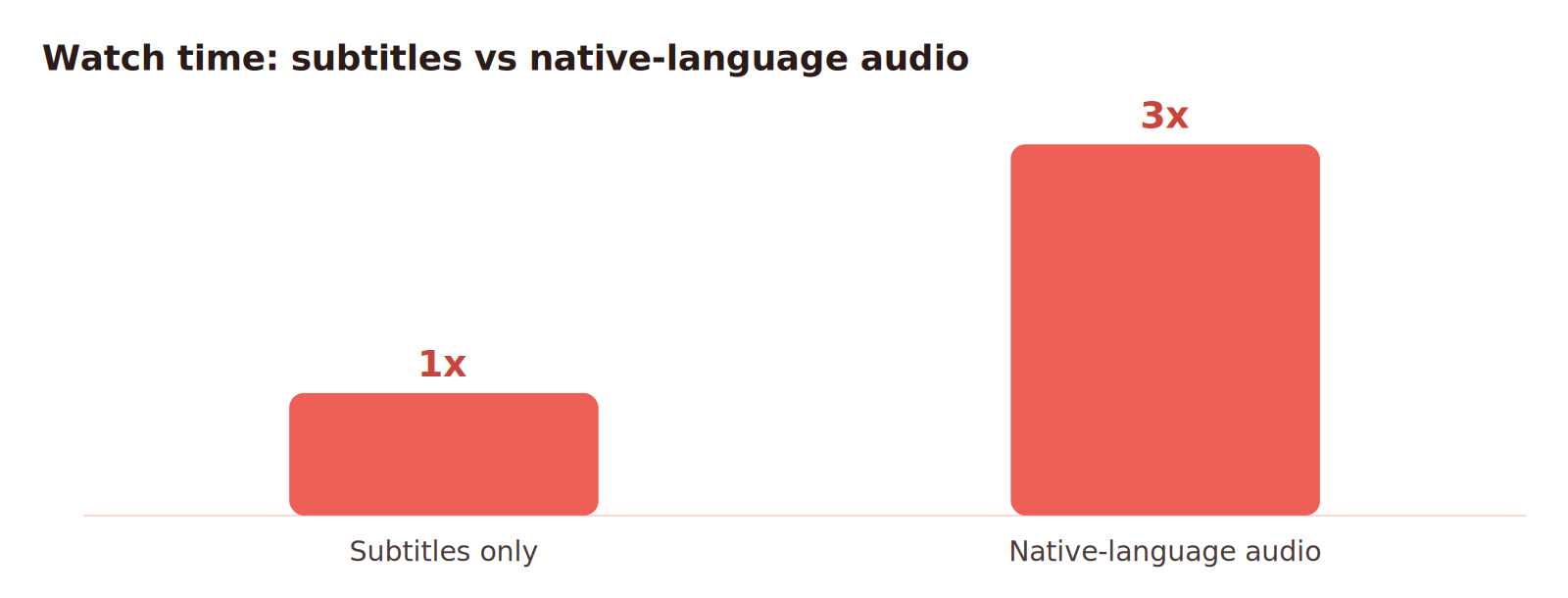
- Higher watch time and revenue: native-language audio keeps viewers engaged far longer than subtitles, and watch time signals quality to the algorithm.
- Real accessibility: subtitles help deaf and hard-of-hearing viewers, while dubbing serves people who prefer listening in their own language.
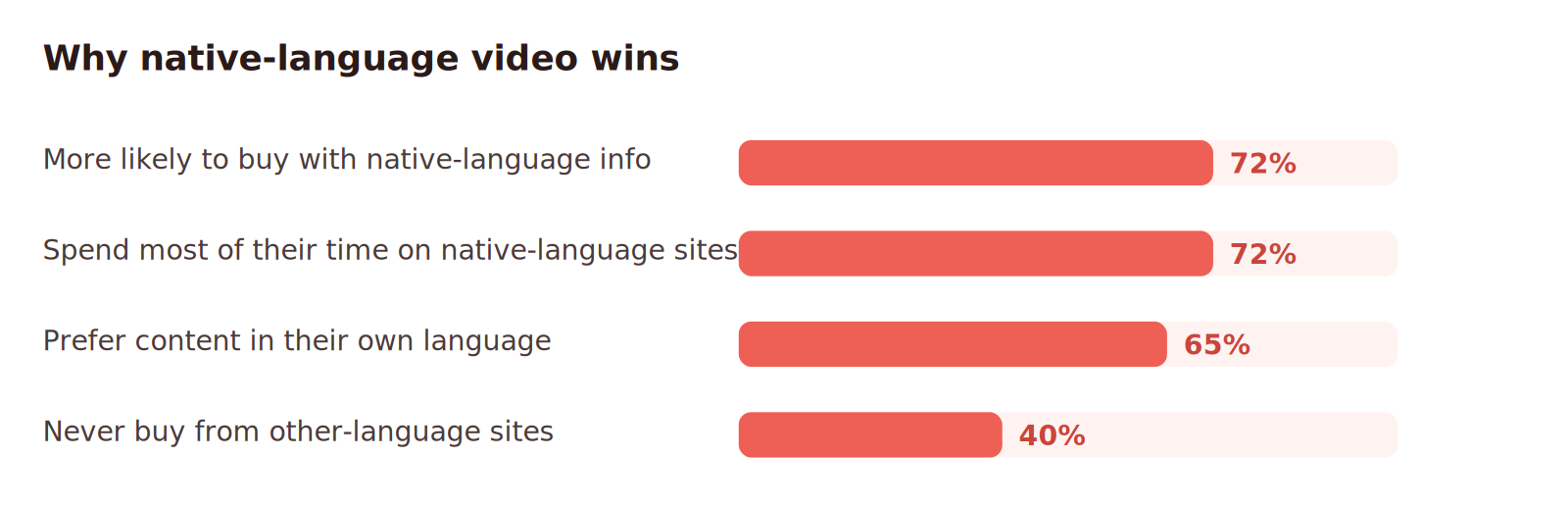
How to Translate YouTube Videos: 4 Methods
There are four practical ways to translate a YouTube video, and the best one for translating videos depends on your goal. The right one depends on whether you are a viewer or a creator, and whether you need quick subtitles or fully dubbed, native-sounding audio.
| Method | What it does | Best for | Quality |
|---|---|---|---|
| AI video translator (dubbing) | Transcribes, translates, and dubs with cloned voice and lip-sync | Creators going global with native audio | Highest, near-native |
| YouTube built-in | Auto-captions, auto-translate, and multi-language audio tracks | Quick free subtitles and viewing | Basic, text only |
| Browser extension | Translates on-screen captions as you watch | Viewers understanding foreign videos | Good for reading |
| Manual translation | Transcribe, translate in DeepL, edit and re-upload | Maximum precision and nuance | High but slow |
Method 1: AI Video Translator With Dubbing (Recommended)
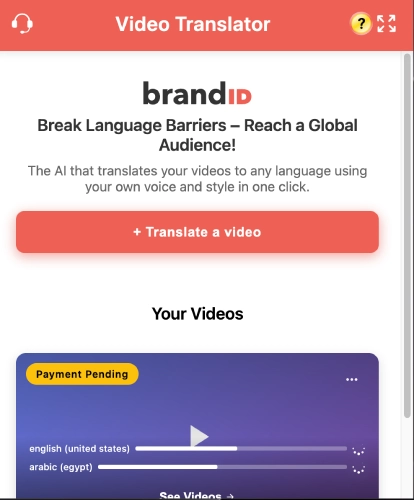
This is the highest-quality option and the one most creators want, because it goes beyond text. An AI YouTube video translator transcribes your audio, translates it, then generates dubbed speech to translate videos into the target language, ideally with your own cloned voice and matched lip movements, the same approach behind professional video localization. It also works on videos with no captions, since it listens to the audio directly. Here is the brandID workflow:
- Add your video. Upload a file or paste a YouTube link into the tool. All major formats are supported.
- Pick the target language. Choose from 200+ languages and dialects, and set voice and subtitle preferences.
- Translate, then export. The AI dubs with your cloned voice and lip-sync in minutes. Download it or share straight to social.
Method 2: YouTube’s Built-In Tools
YouTube’s native features are free and need no extra software. They translate text rather than audio, and they split cleanly by whether you are watching or publishing.
As a viewer
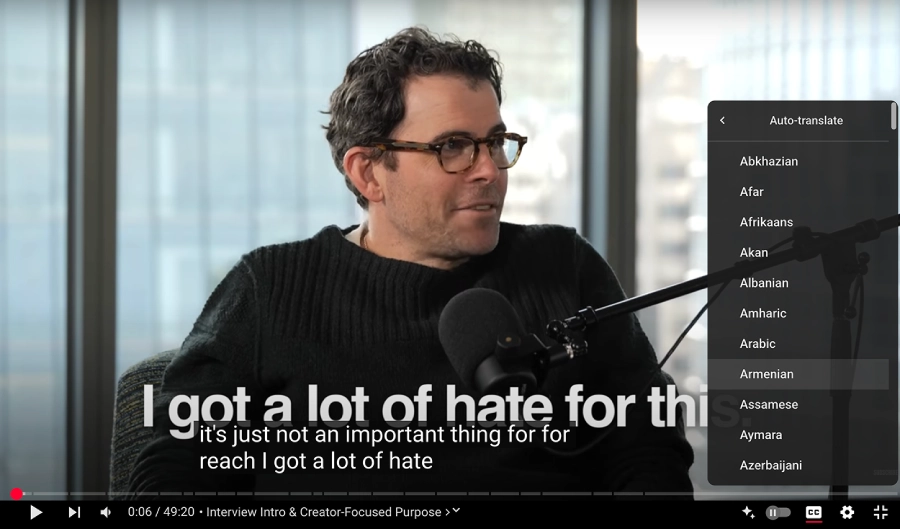
- Click the CC icon on the player to turn on captions.
- Open the gear (Settings) icon, choose Subtitles/CC, then Auto-translate, and pick your language from 100+ options.
- This only works if the video already has captions (creator-added or auto-generated). If Auto-translate is missing, there are no captions to translate from.
As a creator
- Open YouTube Studio, go to Subtitles, select your video, and click Add Language.
- Upload a translated .srt file, type captions manually, or use Auto-translate, then review the result.
- Translate the title and description in the same panel so the video gets discovered in that language.
- Add native-language audio with YouTube’s multi-language audio feature so one video serves many markets, instead of running a separate channel per language.
Method 3: Browser Extensions
If you simply want to understand a foreign video while watching, a subtitle-translation browser extension is the quickest fix. Tools like Dualsub show the original and translated captions side by side in the player, which language learners love. Install the extension, open a video that has captions, pick your language, and it translates on the fly. Most extensions need existing captions to work.
Method 4: Manual Translation and Editing
When you need maximum precision while translating videos, do it by hand. Download the .srt from YouTube Studio, translate it in a tool like DeepL (often more natural than Google Translate), refine it for context and timing, then re-upload it as a new language track. It is the most accurate path and also the slowest, which is why most teams now reach for AI dubbing first.
Translate YouTube Videos With brandID's AI Video Translator
If you want translated audio that still sounds like you, AI dubbing beats subtitles every time, and the brandID AI Video Translator is built for exactly that. It dubs your videos into 200+ languages and dialects while preserving your original voice, emotion, and lip-sync, so viewers feel like you recorded natively for them.
What sets it apart:
- Authentic voice cloning: your tone and emotional delivery carry into every language, keeping your channel’s personality intact.
- Flawless lip-sync: translated audio matches the speaker’s mouth movements, removing the off-putting dubbed look.
- Multi-speaker support: it separates and clones up to 8 voices, so interviews and podcasts stay natural.
- 200+ languages and dialects: reach virtually every market from a single source video.
- YouTube multi-audio ready: attach native-language tracks to one video and aggregate views on a single channel.
- Works where you do: a Chrome extension dubs YouTube videos in your browser, and the iOS and Android apps localize Reels, Shorts, and TikToks on the go. Grab the download links below.
Used well, it turns one upload into a multilingual content marketing engine, with pricing from $1 per minute and monthly plans from $10.
Clone your voice, keep your lip-sync, and dub YouTube videos into 200+ languages in minutes. Try it free, no re-recording required.
Translate Your Video FreeBest Practices for YouTube Video Translation
Whichever method you choose, a few habits separate professional YouTube video translation from a rough auto-translation:
- Translate meaning, not words: Aim for the same tone and intent. A literal swap loses humor, nuance, and trust.
- Localize every key element: Translate the title, description, tags, and any thumbnail text, since these drive discovery in each language.
- Keep a consistent voice: Use the same style and terminology across languages so your channel feels coherent.
- Review auto-captions: YouTube auto-translate lands around 70-90% accuracy and stumbles on slang, names, and accents, so edit before publishing.
- Format subtitles for reading: Use clear contrast, sensible timing, and short lines so text never crowds the screen.
- Test across devices: Check that subtitles and audio tracks display correctly on phones, desktops, and TVs.
Conclusion
Publishing in a single language hands your potential audience, and the revenue they represent, to competitors who localize. Translating your YouTube videos is a proven way to lift views, improve search visibility, and turn casual viewers into loyal subscribers, as long as you preserve the tone and personality that made people follow you.
That is the real advantage of AI dubbing over plain subtitles: brandID’s AI Video Translator keeps your voice, pacing, and lip-sync intact in 200+ languages, so audiences worldwide feel you are speaking directly to them. Whether you want to make money on TikTok or grow a global YouTube channel, translating the content you already have is the fastest path to a wider audience.
How to Translate YouTube Videos: FAQs
How do I translate a YouTube video into another language as a viewer?
Turn on captions with the CC button, then open Settings, choose Subtitles/CC, select Auto-translate, and pick your language from over 100 options. This works only if the video already has captions. If it has none, or you want translated audio instead of text, use an AI video translator like the brandID AI Video Translator, which listens to the audio and dubs the video in your chosen language.
How can I translate my own YouTube videos as a creator?
In YouTube Studio, open Subtitles, select your video, click Add Language, and upload a translated file, type captions, or use Auto-translate. Translate the title and description there too for SEO, and use YouTube’s multi-language audio feature to add dubbed tracks. For native-sounding dubbing that keeps your voice and lip-sync, run the video through brandID’s AI Video Translator first, then add the localized audio track.
What are the limitations of YouTube’s auto-translate?
Auto-translate relies on machine translation, so accuracy ranges from about 70 to 90% and it often misses idioms, humor, and cultural context, and it can mishandle accents or technical terms. It also only works when captions already exist and it translates text, not audio. For voice and a natural viewing experience, AI dubbing is the better route.
How do I translate a YouTube video that has no captions (CC)?
YouTube’s built-in feature cannot help without existing captions, so use an external AI tool that listens to the audio directly. The brandID AI Video Translator transcribes the audio automatically, then translates and dubs it into your target language while preserving the original voice, so you do not need any captions to start.
How do I translate a YouTube video to English?
If captions exist, enable CC, open Settings, choose Auto-translate, and select English. If there are no captions or you want English audio rather than text, paste the YouTube link into an AI video translator and choose English as the target language to get dubbed audio and subtitles together.
Can I translate a video with multiple speakers?
Yes. brandID’s AI Video Translator identifies and separates up to 8 distinct voices and clones each one individually, so interviews, panels, and podcasts stay natural and easy to follow in the new language.
How do I automatically translate a YouTube video?
For subtitles, use YouTube’s auto-generated captions plus Auto-translate under the subtitle settings. For accurate, natural results with voice, use an AI video translator that handles transcription, translation, and dubbing in one step, which removes the manual editing that built-in tools require.
How much does it cost to translate a YouTube video?
YouTube’s built-in captions and auto-translate are free but text only. AI dubbing tools are paid: brandID’s AI Video Translator starts at $1 per minute pay-as-you-go, with monthly plans from $10, and all plans include voice cloning and lip-sync across 200+ languages.
 Summarize this article with: