
bookme for Agencies and freelancers
Clients need to reach you, and you need to protect delivery time. bookme gives every kind of call its own link, length and rules.
What you will learn
- Create an event type
- Ask the right questions before the meeting
- Set your hours and protect your week
- Connect your calendar so you never double book
- Share meetings across a team
- Share your link where people already are
Who this is for
Design, development, marketing and creative agencies, plus freelancers and contractors who take discovery calls, reviews and check ins.
For an agency or freelancer, meetings are both the sales process and the delivery process. Pitches, scoping calls, kickoffs and reviews all happen on the same calendar, and too many of them break up the long stretches needed to actually do the work.
bookme lets you shape the calendar: different call types, different lengths and clear limits.
The scheduling problems in agencies and freelancers
Every client call starts with scheduling messages
Calls interrupt deep work
Different calls need different rules
Team calendars
How bookme solves it
- One event per call type. See how to create an event type.
- Boundaries. Weekly hours, buffers and daily caps protect focus time. See how to set your weekly availability.
- Team events. Share leads across people, or meet several at once on the Elite plan. See how to create a team event.
- Intake questions for project scope and budget. See how to create a question form.
See bookme in action
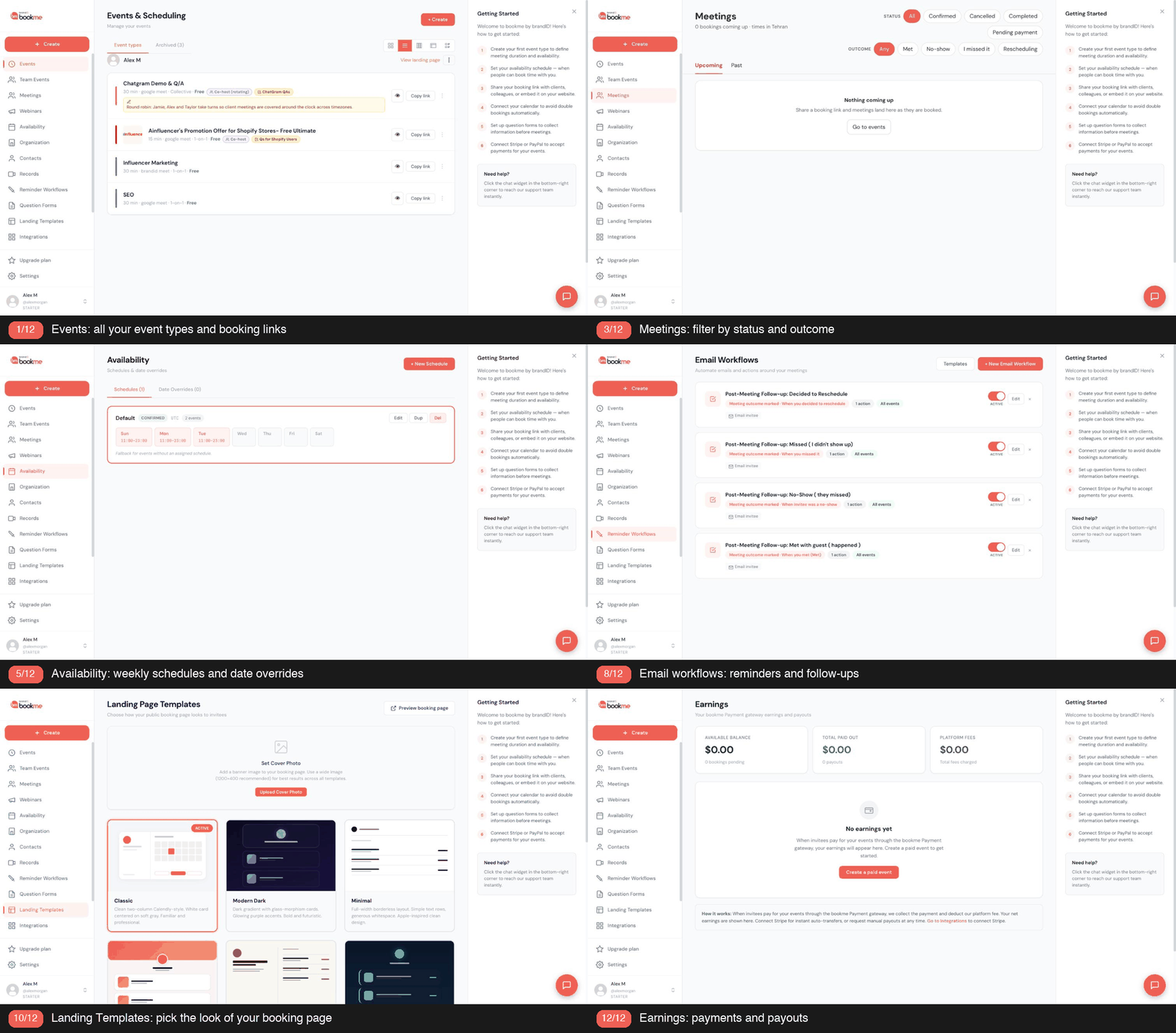
This short tour shows the dashboard you will use in the steps below: your events, meetings and settings in one place.
Set it up step by step
Create an event type
Every call type needs its own length and rules.
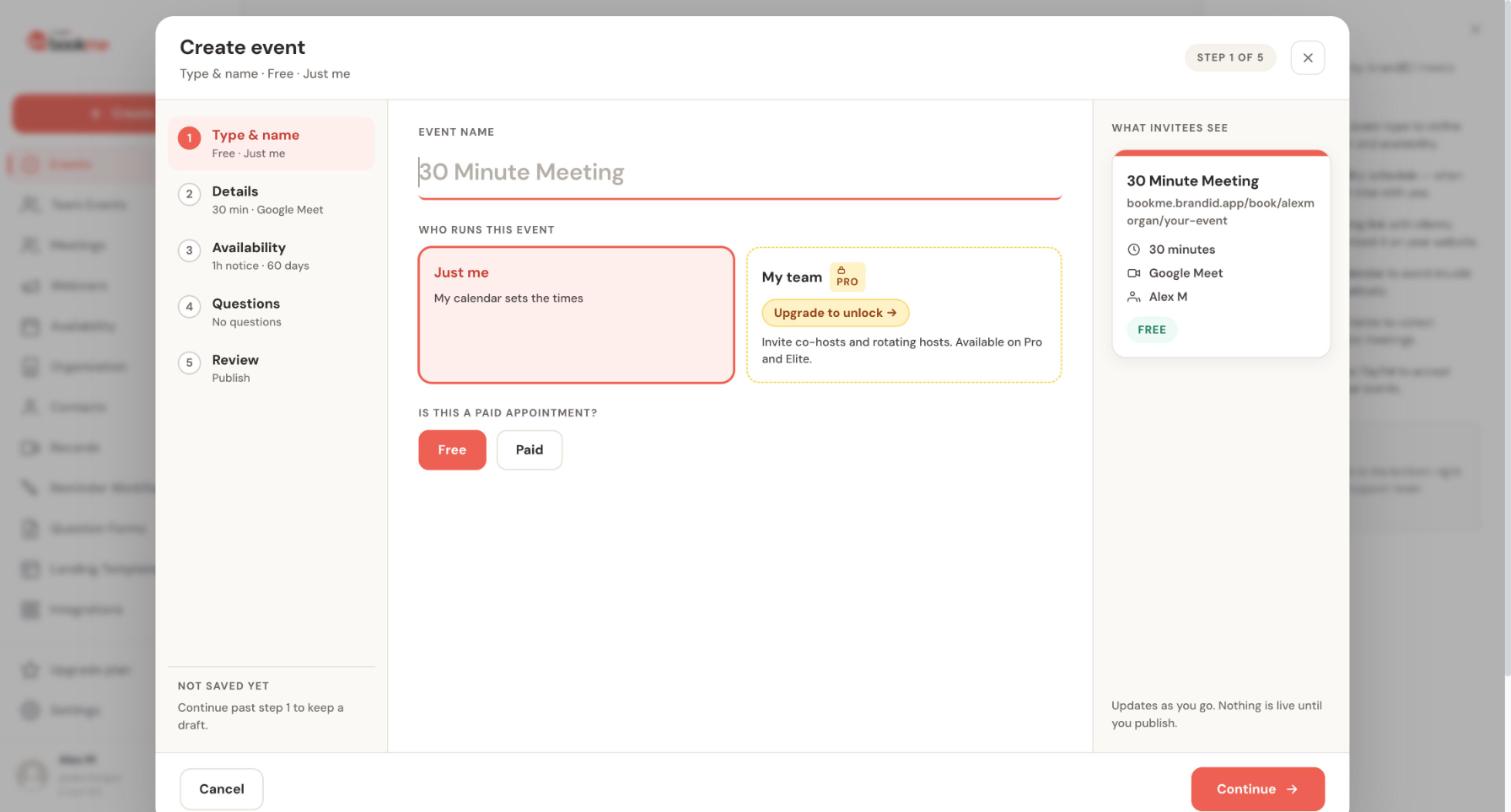
An event type is a meeting you offer, such as a 30 minute intro call. The Create event wizard builds one in five steps and keeps nothing public until you publish.
- On the Events page click + Create. The wizard lists five steps: Type & name, Details, Availability, Questions and Review.
- Name the event and choose Just me or My team, then choose Free or Paid.
- In Details set the description, the duration and the location: Google Meet, Zoom, brandID Meet, Phone call or In person.
- In Availability choose a schedule, how much notice you need, how far ahead people can book, an optional cap on bookings per day and buffers before and after each booking.
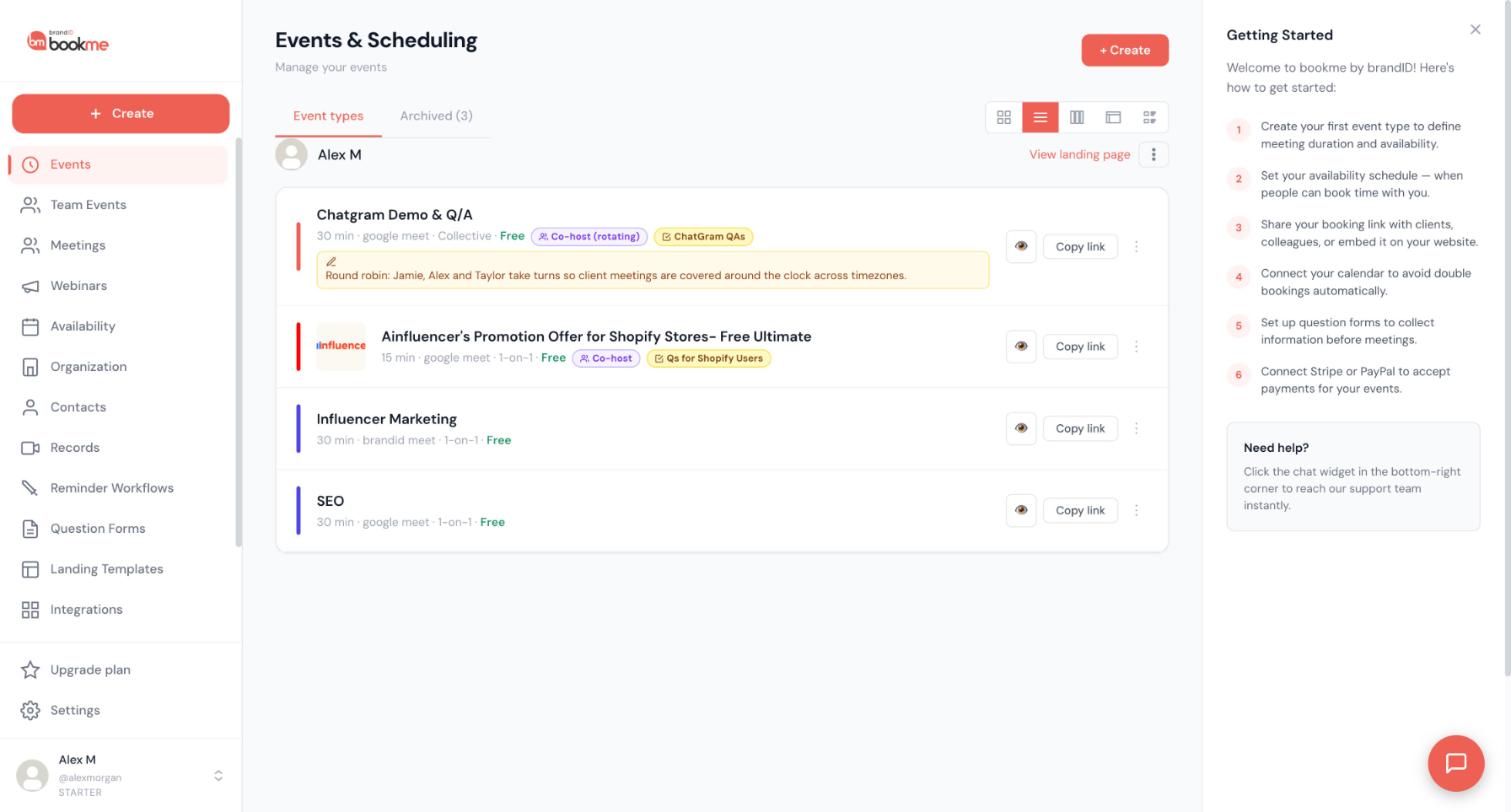
- Click Publish event, then use Copy link on the Events page to get the event’s direct link.
For agencies and freelancers:
- Create Intro, Kickoff and Review events.
- Keep the intro short.
Full guide: how to create an event type.
Ask the right questions before the meeting
Scope questions tell you whether to take the call.
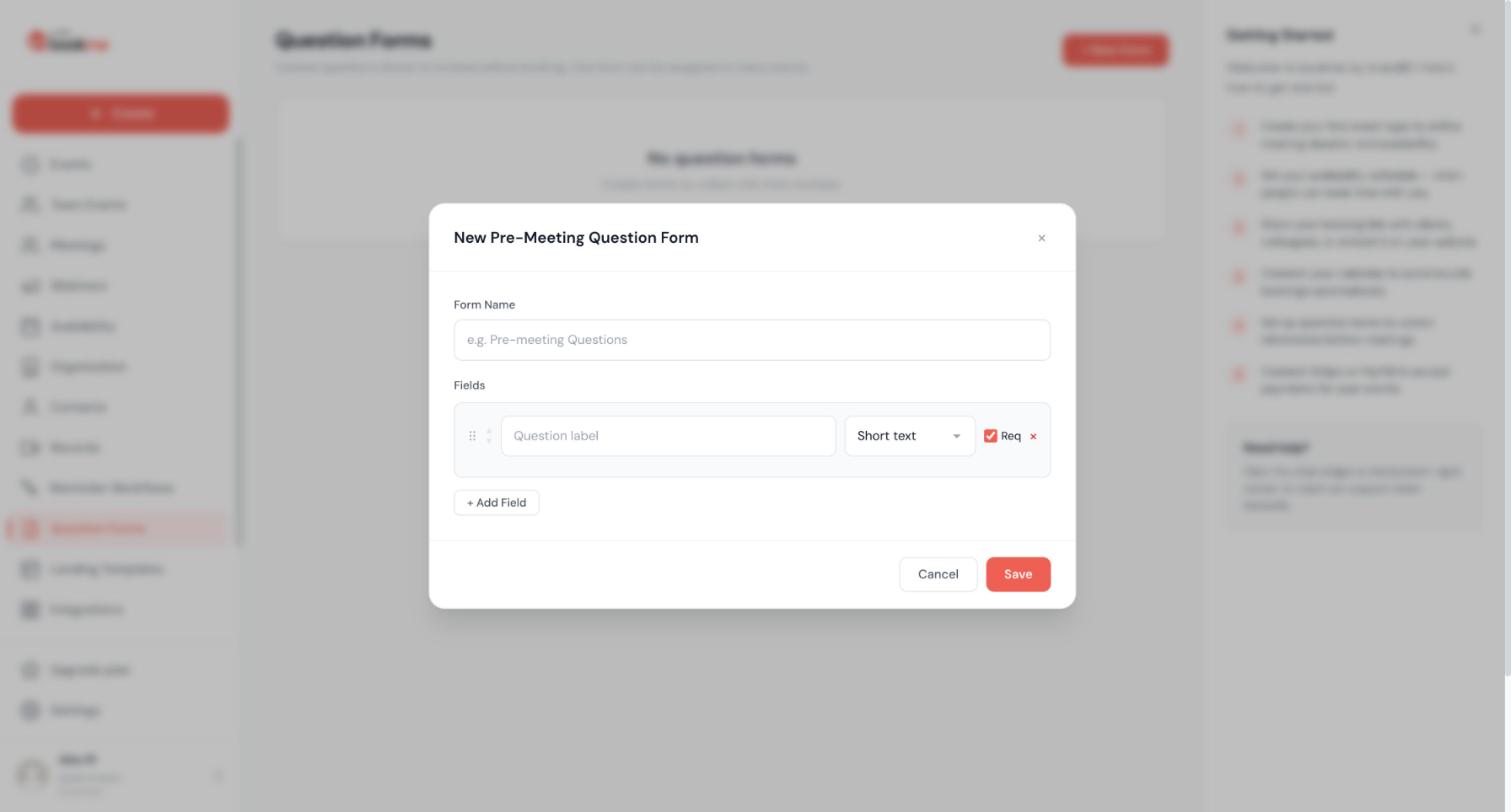
A question form adds your own questions to the booking page, so you know what you need before the meeting. You build it once and reuse it on as many events as you like.
- Click Question Forms in the sidebar, then + New Form, and give the form a clear name.
- Add one row per question. Give each a label, choose a type (short text, long text, dropdown, radio or checkbox) and decide whether it is required.
- Keep it to three or four questions and put the most useful one first. Drag rows to change the order.
- Click Save, then assign the form to one or more event types, or pick it in the Questions step of an event.
- Read the answers in your calendar invite, your booking email, the invitee’s confirmation and the booking in Meetings under What they told you.
For agencies and freelancers:
- Ask about project, timeline and budget range.
- Attach the form only to the intro.
Full guide: how to ask the right questions before the meeting.
Set your hours and protect your week
Meetings should not break up deep work.
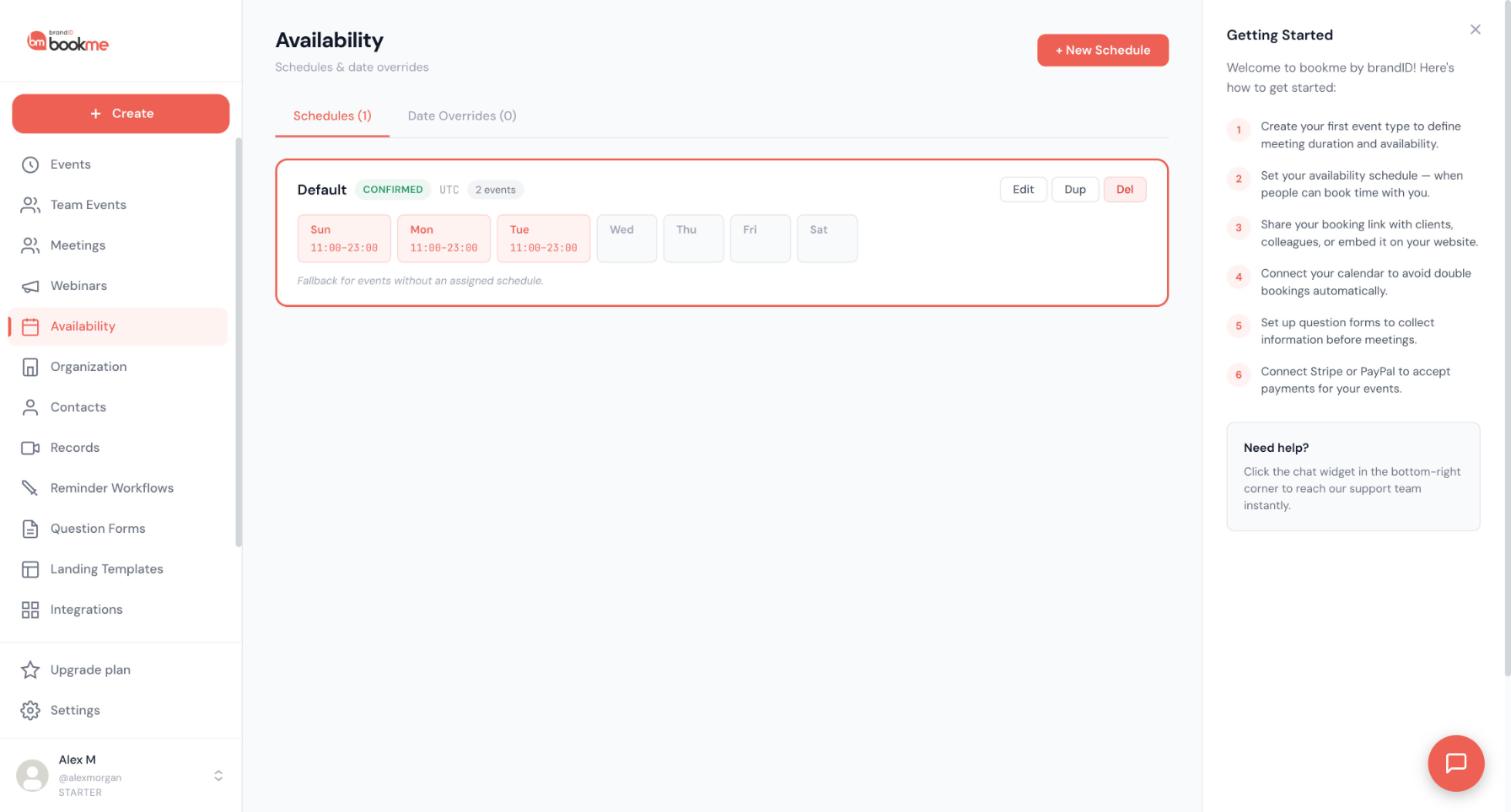
Your weekly hours decide which times invitees can book. You set them once in a schedule, and every event that uses that schedule follows it.
- Click Availability in the sidebar and press Edit on the Default schedule.
- Switch days on or off, set a start and end time, and add more than one time window to a day if you need a break in the middle.
- Use Copy to all to repeat one day’s hours on the others, and check the schedule’s time zone before you save.
- Click + New Schedule when some events need different hours, for example paid sessions only on certain days, then assign that schedule in the event’s Availability step.
- In each event, add a minimum notice, a limit on how far ahead people can book, a cap on bookings per day and buffers before and after.
For agencies and freelancers:
- Set meeting days, a daily cap and buffers.
- Keep delivery days free.
Full guide: how to set your hours and protect your week.
Connect your calendar so you never double book
A connected calendar stops clashes with client work.
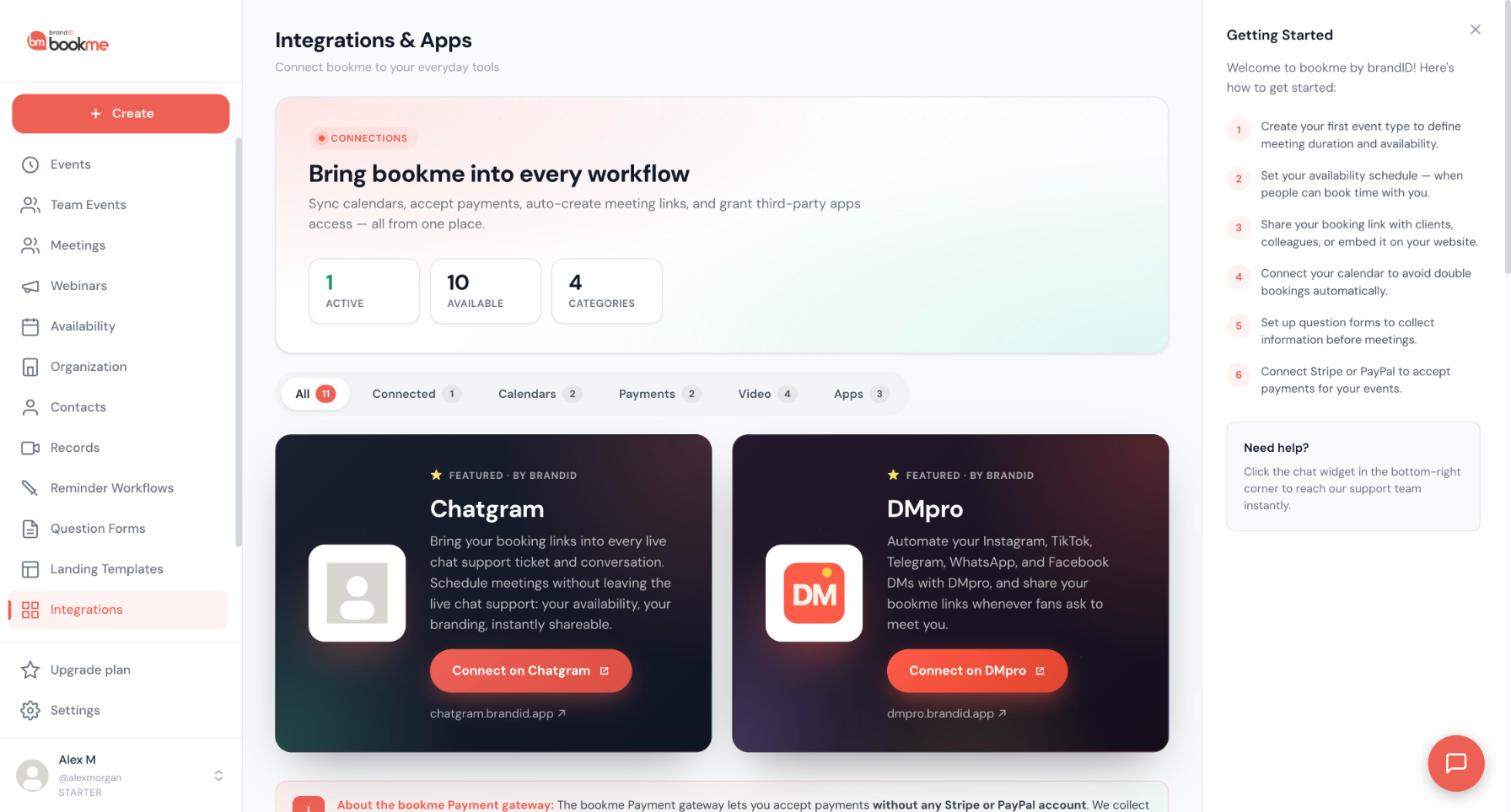
Connect your Google Calendar so bookme blocks the times you are already busy and adds every new booking to your calendar. It takes about a minute.
- Click Integrations in the sidebar and open the Calendars filter.
- Click Connect on the Google Calendar card, choose the account and approve access in Google.
- Your busy time starts blocking slots on your booking page, and new bookings are written to your calendar as they happen.
- Check the row’s status. If it says Needs reconnect, click Reconnect.
For agencies and freelancers:
- Connect Google Calendar before publishing.
- Check busy time blocks your booking page.
Full guide: how to connect your calendar so you never double book.
Share meetings across a team
Pitches often need two people.
A team event lets several bookme users host the same booking, either all together or by taking turns.
- Check your plan first. Collective and round robin events are on the Elite plan.
- In the Create event wizard choose My team under Who runs this event.
- Choose how the team hosts: Everyone attends (collective), where a time is offered only when every required host is free, or Take turns (round robin), where one host takes each booking.
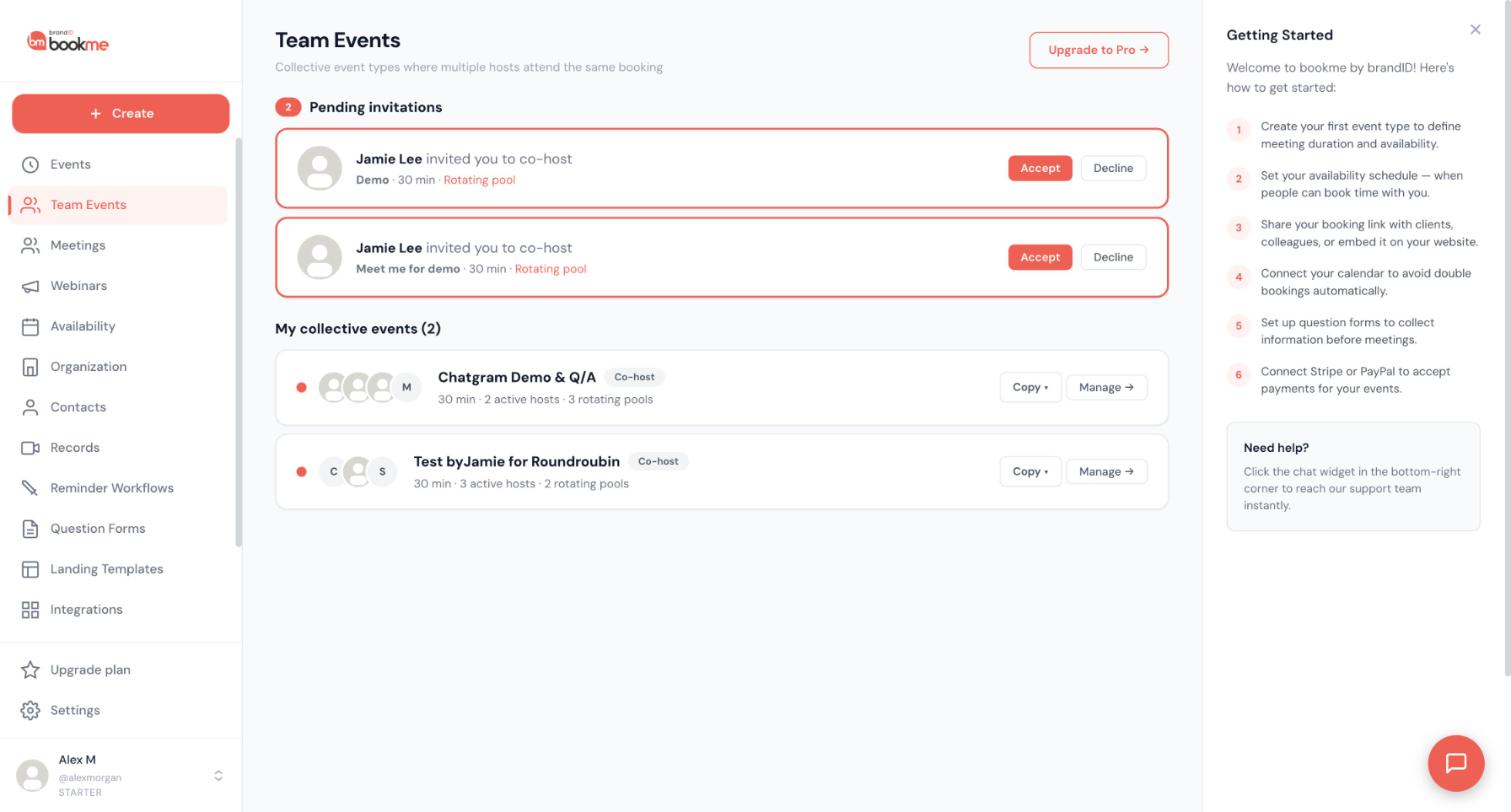
- Add co hosts by bookme username, by email or with an invite link. Each stays Pending until they accept.
- Publish the event, then manage it from Team Events.
For agencies and freelancers:
- Use a collective event for designer plus account lead.
- Remember collective events are on Elite.
Full guide: how to share meetings across a team.
Share your link where people already are
Proposals and signatures are where agency links work hardest.
bookme gives you a link for your whole booking page and a direct link for each event type. Copy the one that fits and put it wherever people reach you.
- Use your booking page link when you want people to choose from every live event, and a direct event link when you mean one specific meeting.
- On the Events page click Copy link on an event card, or the small menu next to View landing page for your whole page.
- Click the eye icon to preview an event the way an invitee sees it, and try it on your phone.
- After you publish, copy the email signature line, or use the share buttons and QR code on the event is live screen.
- Keep your username and event slugs stable, because they are part of the links you have already shared.
For agencies and freelancers:
- Put the intro link in your proposal template.
- Add the signature line for the whole studio.
Full guide: how to share your link where people already are.
Case study: a small design studio handling intro calls and kickoffs
A design studio sets up an intro call with three scope questions, a kickoff call for signed clients, and a recurring review event. Meetings are capped at two per day, with buffers between them, so project work is not broken up.
For bigger pitches, the studio uses a collective team event so the prospect meets the designer and the account lead together.
The studio shares the intro link in its proposal template and email signature. Because each prospect answers the scope questions before the call, the first meeting begins with the project, not with introductions.
A typical week with bookme
Mondays are for delivery, with no meetings. Tuesday and Wednesday host intro and scope calls, capped at three a day. Thursday is for reviews and kickoffs. Friday is open for wrap ups. Clients simply book into the days you opened.
When a prospect needs both a designer and an account lead, the collective event handles it.
Launch checklist for agencies and freelancers
Tick these off before you share your link.
- Each call type has its own event.
- The intro has scope questions.
- Daily cap and buffers are set.
- Calendars are connected.
- The link is in proposals and signatures.
Common mistakes to avoid
- Leaving the calendar open all week.
- Using one meeting type for everything.
- Not asking scope questions before intro calls.
Tips that make it work
- Cap meetings, not just hours. A daily cap protects focus time better than open hours alone.
- Use scope questions. Project, timeline and budget range tell you whether to take the call.
- Make the kickoff its own event. It has different attendees and a different length.
- Put the link in proposals. It turns “let me know” into a one click next step.
Let your AI assistant do the setup
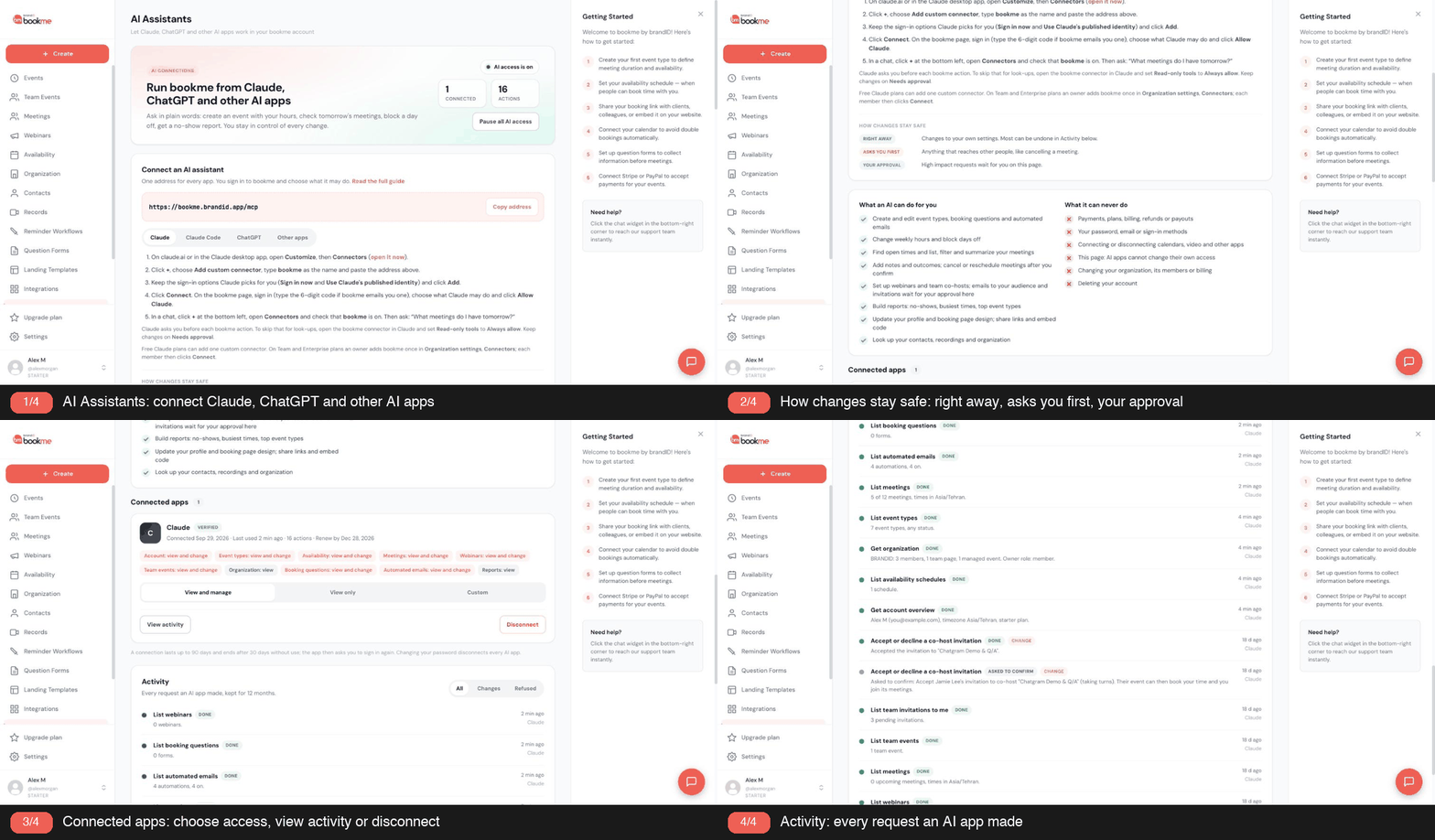
bookme works with Claude, ChatGPT and other MCP apps, so you can describe what you want in plain words and let your assistant build it. Anything that reaches another person, such as cancelling a meeting or emailing an invitee, waits for your approval first. Here is an example request for agencies and freelancers:
Create an intro call, a kickoff call and a weekly review, cap meetings at two a day and add 15 minute buffers.
Setup guide: how to connect Claude to bookme.
Words you will see
- Event type. A meeting you offer, with its own length, location, price and rules.
- Schedule. A set of weekly hours that events can follow.
- Booking window. How much notice you need, and how far ahead people can book.
- Buffer. Time kept free before or after a booking.
- Question form. Custom questions invitees answer before they book.
- Collective event. All hosts attend, and a time is offered only when every required host is free.
- Round robin. Hosts take turns, with one host per booking.
- Email workflow. An email sent automatically before, after or around a meeting.
- Outcome. What happened to a meeting: Met, No-show, I missed it or Decided to reschedule.
Frequently asked questions
Can I limit how many meetings per day?
Can clients meet two people at once?
Can I charge for discovery calls?
Do clients need an account?
Can I show different clients different links?
Can I stop back to back meetings?
Ready to try it?
Create an intro call event, add your scope questions and put the link in your proposal template.




