
How to turn on Safety Mode
Switch on Safety Mode so every new campaign sends slowly: at most 20 DMs a day with 3 to 6 minutes between them. It takes under a minute.
Before you start
- A DMpro account
- No campaign running that you expect Safety Mode to slow down (it only affects new campaigns)
Decide whether you need it
Safety Mode is off by default. It suits:
- new Instagram or TikTok accounts,
- accounts that were restricted recently,
- anyone running automated outreach for the first time.
It gives every campaign a conservative pace, but it cannot guarantee that a platform will not restrict your account.
Open the Automation page
On the dashboard, click Automation in the left menu. The first card is Safety Mode. Its text reads “Caps campaigns at 20 DMs/day with 3-6 min delays between sends. Recommended for new accounts to avoid Instagram restrictions.”
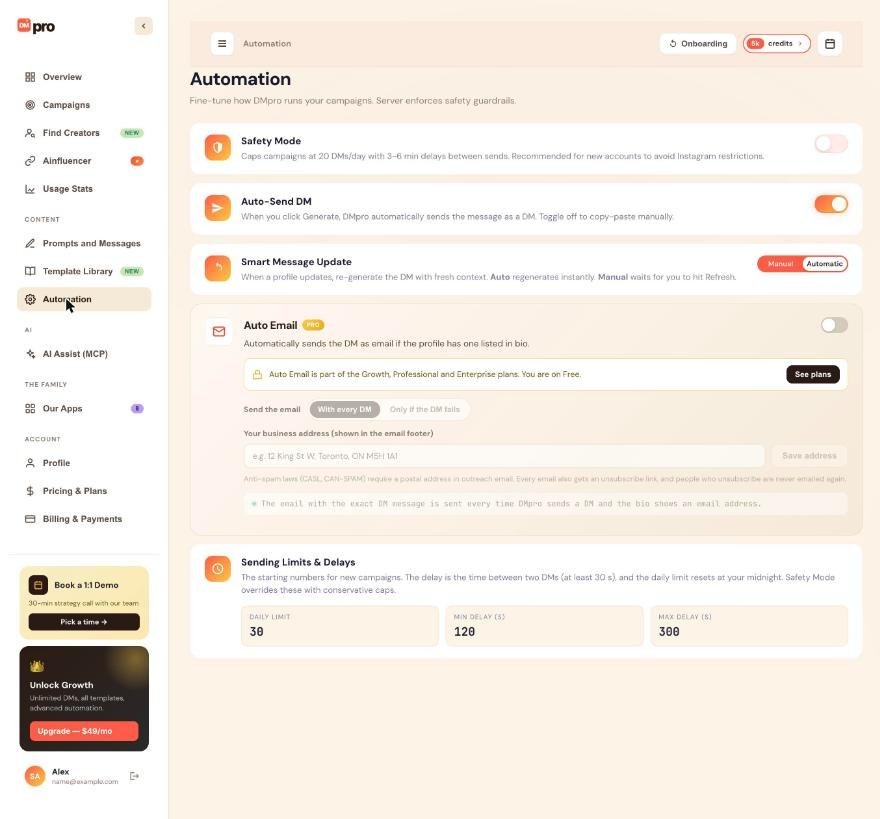
Turn the switch on
Click the Safety Mode switch. The setting is saved to your account, so the extension shows the same choice.
In the extension, open the account menu (your initials at the top right), click Automation settings, then use the Safety Mode switch. The extension confirms: “Safety Mode is on: new campaigns send up to 20 DMs a day, one every 3 to 6 minutes.”
Create a campaign and check the pace
Go to Campaigns and click Create Campaign. The pace fields now show 20 a day and 180 to 360 seconds, and they are locked. The form says “Safety Mode is on, so this campaign sends up to 20 DMs a day, one every 3 to 6 minutes.” When you save, DMpro also confirms “Safety Mode applied: up to 20 a day, a DM every 3 to 6 min.”
Your own numbers in Sending Limits & Delays stay saved and come back when you turn Safety Mode off.
Know what it does not change
- Campaigns that already exist keep the numbers they were created with. Turning Safety Mode on does not slow down a running campaign, and turning it off does not speed one up.
- Single-profile DMs that you send yourself are not limited by Safety Mode or by campaign limits.
- Platform warnings: DMpro does not watch for Instagram or TikTok blocks. If you get a warning, pause your campaigns yourself.
Turn it off when you are ready
Click the switch again. Then your own daily limit and delays apply to new campaigns. Raise them gradually, and keep an eye on your account for warnings. If an AI app connected through AI Assist (MCP) wants to turn Safety Mode off, it asks you first.
Tips
- Switch Safety Mode on before you create your first campaign on a new account, not after.
- Combine it with varied wording: spintax in your own DM, or Rotate prompts in AI campaigns, so messages do not all read the same.
- Safety Mode sets the pace only. Message people who are a good fit for what you offer.
If something goes wrong
I turned Safety Mode on but my running campaign did not slow down.
Safety Mode only applies when a campaign is created. Campaigns you already created keep their numbers. Stop the campaign and create a new one.
I cannot edit the daily limit and delays in the form.
That is Safety Mode locking them at 20 a day and 3 to 6 minutes. Turn it off on the Automation page if you want to use your own numbers.
The extension says to sign in to use Safety Mode.
Safety Mode and the sending limits need you to be signed in. If your session ended, the page offers Sign in.
Related how-to guides
Still stuck? We’re happy to help.
Create your account, or reach out to support.




