
How to read campaign and username statuses
Understand the status on a campaign card, the live line under it and the status of each person in View Details, so you know what DMpro is doing and what to do next. It takes about 5 minutes to read through.
Before you start
- At least one campaign on the Campaigns page
Read the campaign card
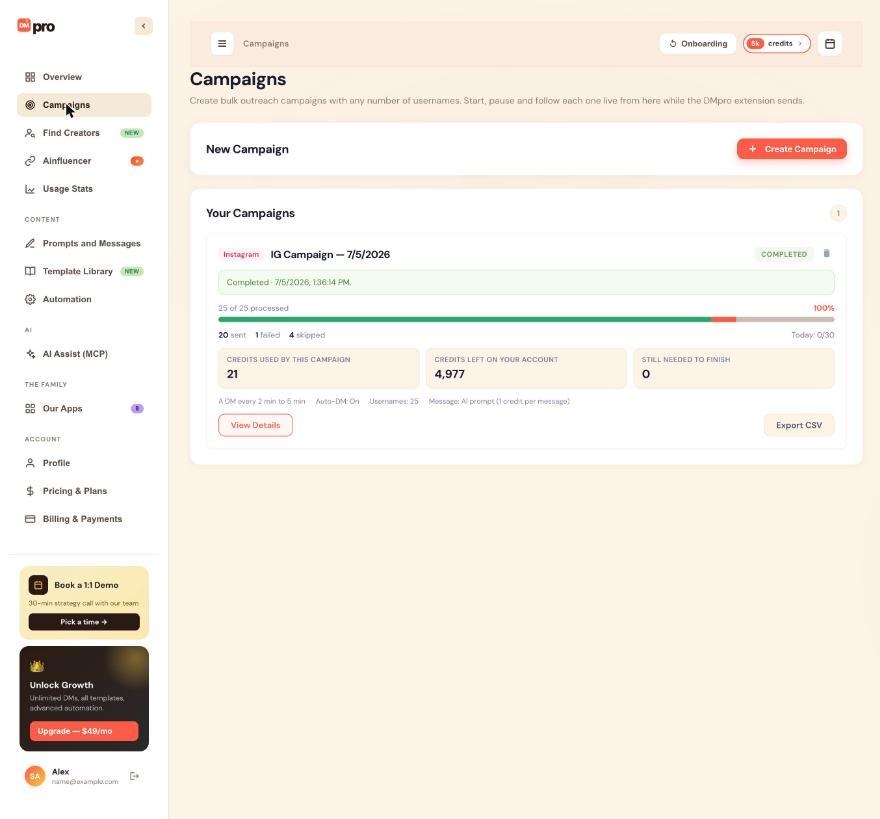
Open Campaigns in the left menu. Each card shows:
- The platform, the campaign name and a status chip such as COMPLETED.
- A progress bar and a line such as “25 of 25 processed”, with counts for sent, failed and skipped.
- “Today: x/y”, your daily count against the daily limit.
- Three boxes: CREDITS USED BY THIS CAMPAIGN, CREDITS LEFT ON YOUR ACCOUNT and STILL NEEDED TO FINISH.
- A summary line with the pace, Auto-DM on or off, the number of usernames and the message type.
Learn the six campaign statuses
- Draft: created but not started. Nothing is sent. You can Start, Stop or delete it.
- Running: DMpro is working through the list. You can Pause or Stop it.
- Paused: stopped for now, by you, an AI app or DMpro support. It can also be paused by DMpro when an own DM campaign’s DM is empty. You can Resume or Stop it.
- Out of Credits: your account ran out during the run. Add credits, then Resume. Nobody is skipped.
- Completed: every person has been handled. It cannot be started again.
- Stopped: ended for good. People who were still waiting were not messaged.
On the dashboard, Draft and Stopped are grey, Running is green, Paused is yellow, Completed is olive green and Out of Credits is coral.
Understand what Running can mean
Running does not always mean a DM is going out this minute. The live line on the card tells you which case you are in:
- “Running in the DMpro extension · Waiting before the next DM · next DM in 1:42”: normal. DMpro is waiting out the delay.
- “Waiting for the DMpro extension…”: nothing has picked the campaign up. Keep Chrome open with the extension signed in; it picks the campaign up within a minute.
- “Queued. It starts when [another campaign] finishes”: the extension runs one campaign at a time.
- “Daily limit reached for today · continues after midnight, in [time]”: nothing to do. It continues by itself.
Open View Details for each person
Click View Details on a card. You get the totals, the message source, status chips with counts that filter the list, a search box (“Search username or name”) and a table with #, Username, Message, Status, Reason and When, 50 people per page. Long messages show 3 lines with Show more. While the campaign runs, the details refresh by themselves.
Read the status of each person
- Pending: waiting for their turn.
- In Progress: the extension is working on this person now.
- Sent: the DM went out. “DM + email” means Auto Email sent the same message by email too. “by email” means the DM could not be sent and Auto Email delivered it by email instead.
- Generated: the message was written but not sent, because Auto-send DMs was off. For own DM campaigns the card counts these as “prepared”.
- Failed: the message could not be written, or the DM could not be sent. Read the Reason column.
- Skipped: DMpro could not read the profile (for example the account no longer exists), so no message was written.
- Waiting For Credits: only on campaigns run by an older extension version. With a current extension, that person stays Pending. When you add credits and press Resume, they are handed out again.
Read the special reasons
Two reasons need a closer look:
- “interrupted, not resent”: the DM was being sent when Chrome closed or the extension restarted, or the page never confirmed it (after 3 minutes, or 90 seconds on TikTok). It may have gone out, so DMpro never sends it again. Check the chat on Instagram or TikTok if it matters.
- “credit refunded”: an own DM that failed. Its credit was given back.
Tips
- Use the status chips above the table to look at one group at a time, for example only Failed.
- A person who is Generated was not messaged. Check the campaign’s Auto-send DMs setting if you expected sends.
- Credits are used per message written (AI) or per DM sent (own DM), so the credit boxes on the card move with the counts.
If something goes wrong
The campaign says Running but nothing is happening.
Read the live line on the card. Most of the time it is waiting for the extension, queued or at the daily limit. See How to fix a campaign that is not sending.
A person shows Failed with “interrupted, not resent”. Was the DM sent?
Maybe. DMpro could not confirm it, so it keeps the credit for an own DM and never sends again. Open the conversation on Instagram or TikTok to check.
Why are there people marked Skipped?
DMpro could not read their profile, for example because the account no longer exists or the page did not load. No message was written for them.
Related how-to guides
Still stuck? We’re happy to help.
Create your account, or reach out to support.




