
How to export campaign results
Download a CSV of everyone in a campaign with their status, message and reason, so you can review the results or retry people. It takes about 2 minutes.
Before you start
- A campaign where at least one person has been processed
Open the campaign card
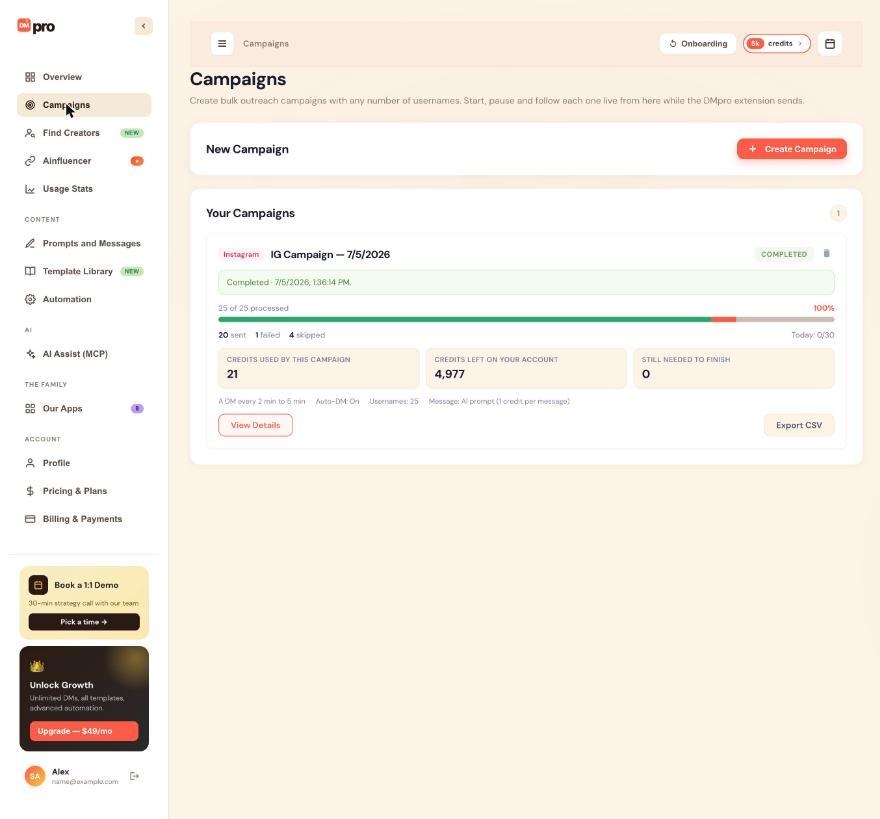
Open Campaigns in the left menu. The page lists your 50 newest campaigns plus every active one. Find the campaign you want and look for the Export CSV button on its card.
Look at the results first with View Details
Click View Details to see the list on screen. Use the status chips to filter, for example only Failed, and the search box (“Search username or name”) to find one person. The table shows #, Username, Message, Status, Reason and When, 50 people per page. Details and exports work for lists of any size.
Click Export CSV
Click Export CSV on the dashboard card. The file includes every person with:
- their status and how it was delivered (DM, Email or DM + Email),
- the message that was written or sent and the reason for a failure,
- dates, credits, attempts and whether the DM was interrupted,
- the profile details DMpro read.
Open the file in a spreadsheet app to sort and filter it.
Export from the extension
In the extension, open Bulk Campaign and look under Recent Campaigns. Export appears there once someone has been processed. It gives a shorter file: status, message, dates, the reason for a failure and profile details. Recent Campaigns shows the 10 newest campaigns that are not running.
Retry failed or skipped people
DMpro does not retry Failed or Skipped people by itself. To try them again, filter the exported file to those people, copy their usernames into a new campaign and start it. The guide How to add usernames to a campaign covers pasting.
Check the reason first. Many failures, for example accounts that do not accept DMs from people they do not follow, will fail again.
Export before you delete
Deleting a campaign removes the campaign and all its results. DMs already sent stay sent, but you can no longer see or export them. Download the CSV first if you want a record.
Tips
- Keep your exports. DMpro does not remove people you messaged in other campaigns, so your old files are the easiest way to avoid contacting someone twice.
- The dashboard export is the fuller one. Use it when you need the delivery type, credits and attempts.
- DMpro does not read replies. Check your Instagram or TikTok inbox for those.
If something goes wrong
I cannot find an old campaign.
The Campaigns page lists the 50 newest campaigns plus every active one, and the extension’s Recent Campaigns shows the 10 newest that are not running. Older ones may no longer be listed.
There is no Export button in the extension.
It appears under Recent Campaigns once someone in that campaign has been processed.
A person shows Failed but I think the DM went out.
If the reason says “interrupted, not resent”, DMpro could not confirm the DM and will not send it again. Open the conversation on the platform to check.
Related how-to guides
Still stuck? We’re happy to help.
Create your account, or reach out to support.




