
How to find, filter and manage your meetings
The Meetings page lists every booking you are part of. Switch between Upcoming and Past, narrow the list with status and outcome filters, and open any row for its details.
Open Meetings
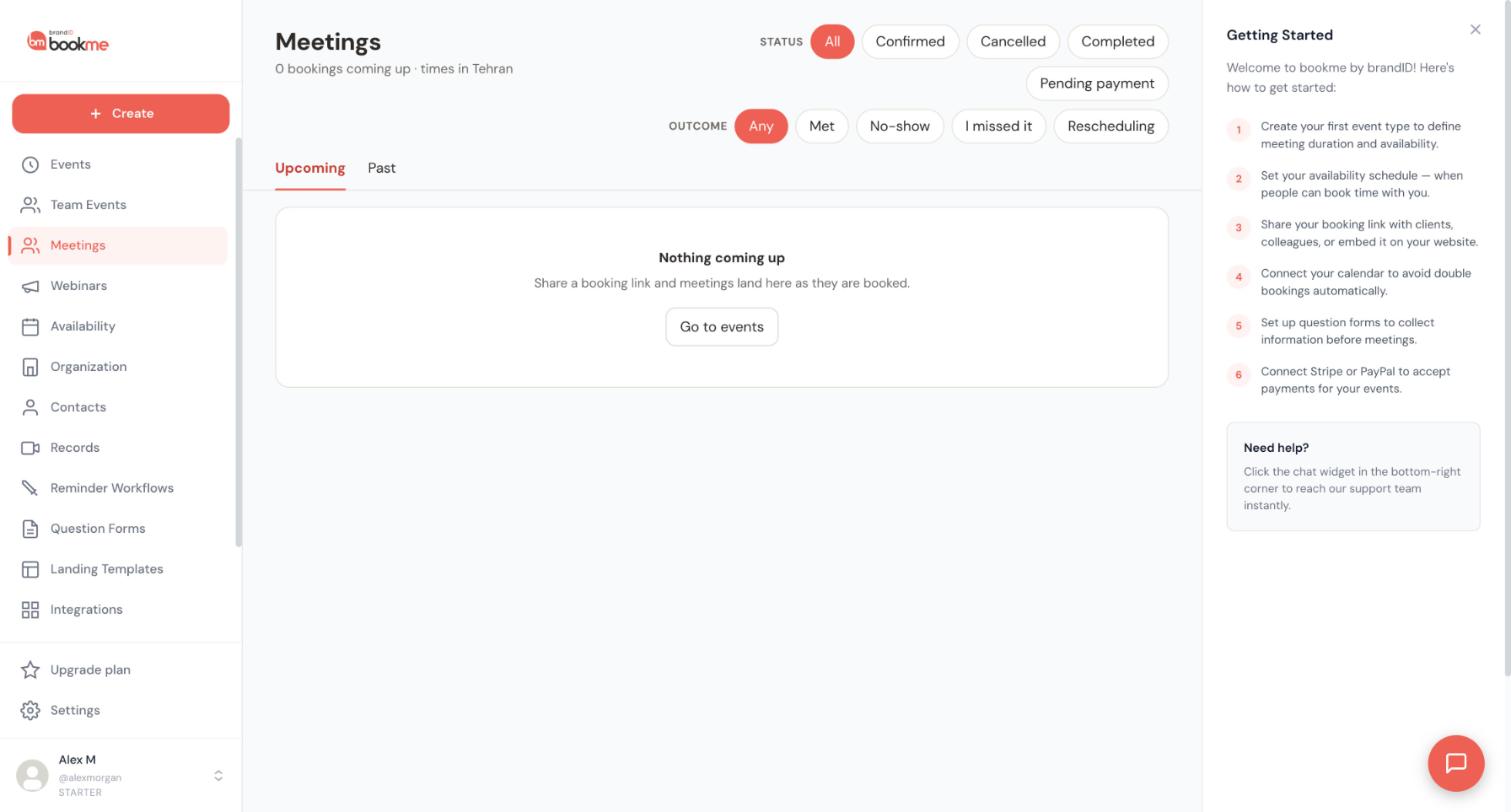
Click Meetings in the sidebar. The heading tells you how many bookings are coming up and the time zone every time is shown in, which is your profile time zone. The page lists meetings you host, meetings you co-host, meetings you booked with someone else, and meetings another bookme host added you to as a guest.
Choose Upcoming or Past
Upcoming lists everything that has not ended yet, grouped by day. A meeting in progress stays there until it ends. Past lists ended meetings, newest first.
Each row shows who the meeting is with, the event, the date and time, the status and the payment. Chips tell you your role, such as Co-host or Guest.
Filter by status
The Status row has five chips: All, Confirmed, Cancelled, Completed and Pending payment. Upcoming shows confirmed, pending-payment and cancelled bookings by default. Past shows everything.
Filter by outcome
The Outcome row has Any, Met, No-show, I missed it and Rescheduling. It is most useful on the Past tab. On Upcoming, Rescheduling finds bookings that are waiting for a new time.
The two rows combine. For example, Completed plus Met. If nothing matches you see Nothing matches those filters and a Clear filters button. Filters apply to the tab you are on, and switching tabs resets them.
Open a booking for its details
Click any row. The details panel shows when (in your time and the invitee’s), where, the invitee’s answers, your private notes, the hosts, the guests and the payment. Press Escape to close it.
From here you can mark an outcome, add or remove guests, copy a follow-up booking link, and use They need a new time, Reschedule, Cancel booking and Refund in full.
Reschedule or cancel with care
Reschedule opens a month grid of free times. Pick a day and a time, add an optional reason, and confirm.
Rescheduling emails the invitee, co-hosts and guests, and moves their calendar entries. Cancel booking removes the booking from calendars, cannot be undone and, unless you switch off the email option, sends the invitee your reason and a link to rebook. For a paid booking you choose Refund in full or Keep the payment.
Tips
- The list shows 20 bookings per page, with Previous and Next controls at the bottom.
- There is no event-type or date-range filter yet. Rows are grouped by day, so scroll to the date you want.
- Every email about a booking links straight to that booking’s details.
If something goes wrong
Why can I not bring back a cancelled booking?
A booking still lists a host I removed.
My list looks empty.
Related how-to guides
Still stuck? We’re happy to help.
Create your bookme account, see pricing, or reach out to support directly.




