
How to create an event type
An event type is a meeting you offer, such as a 30 minute intro call. The Create event wizard builds one in five steps and keeps nothing public until you publish.
Before you start
- A bookme account
- An idea of the meeting length and where it takes place
Open the Create event wizard
On the Events page click + Create. The big Create button in the sidebar opens the same wizard.
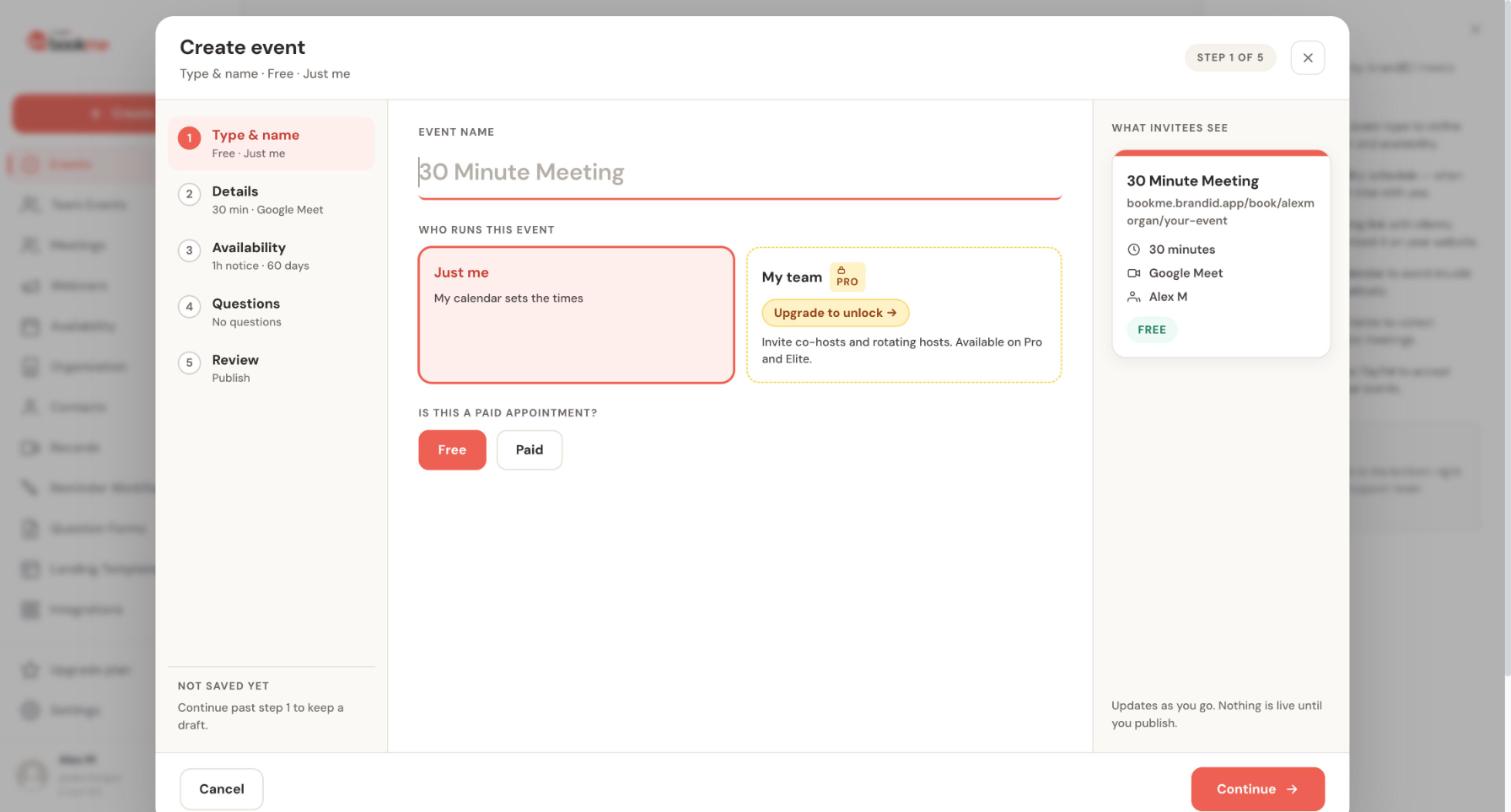
The wizard has five steps, listed on the left: Type & name, Details, Availability, Questions and Review. A What invitees see card on the right shows your event and its link as you type. Under Event name the field suggests 30 Minute Meeting; replace it with something descriptive.
Choose who runs it and whether it is paid
Who runs this event: Just me means your calendar sets the times. My team carries a PRO badge and reads “Invite co-hosts and rotating hosts. Available on Pro and Elite.”
Is this a paid appointment? Leave Free selected, or choose Paid to set a price, a currency and how you get paid. The guide on creating a paid event covers that setup.
Click Continue. Moving past step 1 saves a draft. Nothing is live until you publish.
Fill in the details (step 2)
The Details step covers:
- A description. An AI helper can draft one from a few words.
- The duration in minutes.
- The location: Google Meet, Zoom, brandID Meet, Phone call or In person. The wizard starts with 30 minutes and Google Meet.
- A colour, a cover image for the event card, and a private note that only you can see.
Set availability and limits (step 3)
The Availability step decides when the event can be booked:
- The schedule to use: your default, or another one you created.
- The booking window: how much notice you need, and how far ahead people can book (1 to 730 days). The wizard starts with 1 hour of notice and 60 days.
- Bookings per day, an optional cap for this event.
- Buffers before and after each booking.
- An option to let several invitees book the same slot, with a number of seats, for group sessions.
Add questions (step 4)
Name and email are always asked. In the Questions step you can start from a saved form or write new questions: short text, long text, dropdown, radio or checkbox, each optional or required. Click Skip for now to publish without questions.
If you chose a team event, the wizard also has a Hosts step for adding co-hosts.
Review and publish (step 5)
Check the summary and click Publish event.
The “is live” screen then shows your link, embed snippets, a QR code and share buttons. If you close the wizard before publishing, the draft stays private and you can finish it later.
Find your event and its link
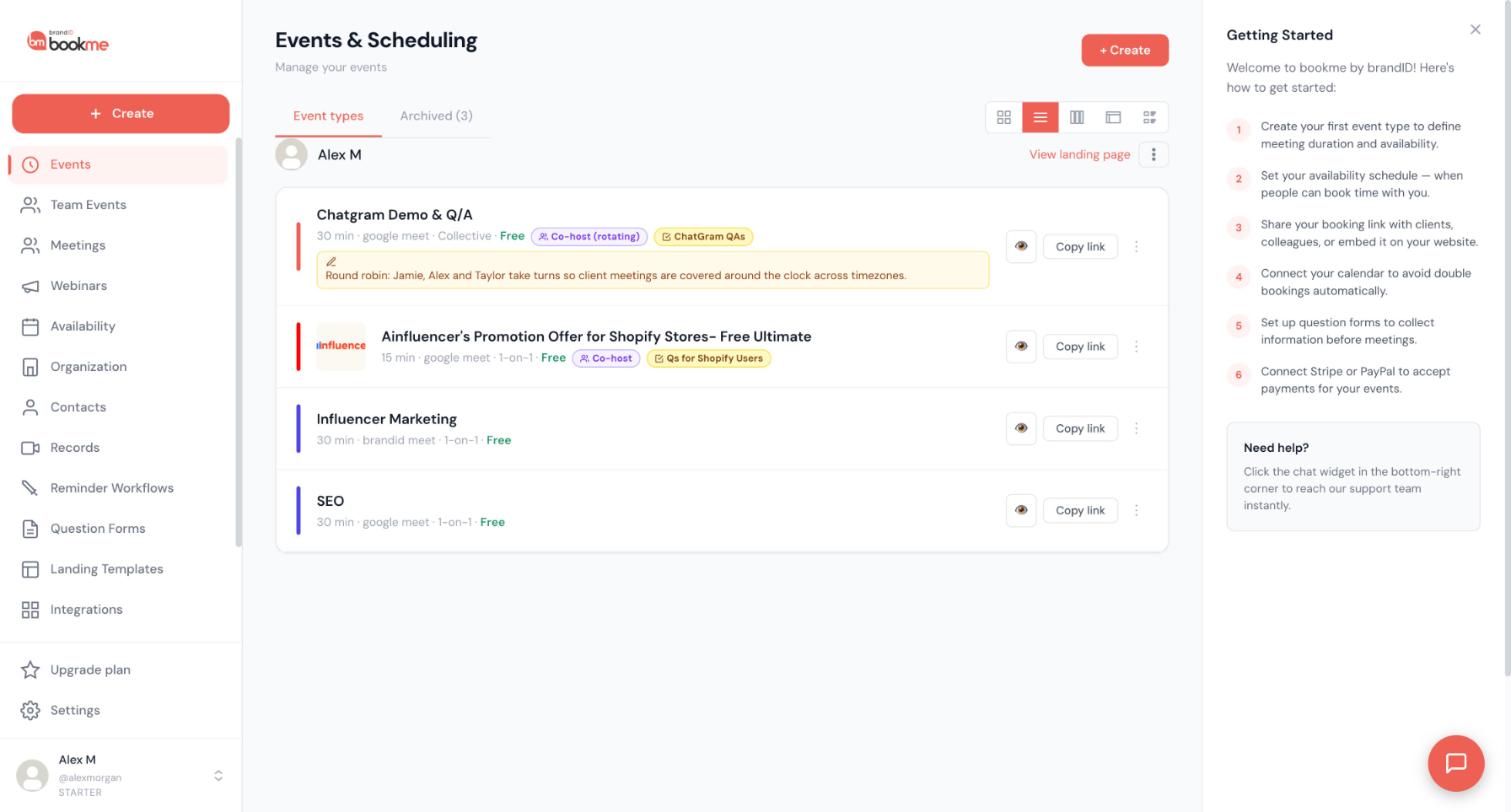
Back on the Events page, each event shows its duration, location, whether it is 1-on-1, and its price. Click Copy link to copy the event’s direct link, or the eye icon to preview it the way an invitee sees it. The three-dot menu holds more actions for the event.
Tips
- Duplicate an event before experimenting with a live one. Open the three-dot menu on the card and choose Duplicate; the copy keeps most settings but starts with no bookings.
- Archive an event to take it off your page without losing its past bookings. You can restore it later from the Archived tab.
- Give related events the same colour so your booking page reads as a set.
If something goes wrong
Invitees say they cannot see any available times.
First check the event is live: drafts and archived events do not accept bookings. Then check the schedule the event uses has at least one day switched on, and look at your date overrides, minimum notice and bookable-up-to window in the Availability step.
The My team option is locked.
My team shows a PRO badge and the text “Invite co-hosts and rotating hosts. Available on Pro and Elite.” On a free Starter account you can create solo events.
I closed the wizard and my event is not on my page.
An event you have not published is a draft. Drafts never appear on your booking page and their links do not work. Reopen the event from the Events page and finish the Review step.
Related how-to guides
Still stuck? We’re happy to help.
Create your bookme account, see pricing, or reach out to support directly.




