
Event Types
Create the meetings you offer: intro calls, paid sessions, team demos. Set duration, description, and rules.
An event type is a meeting you offer (“30 Minute Meeting,” a paid strategy session, a free discovery call). The six-step event wizard builds one in a few minutes and saves as you go, so you can stop and come back.
1. Open The Wizard
On the Events page click New event. The wizard opens with six steps: Type & name, Details, Availability, Hosts (team events only), Questions, Review. A preview card on the right shows the event page link as it will look (bookme.brandid.app/book/your-username/event-slug; the slug is made from the name).
2. Step 1: Type & Name
- Event name. The default is “30 Minute Meeting”; change it to something descriptive. The link slug follows the name until you publish.
- Who runs this event. Just me, or A team. Team hosting (Pro and Elite) then asks how the team hosts: everyone attends, teammates take turns, or required hosts plus a rotating pool.
- Is this a paid appointment? If yes: the price, the currency (USD, EUR, GBP, CAD, AUD, IRR), and how you get paid (the brandID payment gateway, your own Stripe, or your own PayPal).
The event is saved as a draft the moment you leave this step.
3. Step 2: Details
- Description, with a “write it for me” AI helper that drafts one from a few words.
- Duration in minutes.
- Location: Google Meet, Zoom, brandID Meet, Phone call, or In person.
- Color, a cover image for the event card, and a private note only you see.
4. Step 3: Availability
- Schedule to use (your default, or another one you created).
- Booking window: shortest notice (hours, days, or weeks ahead) and how far out people can book (1 to 730 days).
- Bookings per day (optional cap for this event).
- Buffers before and after.
- Let several invitees book the same slot, with the number of seats, for group sessions.
5. Step 4: Hosts (Team Events)
Invite co-hosts by bookme username or email, set your own part, and choose who is required and who rotates. Skipped for “Just me” events.
6. Step 5: Questions
Add the questions invitees answer when booking (name and email are always asked). Start from a saved form or write new questions: short text, long text, dropdown, radio, checkbox, each optional or required. Use Skip for now to publish without questions.
7. Step 6: Review And Publish
Check the summary and click Publish event. The “is live” screen gives you the link, embed snippets, a QR code, and share buttons. Queued co-host invitations are sent now.
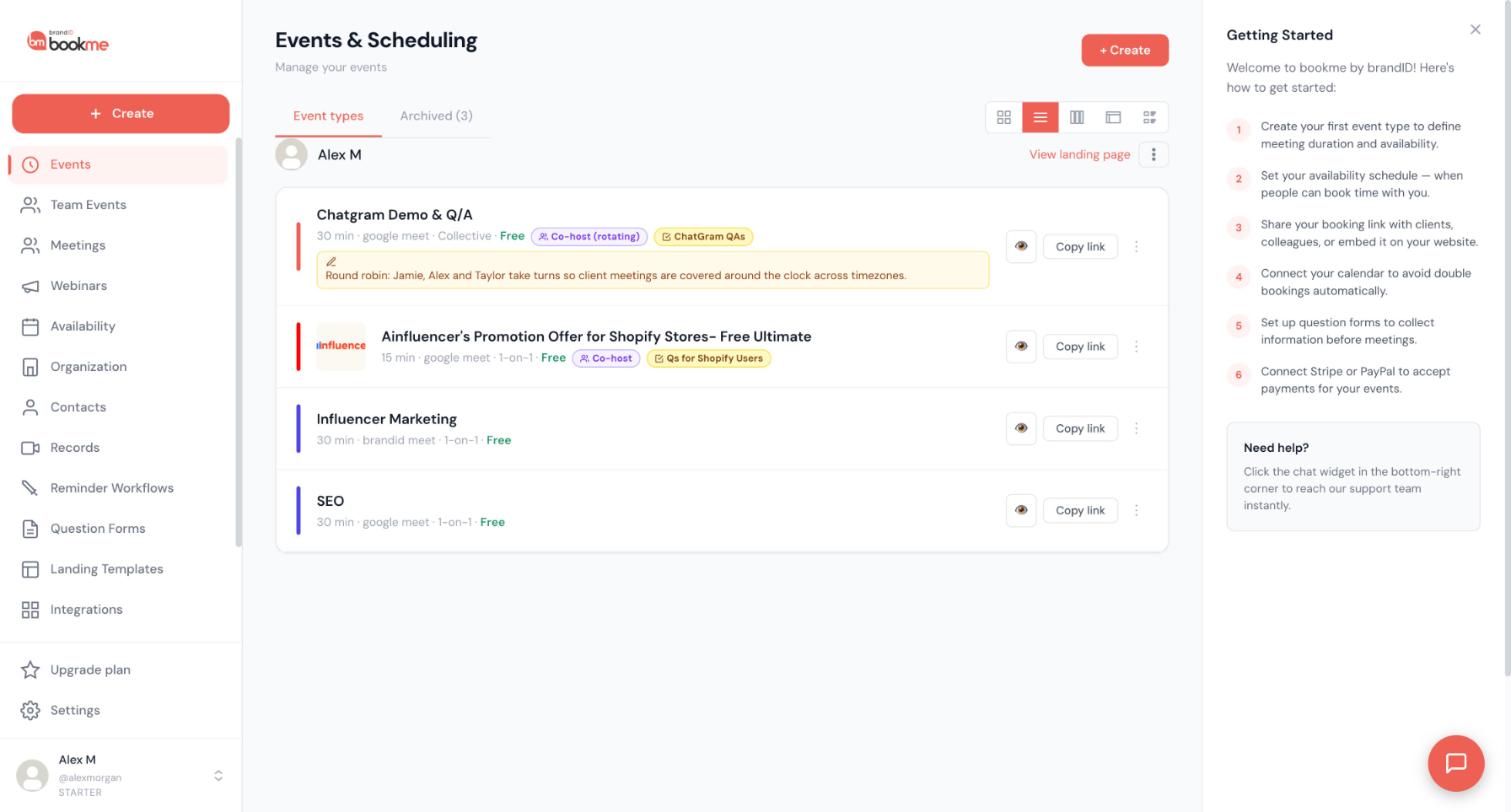
bookme event types differ in two ways: how many invitees share a slot, and how many hosts attend. Here is every combination and when to use it.
1. One-On-One
One host, one invitee per slot. The default for calls, consultations, and interviews. Available on every plan.
2. Group
One host, several invitees per slot. Turn on Let several invitees book the same slot in the Availability step and set the number of seats (2 to 1000). The slot stays open until the seats are taken, and the page shows how many are left. Use it for classes, office hours, and demos. Group events are listed on the Elite plan.
3. Team Events (Pro And Elite)
When you choose A team in step 1, you pick how the team hosts:
- Everyone attends (collective). All hosts are on every meeting. A slot is offered only when every required host is free. Use it for panel interviews and sales calls with an engineer.
- Take turns (round-robin). One host per meeting, chosen in rotation from a pool. Use it for inbound demo requests spread across a sales team.
- Required + pool. Some hosts always attend and one host from a rotating pool joins them.
Team events are created and listed on the creator’s booking page. Co-hosts can be on any plan; only the creator needs Pro or Elite.
4. Webinars
Webinars are not an event type. They live under Webinars: one fixed date and time, a registration page, invitation emails, and attendee tracking. See How To Create A Webinar? below.
5. Quick Comparison
| Type | Hosts on the meeting | Invitees per slot | Plan |
|---|---|---|---|
| One-on-one | 1 | 1 | All |
| Group | 1 | 2 to 1000 seats | Elite |
| Collective | All required hosts | 1 (or seats, if group) | Pro, Elite |
| Round-robin | 1 from the pool | 1 (or seats, if group) | Pro, Elite |
| Required + pool | Required hosts + 1 rotating | 1 (or seats, if group) | Pro, Elite |
A group event lets several people book the same slot, each with their own confirmation, reminders, and calendar entry. Use it for classes, workshops, office hours, and open demos. Group events are listed on the Elite plan.
1. Turn On Seats
In the event wizard, Availability step, tick Let several invitees book the same slot and set the number of seats (2 to 1000).
2. How Slots Behave
- Every booking of this event takes one seat. The slot disappears from the page when the last seat is taken.
- The booking page shows the remaining seats next to each time.
- Bookings of your other events at the same time still block the slot, so a one-on-one call and a group class never overlap.
- If your Google Calendar shows a busy block that is one of this event’s own bookings, bookme recognises it and does not count it as an extra conflict.
3. Each Attendee Is A Separate Booking
Every attendee gets their own confirmation email, reminders, follow-ups, and calendar invitation, and appears as their own row on your Meetings page. You can reschedule, cancel, or refund each of them individually. Cancelling one attendee does not affect the others.
4. Configure Privacy Between Invitees
Group events let attendees see each other’s names by default. Toggle off if you want:
- Show invitee list to attendees. If on, all attendees see a list of who else is coming on the booking confirmation. If off, names are private.
Common choices:
- Workshops and office hours: show names on. Helps the group feel like a community.
- Therapy or sensitive coaching: show names off. Privacy is essential.
5. Team Group Events
A team event can also have seats: several invitees join a slot that all required hosts (or the rotating host) attend.
6. Paid Group Sessions
Set a price in step 1; every seat is charged separately at checkout.
7. Picking The Right Conferencing Tool For Groups
For groups, the meeting tool matters:
- brandID Meet. Up to 50 attendees out of the box. Best for casual group sessions.
- Zoom. Up to 100 or 500 attendees depending on your Zoom plan. Best for larger workshops.
- Google Meet. Up to 100 attendees on most Google Workspace plans.
8. Test The Group Flow
Open your event in an incognito window and “book” two test invitees at the same slot using two different emails. Confirm:
- Both bookings appear on your dashboard.
- Both invitees receive their own confirmation email.
- The calendar event shows both attendees.
- The slot shows the right remaining-seats count.
A round-robin event sends each new booking to the next available host in a pool. It is a team event, so the creator needs Pro or Elite to take it live; co-hosts can be on any plan.
1. Create The Event As A Team Event
In the wizard, step 1, choose A team and then Take turns (or Required + pool if some hosts must always be there). On Starter the My team option is locked in the wizard; the one exception is a team event you set up during onboarding, which is saved on the Events page marked Needs Pro: open it with Edit and the team choices are all there, but it publishes only after an upgrade (or as “Just me”).
2. Add The Rotating Hosts
In the Hosts step, add teammates by bookme username or by email. Each becomes a member of the rotating pool. People without a bookme account get an invitation email; they join the pool once they sign up and accept.
3. Choose Your Own Part
My part in this event decides what the creator does:
- Attend every booking: you are on every meeting and your calendar limits the times.
- Take turns: you are one more member of the rotation, with an equal share.
- Backup only: you take a booking only when nobody in the pool is free. Marked Default once a rotating host is on the event.
- Do not host: your calendar is ignored and your co-hosts take every booking.
Take turns and Backup only need a rotating host, so they stay greyed out (with “Add a rotating host first” on the card) until you invite someone and set them to Rotating; the Invite a rotating host button under the cards opens the invite box already set to Rotating. Do not host needs a co-host who has accepted your invite (after you publish, for a new event). Until a rotating host accepts, you attend every booking whatever you picked, so no booking is ever left without a host.
4. Understand How Hosts Are Chosen
Each rotating host is offered only when they are free in bookme and in their connected Google Calendar. Availability is always the first filter: a host who is not free at that time is never assigned. The event creator can lock a host’s availability so that host is always considered available (useful for a shared support line), or set a specific schedule for a host on this event.
5. Decide Whether Invitees Can Pick A Host
By default, the invitee sees the round-robin slot pool and bookme assigns the host automatically. You can also let the invitee pick a specific host:
- Auto-assign (default). Invitee sees time slots only; host is decided behind the scenes.
- Let invitee pick. Invitee sees a “Pick your host” step before time slots. The picked host’s availability is shown.
Auto-assign is the more common choice because it forces fair distribution.
6. Publish
Invitations queued while the event was a draft are sent on Publish. Pending hosts do not take bookings until they accept.
7. Conferencing
Pick the conferencing tool for the event. If you choose Zoom, every team member needs Zoom connected. If you choose Google Meet, every team member needs Google Calendar connected.
8. Handle Reschedules And Cancellations
By default, when a booking is rescheduled or cancelled, the same host stays assigned (so the invitee deals with the same person). If you want the rotation to fully reset, set Reset host on reschedule to Yes.
9. What Invitees See
The event appears on the creator’s booking page with the hosts listed. The invitee picks a time; bookme assigns the host at booking time and puts that host’s name and calendar on the confirmation.
10. Test The Round-Robin
Open the event in an incognito window. Book a few times in a row with different test emails. Confirm:
- Bookings land on hosts who are free at the time you picked.
- Each booking lands on the right host’s calendar.
- Confirmation emails reflect the assigned host’s name, photo, and contact info.
A collective event puts every required host on every meeting. bookme offers only the times when all of them are free. The creator needs Pro or Elite to take it live (a collective event set up during onboarding on Starter is kept as a locked draft until then).
1. Create The Event As A Team Event
Step 1: choose A team, then Everyone attends. Every host you add is required: all of them attend every booking. If you need one host to always attend plus one from a rotating pool, use Required + pool instead (a separate team-hosting choice; see What Is The Difference Between One-On-One, Group, Round-Robin, And Collective Events?).
2. Add The Hosts
In the Hosts step, add each teammate by username or email. Someone without a bookme account is emailed an invitation and joins after signing up.
3. Your Own Part
Choose whether you attend every meeting (required) or only organise it. If you do not attend, one of the attending hosts becomes the organiser for the calendar event and the meeting link.
4. How Availability Is Combined
- A slot is offered only when every required host is free, according to each host’s own schedule and Google Calendar.
- All hosts are placed on one shared time grid (the creator’s schedule time zone) so a 60-minute slot means the same hour for everyone.
- A host whose availability the creator has locked attends but does not restrict the offered times.
This means collective events often have fewer available slots than 1:1 events. That is by design.
5. Calendar And Meeting Link
The organiser’s calendar holds the invitation with the invitee, the other hosts, and any guests on it. Every other host gets their own private copy of the event on their calendar. One meeting link is shared by everyone.
6. Common Uses
Panel interviews, sales calls with a solutions engineer, onboarding calls with account manager and support together.
7. Reschedule Behavior
When the invitee reschedules, the original hosts stay assigned and the new time must still fit every required host.
8. Test The Collective Flow
Book a test slot. Confirm:
- Every required host shows on the calendar event.
- The single meeting URL works for everyone.
- Reminders fire for the invitee and all hosts.
A webinar is a one-time (or repeating) session at a fixed time with a registration page, invitation emails, and attendee tracking. It lives under Webinars, separate from event types.
1. Open Webinars
Click Webinars in the sidebar and then New webinar. Choose how it is set up:
- Dedicated: a standalone session with its own public registration page.
- Linked: attached to one of your event types, so registrations come through that event’s booking page.
2. Fill In The Basics
Title, description, cover image, date and time, time zone, duration, and the meeting type: Google Meet, Zoom, brandID Meet, or a custom URL (with optional dial-in and passcode). A slot capacity override lets a linked webinar accept more seats than the event normally does.
3. Repeats
A webinar can be one-time, daily, weekly, monthly, or every N days.
4. Attendees
Under the Attendees tab add people by email (with an optional name) or let them register through the public page. Each registration also creates a booking on your Meetings page, marked with a Webinar chip, so the attendee gets the same confirmation and reminders as any booking.
5. Emails
The Emails tab holds your templates (invitation, reminder, follow-up) with a subject, body, a “Join the webinar” button, and an unsubscribe link, and a When to send setting. The Send tab sends a template now or on schedule to the attendees. Opens, clicks, and RSVPs are tracked per attendee.
6. Plan Limits
| Plan | Webinars | Attendees per webinar | Invite emails / month | Overage |
|---|---|---|---|---|
| Starter | 1 | 10 | 100 | $0.20 per extra attendee, $1 per extra 1,000 emails |
| Pro | 2 | 20 | 1,000 | $0.50 per extra attendee, $0.60 per 1,000 extra emails |
| Elite | Unlimited | Unlimited | 5,000 | $1 per 1,000 extra emails |
Duration lives in the Details step of the event wizard; buffers, notice, and the booking window live in the Availability step. Together they decide which times your page offers.
1. Duration
Details step, Duration in minutes. Slots are offered in steps of the duration from the start of each availability window: a 30-minute event in a 9:00 to 12:00 window offers 9:00, 9:30, 10:00, and so on.
Pick the smallest duration that lets you do good work. Most “60-minute discovery calls” finish in 35. Shorter durations mean more bookable slots in a day.
2. Buffers
Availability step, Buffers: padding kept free before and after each booking of this event (pick a preset or type a custom number of minutes). A 30-minute call with a 15-minute buffer after it makes the next slot start 45 minutes later.
3. Shortest Notice
Availability step, Booking window, Shortest notice: how far ahead a booking must be made, in hours, days, or weeks. “2 hours ahead” hides everything that starts within the next two hours.
4. Bookable Up To
Bookable up to N days out (1 to 730). Nothing beyond that horizon is offered.
5. Bookings Per Day
An optional cap on how many bookings of this event can land on one day. Leave it empty for no cap.
6. How They Combine
A time is offered only if it fits your schedule (and any date override), is free in bookme and in your connected calendar, respects buffers, is after the notice period, is inside the horizon, and the day is under its cap. Group events also need a free seat; team events need every required host free.
A daily cap keeps an event from filling a whole day. bookme caps per day per event; there is no weekly cap.
1. Set The Cap
Open the event in the wizard, go to the Availability step, and fill in Bookings per day. Leave it empty for no cap.
Example: a “60-minute paid coaching” event with Bookings per day = 3 means once 3 sessions are booked for Monday, no more Monday slots appear on the booking page (other days still show normally).
2. How It Counts
- Only confirmed bookings (and checkouts in progress) of this event count, on the day they fall in your schedule’s time zone.
- Once the cap is reached, the rest of that day is no longer offered. Other days are not affected.
- Bookings of your other events do not count towards this event’s cap, but they still block overlapping times.
3. Group Events
Each attendee’s booking counts as one. A class with 10 seats and a cap of 2 closes the day after two attendees book, so set the cap in seats, not sessions, or leave it empty for group events.
4. Weekly Caps
There is no weekly limit. To limit a week, narrow the schedule the event uses (for example, a “Discovery calls” schedule with hours on Tuesdays and Thursdays only).
Duplicating copies an event’s settings into a new event so you can offer a variation (a longer version, a paid version, a different language) without rebuilding it.
1. Duplicate From The Card Menu
On the Events page open the menu on the event card and choose Duplicate. The copy appears in your list with “(copy)” in its name and a new link slug.
2. What Is Copied
Name, description, duration, location, color and cover image, price and payment settings, buffers, notice, booking window, daily cap, group seats, the schedule it uses, and the question form link.
3. What Is Not Copied
Bookings (the copy starts empty) and, for team events, the co-hosts: a duplicate of a team event starts as your own event, so add the hosts again in the wizard.
4. Edit The Copy
Open the copy in the wizard, rename it, adjust what differs, and publish. The original stays untouched.
5. Bulk Duplicate For Teams
On Elite, you can clone an event across multiple team members at once. Pick Duplicate to team member from the menu and select recipients. Each gets their own copy, scoped to their availability.
Every event is live, a draft, or archived. Here is how to move between the three.
1. Draft To Live
Open the draft (Events page, Drafts tab), walk to the Review step, and click Publish event. The event appears on your page and its link starts working.
2. Live To Archived
On the event card menu choose Archive. The event leaves your page immediately; its link stops working. Bookings already made are unaffected and stay on your Meetings page.
3. Archived To Live
Open the Archived tab and click Restore on the event.
4. Live To Draft
There is no “unpublish to draft.” Archive the event instead; edits you make to an archived event are kept and it returns to live when restored.
5. Delete
From the Archived tab you can delete an event permanently (one at a time, or all archived events at once). Past bookings keep their records.
An event type belongs to one host and appears on that host’s booking page. Two features let several people share one booking experience: team events and organization team pages.
1. One Event, Several Hosts: Team Events
A collective or round-robin event is one event type, owned by its creator, with several hosts attached. It appears on the creator’s page only. Co-hosts share its link; they do not get a copy on their own pages.
2. Several Hosts, One Page: Team Booking Pages
Organizations can create teams and get a team page at bookme.brandid.app/team/your-team-slug that lists the members and their events in one place. Each member’s events remain their own.
3. The Same Setup For Several People: Managed Events
Organization owners and admins can create a managed event template and assign it to members. Each member gets their own copy of the event (with the sections you locked kept in sync), on their own page.
4. Solo Accounts
If you simply want one event visible from two places, share or embed its direct link in both places. The link always points at the one event.
Each event has its own color and an optional cover image. Both are set in the Details step of the event wizard. There are no event icons.
1. Color
Pick one of the swatches under Color. The color tints the event card on your booking page (how strongly depends on the template), is the dot next to the event in your Meetings list, and colors the avatar in booking details.
2. Cover Image
Under Cover image upload a landscape image (you can crop it). Templates with visual cards (Showcase, Bento Grid, Timeline, Corporate) show it on the event card; others show the color only. The image is also used on the event’s own page.
3. Private Note
The same step has a Private note field: a reminder for yourself on the event card (“Send the pricing deck first”). Invitees and co-hosts never see it.
Two questions decide it: who hosts (just you, any one of a team, or several people together) and how many invitees share a slot (one or many).
| Who hosts | Invitees per slot | Meeting type |
|---|---|---|
| Just you | One | One-on-One |
| Just you | Many | Group |
| Any one of several people | One | Round-Robin |
| Several people together | One | Collective |
Round-robin offers a time when at least one host is free. Collective offers a time only when every required host is free, so it has fewer times. See How Scheduling Works and Scheduling Playbooks.
Still stuck? We’re happy to help.
Create your bookme account, see pricing, or reach out to support directly.




