
How to choose what an AI app may do
Each connected AI app has its own access level. You can keep it to looking things up, let it manage your account, or decide area by area.
Before you start
- An AI app already connected to bookme.
Open the connected app
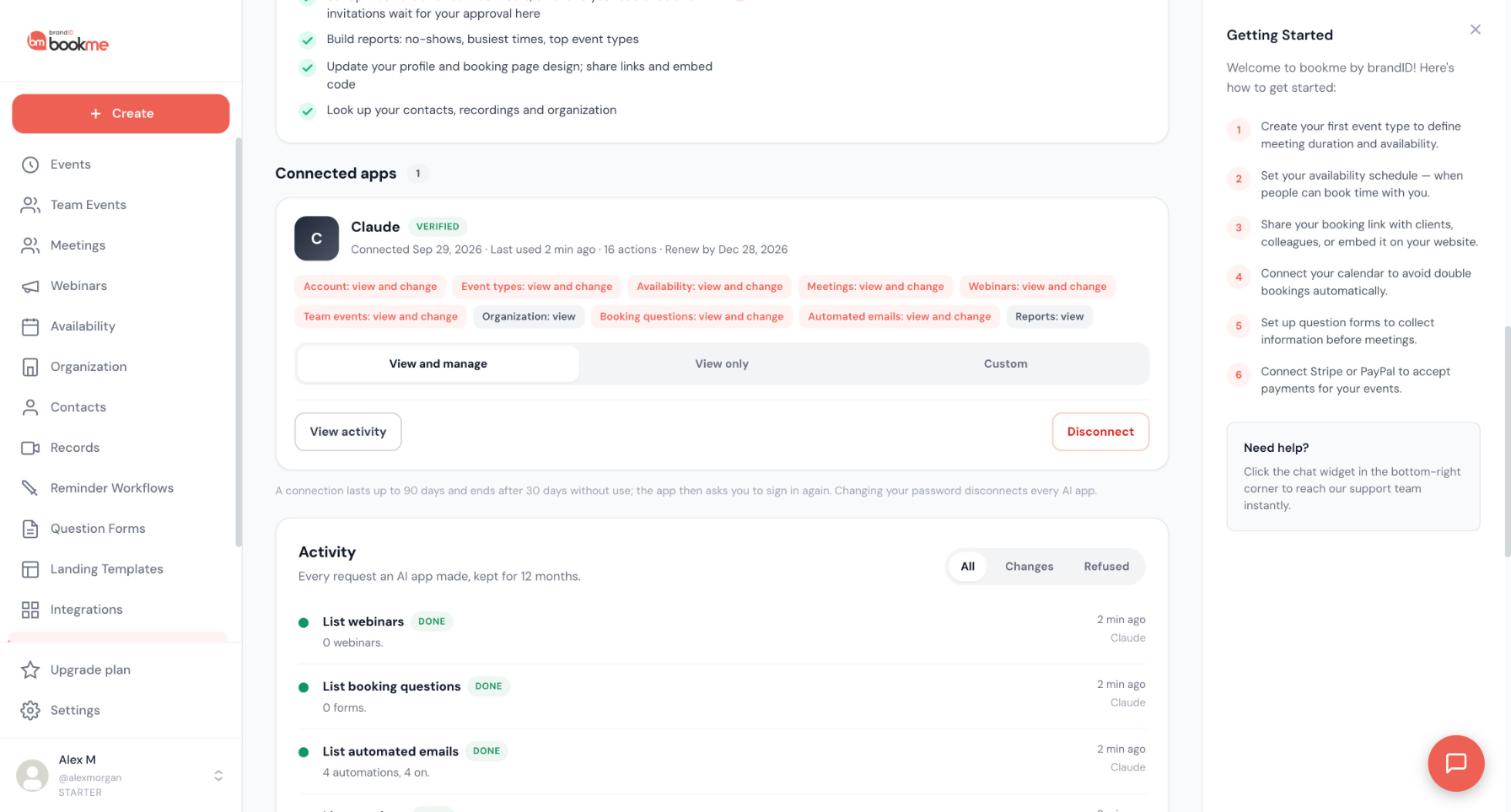
In bookme click AI Assistants in the sidebar and scroll to Connected apps. Each app shows small chips that say what it may do in each area, such as Event types: view and change or Reports: view.
Pick a level
- View only: the app can look things up and change nothing. It is the default for apps bookme cannot identify.
- View and manage: the app can also change your own settings, within the limits below.
- Custom: you decide area by area.
Click Save access when you are done. The change takes effect on the app’s next request.
Know the areas
These are the areas and what each lets an app do. The first part is looking things up, the second part is changing.
- Account: view profile, time zone, plan limits and connected calendars and apps. Change name, bio, time zone and booking page design; contact links need your approval.
- Event types: view event types, links and embed code. Create, edit, duplicate, pause and delete unused drafts.
- Availability: view schedules, days off and open times. Change weekly hours and date overrides.
- Meetings: view meetings, notes, follow-up previews, contacts and the recordings list. Change notes and outcomes, cancel, reschedule and manage guests.
- Webinars: view webinars, registrants and email results. Create and edit, repeat, add people and draft emails.
- Team events: view team events, co-hosts and invitations. Change co-hosts, organizer, parts and invitations.
- Organization: view members, roles, team pages and managed events, never billing. Changes are not available.
- Booking questions: view forms. Create, edit and attach them.
- Automated emails: view automations. Create, edit and turn them on or off.
- Reports: view meetings, no-shows, busiest times and top event types. Changes are not available.
Remember what no access level allows
Whatever you choose, an AI app can never change payments, plans, billing, refunds or payouts, your password, email or sign-in methods, your connected calendars, video and other apps, your organization, its members or billing, its own access, or delete your account. Paid meetings are never cancelled by an AI app and it never issues refunds.
Even with change access, requests that reach other people ask you first or wait for your approval in bookme. See the guide on approving AI requests.
Check the result
After saving, the chips on the card update. If you want to see what the app has already done, click View activity on its card. Click Disconnect to remove the app completely.
Tips
- Use View only for a first week with a new app, then give change access only to the areas you need.
- Custom is useful when you want help with meetings but not with your event types or team.
If something goes wrong
The app says it is not allowed to do something.
I cannot give an app access to billing or my account sign-in.
Related how-to guides
Still stuck? We’re happy to help.
Create your bookme account, see pricing, or reach out to support directly.




