
How to use the live Conversations inbox
Read every fan thread in one place, see which campaign started it, filter the list and reply by hand when a person should take over.
Before you start
- A connected account with at least one live campaign, so conversations exist
Open Conversations
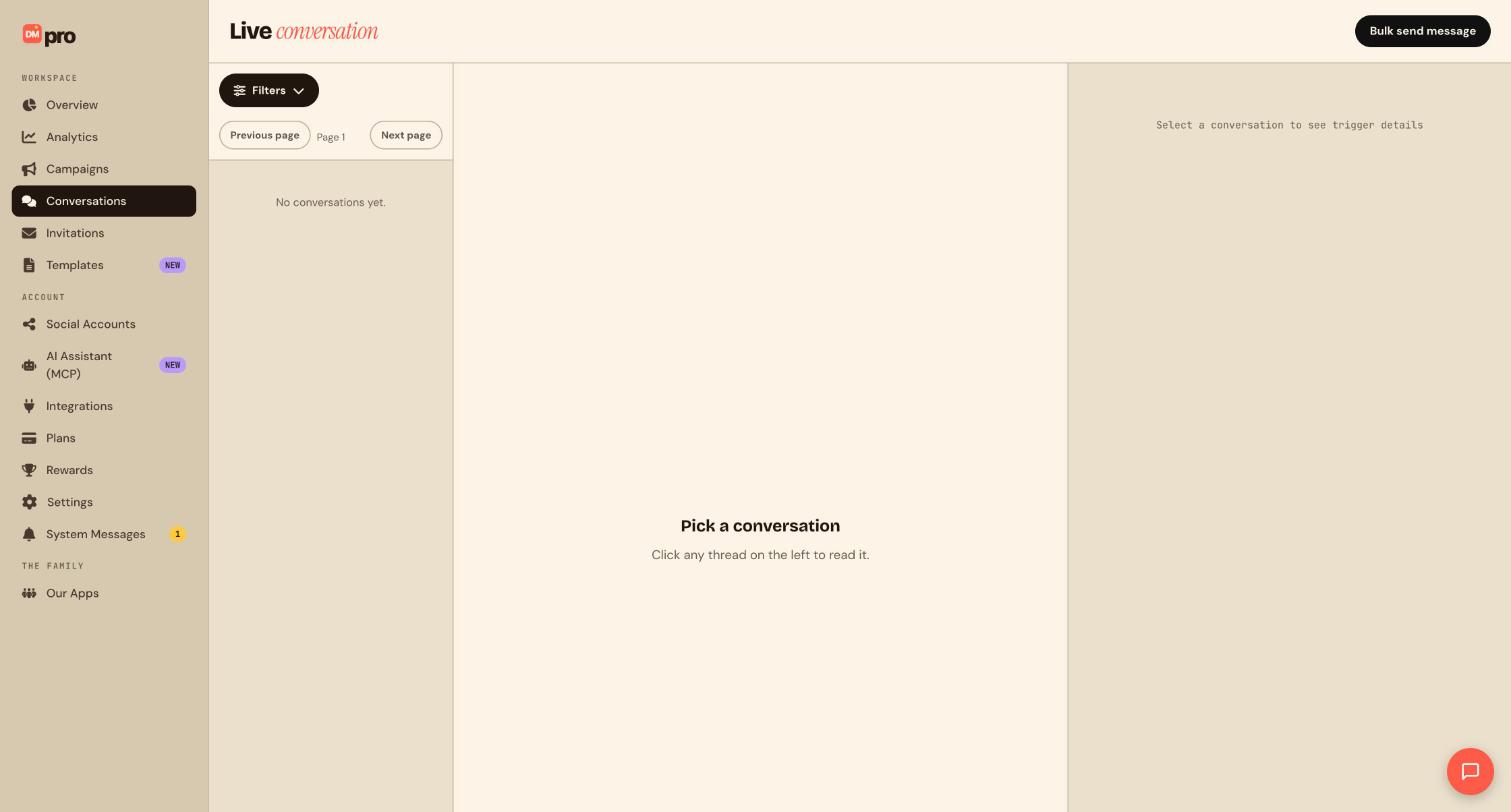
Click Conversations in the WORKSPACE section of the sidebar. The page is titled Live conversation. Threads appear here as fans interact with your campaigns. Until the first one, the list says No conversations yet.
Learn the three panes
The inbox has three panes. On the left is the list of threads, with a Filters button and Previous page and Next page buttons. In the middle you read the messages of the thread you picked (Click any thread on the left to read it). On the right, DMpro shows the trigger details for that conversation. The inbox groups threads by fan across platforms.
Filter the thread list
Click Filters to narrow the list, for example by platform, by campaign or by the teammate a thread is assigned to. Use the page buttons to move through long lists. If you handle many chats, filter by campaign to see everyone who answered one Reel.
Open a thread and read the context
Click a thread. You see the full message history, including photos and videos fans sent, which load inside the thread. Messages written by AI carry an AI tag. If a message contained a tracked link, an affiliate icon shows the destination and whether that fan clicked. The trigger panel on the right tells you which campaign and trigger started the conversation.
Reply by hand when you need to
Type in the reply box at the bottom of the thread and send. Some platforms only allow a reply inside their messaging window (24 hours on Instagram, 48 hours on TikTok), and DMpro shows a banner when a thread is outside it.
Find messages that did not match a campaign
Some incoming events appear as Ignored because no campaign matched. Click the badge to see why, such as a keyword mismatch, a paused campaign, a frequency cap or an Only followers rule. This is the fastest way to debug a campaign that seems silent.
Organize and share the work
Keep the inbox tidy by saving a filtered view as a list you can return to, or by selecting several threads to answer them together. To pass a thread to a colleague, see the guide on handing a conversation to a teammate. To message many fans at once, see the bulk message guide.
Tips
- Check Ignored events after you publish a campaign. They show you what fans type that you did not plan for.
- Hand a thread to a person when an AI reply is not enough, so the fan is not left waiting.
If something goes wrong
The inbox says No conversations yet.
Conversations only appear after fans interact with a live campaign on a connected account. Connect an account, publish a campaign and trigger it from a second account.
A fan wrote in but my campaign did not answer.
Open the thread and click the Ignored badge. It names the reason, such as keyword spelling, a paused campaign, a frequency cap or an Only followers rule.
I cannot reply to an older thread.
The platform’s messaging window has closed (24 hours on Instagram and Messenger, 48 hours on TikTok). You can reply again after the fan writes to you.
My TikTok DM did not show up.
Check the keyword in the Direct Message trigger and that Business Messaging is enabled on the account, then look for the thread in this inbox.
Related how-to guides
Still stuck? We’re happy to help.
Create your DMpro account, see pricing, or reach out to support directly.




