
How to export the emails and phone numbers fans share
See which fans handed you an email address or phone number through your automations, and export the list for the period you choose.
Before you start
- A published campaign that asks fans for an email or phone number
- Permission from your fans to contact them, and a plan for how you will store and use the data
Open the Shared emails and phone numbers card
Click Analytics in the sidebar and scroll to the third card, Shared emails and phone numbers. At the top right of the card you will see the period and an Export button.
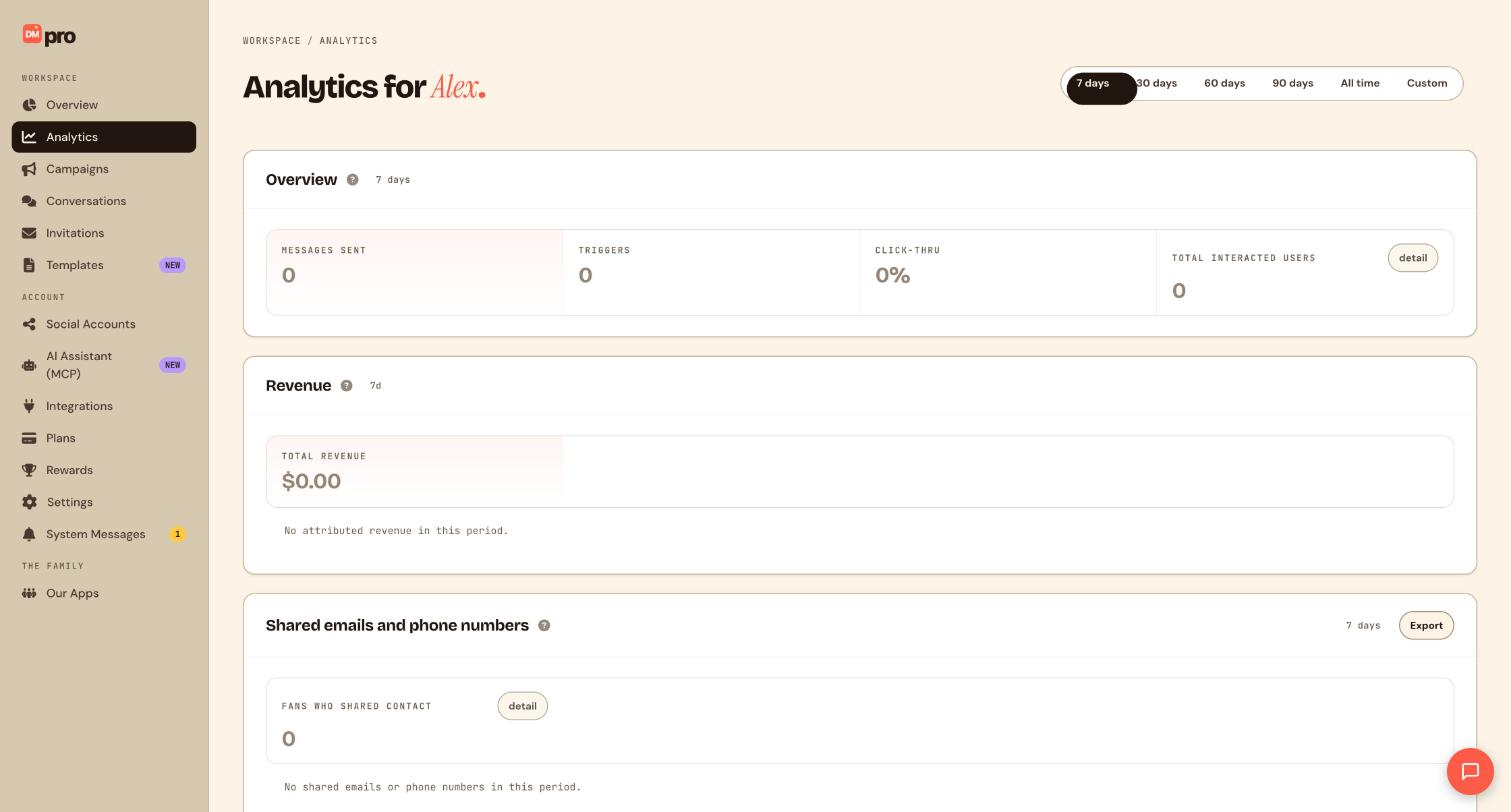
Set the date range first
The export follows the period shown beside the Export button. Use the pill at the top of the page (7 days, 30 days, 60 days, 90 days, All time or Custom) to choose it before you export.
Exporting a short, regular period such as the last 7 days, once a week, is easier to keep track of than one huge export.
Check who is included
The card shows Fans who shared contact with a count. Click detail to see the contacts behind that number. If nobody shared anything in the period, the card says No shared emails or phone numbers in this period and there is nothing to export.
Click Export
Click Export to take the shared contacts for that period out of DMpro as a file. Open the file and check that the contacts look right before you import them anywhere else.
These are personal details. Only use them for what the fan agreed to, keep the file somewhere safe, and delete it when you no longer need it. Do not put a fan’s email or phone number into a message to someone else.
Collect more contacts with a campaign
Fans only appear here if a campaign asked for their details. The flow step to use is Wait for reply: it pauses the flow until the fan answers and can capture an email address or a phone number from the reply. Put a message step before it so the fan knows what to send, for example “Reply with your email and I will send you the guide.”
On Telegram you can also ask the fan to share their phone number with a button, using the Request contact step. The Templates page has Lead capture starters such as the Newsletter template with the keyword LIST that you can adapt.
Tips
- Tell fans what you will do with their details in the same message that asks for them. It builds trust and keeps you on the right side of privacy rules.
- A connected AI assistant with the Performance and revenue permission can read the shared contacts, but it will not put them into messages or campaigns unless you ask it to.
- Run the export on the same day each week so you always know which period you have already handled.
If something goes wrong
The card says No shared emails or phone numbers in this period.
Either nobody has shared contact details yet, or the date range is too short. Try 30 days or All time. If you still see nothing, check that your campaign actually asks for an email or phone number with a Wait for reply step and that the campaign is published.
A fan replied with text that is not an email address.
The step can only capture a reply that looks like the type you asked for. Make the question specific, for example “Reply with your email address”, and keep the message short.
Related how-to guides
Still stuck? We’re happy to help.
Create your DMpro account, see pricing, or reach out to support directly.




