
How to unlock a list and send it to the extension
Spend lead credits to unlock your selection, then send the list to the contactID extension so it is ready to run. Unlocking often takes seconds.
Before you start
- A saved or ready selection from Find websites
- Enough lead credits (the selection card shows what is needed)
- The contactID Chrome extension installed in this browser and signed in to the same account
Check your selection and balance
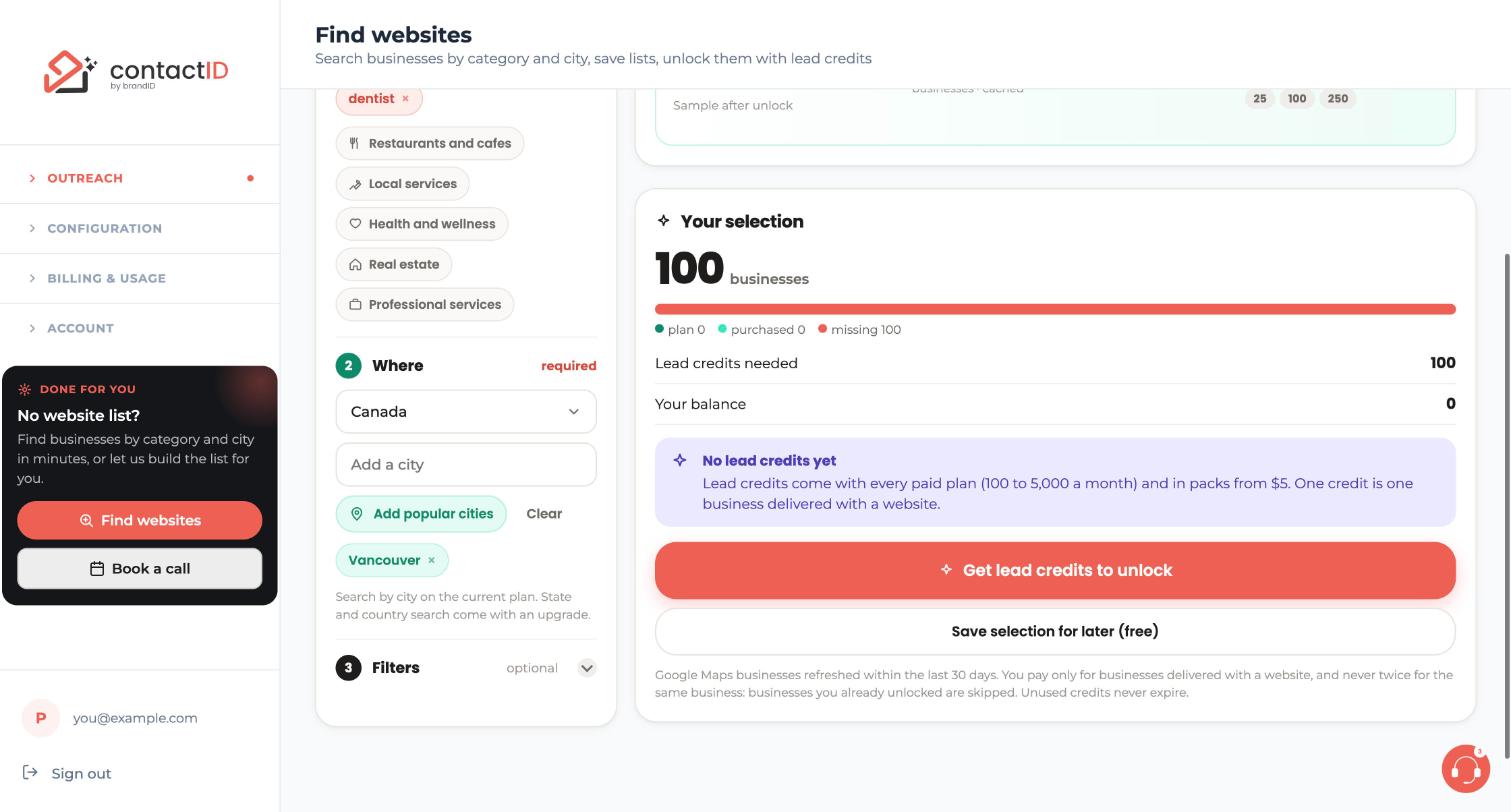
On Find websites, scroll to Your selection. Compare Lead credits needed with Your balance. In this example the balance is 0, so the button reads Get lead credits to unlock and a message says that one credit is one business delivered with a website.
If you are short, you see exactly how many credits are missing and the pack that covers it. After payment the unlock continues by itself.
Press Unlock
Press Unlock. The credits are reserved and the businesses are fetched, from the contactID catalog first, so it often takes seconds. One credit is used for each business delivered with a website. Anything that could not be delivered is released back to you.
Watch the list work
The list card shows a moving bar with the number delivered so far, the stage (Reserve, Ask provider, Receive, Finish), the city and categories being fetched, and the time elapsed. You can leave the page: the unlock keeps going and the list turns Ready on its own.
If a category could not be fetched, the others still deliver and the card says which one failed. You pay only for what was delivered.
Find the list on the Lists tab
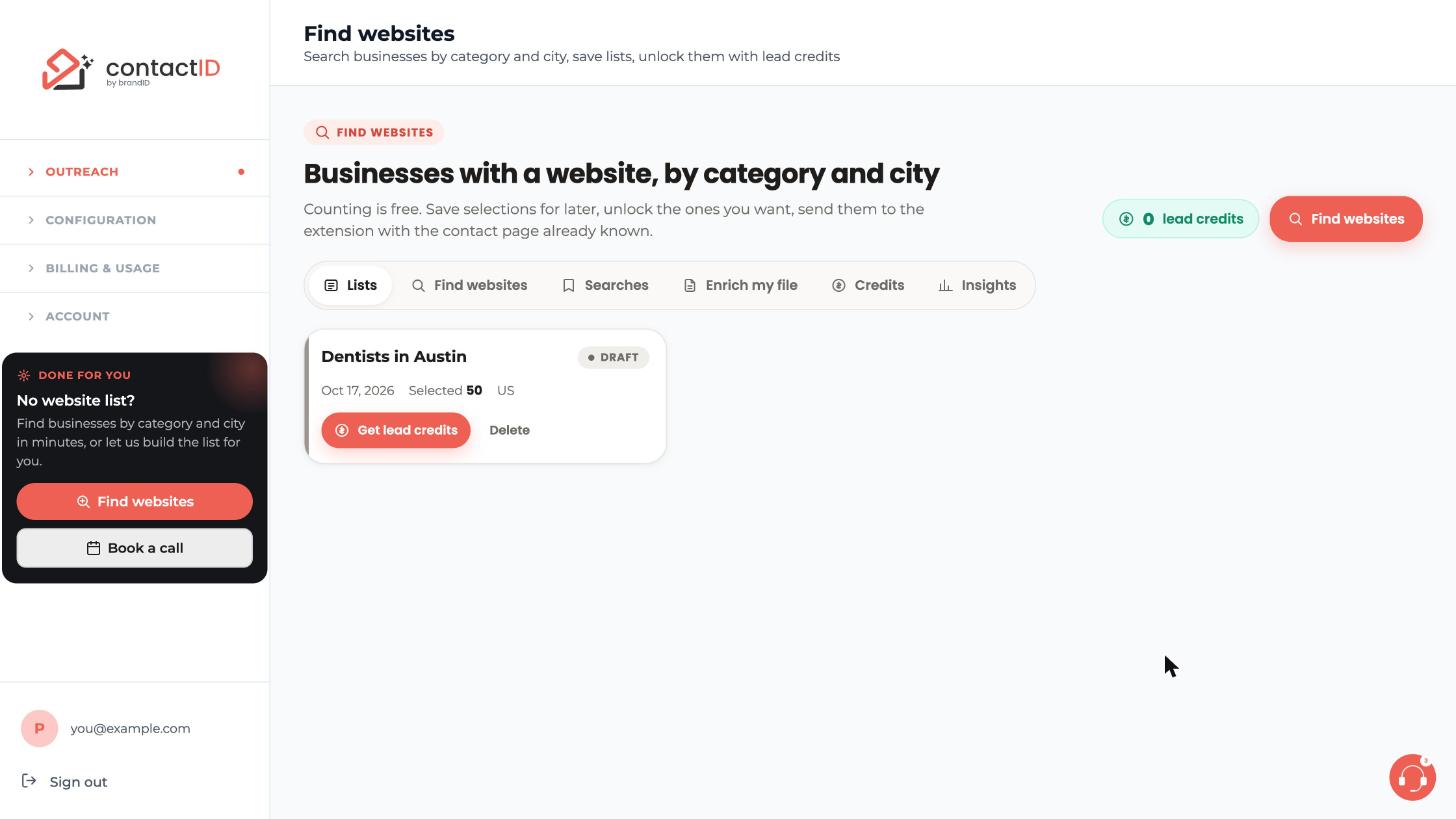
Open the Lists tab. Every list is a card with its name, the date, the quantity selected, the country and a state pill: Draft, Unlocking, Ready, Imported or Failed. In this example the card is still a Draft. Yours should read Ready once the unlock is finished.
Leave out businesses you do not want
Open the list page and untick any business you do not want to contact. Unticked rows are left out when you send, and so are listings that should not be contacted.
Press Send to extension
Press Send to extension on the list card or on the list page. Three things happen: the extension opens by itself, the businesses whose contact page is already known go straight into your queue without checking, and businesses with only a home page go through the normal contact page check first.
A note on the Lists tab tells you the numbers: how many were added, how many were queued right away, how many are being checked, and whether two businesses shared one website (that website is sent once).
Check what arrived in the extension
The extension’s side panel opens on the Targets tab and adds the websites. Your do-not-contact list and Targeting settings still apply, and anything they skip shows under By your settings without using a credit. If a run is sending or paused, nothing is added: finish or stop the run, then add the list from My lead lists with Re-add not sent.
Review everything, then press Start
Before you start, check your Agent, your targets and your message. Businesses from a list also carry merge fields such as {{lead_name}} and {{lead_city}}; use them in the message body, not in the subject line.
When the queue is ready and you are happy with all three, press Start on the extension’s Send tab.
Tips
- Save the selection first (free) if you want to think about it. Nothing is spent until you unlock.
- Use Find new places to go back to a search later without paying for the same business twice.
- Results per business show on the list page in the contactID column: sent, failed or not sent.
If something goes wrong
The extension did not open after I pressed Send to extension.
If the extension is not installed in this browser, open it in the browser where it is, signed in to the same account. Within 10 minutes of sending it starts adding the list by itself, and after that it asks whether to resume it.
Nothing was added because a run is in progress.
If a run is sending or paused, the extension asks you to stop it or let it finish first. Then add the list from My lead lists on the Targets tab with Re-add not sent.
The unlock says I am short of credits.
The dialog shows how many are missing and the pack that covers it. After payment the unlock continues by itself. You can also add credits on the Credits tab.
The list shows Failed.
Nothing could be delivered and the credits were released. Try again, or archive the list.
Related how-to guides
Still stuck? We’re happy to help.
Install the extension, start a free trial, or reach out to support.




