
How to save and reuse a search
Save a selection for free, find it again on the Searches tab, reopen it in the finder or look for new places later. It takes about two minutes.
Before you start
- A search with a category, a city and a quantity (see How to find websites by category and city)
Build your search and set quantities
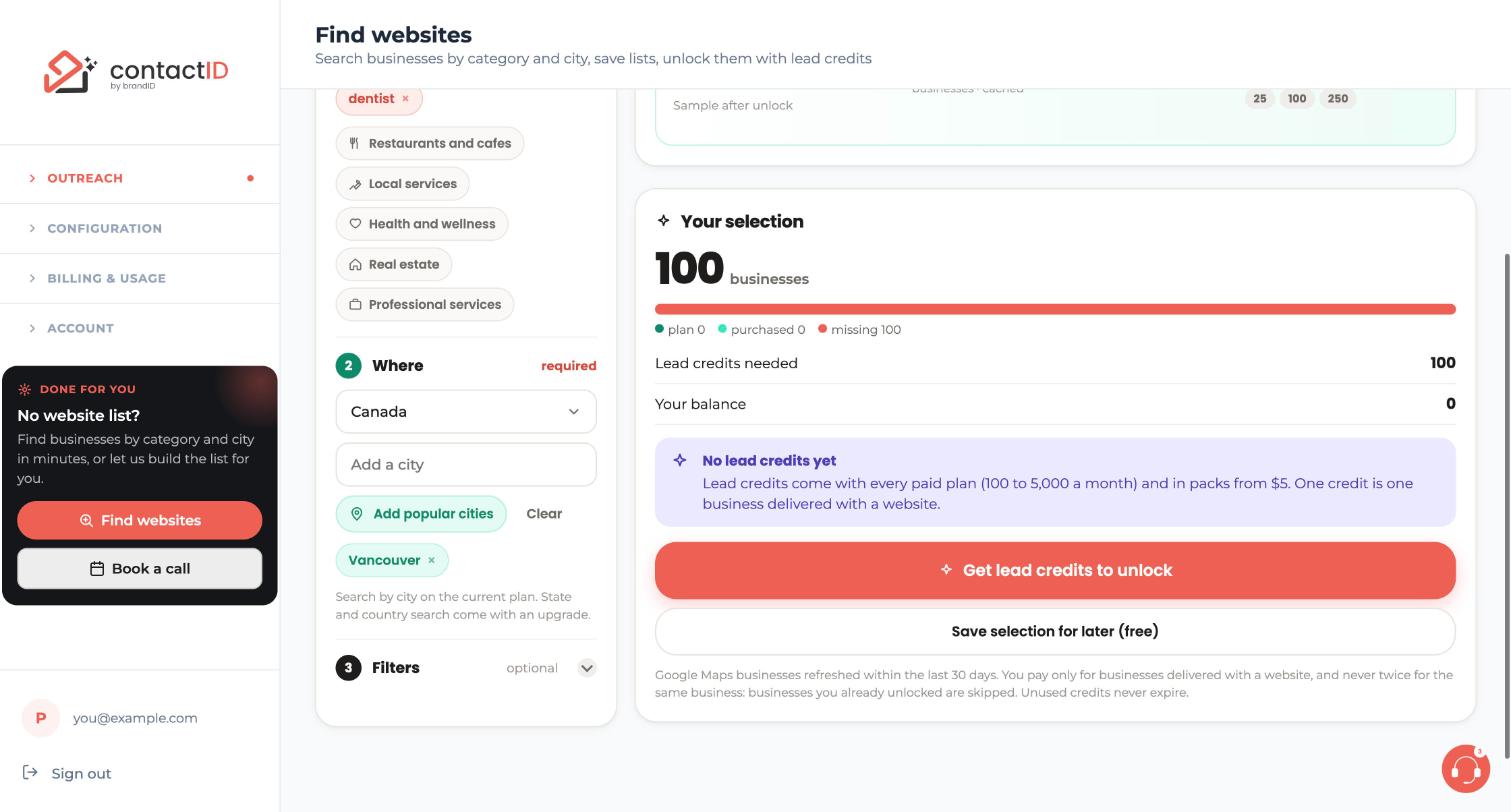
Open Outreach, then Find websites. Fill What and Where, optionally set filters, and set a quantity on each city card.
Save the selection for later
Scroll to the Your selection card and click Save selection for later (free). Nothing is spent.
Two things are created: the list is kept as a draft on the Lists tab, and its search is saved on the Searches tab.
Check the draft on the Lists tab
Click the Lists tab. Your saved selection is there as a card with the state Draft, the date and how many businesses you selected. A draft costs nothing and stays there until you unlock it or delete it. Its quantities cannot be edited, so to change them you reopen the search (see below).
Open the Searches tab
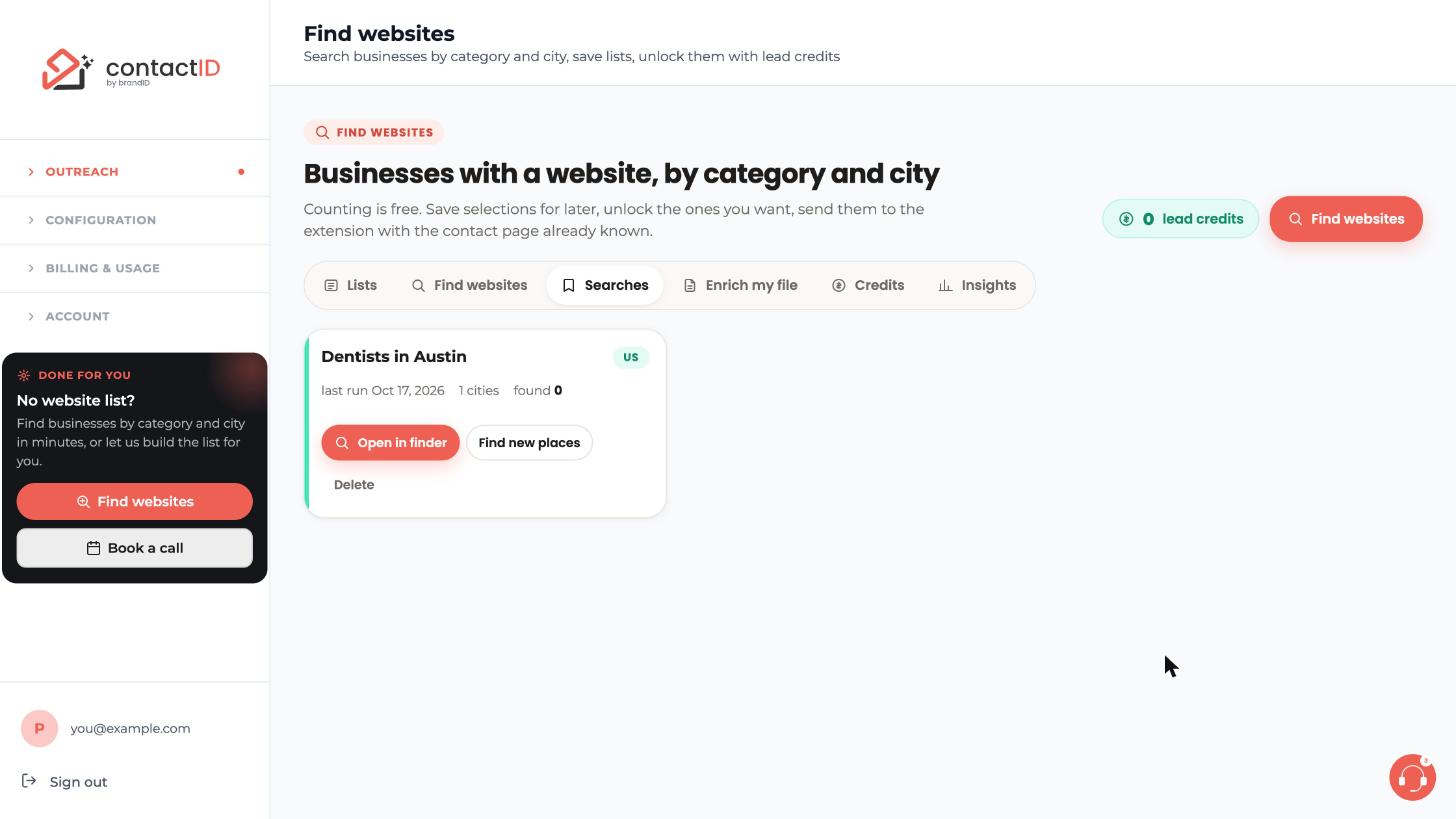
Click the Searches tab. Each saved search is a card. In this example the card is called Dentists in Austin, with a country tag (US), the date of its last run, the number of cities and how many businesses were found.
Every card has three buttons: Open in finder, Find new places and Delete.
Reuse a search with Open in finder
Click Open in finder on the card. It brings back the categories and cities in the finder, where the free count runs as usual. If you used filters, set them again.
This is also how you change quantities: a draft’s quantities cannot be edited, so open the search with Open in finder, set new quantities, then save or unlock again. Delete the old draft on the Lists tab if you no longer need it.
Look for new places with Find new places
Click Find new places to go back to the same categories and cities later. It creates a new draft that contains only businesses you do not have yet. Businesses already in your Ready, Imported or Archived lists are skipped, so you never pay twice for the same business.
Delete a search you no longer need
Click Delete on the card of a saved search you will not use again.
Tips
- Saving a selection is free, so save before you decide whether to unlock.
- To go back to a city weeks later, use Find new places instead of Duplicate on a list: Duplicate does not skip businesses you already hold.
- Filters may not come back with the search, so check step 3 after you open it in the finder.
If something goes wrong
I cannot change the quantities on my draft.
A draft’s quantities cannot be edited. Open the search from Searches with Open in finder, set new quantities and save or unlock again.
My filters are not there after Open in finder.
It brings back the categories and cities. Set your filters again if you used any.
Find new places gave me fewer businesses than before.
It skips every business you already hold in other lists (Ready, Imported or Archived), so only new ones are left. Fewer businesses may simply be new to you.
Related how-to guides
Still stuck? We’re happy to help.
Install the extension, start a free trial, or reach out to support.




