
How to let AI apps use your computer
Choose whether AI apps may add websites and run sending on a computer, and see what they did there. It takes about 2 minutes.
Before you start
- Chrome with the contactID extension signed in to your account, on the computer you want to set
- An AI app connected to contactID, to see anything happen
Know why a computer is involved
Sending and checking websites happen in the contactID extension on your computer, so some AI requests are carried out there: adding and checking websites, changes to your Send lists, your Sending pace and filters, answers to form questions, and starting, pausing, resuming or stopping a run. Chrome must be open with the extension signed in to the same account.
Open Settings in that computer’s Chrome
Each computer has its own switch, so open the dashboard in the Chrome where contactID is installed. In the sidebar, open Configuration and choose Settings. You can also open Settings from the extension’s account menu.
Open Sync & AI access
In the Settings menu on the left, choose Sync & AI access. Scroll to the box Let AI apps use contactID on this computer. It is on by default.
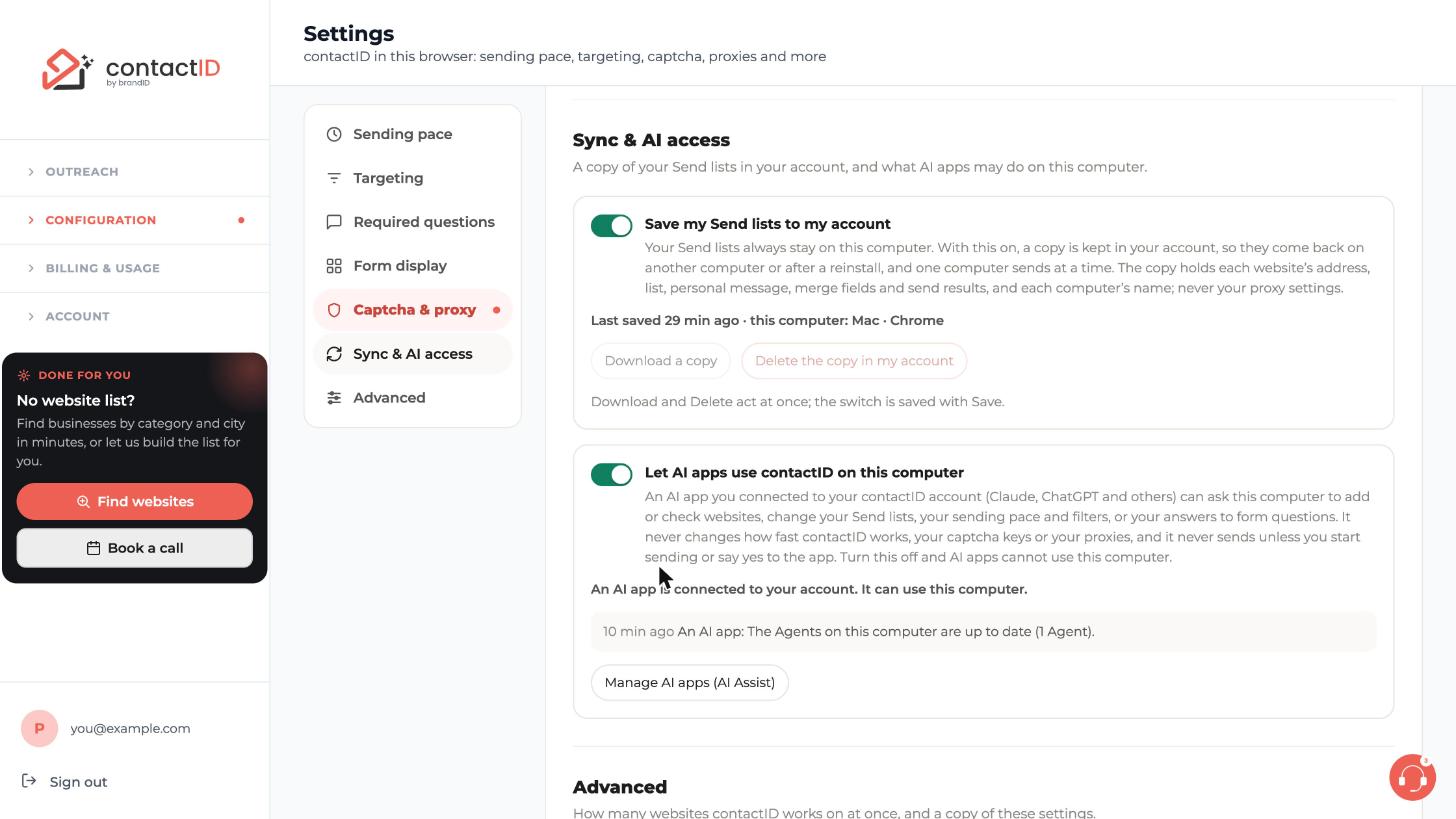
Turn the switch on or off
Click the switch. Turn it off and AI apps cannot use this computer. The box also lists what AI apps did there, and a Manage AI apps (AI Assist) button takes you to the AI Assist page. The page notes that the switch is saved with Save, so save your settings after changing it.
Even when it is on, it never changes how fast contactID works, your captcha keys or your proxies, and it never sends unless you start sending or say yes to the app.
See your computers and stop AI apps on one
In the dashboard, open Account, AI Assist (MCP) and the Computers tab. Your computers lists each Chrome profile with contactID signed in, with its state (for example ONLINE and OPEN TO AI APPS), whether it is sending, what is queued and sent, the Agent and the extension version. Press Stop AI apps here to stop AI apps on that computer.
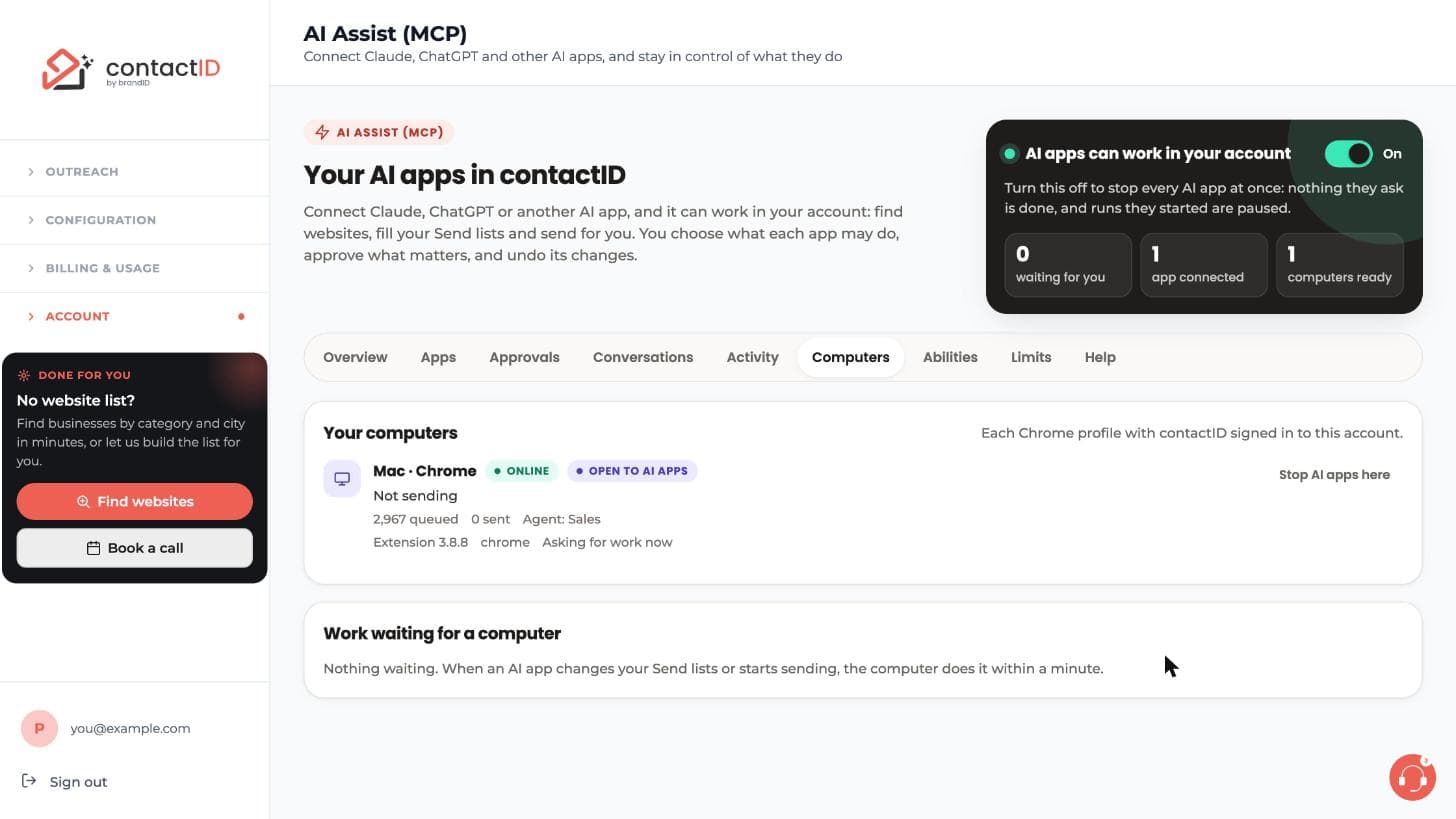
Know how fast and when it works
While an AI app is connected, each computer checks for requests about every 30 seconds (every 10 seconds while an app is working). Opening the side panel or starting Chrome makes it check at once. The side panel does not need to be open, but the computer must be awake and online.
If the computer is off, the request waits and is done when it is back online. Requests expire after 24 hours, and a start after 2 hours.
Tips
- A run an AI app starts sends at most the number of websites you said yes to, then stops.
- If Chrome closes during a run, a website already sent is never sent again, and the websites not sent yet wait in Queued for the next start.
- Pausing every AI app (the switch at the top of the AI Assist page) pauses those runs too, on every computer.
If something goes wrong
The app says it cannot reach my computer
Open Chrome with the contactID extension signed in to the same account. Check Let AI apps use contactID on this computer is on in Settings, Sync & AI access, and that the computer is not stopped on the Computers tab. The computer must be awake and online.
The app says to update the contactID extension
The app asked for something the extension on that computer cannot do yet. Chrome updates extensions by itself. To do it now, open chrome://extensions, turn on Developer mode and press Update, then ask again.
The app says to answer the Send lists question first
The extension is asking about its Send lists. Answer it on the extension’s Send tab, or ask the app to answer it. Answers that move, combine or remove websites ask you first.
Related how-to guides
Still stuck? We’re happy to help.
Install the extension, start a free trial, or reach out to support.




