
How to filter your Find websites results
Narrow a Find websites search with filters such as contact page, phone number, rating and reviews, and read the quality hints on each city. It takes about a minute.
Before you start
- A search with at least one category and one city (see How to find websites by category and city)
Start a search
Open Outreach, then Find websites, and fill step 1 What (for example plumber) and step 2 Where (one or more cities). The search runs by itself once both are filled.
Open the Filters step
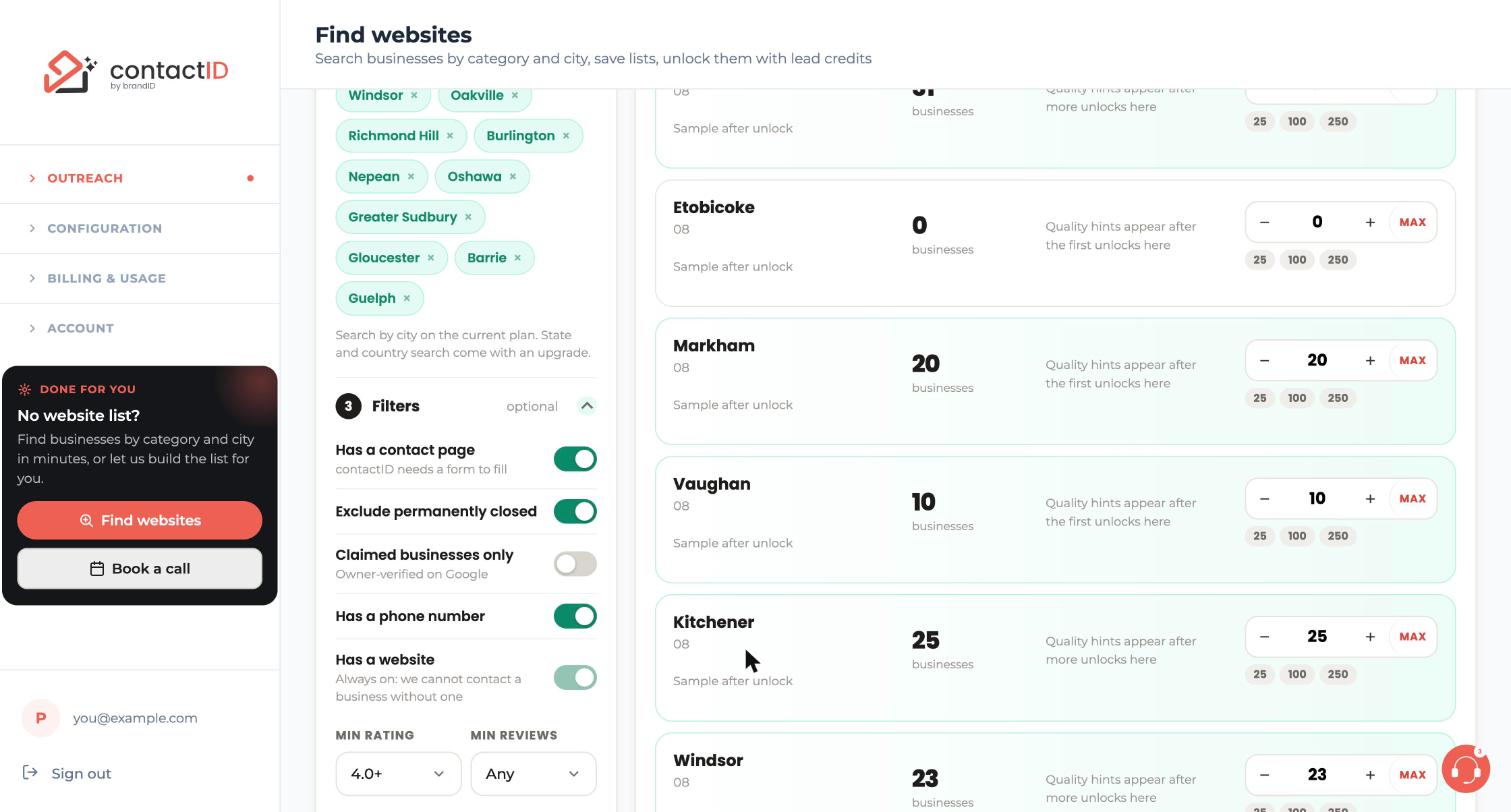
Step 3 Filters is marked optional and is collapsed. Press its header, or the small arrow on the right, to open it. It stays open in this browser until you close it.
Check the switches that are on
These filters are switches:
- Has a contact page ("contactID needs a form to fill"). It is on by default.
- Exclude permanently closed. It is on by default.
- Claimed businesses only ("Owner-verified on Google"). It is off until you switch it on.
- Has a phone number. In this example it is switched on.
- Has a website is always on, because a business cannot be contacted without one. You cannot switch it off.
Set a minimum rating and minimum reviews
Under the switches, open the MIN RATING box and pick a value. The options go from 3.0+ to 4.5+ stars. In this example it is set to 4.0+.
Open MIN REVIEWS and pick 5+, 20+, 50+ or 100+. Any means no minimum.
Look at the counts after filtering
Counting is free, so you can switch filters on and off and look at the numbers in the totals bar and on each city card. A stricter filter normally leaves fewer businesses. Keep the combination that gives you a list you are happy to contact.
Read the quality hints on each city
Under a city’s count you may see two percentages: Have a contact form (the share of businesses in that city and category in the contactID catalog whose website has a contact page) and Success for contactID users (the share of submissions that succeeded among businesses contactID users already contacted there).
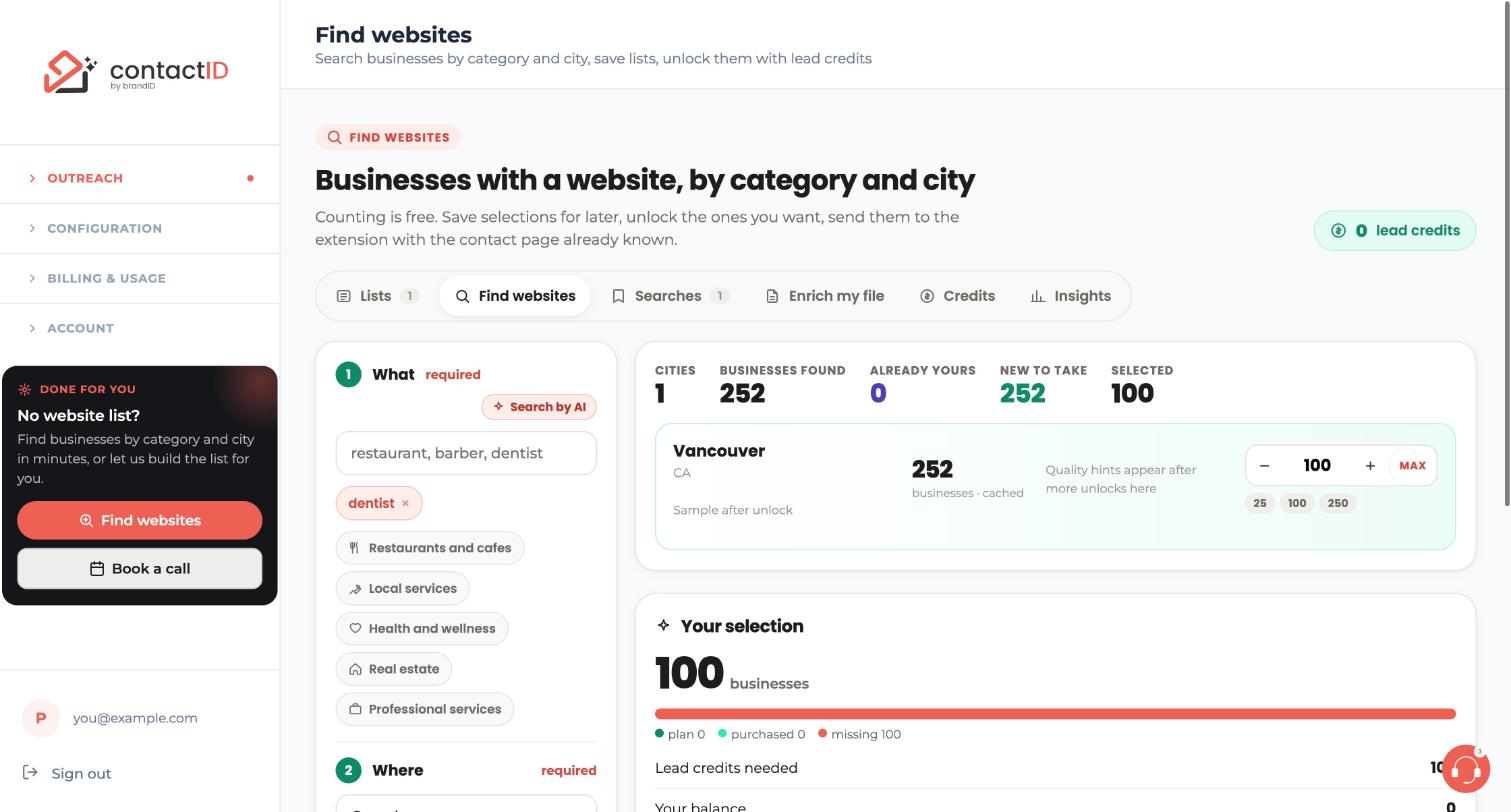
A percentage only appears when there is enough data. Until then you see a line such as Quality hints appear after more unlocks here, as on the Vancouver card.
Continue to your selection
When the counts look right, set a quantity per city and scroll to Your selection to save the selection for free or unlock it.
Tips
- Leave Has a contact page on unless you have a reason not to: contactID needs a form to fill.
- Use the quality hints to prefer cities and categories where more websites have a contact form.
- If you save a search and open it later with Open in finder, set your filters again if you used any.
If something goes wrong
I never see the quality percentages.
They appear only once there is enough data behind them. Before that you see Quality hints appear after the first unlocks here or after more unlocks here. They come from contactID’s own data, not from a provider.
A filter I read about is missing.
Some filters (for example email, Facebook, Instagram and LinkedIn) appear only where they are available on your plan. The Filters step shows what your plan offers.
Can I switch off Has a website?
No. It is always on, because contactID cannot contact a business without a website.
Related how-to guides
Still stuck? We’re happy to help.
Install the extension, start a free trial, or reach out to support.




